How to Backup and Restore Microsoft Defender Firewall in Windows 11

You can backup and restore Microsoft Defender Firewall settings in Windows 11 to preserve your custom security rules.
Microsoft Defender Firewall is the built-in security feature in Windows that controls incoming and outgoing network traffic, acting as a vital shield against online threats.
Saving your firewall configuration, for example, helps you quickly reapply your specific rules if you upgrade to a new PC or revert changes after troubleshooting, ensuring your protection remains consistent.
This article shows you how to create a backup file of your current firewall rules and how to import them back into Windows 11.
To backup your Windows 11 firewall settings, open Windows Security, go to Firewall & network protection, then Advanced settings, and click Export Policy. To restore, return to Advanced settings and click Import Policy, then select your backup file.
Method 1Using Windows Security App
You can back up your Microsoft Defender Firewall settings using the Windows Security app that’s already on your Windows 11 computer.
- Click the Start button on your taskbar.
- Select Settings from the menu.
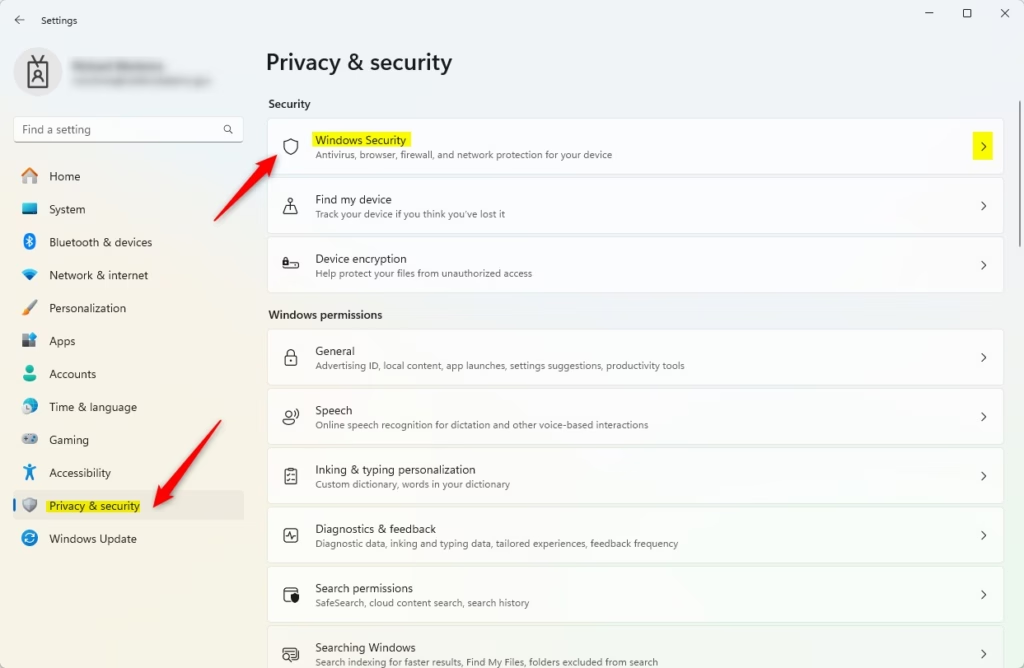
- Click Privacy & security on the left side.
- Find the Windows Security tile and click it.
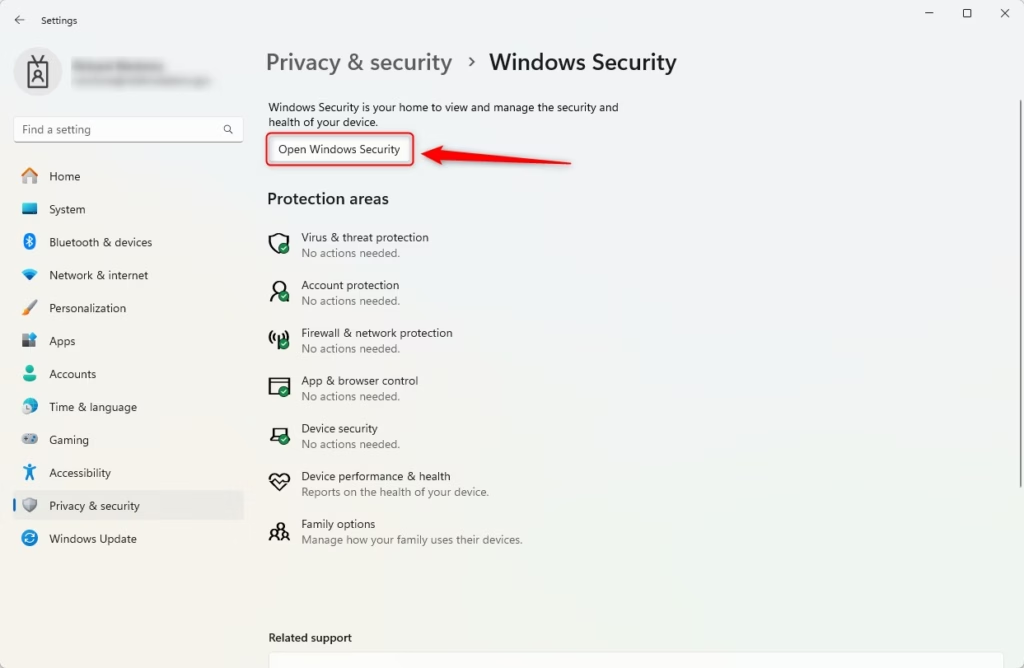
- Click the Open Windows Security button.
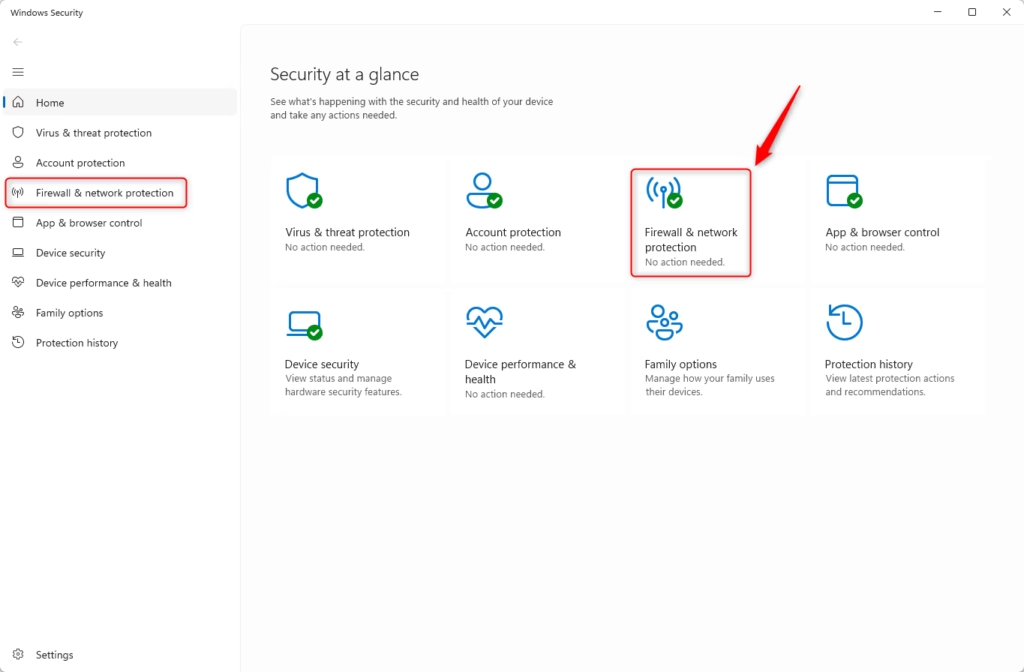
- In the Windows Security app, select Firewall & network protection. You can also use this shortcut: Firewall & network protection.
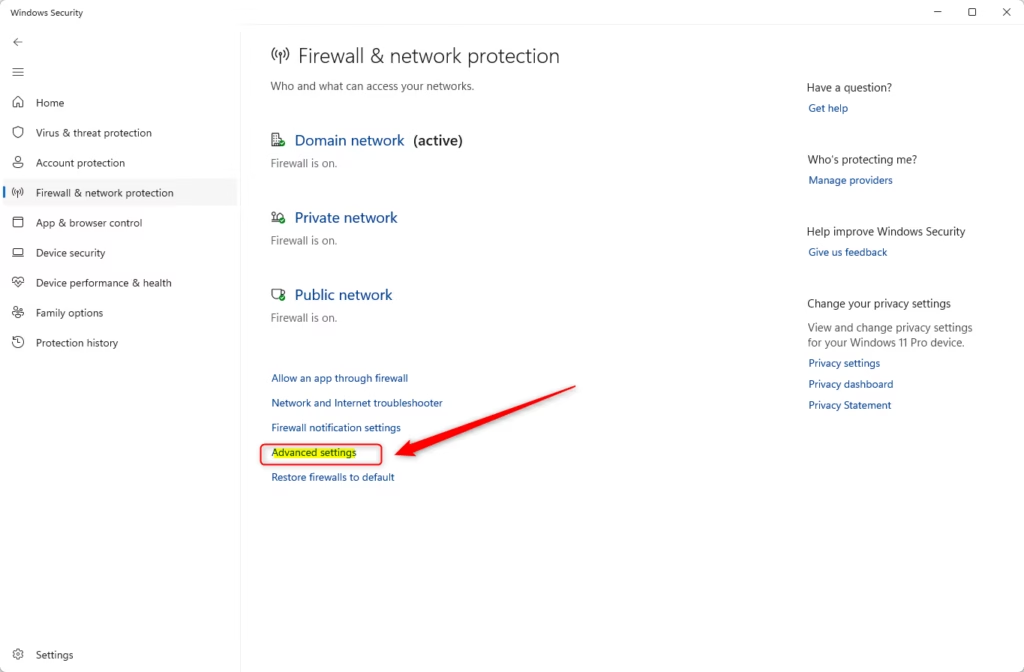
- Scroll down and click the Advanced settings link at the bottom.
To Back Up Your Settings:
- In the window that opens, click Export Policy.
- Choose where you want to save your backup file.
- Give the file a name (it will be a .wfw file).
- Click Save.
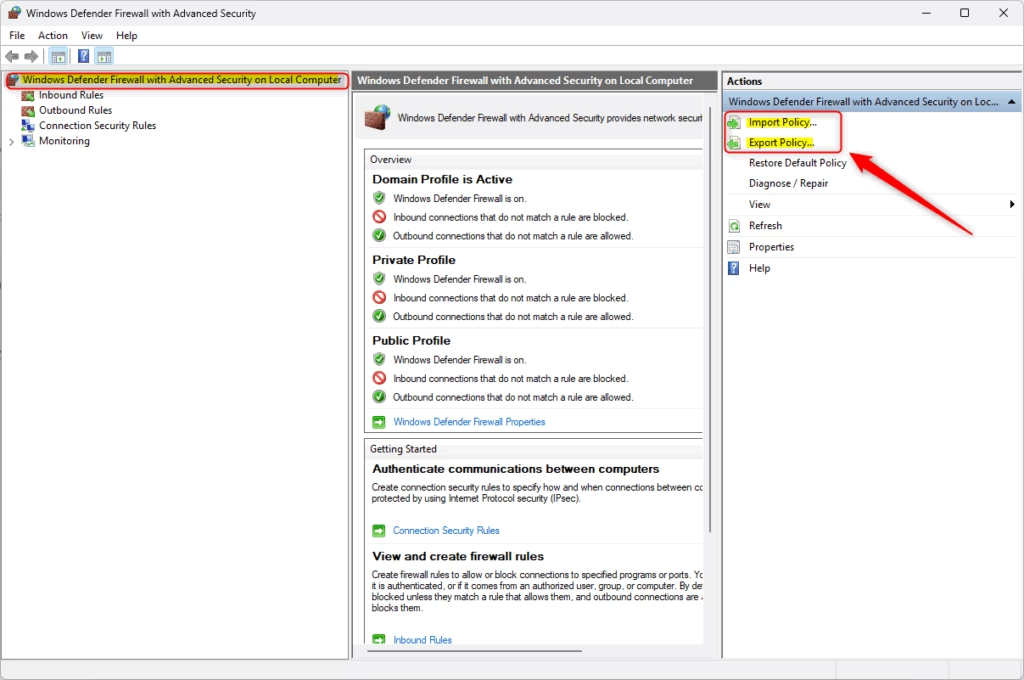
To back up your settings, find and click the ‘Export Policy’ button within the Windows Security app.
To Restore Your Settings:
- Go back to the Advanced settings window.
- Click Import Policy.
- Find your backup file and open it.
- Your firewall settings will be restored.
Method 2Using Command Prompt or PowerShell
You’ll need administrator privileges for this method.
- Open the Windows Terminal app as administrator.
- Choose either the Command Prompt or PowerShell tab.
To Back Up Your Settings:
Using Command Prompt:
netsh advfirewall export "%userprofile%\Desktop\FirewallBackup.wfw"Using PowerShell:
netsh advfirewall export "$Env:USERPROFILE\Desktop\FirewallBackup.wfw"This creates a backup file named “FirewallBackup.wfw” right on your Desktop. What happens? Your firewall settings get saved into one file that you can use whenever you need it.
To Restore Your Settings:
Run this command in either Command Prompt or PowerShell:
netsh advfirewall import "C:\Users\User\Desktop\FirewallBackup.wfw"⚠️ Note: Just be sure to replace “📁C:\Users\User\Desktop\FirewallBackup.wfw” with the exact path to your backup file.
And that’s it!
Summary
Backing up your Microsoft Defender Firewall settings in Windows 11 is important for security, and you can do it easily using either the Windows Security app or Command Prompt and PowerShell.
- Windows Security App: Use the Export and Import Policy buttons. This is easier for most people.
- Command Prompt or PowerShell: Use special commands to back up and restore your settings. This method requires administrator privileges.
Why do this? Regularly backing up your firewall settings lets you quickly restore them if something goes wrong. It also helps when you set up a new computer.
What happens when you do this? Your firewall configuration stays the same, and your network security stays protected. Always keep your backup files in a safe place where only you can access them.
How to backup Windows Firewall settings?
And then just to check we can see that we’ve got the backup. Wfw. File on our desktop. Now we’ve got the backup file if we want to restore.
Does Microsoft Defender have a built-in firewall?
Windows Defender Firewall is firewall software built into Windows that controls which network traffic is allowed, or blocked, from passing to or from your computer across the network. Windows Defender Firewall is on by default.
Where can I find my Microsoft Defender Firewall?
1) Make sure Microsoft Defender Firewall is enabled. If it’s not already enabled, you can turn it on in Settings > Privacy & security > Windows Security > Firewall & network protection.
Was this guide helpful?

About the Author
Richard
Tech Writer, IT Professional
Richard, a writer for Geek Rewind, is a tech enthusiast who loves breaking down complex IT topics into simple, easy-to-understand ideas. With years of hands-on experience in system administration and enterprise IT operations, he’s developed a knack for offering practical tips and solutions. Richard aims to make technology more accessible and actionable. He's deeply committed to the Geek Rewind community, always ready to answer questions and engage in discussions.



No comments yet — be the first to share your thoughts!