How to Access Protection History in Windows 11

You access protection history in Windows 11 to review the threats Microsoft Defender Antivirus has detected and removed.
Microsoft Defender Antivirus is the integrated security software for your Windows PC, working constantly to identify and eliminate malware. The protection history acts as a logbook detailing these security events.
Within the Windows Security app, navigate to “Virus & threat protection” and then select “Protection history” to view these records. This section typically displays specific threat names, the actions Defender took (such as quarantine or removal), and the date of detection.
Open Windows Security, click “Virus & threat protection,” then select “Protection history” to view detected threats and actions taken by Microsoft Defender Antivirus. This log shows what has been quarantined or blocked.
Why check 🪟 Windows 11 Protection History?
Checking your Windows 11 Protection History lets you see what Microsoft Defender has done to keep your computer safe from viruses and malware.
What happens when you are done?
After checking, you’ll know if your computer is safe. You’ll also know if you need to address any security warnings. This helps keep your system running fast and clean.
How to view your security history
You can easily view your Windows 11 Protection History by opening the Windows Security app and clicking on Virus & threat protection, then selecting Protection history.
- Click the search box on your taskbar.
- Type Windows Security and click the app.
- Click Virus & threat protection on the left.
- Click Protection history.
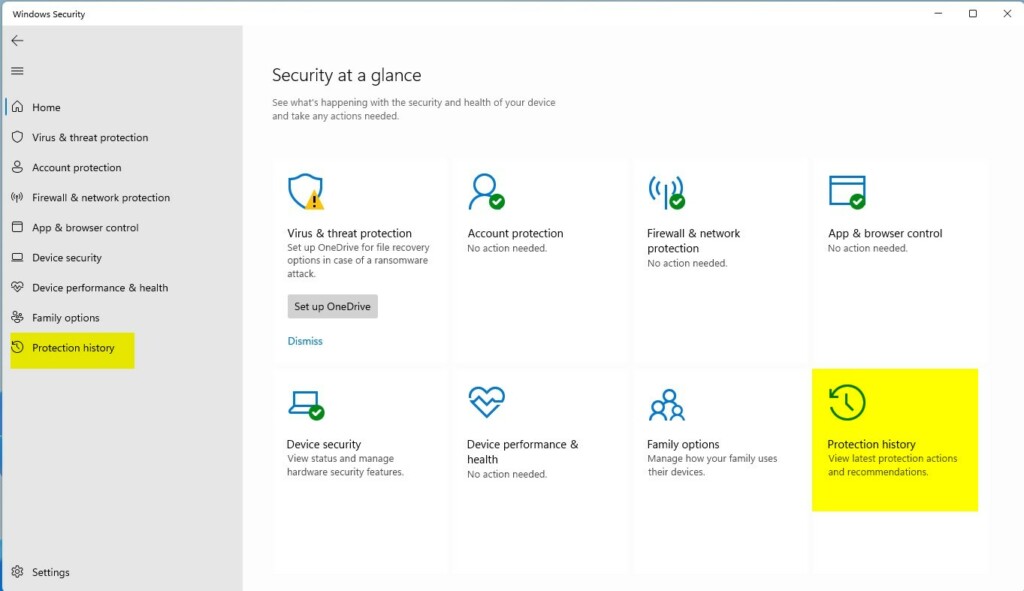
You’ll see a list of recent actions. A red badge indicates a serious issue. A yellow badge means you should look into it soon.
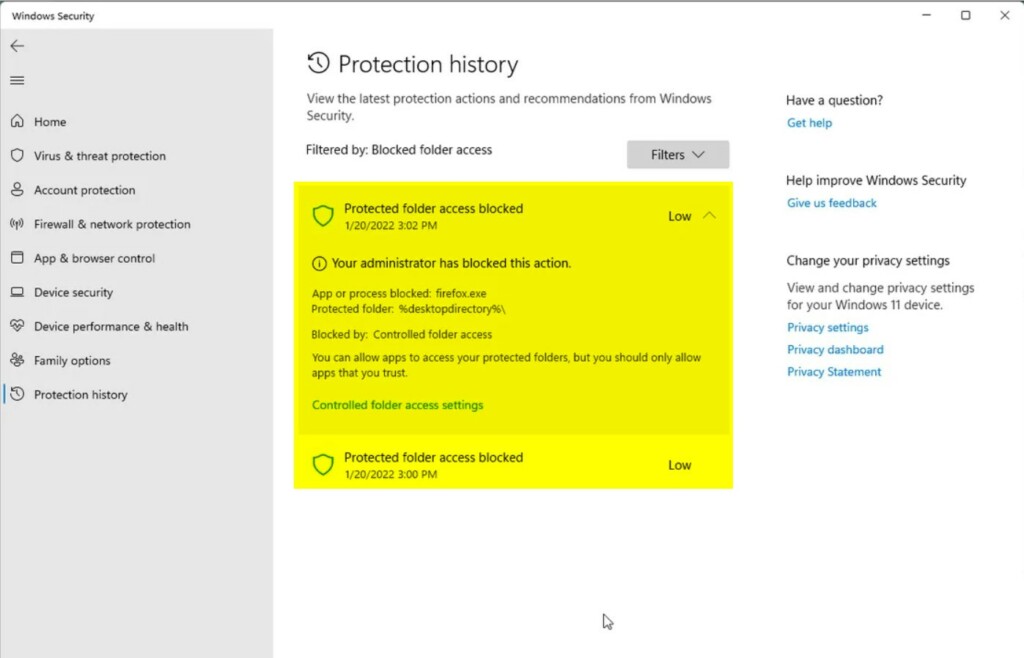
Managing Protection History logs
If your Windows 11 Protection History logs get too long or show old threats, you can clear them manually by deleting files in a specific Windows Defender folder.
[ADMIN PRIVILEGES REQUIRED]
- Open File Explorer.
- Navigate to 📁C:\ProgramData\Microsoft\Windows Defender\Scans\History\Service\DetectionHistory.
- Delete all files inside this folder.
This action clears the history displayed in the Windows Security app. Keep in mind that the Windows Defender Service will create new logs as it identifies new threats.
Understanding threat statuses
- Quarantined: The file is locked in a safe folder. It cannot run or harm your PC.
- Blocked: The threat was stopped before it could start.
- Remediation Incomplete: The system tried to fix the issue but needs your help. You may need to restart your PC.
Advanced settings and troubleshooting
Troubleshooting your Windows 11 Protection History involves checking if the Windows Defender Service is running and making sure Tamper Protection is turned on in your security settings.
Ensure that Tamper Protection is enabled in your settings. This stops malicious applications from altering your security configurations. You can also utilize Controlled folder access to prevent programs from modifying your files without authorization.
Summary
Your Windows 11 Protection History acts as a key tool for tracking security actions taken by Microsoft Defender, helping you understand what threats have been blocked or quarantined.
How do I delete old protection history logs in 🪟 Windows 11?
Why does Windows Security show a threat that I already removed?
Can I recover files from the Protection History quarantine?
Can you delete Windows protection history?
Manually deleting Windows Security protection history: Navigate to the Windows Defender protection history folder (📁C:\ProgramData\Microsoft\Windows Defender\Scans\History), delete the Service folder to clear stored threat logs, and restart the device.
Was this guide helpful?

About the Author
Richard
Tech Writer, IT Professional
Richard, a writer for Geek Rewind, is a tech enthusiast who loves breaking down complex IT topics into simple, easy-to-understand ideas. With years of hands-on experience in system administration and enterprise IT operations, he’s developed a knack for offering practical tips and solutions. Richard aims to make technology more accessible and actionable. He's deeply committed to the Geek Rewind community, always ready to answer questions and engage in discussions.


No comments yet — be the first to share your thoughts!