How to Allow Apps in Windows 11 Controlled Folder Access

This guide shows you how to let specific apps use your protected folders using Microsoft Defender Antivirus in Windows 11.
To allow an app through Windows 11 Controlled Folder Access, open Windows Security, go to Virus & threat protection, then Ransomware protection. Click “Allow an app through Controlled folder access,” select “Add an allowed app,” and browse to the program you wish to permit.
Understanding 🪟 Windows 11 Controlled Folder Access
Windows 11 controlled folder access is a security tool that protects your important files from unwanted changes, especially from ransomware that tries to lock up your data.
Why do this?
Sometimes, Windows 11 blocks a safe app because it thinks the app is a threat. By adding that app to your allowed list, you tell Windows that the program is safe to use. This keeps your files protected while letting your trusted apps work normally.
What happens when done?
Once you add an app to the list, it can read and write to your protected folders without being blocked. Ransomware will still be blocked by default, keeping your data safe from being locked by hackers.
Allowing apps through Controlled folder access
Windows 11 controlled folder access might block an app you trust, but you can easily add it to the allowed list through Windows Security settings.
- Click the search box on your taskbar, type Windows Security, and click Windows Security.
open windows security app - Click Virus & threat protection.
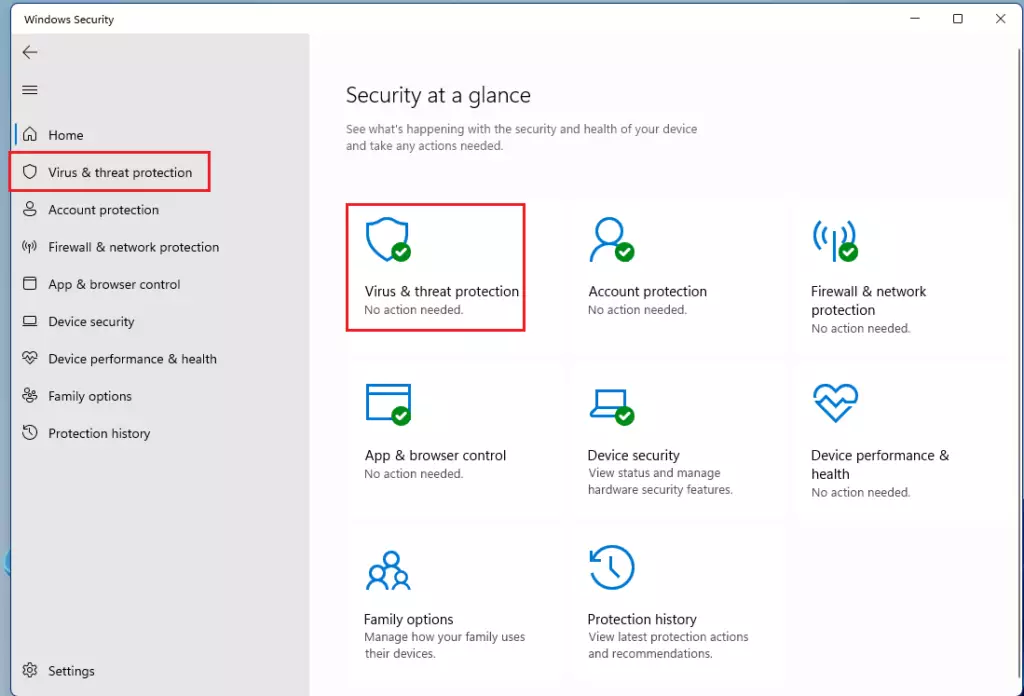
open windows virus and protection - Look for Ransomware protection and click Manage ransomware protection.
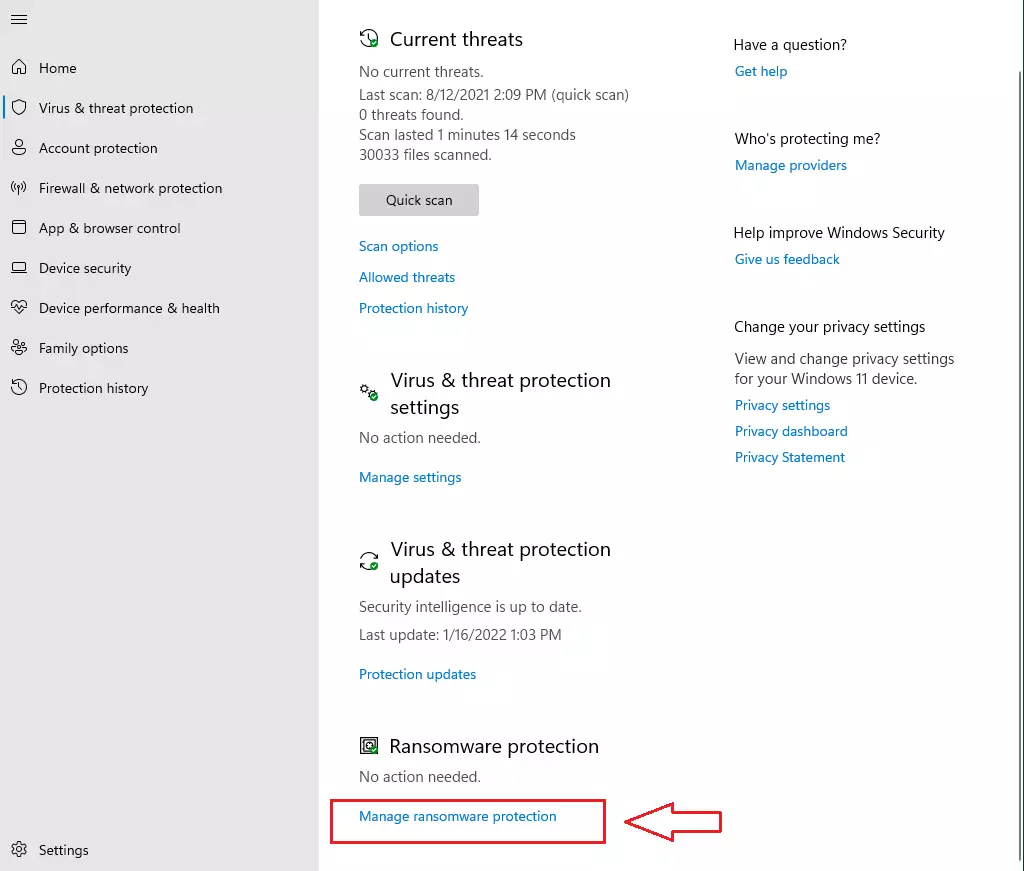
windows 11 controlled folder access turn on - Make sure Controlled folder access is turned On.
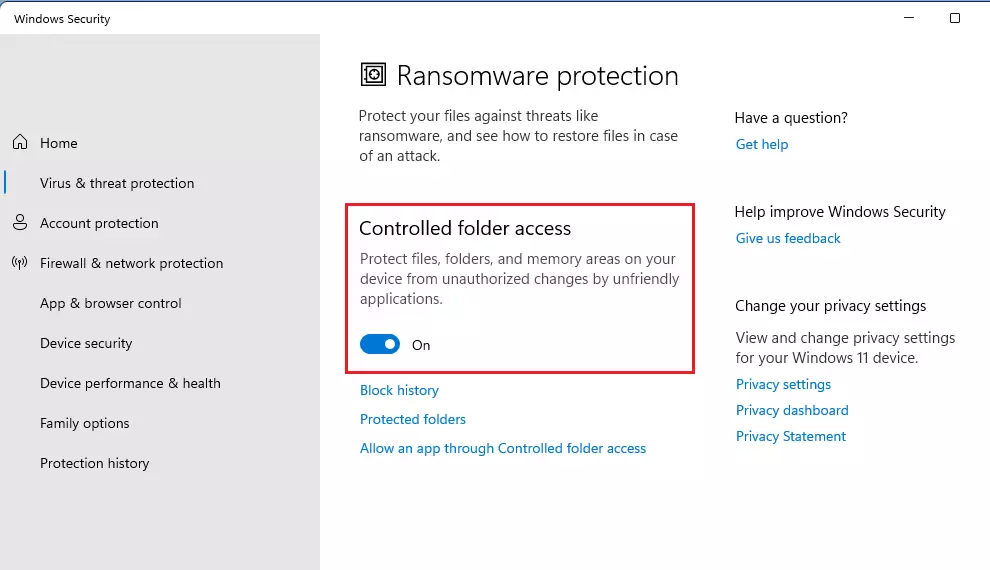
windows 11 turn on controlled access folder - Click the link that says Allow an app through Controlled folder access.
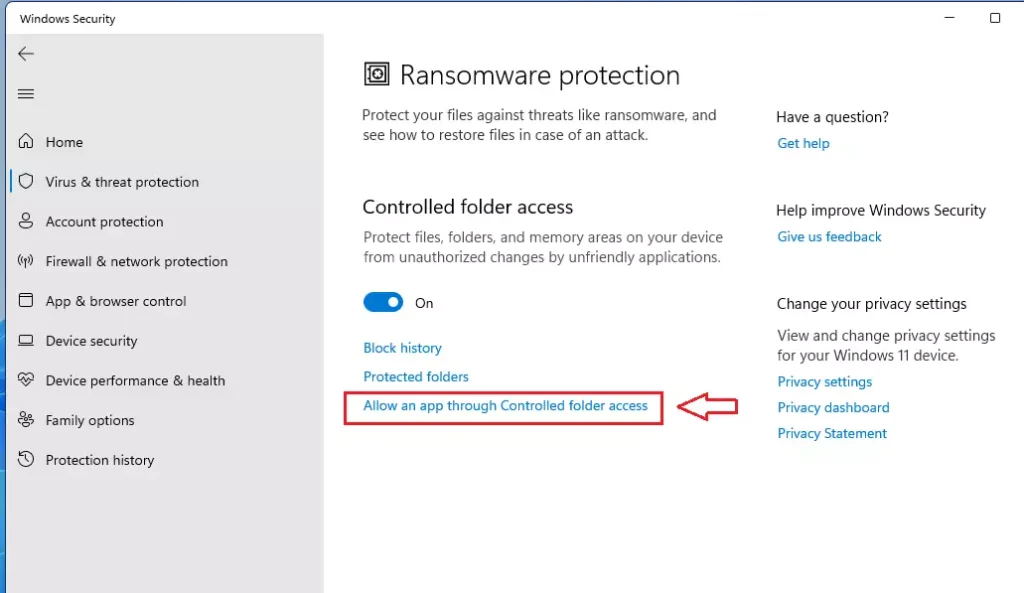
windows 11 allow app through protected folders - Click Add an allowed app. Find the program you want to allow on your computer and click Open.
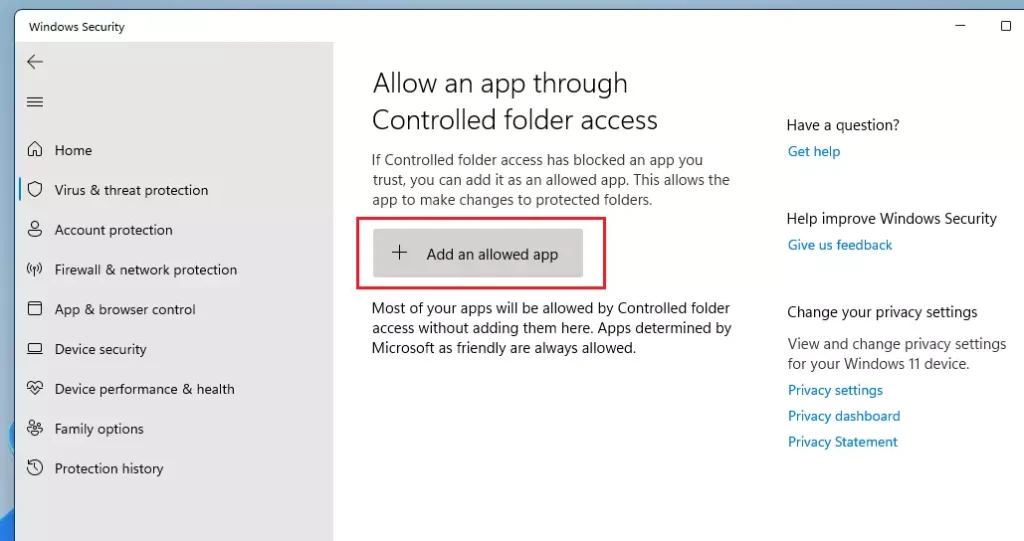
windows 11 allow app through protected folder button
Managing access with PowerShell (Admin)
Note: This section requires admin privileges.
You can use PowerShell to quickly whitelist applications. Open PowerShell as an administrator and use the following command:
Add-MpControlledFolderAccessAllowedApplication -ApplicationPath "C:\Path\To\Your\App.exe"
This command adds the specified executable to the whitelist, allowing it to bypass the restriction immediately.
Managing access with Registry (Admin)
Note: This section requires admin privileges.
Advanced users can modify the registry to manage allowed apps. Navigate to 🗝️HKEY_LOCAL_MACHINE\SOFTWARE\Microsoft\Windows Defender\Windows Defender Exploit Guard\Controlled Folder Access\AllowedApplications. You can add a new string value here with the full path of your application.
Troubleshooting and Event Viewer
When Windows 11 controlled folder access blocks an app, you can check the Event Viewer to see exactly which program was stopped, helping you troubleshoot the issue.
Enterprise and MDM Deployment
In a business environment, IT administrators use Microsoft Defender for Endpoint and Attack Surface Reduction (ASR) rules to manage these settings across many computers. Using Intune or Group Policy, admins can push a centralized list of allowed applications to ensure consistent threat prevention across the entire organization.
Summary
Controlled folder access is a vital layer of data security. By managing your allowed apps through the GUI, PowerShell, or Registry, you ensure that legitimate software functions correctly while keeping ransomware at bay. Always check the Event Viewer if you suspect a legitimate app is being blocked.
Why is Controlled Folder Access missing or greyed out?
If the controlled folder access option in Windows 11 is greyed out, it usually means it’s controlled by your work or school network, or there might be a setting preventing you from changing it.
Does Controlled Folder Access impact system performance?
Controlled folder access has a negligible impact on system performance for most users. It only monitors write operations to specific protected folders. You will not notice a slowdown during daily tasks, as the security checks happen in the background without requiring significant CPU or memory resources.
Was this guide helpful?

About the Author
Richard
Tech Writer, IT Professional
Richard, a writer for Geek Rewind, is a tech enthusiast who loves breaking down complex IT topics into simple, easy-to-understand ideas. With years of hands-on experience in system administration and enterprise IT operations, he’s developed a knack for offering practical tips and solutions. Richard aims to make technology more accessible and actionable. He's deeply committed to the Geek Rewind community, always ready to answer questions and engage in discussions.

No comments yet — be the first to share your thoughts!