How to Allow Apps Through Microsoft Defender Firewall in Windows 11

You allow apps through Microsoft Defender Firewall in Windows 11 by creating specific inbound or outbound rules for them.
Microsoft Defender Firewall is Windows’ built-in network security that controls program data flow. It can sometimes block legitimate applications, like new games or essential work software, from accessing the internet or network resources.
Granting specific permissions for these trusted apps ensures they can connect without weakening your system’s overall security. You might need to allow a game’s server connection to function correctly.
By creating custom rules, you enable only the designated app to communicate freely while keeping the firewall active and vigilant against other threats. This approach is much safer than disabling the entire firewall.
You allow apps through Microsoft Defender Firewall by opening Windows Security, navigating to Firewall & network protection, clicking “Allow an app through the firewall,” and then browsing to the application’s executable file. This adds the app to the exceptions list.
How to allow an app through the firewall
You can manage this through your main Windows settings. Follow these steps:
- Open the Settings app. You can press the Windows key + I on your keyboard at the same time.
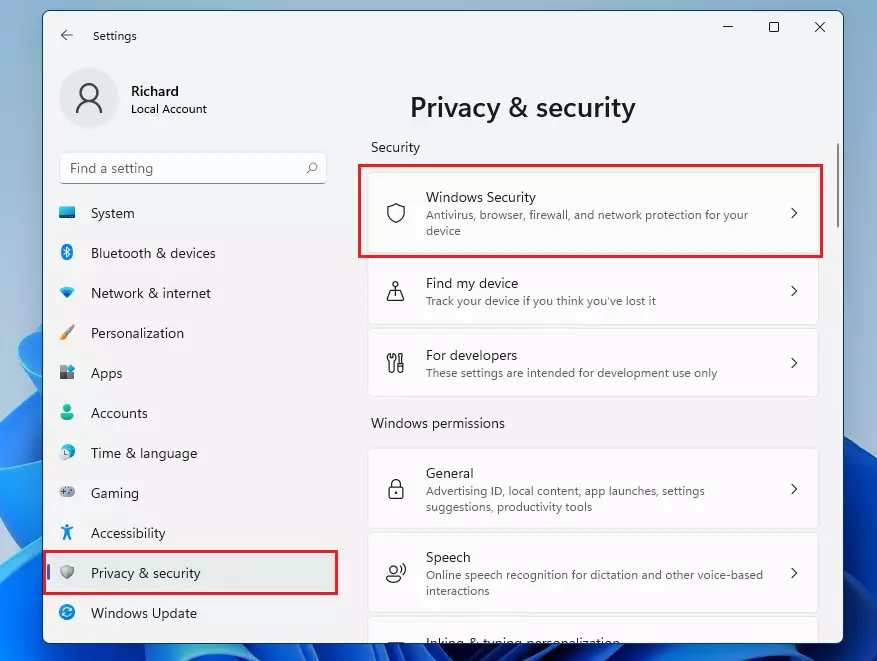
windows 11 start settings - In the menu on the left, click Privacy & security. Then, click the Windows Security box on the right.
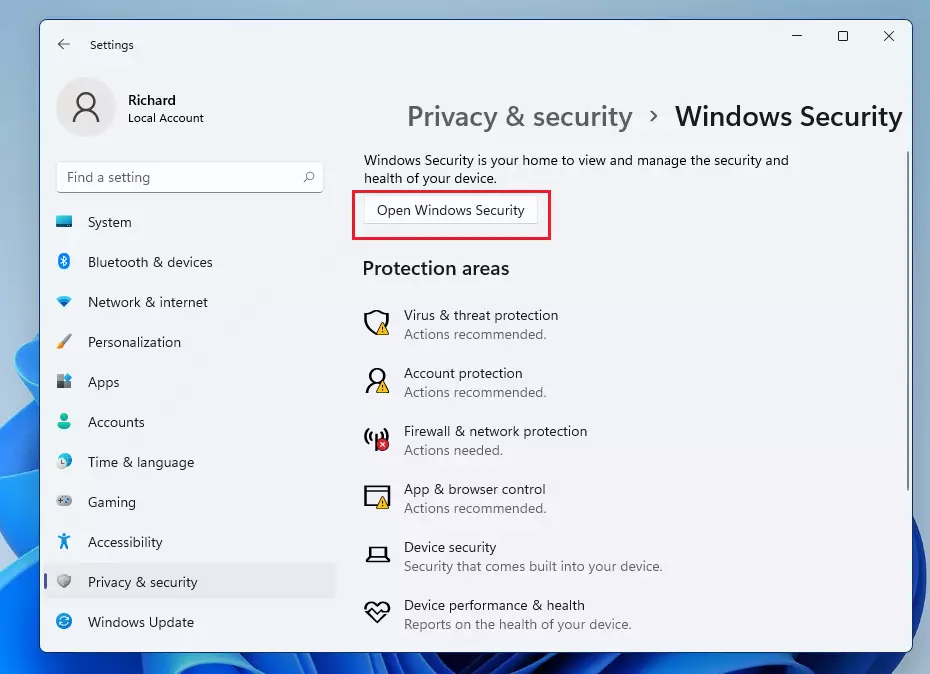
windows 11 windows security - Click the button that says Open Windows Security.
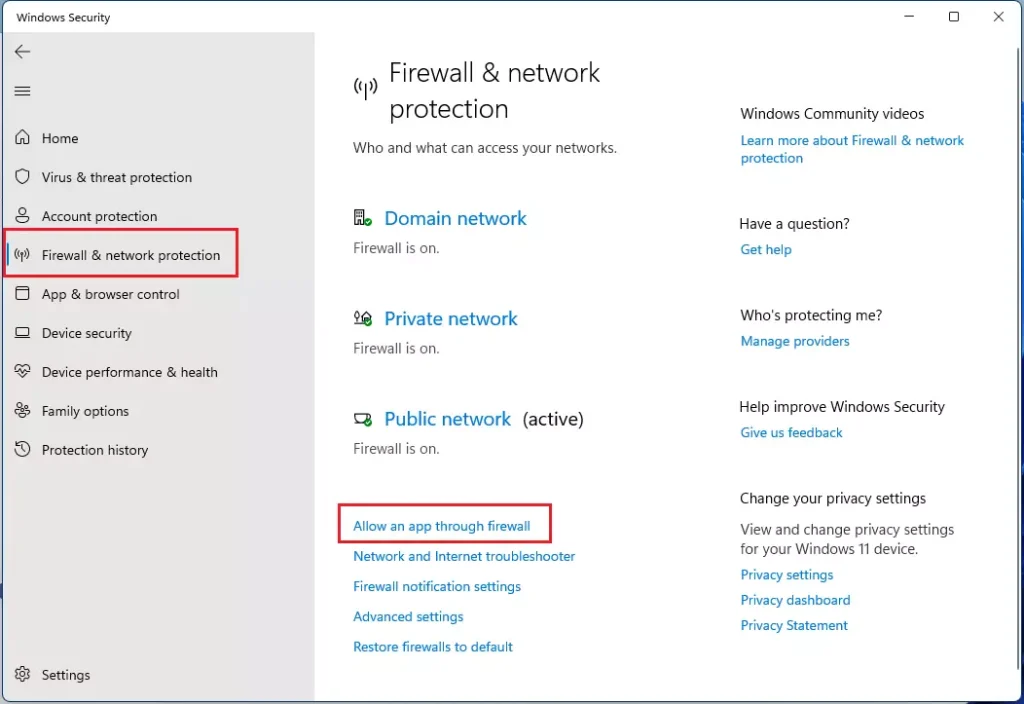
windows 11 open windows security 1 - A new window will open. Click on Firewall & network protection in the left menu.
- Look for the link that says Allow an app through the firewall and click it.
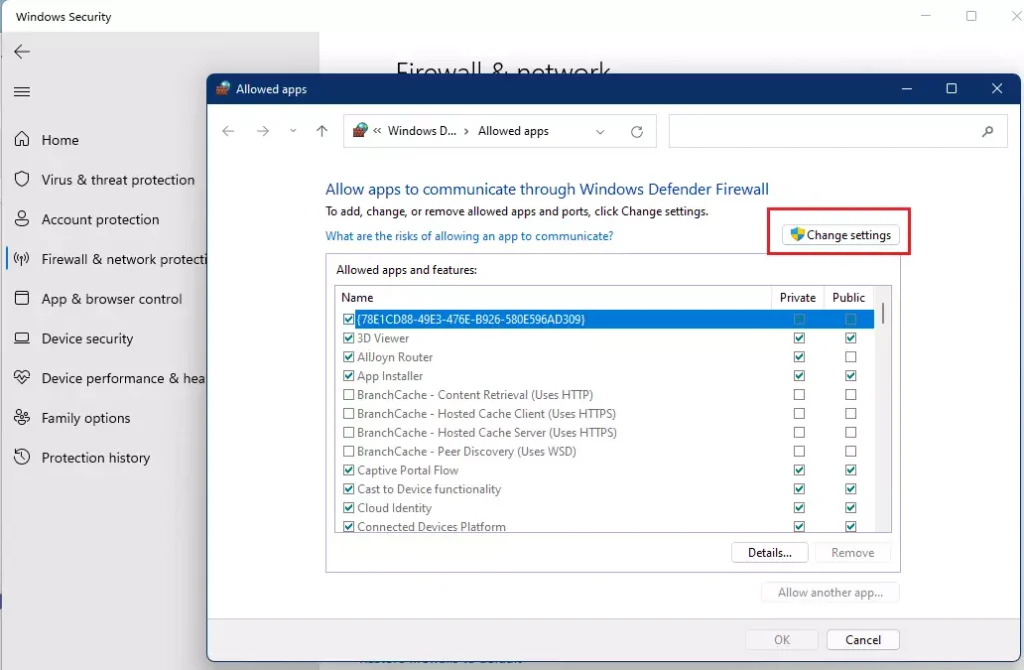
allow an app through firewall in windows 11 - Click the Change settings button at the top. Note: This step requires administrator privileges.
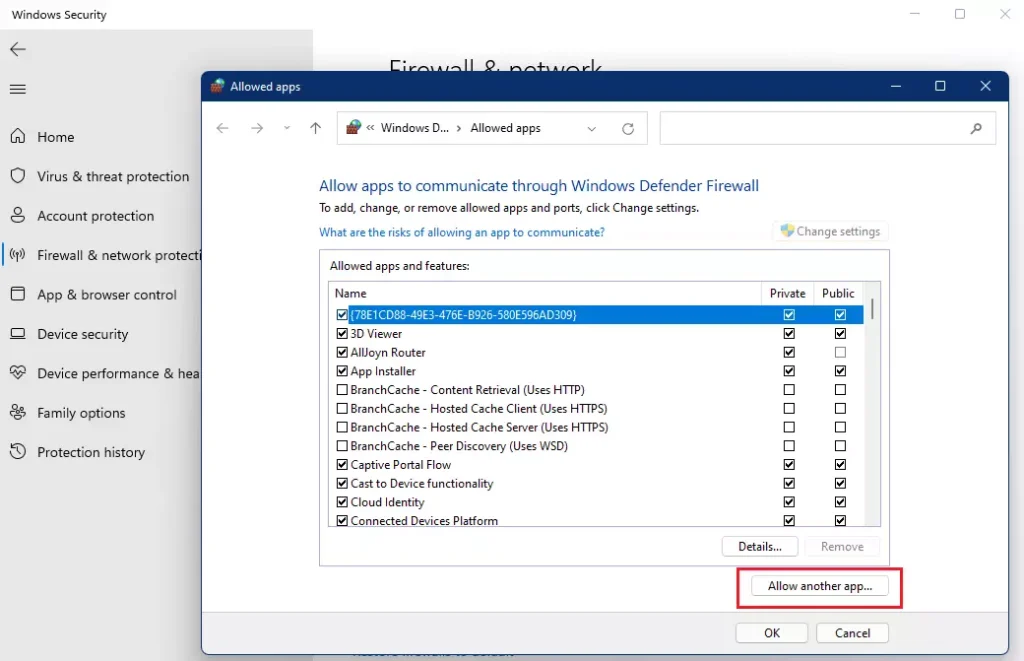
windows 11 allow app through firewall change button - Click the Allow another app… button at the bottom. Then, click Browse to find the program on your computer.
windows 11 allow another app through firewall - Locate the app’s file (usually in a folder like 📁C:\Program Files\YourApp), select it, and click Open.
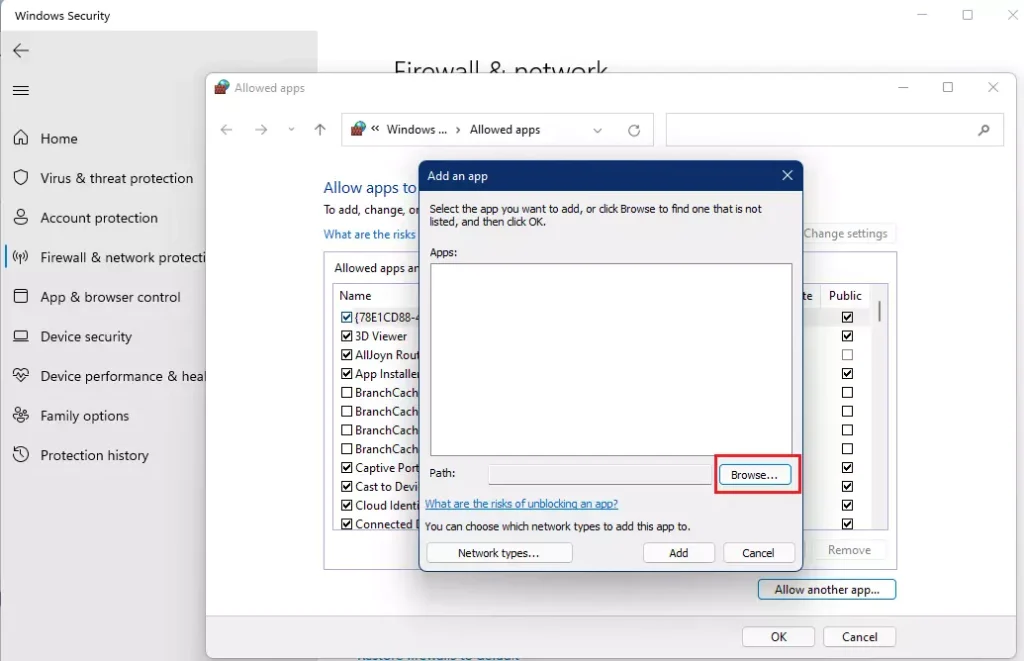
windows 11 add an app windows 11 - Click the Add button to save your changes.
Advanced Security and Troubleshooting
If the basic method fails, you may need to use Windows Defender Advanced Security. This tool allows you to create specific Inbound Rules and Outbound Rules. You can define if an app needs specific port forwarding to function correctly.
To verify your changes, use the command line. Run Command Prompt as an administrator and type: netsh advfirewall show allprofiles. This displays your current network security settings.
Summary
Microsoft Defender Firewall is a vital tool that keeps your PC safe from online threats. Instead of turning it off, which leaves your computer vulnerable, you should allow specific apps to pass through. You can do this by using the Windows Security settings menu. Keeping your firewall on is the best way to stay protected while using your favorite software.
Avoid disabling your firewall unless you have installed other security software that conflicts with it. For more information, you can read about disabling or turning off Microsoft Defender Firewall and how to protect against lock your computer for ransom.
Why is the ‘Change settings’ button greyed out?
The button is greyed out because you do not have administrator privileges. You must be logged into an account with administrative rights to modify firewall rules. If you are on a work computer, your IT department may have locked these settings to prevent unauthorized changes to network security.
How do I remove an app from the allowed list?
Go back to the ‘Allow an app through the firewall’ screen and click ‘Change settings’. Find the app in the list, click on it to highlight it, and then click the ‘Remove’ button. This will immediately block the app from communicating through the firewall again.
Is it safe to allow all apps through the firewall?
No, it is not safe. Allowing all apps through the firewall effectively disables your network protection, leaving your computer vulnerable to unauthorized inbound traffic. Only create exceptions for specific, trusted applications that require internet access to function properly for your work or entertainment.
Was this guide helpful?

About the Author
Richard
Tech Writer, IT Professional
Richard, a writer for Geek Rewind, is a tech enthusiast who loves breaking down complex IT topics into simple, easy-to-understand ideas. With years of hands-on experience in system administration and enterprise IT operations, he’s developed a knack for offering practical tips and solutions. Richard aims to make technology more accessible and actionable. He's deeply committed to the Geek Rewind community, always ready to answer questions and engage in discussions.



No comments yet — be the first to share your thoughts!