How to Enable or Disable Microsoft Defender Cloud Protection

You enable or disable Microsoft Defender Cloud Protection to boost your PC’s ability to detect new and emerging threats in real-time.
Microsoft Defender Cloud Protection, often called cloud-delivered protection, sends potentially harmful files and data samples to Microsoft for quick analysis.
This cloud intelligence helps Defender identify and block brand-new malware and zero-day exploits much faster than relying solely on traditional virus definition updates, which might only refresh daily.
This tutorial focuses on managing this crucial security setting within Microsoft Defender Antivirus on your personal Windows computer.
To enable or disable Microsoft Defender Cloud Protection, open Windows Security, go to Virus & threat protection > Manage settings, and toggle Cloud-delivered Protection on or off. This feature enhances real-time threat detection by sending suspicious files to Microsoft for analysis.
Why use Cloud Protection?
Microsoft Defender Cloud Protection helps keep your computer safe by quickly finding new viruses and threats using the cloud, offering near-instant protection against the latest malware even before traditional updates arrive.
What happens when done?
Turning off Microsoft Defender Cloud Protection means your computer won’t get the latest security updates from Microsoft’s cloud, leaving it more vulnerable to viruses and other threats.
How to change settings in Windows Security
You can change your Microsoft Defender Cloud Protection settings easily within the Windows Security app by opening it, then going to Virus & threat protection to manage those settings.
- Click the search box on your taskbar and type Windows Security.
- Select Windows Security from the list.
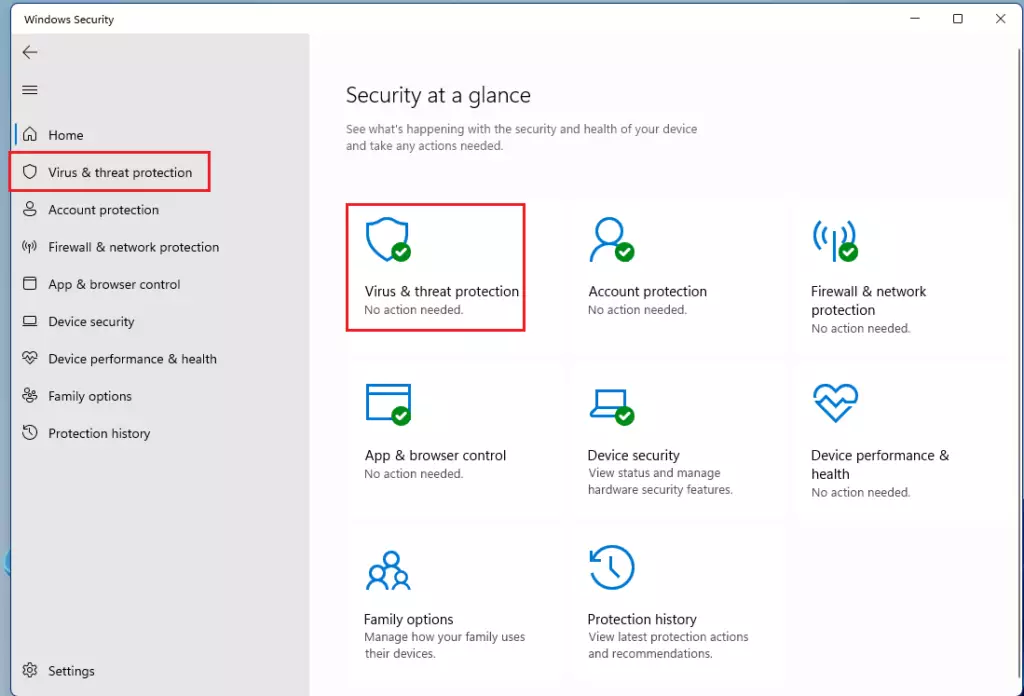
- Click on Virus & threat protection.
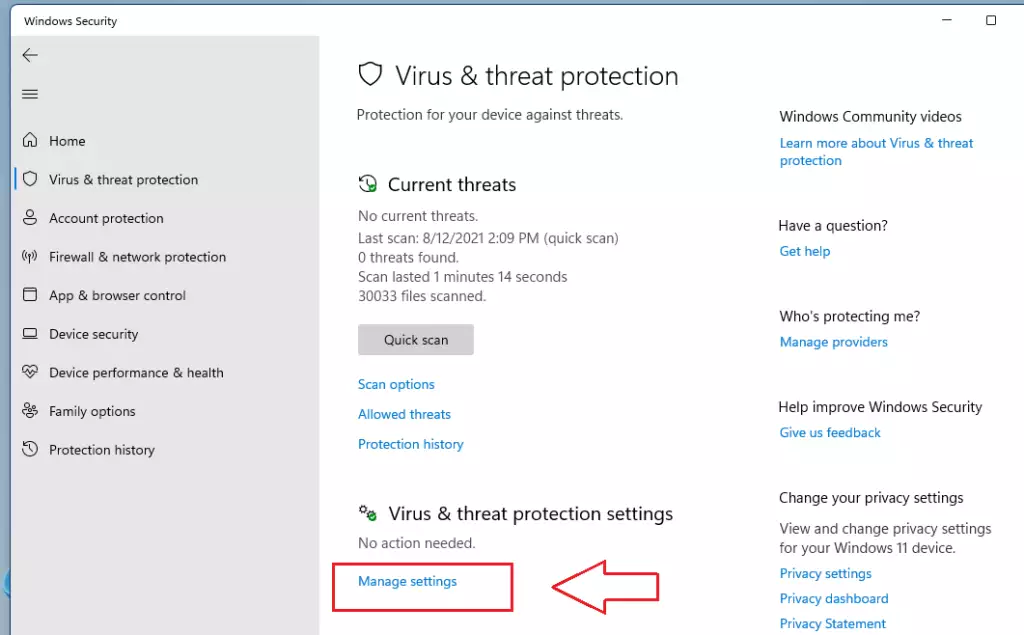
- Look for Virus & threat protection settings and click Manage settings.
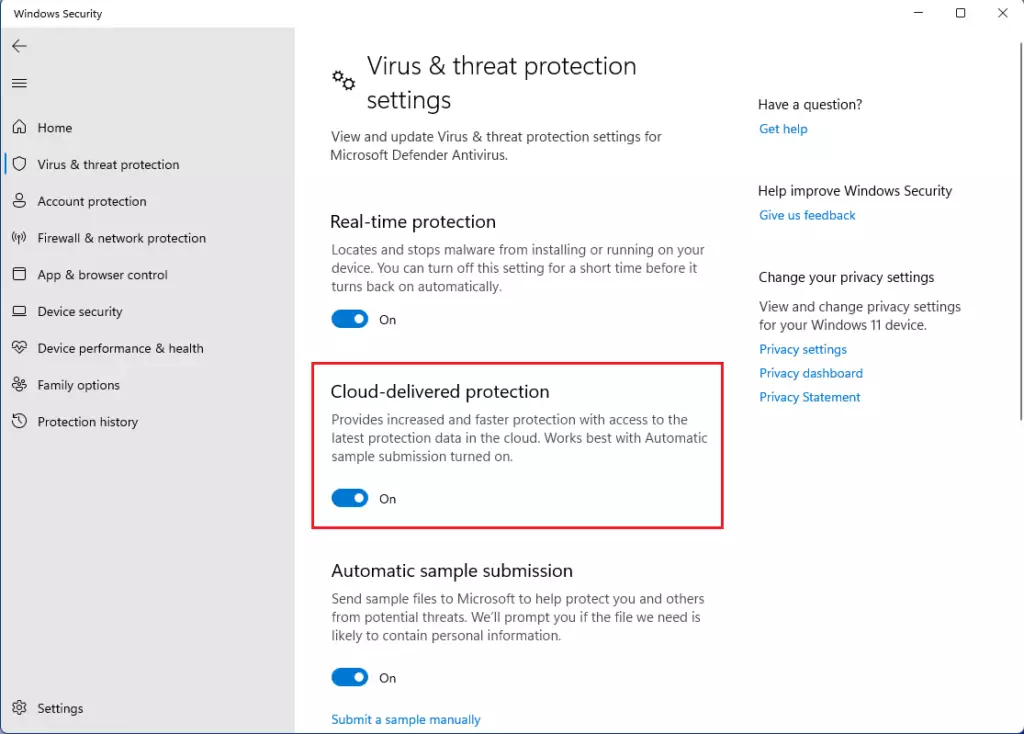
- Toggle Cloud-delivered Protection to On or Off.
How to use Group Policy (Admin Privileges Required)
IT pros and advanced users can manage Microsoft Defender Cloud Protection settings using the Group Policy editor, which you can find by searching for ‘Edit group policy’ and then following a specific path.
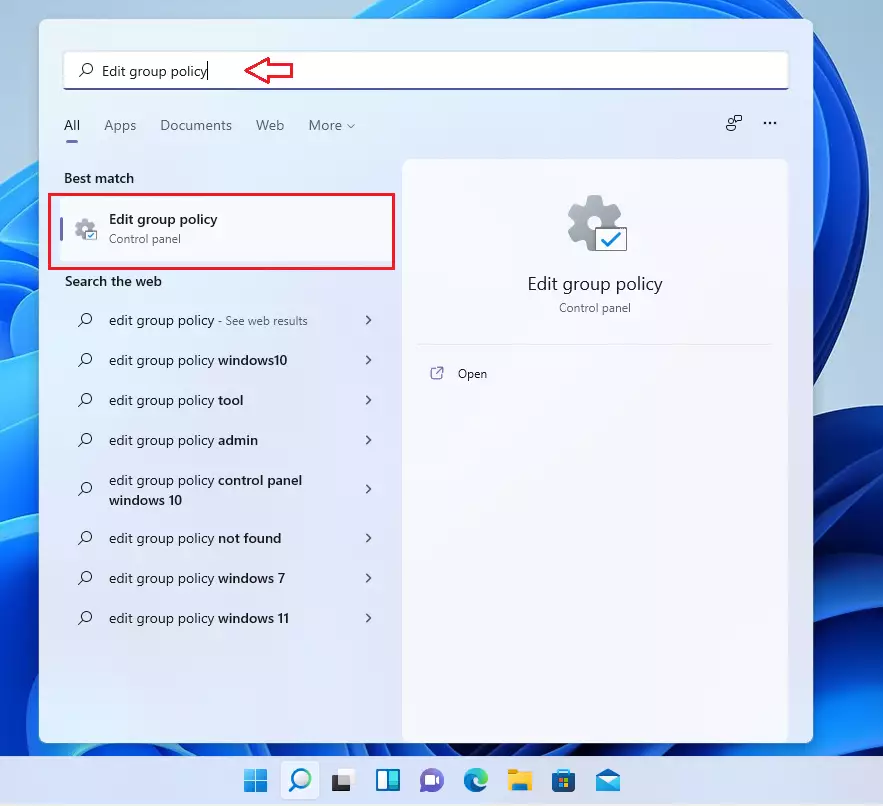
- Click the Start menu and search for Edit group policy.
- Select it to open the editor.
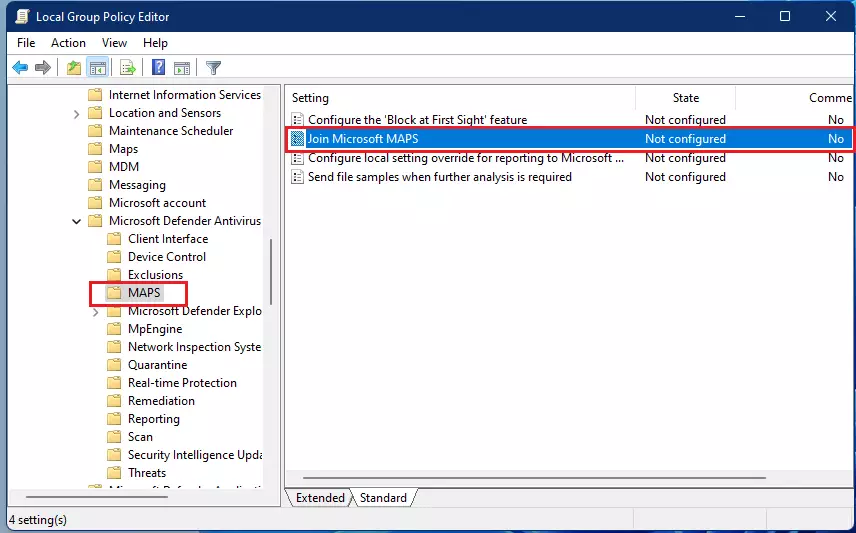
- In the left menu, follow this path: Computer Configuration > Administrative Templates > Windows Components > Microsoft Defender Antivirus > MAPS.
- On the right side, double-click Join Microsoft MAPS.
- Choose Enabled and set it to Basic MAPS or Advanced MAPS.
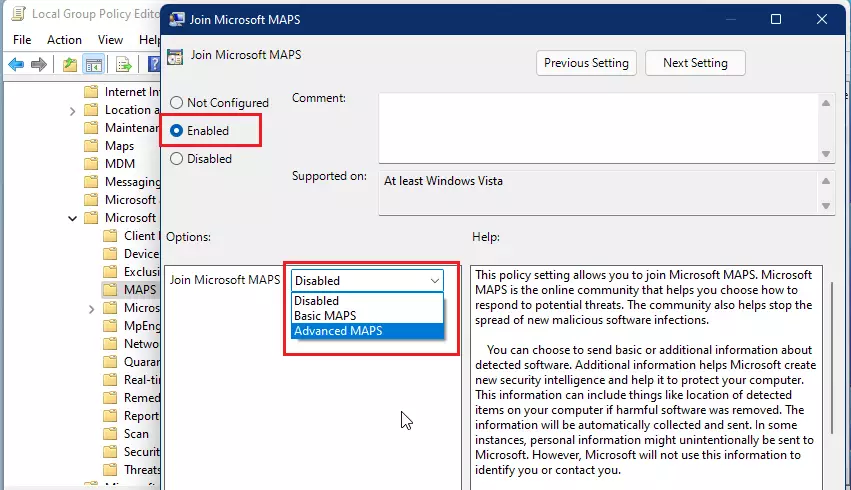
- Click OK and close the window.
Summary
Microsoft Defender Cloud Protection is a vital security feature that connects your device to Microsoft’s threat analysis service for real-time protection against the latest digital threats, and it’s strongly recommended to keep it enabled.
Does cloud protection impact system performance?
Microsoft Defender Cloud Protection is designed to be lightweight and generally improves your computer’s security without slowing down daily tasks, as it sends minimal data and performs heavy analysis in the cloud.
What data is sent to Microsoft when cloud protection is enabled?
When Microsoft Defender Cloud Protection is enabled, Microsoft collects telemetry data and metadata about potential threats, and may upload suspicious files if automatic sample submission is turned on, to help improve security for everyone.
Was this guide helpful?

About the Author
Richard
Tech Writer, IT Professional
Richard, a writer for Geek Rewind, is a tech enthusiast who loves breaking down complex IT topics into simple, easy-to-understand ideas. With years of hands-on experience in system administration and enterprise IT operations, he’s developed a knack for offering practical tips and solutions. Richard aims to make technology more accessible and actionable. He's deeply committed to the Geek Rewind community, always ready to answer questions and engage in discussions.



No comments yet — be the first to share your thoughts!