How to Enable or Disable Microsoft Defender Antivirus in Windows 11

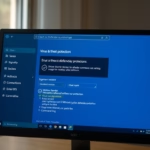
You can enable or disable Microsoft Defender Antivirus in Windows 11 through the Windows Security app or the Registry Editor.
Microsoft Defender Antivirus is Windows 11’s free, built-in security solution that protects your PC from malware, viruses, and other cyber threats in real-time.
Knowing how to manage its settings can be crucial, whether you need to temporarily disable it for software compatibility or ensure it’s active for maximum protection. For instance, a temporary disablement is often required when installing third-party antivirus software.
Why Manage Microsoft Defender?
You might need to disable your antivirus to install specific software or run diagnostic tools that the scanner blocks. However, doing this leaves your system vulnerable.
What Happens When You Disable Defender?
When you turn off Microsoft Defender, your computer stops scanning for threats. You are at a much higher risk of catching malware. Your system performance may feel faster, but your data is no longer protected.
Is Microsoft Defender Enough?
Microsoft Defender is free and highly effective for most users. It is integrated into the Windows Security app, which also manages Windows Hello, Smart App Control, and Ransomware Protection. Unlike many third-party suites, it has a very low impact on system resources.
How to Change Microsoft Defender Settings
Note: You must have administrator privileges to follow these steps.
Open the Start menu and search for Edit group policy. Click it to open the Local Group Policy Editor.
In the list on the left, click through this path: Computer Configuration > Administrative Templates > Windows Components > Microsoft Defender Antivirus.
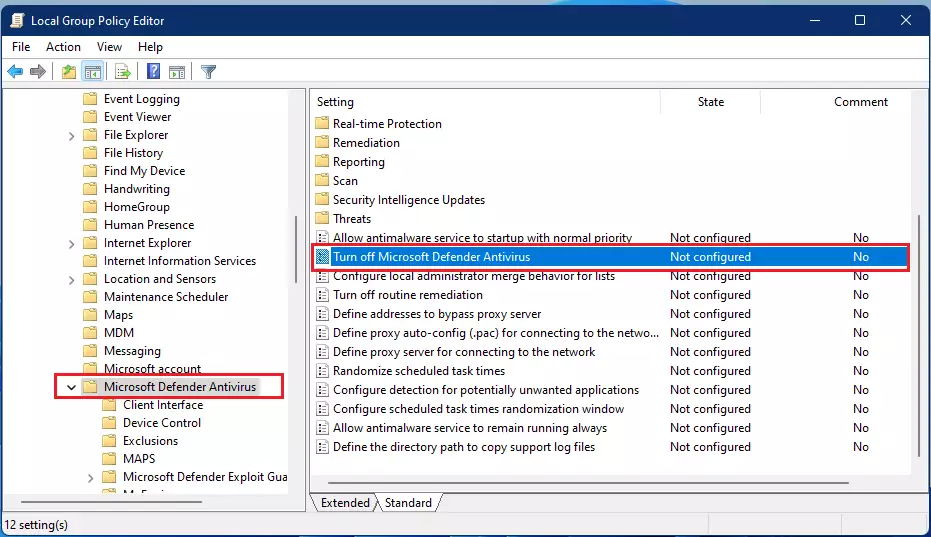
On the right side, find the setting named Turn off Microsoft Defender Antivirus and double-click it.
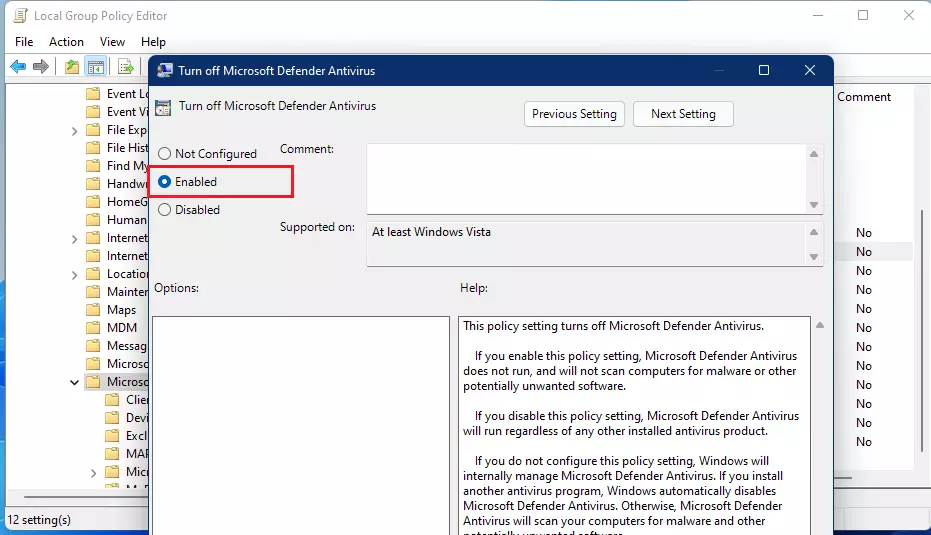
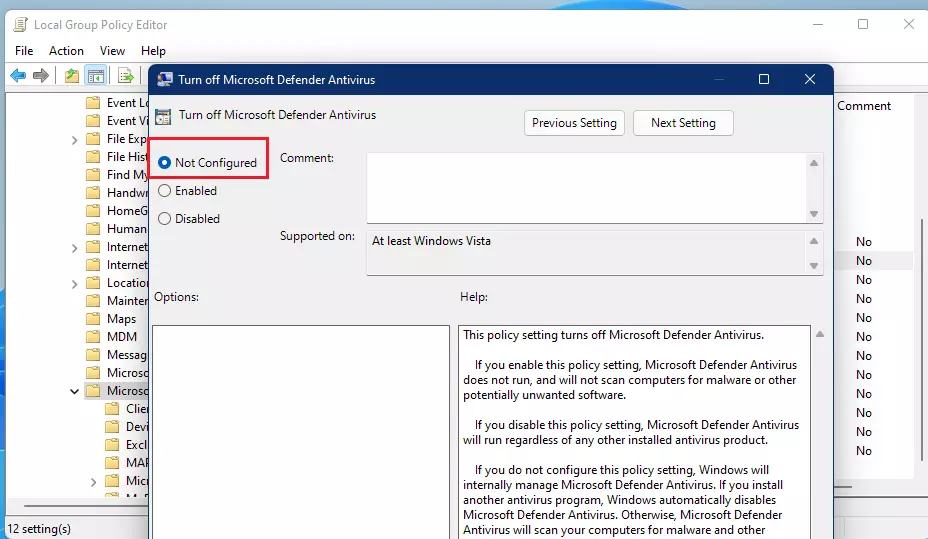
To turn the antivirus off, select Enabled. To turn it back on later, select Not configured.
Click OK and close the window.
Change Settings Using the Command Prompt (Admin Required)
Open the Windows Terminal app as an administrator and run the commands below:
To enable Defender:reg delete "HKEY_LOCAL_MACHINE\SOFTWARE\Policies\Microsoft\Windows Defender" /v DisableAntiSpyware /f
To disable Defender:reg add "HKEY_LOCAL_MACHINE\SOFTWARE\Policies\Microsoft\Windows Defender" /v DisableAntiSpyware /t REG_DWORD /d 1 /f
Summary
Microsoft Defender is your computer’s main line of defense. You can turn it on or off using the Local Group Policy Editor or the command line, but you must have administrator rights to do so. Turning it off is not recommended because it stops all automatic protection. If you must disable it for a specific task, turn it back on as soon as you are finished to keep your system safe. Learn more about Tamper Protection or how to use the Local Group Policy Editor.
Is Microsoft Defender free for 🪟 Windows 11?
Yes, Microsoft Defender is completely free and comes pre-installed with Windows 11. It provides comprehensive, real-time protection against malware and viruses without requiring a subscription. It is designed to work seamlessly with other security features like Microsoft Pluton and Passkeys to keep your digital identity safe.
Does 🪟 Windows 11 need third-party antivirus software?
For most everyday users, third-party software is not necessary. Microsoft Defender is highly optimized for Windows 11 and provides excellent security. Unless you have specific enterprise needs or require specialized parental controls, the built-in security tools are sufficient to protect your system from modern cybersecurity threats.
Was this guide helpful?

About the Author
Richard
Tech Writer, IT Professional
Richard, a writer for Geek Rewind, is a tech enthusiast who loves breaking down complex IT topics into simple, easy-to-understand ideas. With years of hands-on experience in system administration and enterprise IT operations, he’s developed a knack for offering practical tips and solutions. Richard aims to make technology more accessible and actionable. He's deeply committed to the Geek Rewind community, always ready to answer questions and engage in discussions.


No comments yet — be the first to share your thoughts!