How to Exclude Files from Microsoft Defender on Windows 11

You exclude files from Microsoft Defender on Windows 11 to prevent it from scanning specific items, which can improve performance for trusted applications and reduce false positives.
Excluding a file or folder tells Microsoft Defender, Windows 11’s built-in antivirus, to skip scanning that particular item during real-time protection and scheduled scans.
This is particularly useful if Defender is incorrectly flagging safe programs, like specific game installations or development tools, causing slowdowns or preventing them from running. You can exclude files by type, path, or even specific processes.
For instance, if you know a particular software installer is safe but Defender keeps flagging it, adding it to the exclusion list for Windows 11 Defender ensures it won’t be interrupted.
Exclude files from Microsoft Defender by opening Windows Security, navigating to Virus & threat protection, then Manage settings, and finally Add or remove exclusions. Click Add an exclusion and choose the type of item to exclude.
How to add exclusions in 🪟 Windows 11
You can stop Microsoft Defender from scanning specific files or folders on Windows 11 by adding them to an exclusion list right in the Windows Security app.
1. Click the Start button and type Windows Security. Open the app.
2. Click Virus & threat protection. Then, click Manage settings.
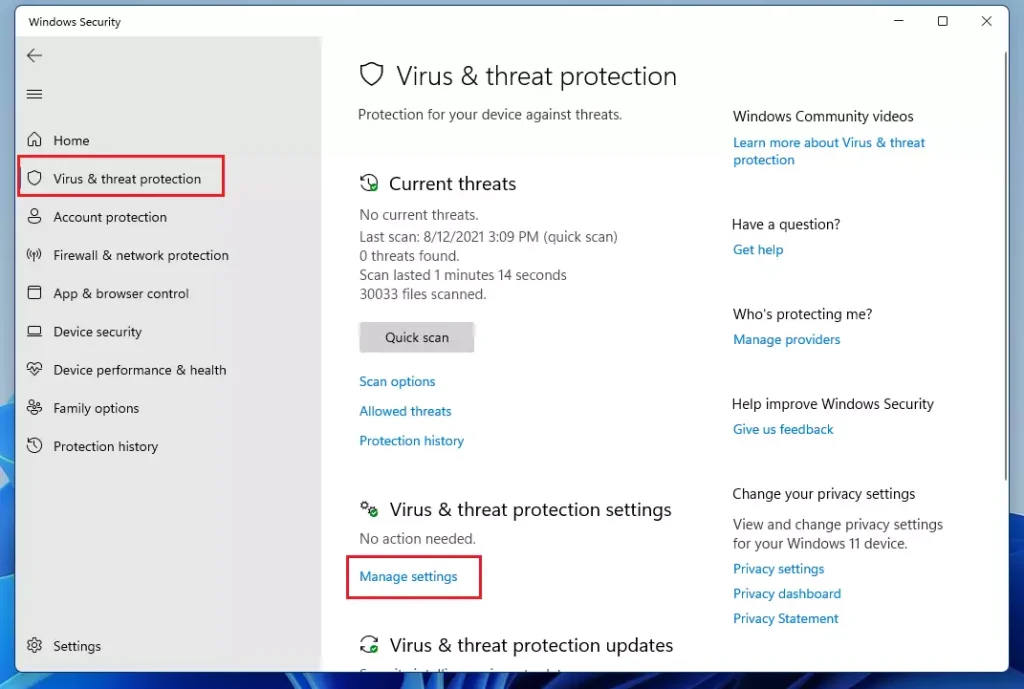
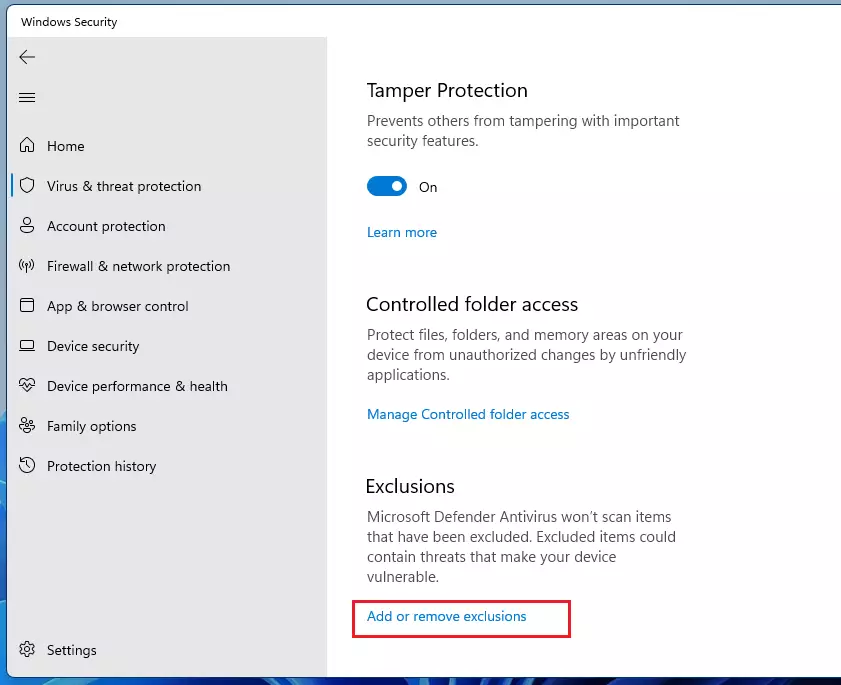
3. Scroll down and click Add or remove exclusions.
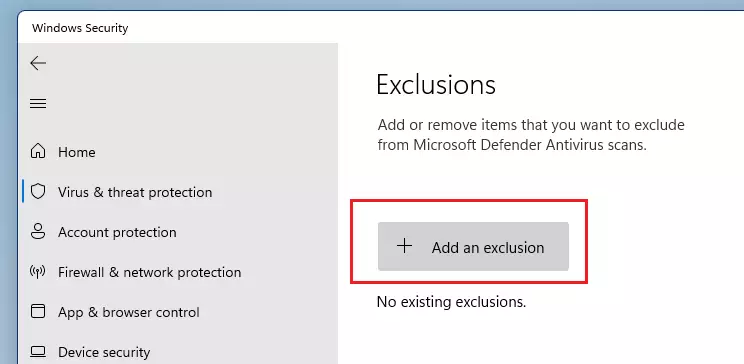
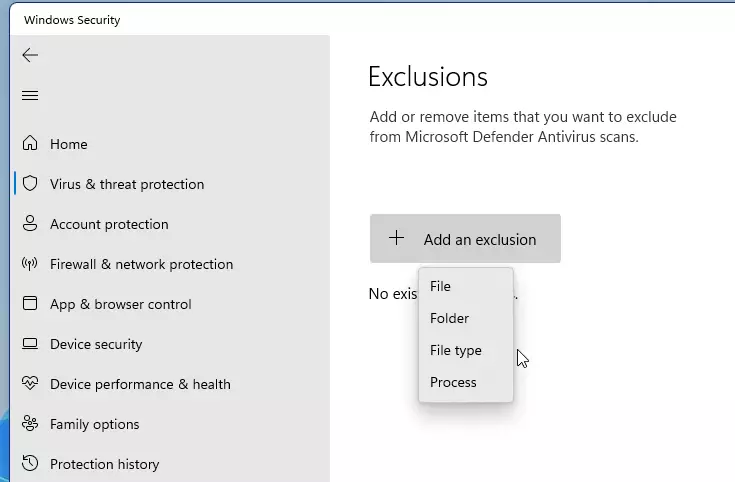
4. Click the Add an exclusion button and choose File, Folder, File type, or Process.
5. Select your item and confirm the change.
Comparison of Exclusion Methods
| Method | Best For | Difficulty |
|---|---|---|
| Windows Security App | Home users | Easy |
| PowerShell | Advanced users | Medium |
| Intune/GPO | IT Administrators | High |
Advanced Configuration and Enterprise Management
Businesses can manage Microsoft Defender exclusions across multiple computers using tools like Configuration Manager or Intune, or use PowerShell for quick, individual changes.
Add-MpPreference -ExclusionPath "C:\Projects\Development"
And if you need to exclude entire groups of files, you can use wildcards. For instance, using C:\Projects\*\bin will exclude the ‘bin’ folder inside every subfolder of your projects directory.
Validation and Verification
You can check if your Microsoft Defender exclusions are working correctly by looking at the current list in PowerShell or using the MpCmdRun.exe tool.
Get-MpPreference | Select-Object -ExpandProperty ExclusionPath
This command lists every path currently ignored by Defender. You can also use the MpCmdRun.exe tool to perform manual scans and verify that your excluded files are skipped during a scheduled scan.
Best Practices for Security
Exclusions are a security risk. Only use them when you notice a real performance problem. Avoid excluding entire drives like C:\ or common system folders. Prefer file-specific exclusions over folder-wide ones to keep your system as safe as possible.
Summary
Adding exclusions to Microsoft Defender can speed up trusted apps, and you can manage these settings easily through Windows Security or PowerShell.
Are exclusions safe for all file types?
No, exclusions are not inherently safe. When you exclude a file, you remove the security layer for that specific item. Only exclude files that you trust completely, such as your own source code or trusted game files, to minimize the risk of malware infection.
What is the difference between file and process exclusions?
A file exclusion tells Defender to ignore a specific file or folder on your hard drive. A process exclusion tells Defender to ignore everything a specific program does while it is running, such as ignoring all activity from a specific database engine.
Was this guide helpful?

About the Author
Richard
Tech Writer, IT Professional
Richard, a writer for Geek Rewind, is a tech enthusiast who loves breaking down complex IT topics into simple, easy-to-understand ideas. With years of hands-on experience in system administration and enterprise IT operations, he’s developed a knack for offering practical tips and solutions. Richard aims to make technology more accessible and actionable. He's deeply committed to the Geek Rewind community, always ready to answer questions and engage in discussions.



No comments yet — be the first to share your thoughts!