How to Optimize Microsoft Defender CPU Usage in Windows 11

You can optimize Microsoft Defender’s CPU usage in Windows 11 to keep your PC running smoothly.
Microsoft Defender is Windows 11’s built-in antivirus, actively scanning for threats to protect your PC. However, these essential scans can sometimes consume a lot of CPU resources, impacting your computer’s performance.
This tutorial will walk you through steps to manage how much of your system’s resources Defender uses. For example, you can exclude specific processes or folders from scans to reduce its CPU load.
Making these changes means your Windows 11 PC will run smoother, and your security won’t suffer.
Adjust Microsoft Defender’s CPU usage by opening PowerShell as administrator and using the `Set-MpPreference -ScanAvgCPULoadFactor ` command. Alternatively, for Pro/Enterprise editions, use the Local Group Policy Editor under Windows Components.
What is Microsoft Defender Antivirus?
Microsoft Defender Antivirus is built right into Windows 11. It actively scans your computer for harmful software.
Sometimes, these scans can use up to 50% of your CPU. On slower machines, this can make your PC feel sluggish. You can adjust this percentage to use less CPU. Just be aware that lowering it too much could make scans take longer.
Why Would You Want to Change This?
Lowering CPU usage helps your PC run smoother while Defender scans. You can still work on other things without everything getting slow.
How to Change CPU Usage During Scans
Here are a few ways to adjust how much CPU Defender uses during scans:
1Using PowerShell (Easy for Everyone)
PowerShell is a command-line tool in Windows that lets you type in commands to change settings.
Step 1: Open PowerShell as Administrator Click here to learn how to open PowerShell. Or: Press Windows key + S, type PowerShell, right-click it, and select Run as administrator. [ADMIN REQUIRED]
Step 2: Check your current CPU limit
Copy and paste this command and press Enter:
Get-MpPreference | select ScanAvgCPULoadFactorYou will see a number showing the current CPU limit (usually 50).
Step 3: Set a new CPU limit
Use this command. Replace <percentage> with a number between 0 and 100:
Set-MpPreference -ScanAvgCPULoadFactor <percentage>Example: To limit Defender to use only 30% CPU, run:
Set-MpPreference -ScanAvgCPULoadFactor 30Step 4: Restart your computer
Restart to apply the new setting.
2Using Local Group Policy Editor (For 🪟 Windows 11 Pro or Enterprise)
This tool lets you change Windows settings through a graphical interface.
Step 1: Open Local Group Policy Editor
Press Windows key + R, type gpedit.msc, and press Enter. [ADMIN REQUIRED]
Step 2: Navigate to the Scan folder
Go to this location:
Computer Configuration → Administrative Templates → Windows Components → Microsoft Defender Antivirus → Scan
Step 3: Find and edit the CPU setting
Select the Scan folder on the left. Then double-click “Specify the maximum percentage of CPU utilization during a scan” on the right.
Step 4: Enable and set your percentage
Choose Enabled. Then enter the CPU percentage you want (0 to 100).
Step 5: Apply changes
Click Apply and OK.
Step 6: Restart your computer
Restart to make the changes take effect.
3Using Windows Registry Editor (If Group Policy Editor is not available)
Be careful with this one! The Registry is a database that stores important Windows settings.
Step 1: Open Registry Editor
Press Windows key + R, type regedit, and press Enter. [ADMIN REQUIRED]
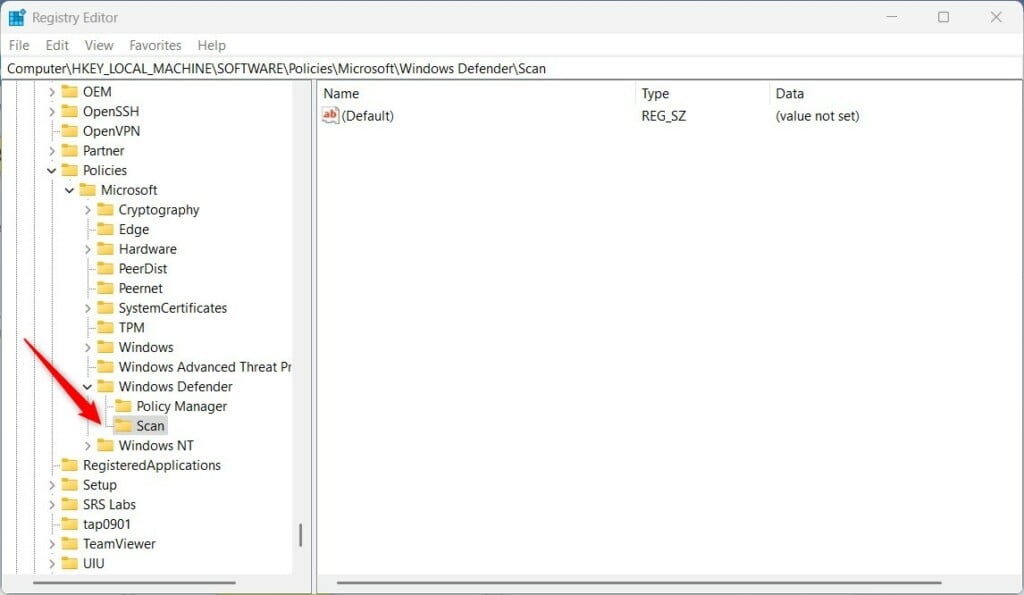
Step 2: Navigate to the Defender Scan folder
Go to this location:
HKEY_LOCAL_MACHINE\SOFTWARE\Policies\Microsoft\Windows Defender\ScanStep 3: Create the Scan folder if it doesn’t exist
If you don’t see the Scan folder, right-click on Windows Defender. Choose New → Key, and name it Scan.
Step 4: Create a new value
Click on the Scan folder. On the right side, right-click and choose New → DWORD (32-bit) Value. Name it AvgCPULoadFactor.
Step 5: Set the CPU percentage
Choose ‘Decimal’ for the Base. Then, enter a number between 0 and 100 for CPU usage. (It defaults to 50.)
Step 6: Save and close
Click OK and close the Registry Editor.
Step 7: Restart your computer
Restart to apply changes.
Important Note: Always back up your registry before making changes. Mistakes can cause problems with Windows.
What Happens When You Lower CPU Usage?
Your computer will feel faster during Defender scans. Other programs and tasks will run smoother. The trade-off: Defender scans might take longer to complete.
Summary
Microsoft Defender Antivirus scans your PC to keep it safe. But these scans can use a lot of CPU. This makes your computer feel slow.
You can change how much CPU it uses. Use PowerShell, Local Group Policy Editor, or Registry Editor. Choose the method that works best for you.
Lowering CPU usage helps your PC run smoother during scans. But scans might take a bit longer.
Always restart your PC after changing settings. This makes sure the changes work.
For more official information, see Configure scanning options for Microsoft Defender.
If you have questions or tips, feel free to share them in the comments below!
Does Windows Defender full scan use a lot of CPU?
If you set the percentage value to 0 or 100, CPU throttling is disabled, and Windows Defender can use up to 100% of CPU during the scheduled and custom scans. This isn’t recommended as it can lead to unresponsive apps, and even overheating so proceed with extreme caution. Changing the value has both pros and cons.
Was this guide helpful?

About the Author
Richard
Tech Writer, IT Professional
Richard, a writer for Geek Rewind, is a tech enthusiast who loves breaking down complex IT topics into simple, easy-to-understand ideas. With years of hands-on experience in system administration and enterprise IT operations, he’s developed a knack for offering practical tips and solutions. Richard aims to make technology more accessible and actionable. He's deeply committed to the Geek Rewind community, always ready to answer questions and engage in discussions.



No comments yet — be the first to share your thoughts!