How to Enable Tamper Protection in Windows 11

You enable Tamper Protection in Windows 11 to prevent malware from disabling or altering your Microsoft Defender settings.
Tamper Protection is a security feature within Windows Security that acts as a safeguard, stopping unauthorized applications from making changes to crucial security configurations like real-time protection.
This vital tool ensures that your antivirus settings remain intact, even if a malicious program tries to interfere. For example, it blocks changes to exclusions, remediation actions, and other critical security features.
Enabling Tamper Protection is a simple yet effective step to bolster your PC’s defenses against common threats. You’ll typically find this setting within the Virus & threat protection options.
To enable Tamper Protection, open Windows Security, go to Virus & threat protection, click Manage settings, and toggle Tamper Protection to On. This prevents malware from disabling your Microsoft Defender settings.
Why use Tamper Protection?
Malicious software often tries to turn off your antivirus to hide itself. Tamper Protection acts like a digital lock. It ensures that only you, the administrator, can change these important security settings. It is enabled by default on Windows 11 to provide immediate endpoint security configuration.
What happens when done?
Once enabled, your antivirus settings are locked. Even if a bad app tries to change them using Registry Editor, Windows commands or PowerShell, or Local Group Policy, the system will block the attempt. This prevents unauthorized security changes that could leave your PC vulnerable.
How to change Tamper Protection settings
Changing Tamper Protection settings in Windows 11 is straightforward; you just need to open Windows Security and head over to Virus & threat protection.
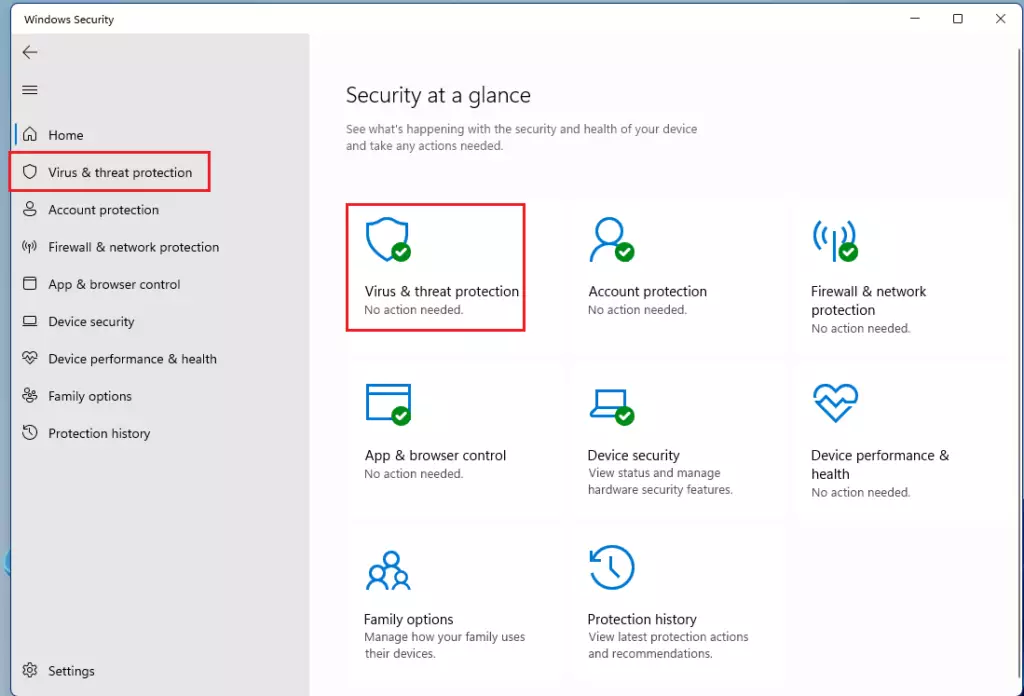
- Click the search box on your taskbar and type Windows Security. Select it from the list.
- Click on Virus & threat protection.
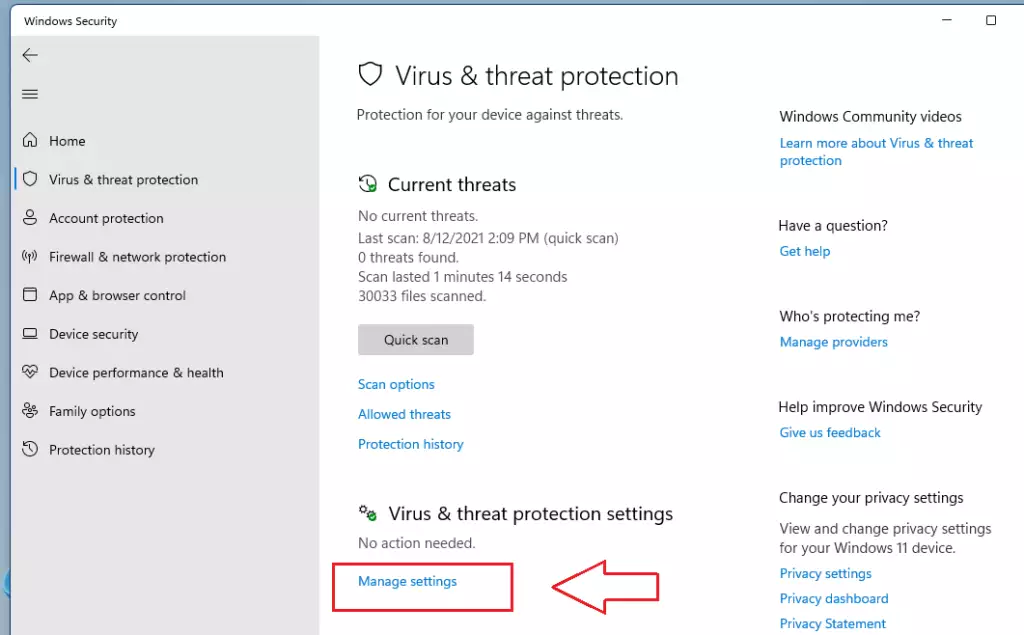
- Under the Virus & threat protection settings section, click Manage settings.
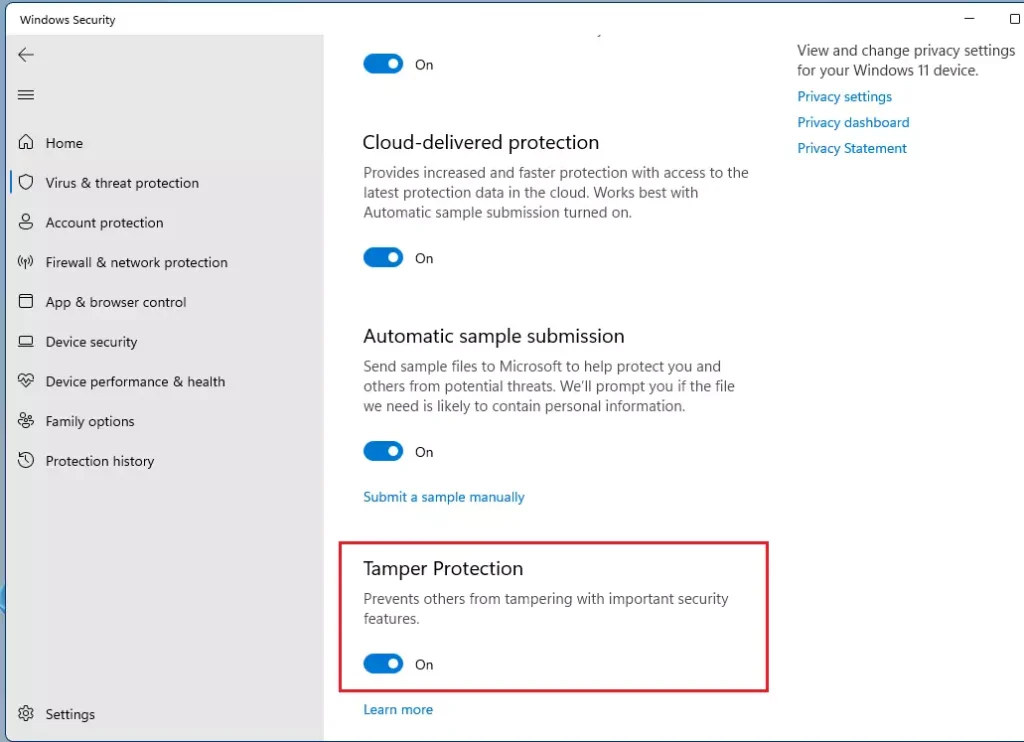
- Use the switch to turn Tamper Protection to On or Off.
Enterprise and Advanced Management
In workplaces, IT admins can manage Tamper Protection using tools like Microsoft Intune or Group Policy.
Troubleshooting Common Errors
If your Tamper Protection settings are greyed out in Windows 11, it typically means your company’s IT department controls them.
Can I disable Tamper Protection if I am an administrator?
Yes, as an administrator, you can toggle the switch in the Windows Security app. However, if your device is managed by an organization through Microsoft Intune or Group Policy, the option may be greyed out, requiring you to contact your IT department to change the configuration.
Summary
Tamper Protection is a vital layer of defense in Windows 11. It prevents unauthorized apps from disabling your antivirus. By keeping this feature active, you protect your system from malicious changes. You can manage this setting through the Windows Security app or via enterprise tools like Microsoft Intune.
Why can't I turn on tamper protection?
Prerequisites for enabling tamper protection The device must be running Windows 10 or 11. The device must be onboarded in Microsoft Defender for Endpoint. The device must be running Microsoft Defender Antivirus with cloud-delivered protection turned on.
Where can I find tamper protection?
Go to the Microsoft Defender portal and sign in. Choose Settings > Endpoints. Go to General > Advanced features, and then turn tamper protection on.
What does Windows tamper protection do?
What is tamper protection? Tamper protection is a capability in Microsoft Defender for Endpoint that helps protect certain security settings, such as virus and threat protection, from being disabled or changed. During some kinds of cyber attacks, bad actors try to disable security features on devices.
Was this guide helpful?

About the Author
Richard
Tech Writer, IT Professional
Richard, a writer for Geek Rewind, is a tech enthusiast who loves breaking down complex IT topics into simple, easy-to-understand ideas. With years of hands-on experience in system administration and enterprise IT operations, he’s developed a knack for offering practical tips and solutions. Richard aims to make technology more accessible and actionable. He's deeply committed to the Geek Rewind community, always ready to answer questions and engage in discussions.


The procedure you described above is easy but doesn’t allow me to turn it on anyways. Something is wrong, I have to remove McAfee apps from a download that another application did install without me noticing it. However, I can’t turn it on the Tamper Protection.
Do you have any other suggestions on what to do?