How to Enable or Disable Microsoft Defender Cloud Protection

You enable or disable security/" class="sal-link" rel="noopener" target="_blank" data-sal-id="38825">Microsoft Defender Cloud Protection to enhance your PC’s real-time threat detection capabilities.
Microsoft Defender Cloud Protection, also known as Microsoft Defender Cloud-based protection, is a security feature that sends suspicious files and samples to Microsoft for analysis. This cloud-powered service provides faster threat identification and response than traditional signature-based methods alone.
For instance, the cloud protection service can offer near real-time protection against emerging threats, often within minutes of discovery by Microsoft’s security intelligence team, far quicker than the typical daily or weekly definition updates.
This guide focuses specifically on managing this feature within Microsoft Defender Antivirus on your Windows PC, not the enterprise-level ‘Microsoft Defender for Cloud’ platform.
Why use Cloud Protection?
Microsoft Defender uses the cloud to find new viruses quickly. It helps stop threats before they can harm your computer. It is turned on by default to keep you safe. By connecting to the Microsoft Active Protection Service (MAPS), your computer receives near-instant protection against the latest malware, even before traditional security intelligence updates are downloaded to your device.
What happens when done?
If you turn this off, your computer will not get real-time security updates from the cloud. This makes your device much more likely to catch a virus. We do not recommend turning it off.
How to change settings in Windows Security
You can change this setting easily in the Windows Security app.
- Click the search box on your taskbar and type Windows Security.
- Select Windows Security from the list.
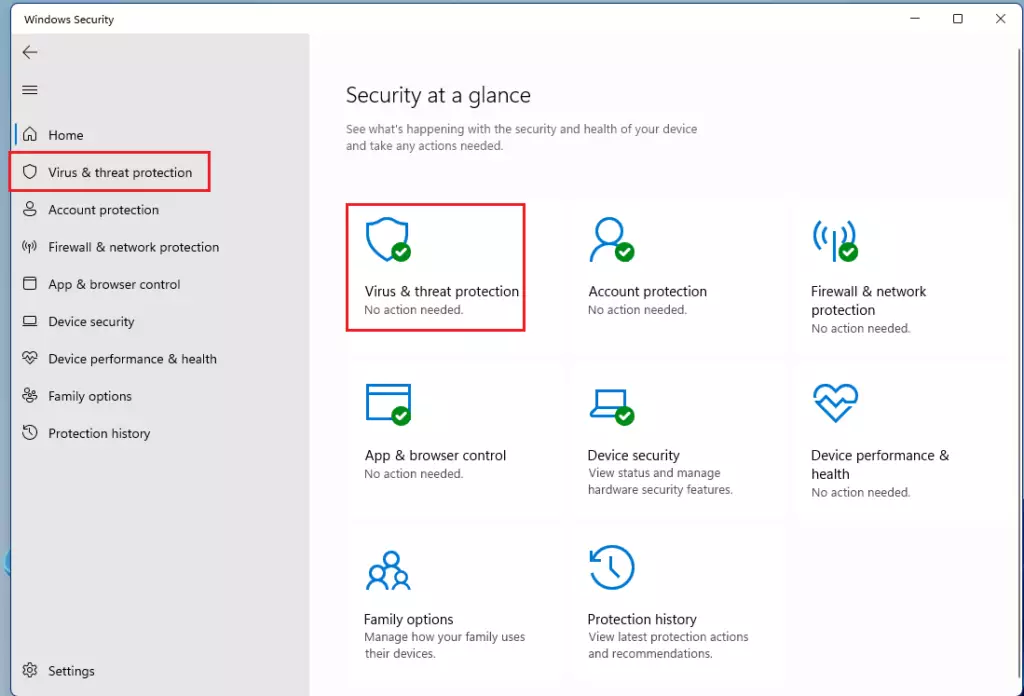
- Click on Virus & threat protection.
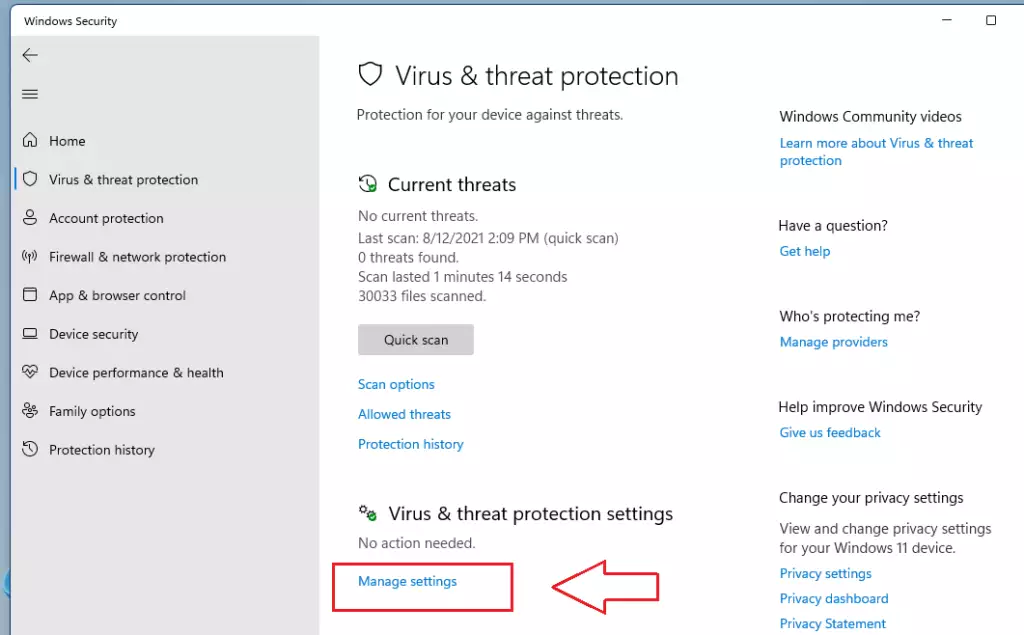
- Look for Virus & threat protection settings and click Manage settings.
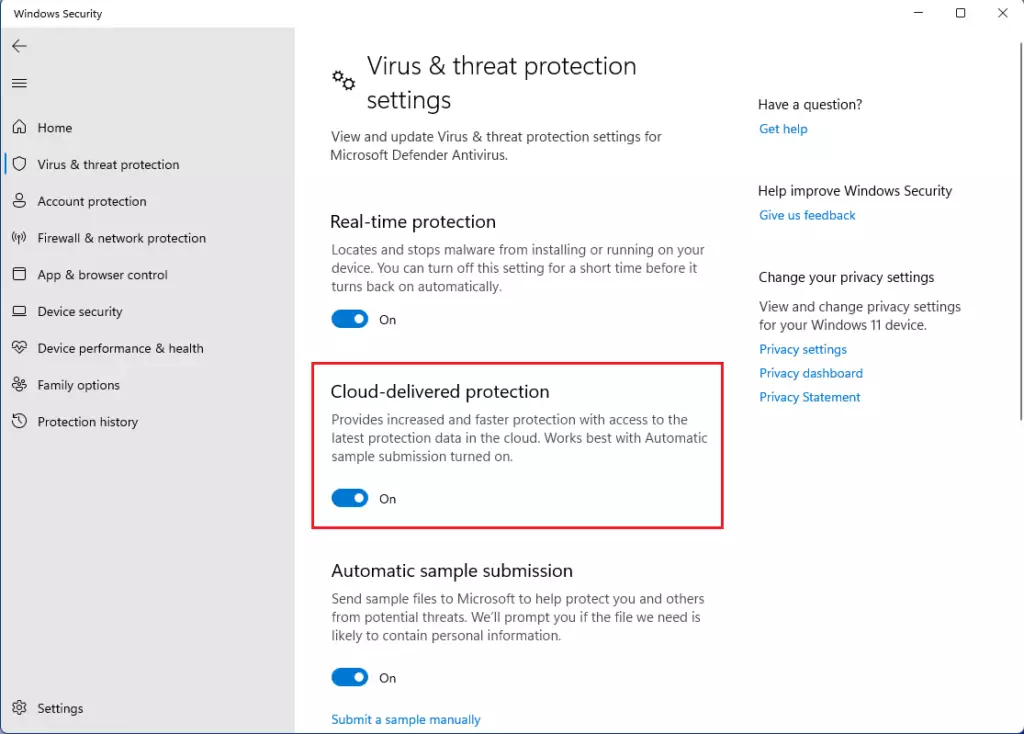
- Toggle Cloud-delivered Protection to On or Off.
How to use Group Policy (Admin Privileges Required)
Advanced users and IT administrators can use the Group Policy editor to manage these settings across a device. For more information, visit the official Microsoft documentation for Group Policy templates.
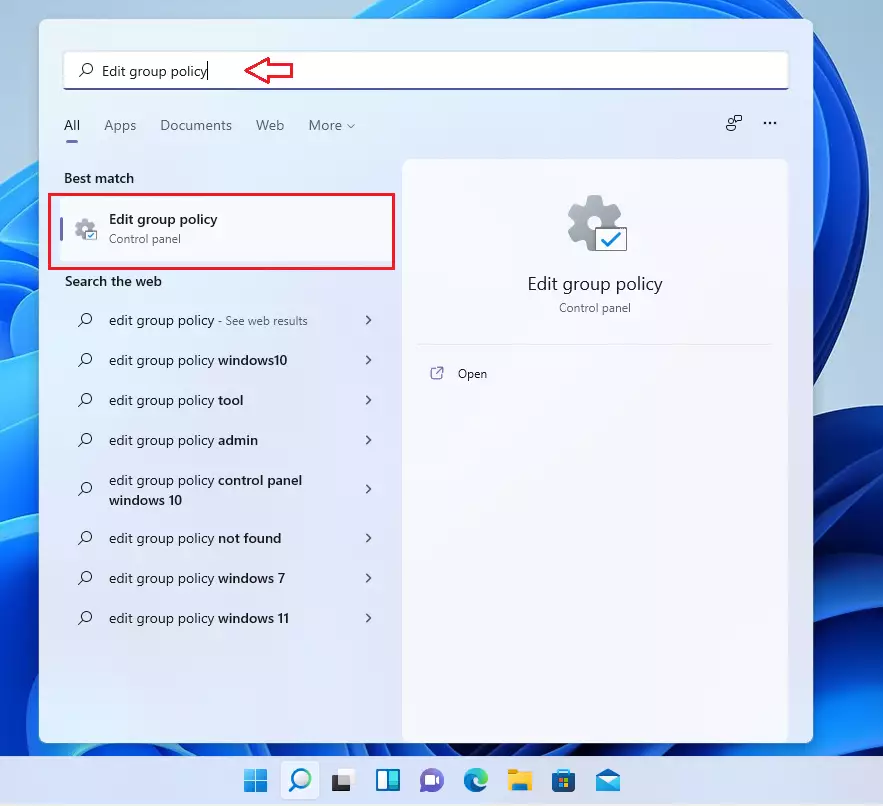
- Click the Start menu and search for Edit group policy.
- Select it to open the editor.
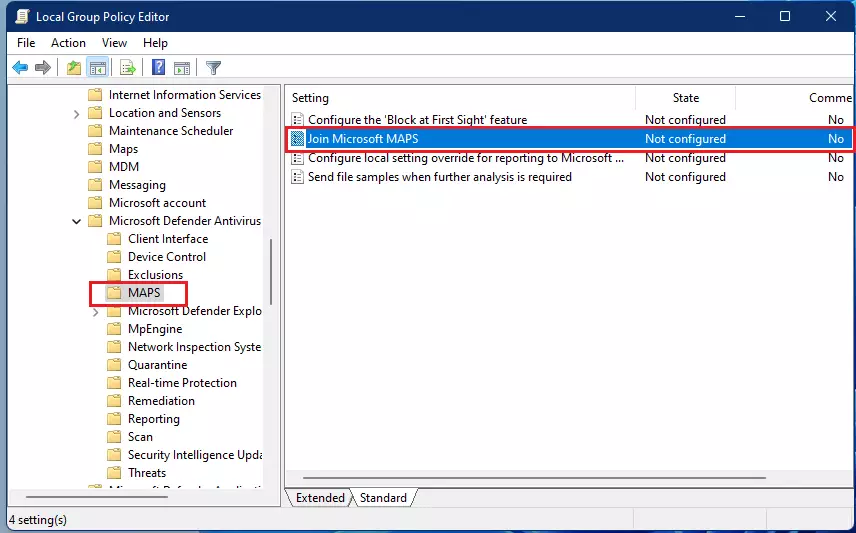
- In the left menu, follow this path: Computer Configuration > Administrative Templates > Windows Components > Microsoft Defender Antivirus > MAPS.
- On the right side, double-click Join Microsoft MAPS.
- Choose Enabled and set it to Basic MAPS or Advanced MAPS.
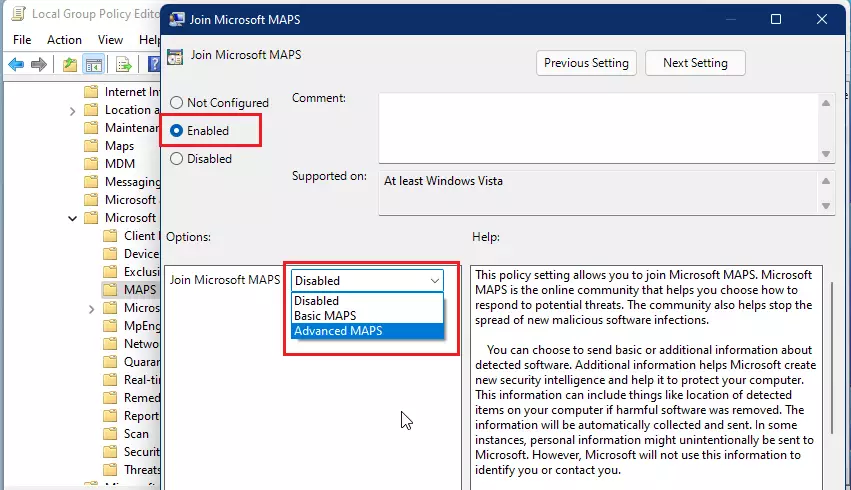
- Click OK and close the window.
Summary
Cloud-delivered protection is a vital component of your computer’s security. It connects your device to the Microsoft Active Protection Service to provide real-time, automated threat detection. While you can manage these settings via the Windows Security app or Group Policy, we strongly recommend keeping them enabled to ensure your system remains protected against the latest digital threats.
Does cloud protection impact system performance?
Cloud-delivered protection is designed to be lightweight. It only sends small amounts of telemetry data to Microsoft when a suspicious file is detected. Because the heavy analysis happens in the cloud rather than on your local processor, it generally improves your overall endpoint security posture without slowing down your daily tasks.
What data is sent to Microsoft when cloud protection is enabled?
When enabled, Microsoft collects telemetry data and metadata about potential threats. If you choose to enable automatic sample submission, suspicious files may be uploaded to Microsoft for deeper analysis. This helps improve automated threat detection for all users, but you should review your privacy settings if you prefer not to share files.
Was this guide helpful?

About the Author
Richard
Tech Writer, IT Professional
Richard, a writer for Geek Rewind, is a tech enthusiast who loves breaking down complex IT topics into simple, easy-to-understand ideas. With years of hands-on experience in system administration and enterprise IT operations, he’s developed a knack for offering practical tips and solutions. Richard aims to make technology more accessible and actionable. He's deeply committed to the Geek Rewind community, always ready to answer questions and engage in discussions.



No comments yet — be the first to share your thoughts!