How to Share Host Folders with Windows Sandbox in Windows 11

You can share host folders with Windows Sandbox in Windows 11 by enabling the feature in its configuration file.
Windows Sandbox provides a temporary, isolated desktop environment for running untrusted applications without affecting your primary Windows installation. It’s like a disposable computer you can spin up whenever you need to test something risky.
Starting with Windows 11 build 26070, you can easily configure folder sharing using a simple XML file. This allows you to grant the sandbox access to specific folders on your main computer for convenient file transfer.
Keep in mind that sharing folders exposes them to the sandbox; ensure you only share folders you are comfortable with the sandbox accessing. This feature is available on Windows 11 Pro, Enterprise, and Education editions.
Share a folder by opening Windows Sandbox, clicking the three-dot menu, selecting “Share folder,” and choosing your desired folder. For automatic sharing on startup, create and run a .wsb configuration file specifying the host folder path and read/write permissions.
How to share folders with Windows sandbox?
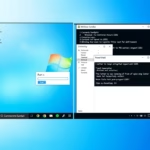
So it's mean here. For example this folder is </S> this folder on the host. To share a folder you can just click the folder. And click select folder.
How do I share files to sandbox?
And that would paste it into the sandbox. And then finally you could also drag the file so just hold down and apply pressure on the left mouse pointer cursor. And just drag it into the sandbox.
Was this guide helpful?

About the Author
Richard
Tech Writer, IT Professional
Richard, a writer for Geek Rewind, is a tech enthusiast who loves breaking down complex IT topics into simple, easy-to-understand ideas. With years of hands-on experience in system administration and enterprise IT operations, he’s developed a knack for offering practical tips and solutions. Richard aims to make technology more accessible and actionable. He's deeply committed to the Geek Rewind community, always ready to answer questions and engage in discussions.



No comments yet — be the first to share your thoughts!