How to Enable or Disable Firewall Notifications in Windows 11

You can enable or disable firewall notifications in Windows 11 to control security alerts from the Windows Security app.
Firewall notifications are messages that inform you about potential security events, such as when the firewall blocks a new application from running on your PC.
These alerts are part of Windows Security, which is your central hub for protecting your computer. The Windows Defender Firewall specifically helps manage network traffic, and its notifications are designed to keep you informed. You can customize whether you receive these alerts for events like an app being blocked.
Knowing whether your firewall is actively blocking something or if there’s a security issue can be crucial. You have the power to choose if you want these pop-up reminders or prefer a quieter system.
Open Windows Security, go to Settings, then Manage notifications, and use the toggle for Firewall & network protection notifications. You can also customize specific firewall notification types.
How to Turn On or Off Firewall Notifications in 🪟 Windows 11
Turning firewall notifications on or off in Windows 11 is simple and helps you know when your computer needs attention.
- Open the Start menu: Click the Start button (the Windows icon) on the bottom-left of your screen.
- Search for Windows Security: Type Windows Security into the search box and click the Windows Security app from the list.
windows 11 search windows security app on start menu - Open app settings: In the Windows Security app, click the Settings button. It looks like a gear. You’ll find it near the top-left corner.
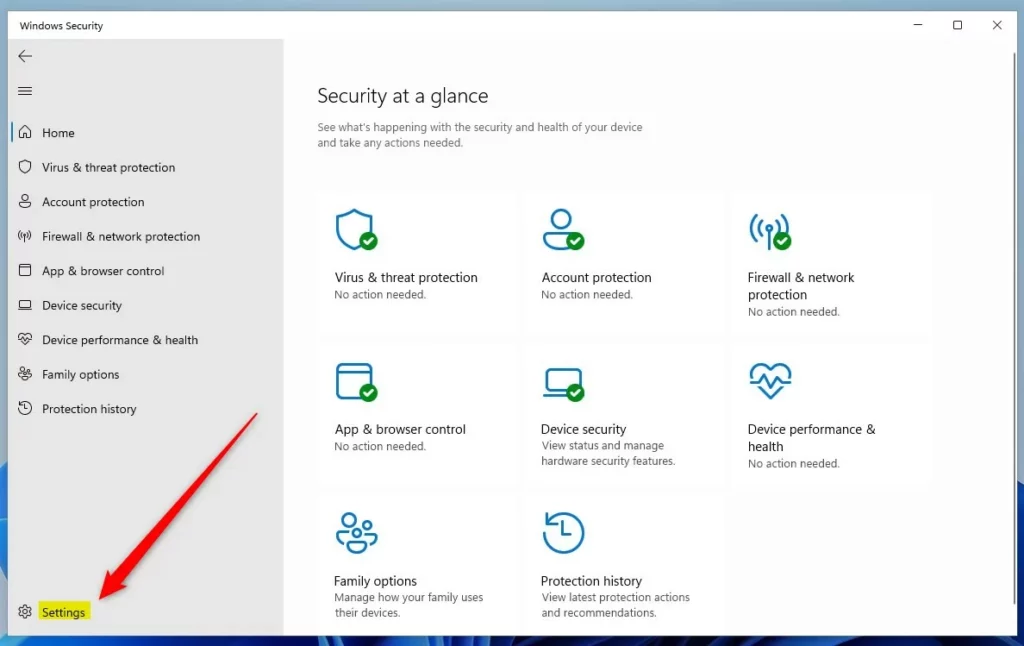
windows 11 windows security app settings button - Manage notifications: On the Settings page, find the Notifications section and click the Manage notifications link.
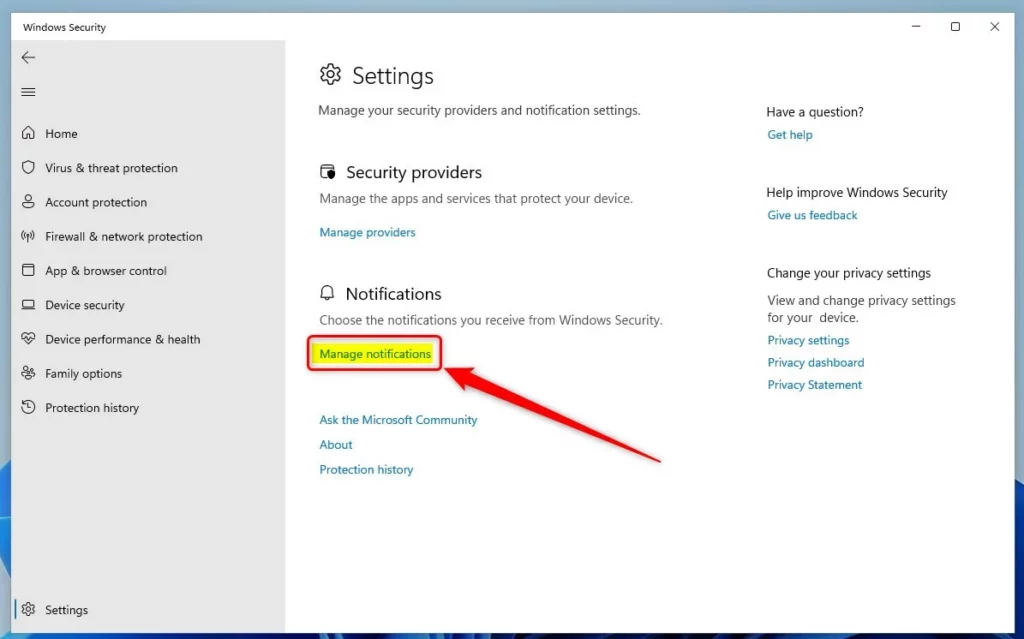
windows 11 windows security app manage notifications - Turn notifications on or off: Look for Firewall & network protection notifications. Use the toggle switch to turn notifications Off or On.
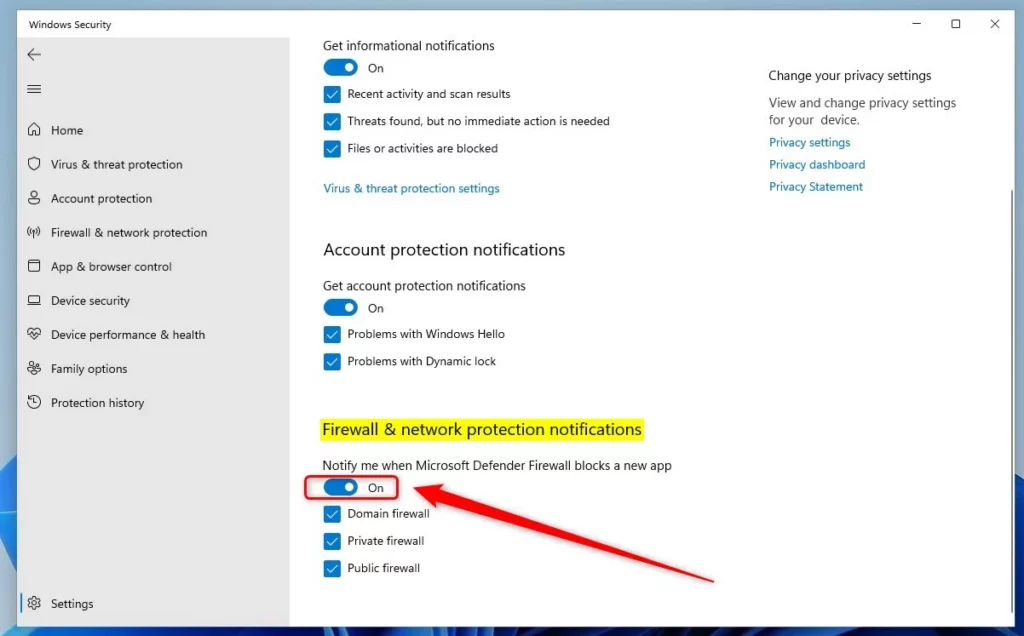
windows 11 firewall and network protection notifications
You can also choose which types of notifications you want. Check or uncheck the options for Domain firewall, Private firewall, and Public firewall.
Note: Even if you turn off these notifications, Windows will still alert you. It will send alerts if there is a serious problem that needs your immediate attention.
That’s it! You’ve now learned how to control your firewall notifications in Windows 11.
More Info
For more details, you can visit the official Microsoft page about notifications in Windows Security: Microsoft.com – Hide Windows Security notifications
Summary
Managing your Windows 11 firewall notification settings is straightforward through the Windows Security app, allowing you to choose what alerts you receive about your network protection.How do I turn on notifications for firewall?
Access Notification Settings: Open Windows Security > Firewall & network protection > Firewall notification settings to enable or disable alerts for public, private, or domain networks.
Was this guide helpful?

About the Author
Richard
Tech Writer, IT Professional
Richard, a writer for Geek Rewind, is a tech enthusiast who loves breaking down complex IT topics into simple, easy-to-understand ideas. With years of hands-on experience in system administration and enterprise IT operations, he’s developed a knack for offering practical tips and solutions. Richard aims to make technology more accessible and actionable. He's deeply committed to the Geek Rewind community, always ready to answer questions and engage in discussions.


No comments yet — be the first to share your thoughts!