How to Enable or Disable Microsoft SmartScreen in Windows 11

Microsoft Defender SmartScreen is a security feature in Windows 11 that helps protect you from malicious websites and downloads by checking them against a vast database of known threats.
SmartScreen acts as a proactive defense mechanism, analyzing apps and files before you run them, and websites before you visit them.
When enabled, it warns you if you attempt to access a potentially unsafe resource, preventing accidental malware infections or phishing attacks.
This tutorial shows you exactly how to turn Microsoft Defender SmartScreen on or off in Windows 11.
How to Turn SmartScreen On or Off via Windows Security
Pro-tip: If you encounter the ‘Windows protected your PC’ prompt for a file you trust, click More info and then Run anyway. Only do this if you are 100% certain the file is safe.
This is the standard way for everyday users to manage their protection.
Step 1Open Windows Security
In the search box on your taskbar, type Windows Security and select the app from the results.
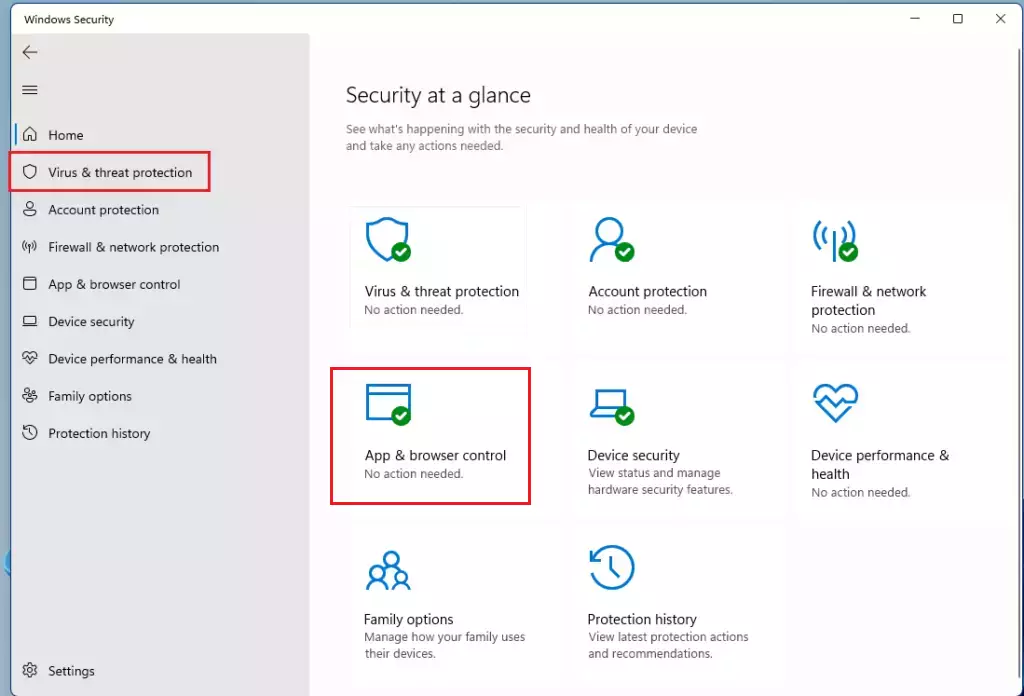
Step 2Select App & Browser Control
Click on the App & browser control tile.
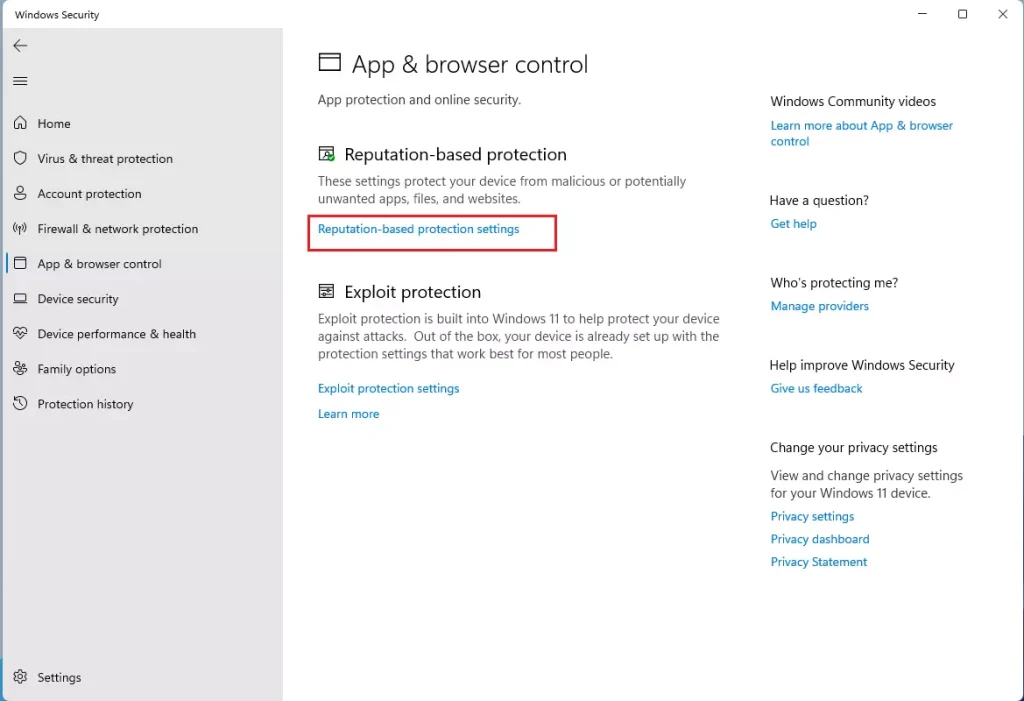
Step 3Click Reputation-based Protection Settings
Look for the Reputation-based protection section and click the Reputation-based protection settings link.
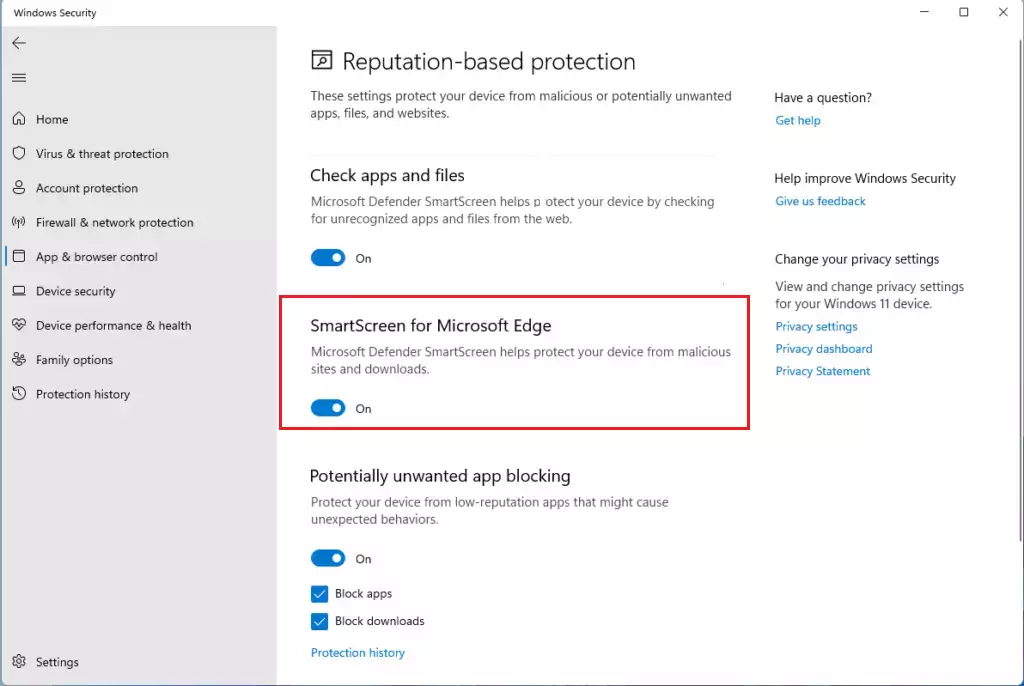
Step 4Toggle SmartScreen
Find SmartScreen for Microsoft Edge and toggle the switch to On or Off.
Advanced Configuration: Registry and Group Policy
For system administrators or power users, you can manage these settings globally using advanced tools. Note: These steps require admin privileges.
Using Group Policy Editor (gpedit.msc)
1. Press ⊞ Win+R, type gpedit.msc, and hit Enter.
2. Navigate to: Computer Configuration\Administrative Templates\Windows Components\Microsoft Defender SmartScreen\Microsoft Edge.
3. Double-click Configure Microsoft Defender SmartScreen and set it to Enabled or Disabled.
Using Registry Editor (regedit)
1. Press ⊞ Win+R, type regedit, and hit Enter.
2. Navigate to: 🗝️HKEY_LOCAL_MACHINE\SOFTWARE\Policies\Microsoft\MicrosoftEdge\PhishingFilter.
3. If the key does not exist, right-click to create a new DWORD (32-bit) Value named EnabledV9.
4. Set the value to 1 to enable or 0 to disable.
Reporting False Positives
Sometimes, safe files are blocked by mistake. This is called a false positive. You can report these to Microsoft to improve their detection accuracy. Visit the official Microsoft Security Intelligence submission page to upload the file for analysis.
Summary
Microsoft Defender SmartScreen is a vital tool for keeping your Windows 11 device safe from web-based threats. While you can manage it through the Windows Security app, advanced users can use Group Policy or the Registry for system-wide control. Always be cautious when bypassing warnings, and report any safe files that are incorrectly flagged to help Microsoft improve their security services.” }
Is it safe to disable SmartScreen if I use third-party antivirus?
While third-party antivirus software provides excellent protection, SmartScreen offers a unique layer of defense specifically for web-based threats like phishing and malicious downloads. Disabling it removes this specialized protection, leaving you more vulnerable to social engineering attacks that traditional antivirus might miss. It is recommended to keep it enabled.
Does disabling SmartScreen affect Windows Update security?
No, disabling SmartScreen does not stop Windows Update from functioning or receiving security patches. However, it does reduce your overall security posture by removing the reputation-based checks that verify the safety of files and websites before you interact with them, which is a critical component of modern Windows security.
Was this guide helpful?

About the Author
Richard
Tech Writer, IT Professional
Richard, a writer for Geek Rewind, is a tech enthusiast who loves breaking down complex IT topics into simple, easy-to-understand ideas. With years of hands-on experience in system administration and enterprise IT operations, he’s developed a knack for offering practical tips and solutions. Richard aims to make technology more accessible and actionable. He's deeply committed to the Geek Rewind community, always ready to answer questions and engage in discussions.

No comments yet — be the first to share your thoughts!