How to Enable or Disable Controlled Folder Access for Microsoft Defender Antivirus in Windows 11

Controlled Folder Access in Windows 11 protects your important files from ransomware and other malicious apps by using Microsoft Defender Antivirus.
This security feature stops unauthorized programs from changing files in folders you mark as protected, like your Documents or Pictures. Microsoft Defender Antivirus keeps a list of trusted apps, and only those on the list can make changes to your important files.
For example, if a new, unknown app tries to write to your Documents folder, Controlled Folder Access will block it and let you know. This stops ransomware from locking up your files and demanding money.
To change this setting in Windows 11, you need administrator rights, and Real-time Protection must be turned on. Real-time Protection works constantly to scan files for malware.
Open Windows Security, navigate to Virus & threat protection, then Manage ransomware protection. Toggle Controlled folder access On or Off. Alternatively, use the command line with Set-MpPreference -EnableControlledFolderAccess [Enabled/Disabled].
Option 3Use Local Group Policy Editor
You can turn controlled folder access on or off for Microsoft Defender Antivirus using the Local Group Policy Editor on Windows 11 Pro, Enterprise, and Education editions. This tool lets you change settings to control which apps can access your important files. You’ll need administrator rights to open the Local Group Policy Editor (gpedit.msc) and start making changes.
- ⚠️ Admin Required: Open the Local Group Policy Editor (gpedit.msc).
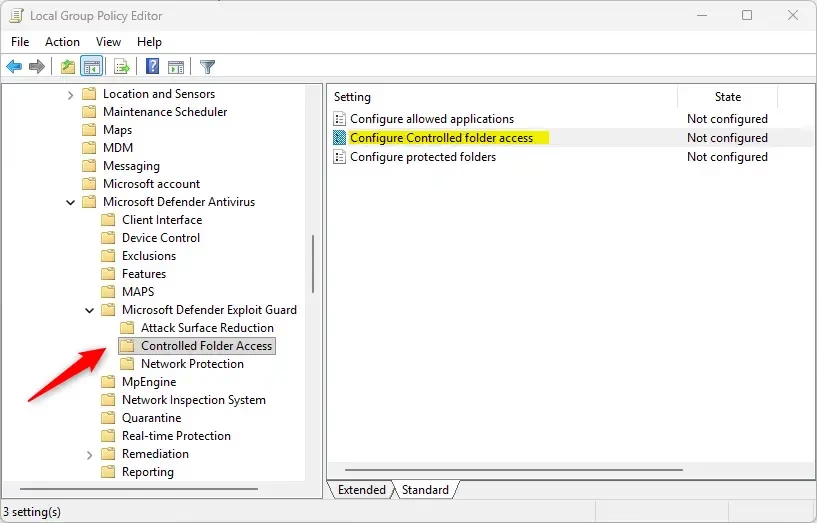
- In the left panel, navigate to this location:
Computer Configuration\Administrative Templates\Windows Components\Microsoft Defender Antivirus\Microsoft Defender Exploit Guard\Controlled folder access - In the right panel, double-click the Configure Controlled folder access policy.
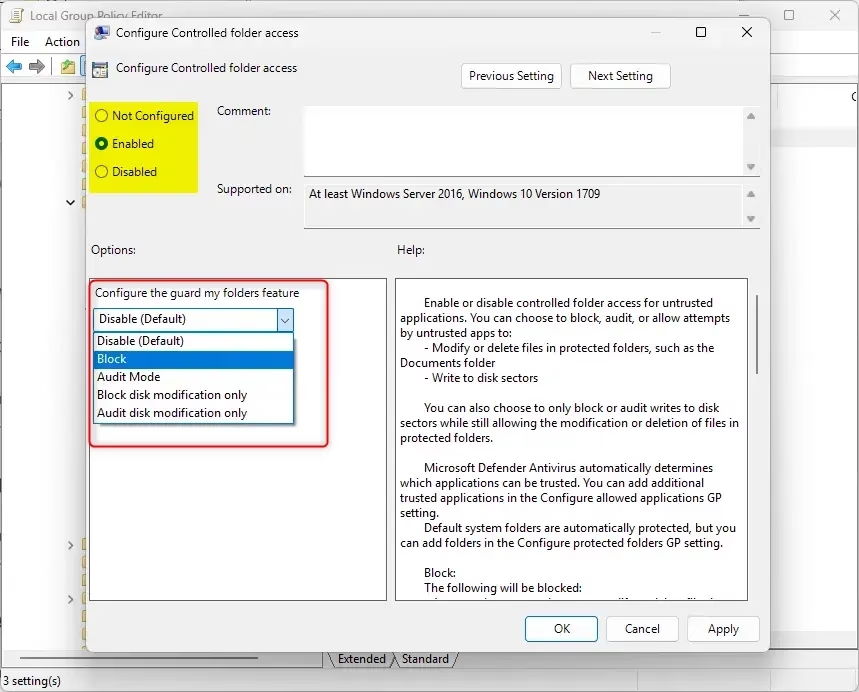
To Turn Off Controlled Folder Access:
- Select Enabled.
- In the Configure the guard my folders feature dropdown, select Disable (Default).
- Click OK.
To Use Default Settings:
- Select Not Configured.
- Click OK.
Option 4Use Registry Editor
To Always Turn On Controlled Folder Access:
Click the Download button below to download the file, then follow the installation steps.
reg add "HKLM\SOFTWARE\Policies\Microsoft\Windows Defender\Windows Defender Exploit Guard\Controlled Folder Access" /v EnableControlledFolderAccess /t REG_DWORD /d 1 /f
To Turn Off Controlled Folder Access:
reg add "HKLM\SOFTWARE\Policies\Microsoft\Windows Defender\Windows Defender Exploit Guard\Controlled Folder Access" /v EnableControlledFolderAccess /t REG_DWORD /d 0 /f
To Use Default Settings:
reg delete "HKLM\SOFTWARE\Policies\Microsoft\Windows Defender\Windows Defender Exploit Guard\Controlled Folder Access" /v EnableControlledFolderAccess /f
Summary
Controlled folder access in Windows 11 is a security feature that helps protect your important files, like documents and photos, from harmful apps. It uses Microsoft Defender Antivirus to stop ransomware and other unwanted programs from making changes to your data. This means your personal information stays safe from unauthorized access.
Controlled Folder Access protects important documents and personal files from ransomware. This feature uses Microsoft Defender Antivirus in Windows 11 to block unauthorized apps from changing files within protected folders.
Controlled Folder Access, when turned on, allows trusted apps normal access to protected folders. Untrusted apps face a block, and users receive a warning if these untrusted applications attempt to access protected files.
Can I turn controlled folder access off?
Windows Security (GUI) method: Use the Windows Security app to quickly enable or disable Controlled Folder Access on a single device by toggling it under Ransomware Protection, provided Microsoft Defender is fully enabled.
Is controlled folder access worth it?
Controlled folder access is a feature that helps protect your documents and files from modification by suspicious or malicious apps. It's especially useful in helping protect against ransomware that attempts to encrypt your files and hold them hostage.
Was this guide helpful?

About the Author
Richard
Tech Writer, IT Professional
Richard, a writer for Geek Rewind, is a tech enthusiast who loves breaking down complex IT topics into simple, easy-to-understand ideas. With years of hands-on experience in system administration and enterprise IT operations, he’s developed a knack for offering practical tips and solutions. Richard aims to make technology more accessible and actionable. He's deeply committed to the Geek Rewind community, always ready to answer questions and engage in discussions.


No comments yet — be the first to share your thoughts!