How to Change Touchpad Haptic Click Intensity in Windows 11

- 23 steps
- Includes a restart or sign-out
Touchpad haptic click intensity in Windows 11 controls how strong the vibration feels when you press your laptop touchpad. A haptic touchpad has no hinge that clicks down. A small motor creates the feeling of a click, and Windows lets you set how firm it feels.
The setting needs a Precision Touchpad (a touchpad that uses Microsoft’s standard driver and gesture support) with haptic hardware, plus the manufacturer’s driver installed. Microsoft Surface laptops are one example. Without that hardware, neither the Settings option nor the registry value does anything.
The short version: open Settings Bluetooth & devices Touchpad and use the Click intensity slider. The change takes effect right away. These steps apply to currently supported Windows 11 versions, 24H2 or 25H2.
Open Settings Bluetooth & devices Touchpad, expand Haptic click, and drag the Click intensity slider. Drag it left for a softer click or right for a firmer one; the range is 0 to 100 and the default is 50. The change applies immediately, and there is no Save button. This requires a haptic Precision Touchpad with the manufacturer’s driver.
Option 1Adjusting Touchpad Feel in Settings
Windows Settings handles many adjustments, including your touchpad’s vibration strength. It is the first place to check, because it is the supported route and does not involve editing the registry.
Home and Pro 24H2 reach the end of updates on October 13, 2026, so 25H2 is the current version to be on. Menu names can differ slightly in older builds. If your laptop has a touchpad with a physical hinge, the haptic controls will not appear at all.
Step 1Open Settings
- Press Win+I on your keyboard.
The Settings app opens. If the shortcut does nothing, right-click the Start button and choose Settings instead.
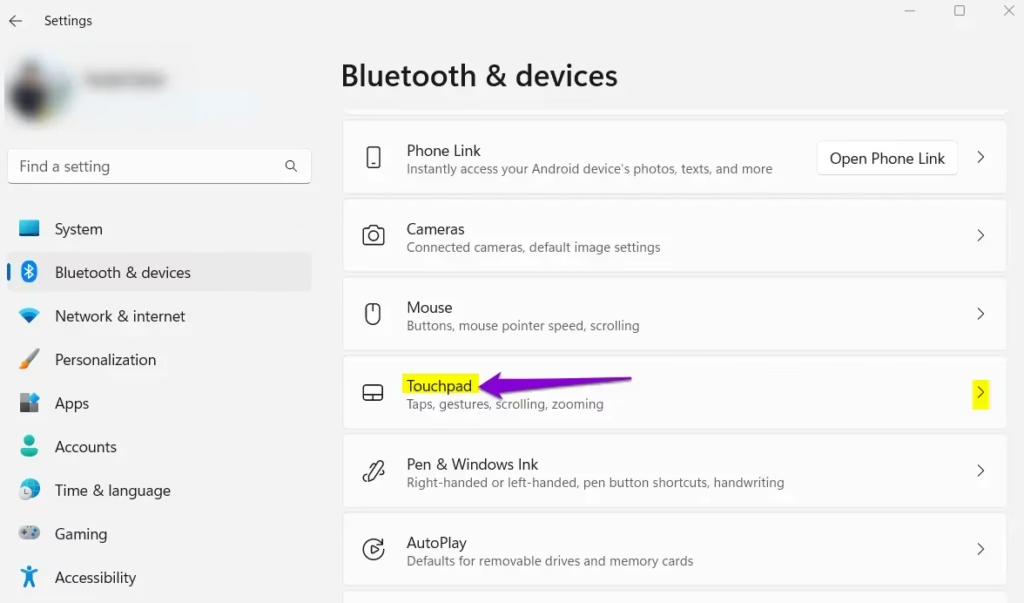
Step 2Find Your Touchpad Settings
- Select Bluetooth & devices from the left menu.
- Scroll down the right side and click Touchpad.
You should now see the touchpad options for your laptop. If Touchpad is missing from the list, the device may not be using the Precision Touchpad driver, or no touchpad was detected. Check that Windows Update has finished installing drivers, and install the driver from your laptop maker if needed.
Step 3Expand the Haptic Click Option
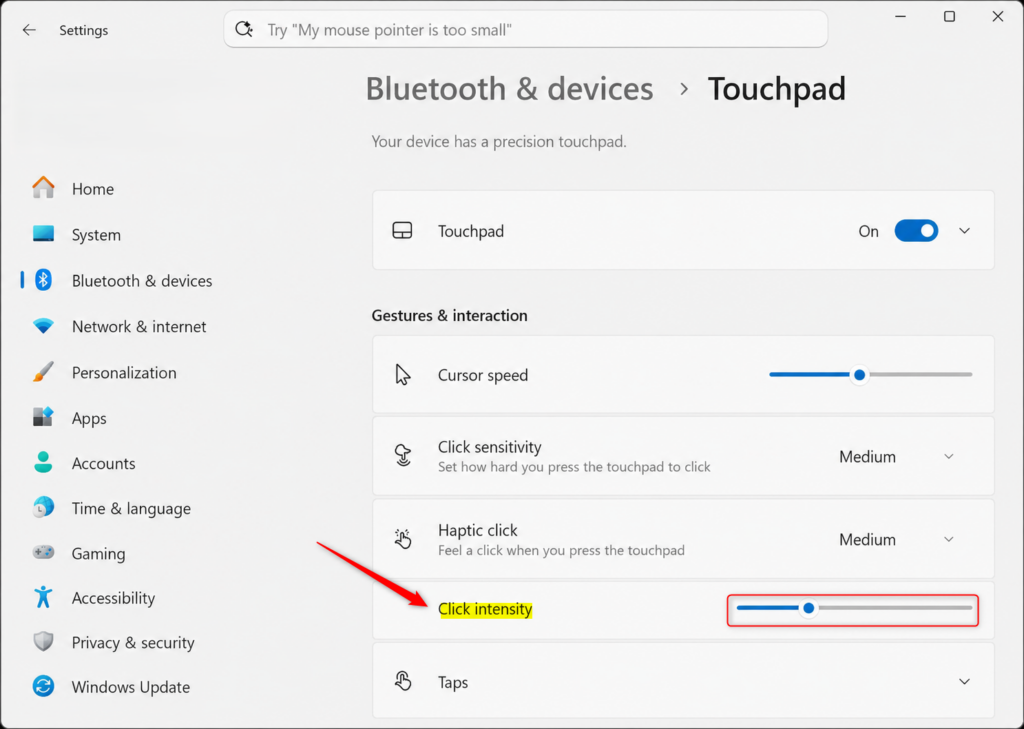
- In the Touchpad settings, find the section labeled Haptic click.
- Click the arrow next to it to expand the additional options, and make sure the Haptic click toggle is on.
The section opens and shows the haptic controls. If no Haptic click section appears at all, your touchpad does not support haptic feedback, or the manufacturer’s driver has not exposed it.
Step 4Adjust the Click Intensity Slider
- Find the Click intensity slider.
- Drag it left for a softer feel, or right for a firmer click.
- Press down on the touchpad after each change and note how it feels.
Test a few levels until you find a vibration strength that suits your daily work. The slider ranges from 0 (least intense) to 100 (most intense). The default is 50.
If the slider is grayed out, turn on Haptic click first. The slider becomes usable once the option is enabled.
Step 5Close Settings and Test
- Close the Settings window once you settle on a setting.
- Tap or press your touchpad to confirm the new vibration strength.
Your adjustments are saved automatically, so there is no Apply or Save button. To undo the change, return to the same slider and set it back to 50.
That’s it. Your touchpad now clicks with the intensity you chose, and Windows keeps that setting for your account.
Option 2Using the Registry Editor
It works on Home and Pro editions of a currently supported Windows 11 version (24H2 or 25H2). Back up your registry before you start, because incorrect changes can cause system instability.
This method has the same hardware requirement as Settings. On a laptop without a haptic Precision Touchpad and its manufacturer’s driver, changing the registry value has no effect.
Step 1Open the Registry Editor
- Press Win+R to open the Run dialog.
- Type regedit and press Enter.
- Click Yes if User Account Control asks for permission.
The Registry Editor (a database for system settings) opens. It lets you change hidden preferences that do not always appear in the standard Windows settings menus.
Step 2Go to the PrecisionTouchPad Key
Use the left-hand pane to navigate to the following location:
Following a specific path in the registry lets you adjust this setting directly, much like navigating folders in File Explorer.
Step 3Find and Change the FeedbackIntensity Value
- Expand the folders in the left-hand pane until you reach the key 🗝️HKEY_CURRENT_USER\
SOFTWARE\ .Microsoft\ Windows\ CurrentVersion\ PrecisionTouchPad - Click that key once so its contents appear in the right-hand pane.
- Locate the value named FeedbackIntensity.
- Double-click FeedbackIntensity to open its editing window.
This window is where you change the touchpad’s haptic click intensity. Because the key sits under 🗝️HKEY_CURRENT_USER, the change applies only to your user account.
Step 4Set Your Desired Intensity
- Select the Decimal option under Base.
- Type your preferred number in the Value data box.
The value works on the same scale as the Settings slider: 0 is the weakest vibration and 100 is the strongest. The default is 50, so any other number overrides it with a custom click feel. For more feedback, try 75. For lighter feedback, try 25.
- Click OK when you finish.
The new number shows in the Data column next to FeedbackIntensity. You can change it again later, and setting it back to 50 restores the default.
Step 5Close the Registry Editor
- Close the Registry Editor window.
Nothing else needs saving. Registry changes are written as soon as you click OK.
Step 6Apply the Changes
Registry changes may not take effect until Windows reloads your settings, so sign out and back in, or restart.
- Sign out of Windows and sign back in, or restart your computer.
- Press down on the touchpad to feel the adjusted vibration strength.
Signing out and back in is generally the faster option. A full restart is the safer choice if the change does not show up.
That’s it. The FeedbackIntensity value you entered now sets your touchpad’s click strength. To go back, change the value to 50 or use the slider in Settings.
Summary
If your touchpad vibration does not change after updating these settings, work through these checks:
- Restart the laptop. This forces Windows to reload the input device drivers.
- Check for pending updates. A pending Windows update can block haptic changes until the system reboots.
- Confirm your hardware supports it. The laptop needs a Precision Touchpad with haptic hardware and the manufacturer’s driver installed. Check the manufacturer’s documentation for the haptic motor specifications.
- Compare with Settings. If you edited the registry, open the Touchpad page in Settings and see whether the slider matches the number you entered.
Have a question about this guide?
Answered by AI from this guide. Good questions may be added to this page — please don't include personal details.
Did this guide fix your problem?

About the Author
Richard
Tech Writer, IT Professional
Richard is a writer at Geek Rewind who turns complex IT tasks into clear, step-by-step guides. He draws on years of hands-on experience in system administration and enterprise IT operations, focusing on Windows, Linux and WordPress: the problems people actually run into, and the fixes that work. His server and WordPress guides come from systems he runs himself. Richard builds and maintains the platform behind Geek Rewind, from its Ubuntu servers and Nginx configuration to its custom WordPress plugins. Many new tutorials start with readers' questions, and he's always glad to answer them in the comments.
No comments yet — be the first to share your thoughts!