How to Fine-Tune Windows 11 Touchpad Settings

Touchpad scroll speed in Windows 11 controls how fast web pages and documents move when you slide your fingers across your laptop trackpad. If pages fly past too quickly or crawl, the touchpad settings are the first place to look.
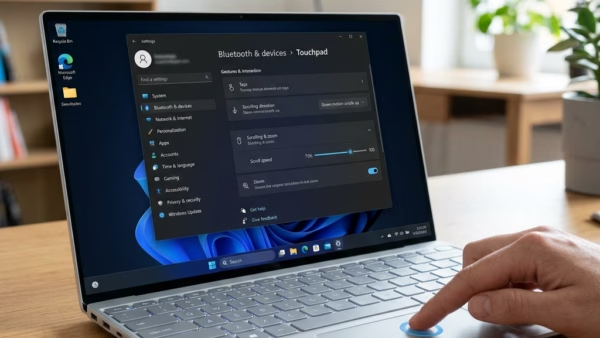
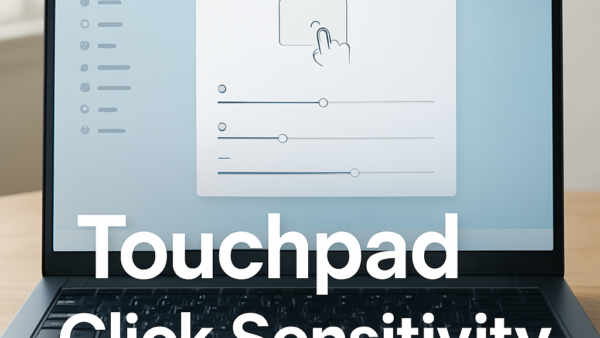
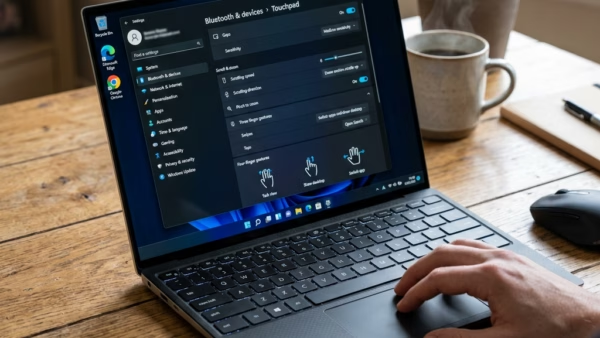
Most of the controls are in one place. Open Settings Bluetooth & devices Touchpad. The page has expandable sections for Taps, Scroll & zoom, Three-finger gestures and Four-finger gestures. If you see no Touchpad page at all, your PC has no touchpad that Windows recognizes, or the touchpad driver is missing. Windows 11 Home and Pro show the same page, so there is no edition difference here. The exact options can vary a little by laptop maker and build. Changes apply the moment you make them, and no restart is needed.
Open Settings Bluetooth & devices Touchpad to access all touchpad controls. Expand sections for Taps, Scroll & zoom, Three-finger gestures and Four-finger gestures to adjust click speed, scrolling direction, sensitivity and gesture behavior. Changes apply immediately without restart.
Adjusting Basic Touchpad Movement and Clicks
- Open Settings Bluetooth & devices Touchpad.
- Make sure the Touchpad switch at the top is on. You should see the other sections below it become available.
- Expand Taps to see the click options, such as tapping with one finger to click and tapping with two fingers to right-click.
- Expand Scroll & zoom to see the scrolling options, such as dragging two fingers to scroll and the scrolling direction.
Fine-Tuning Touchpad Feedback and Gestures
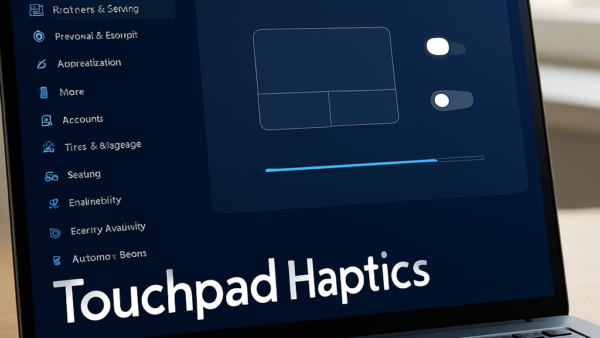
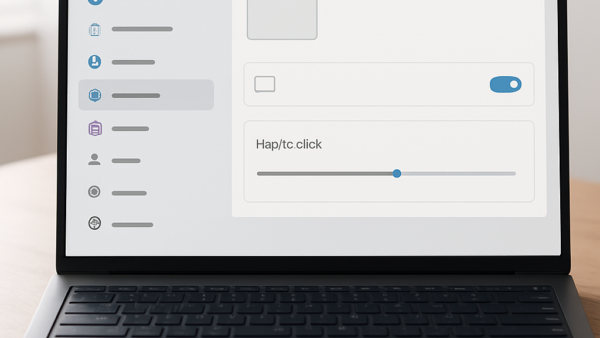
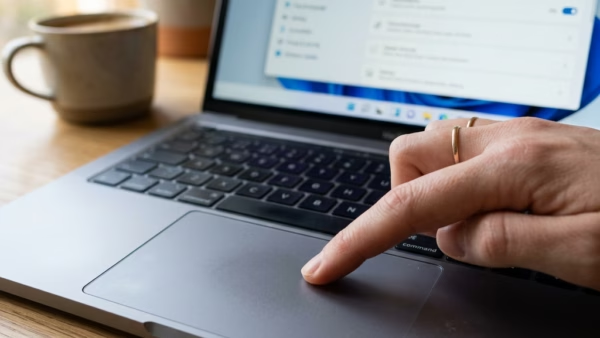
Next, customize how the touchpad feels. These settings cover tactile response, such as haptic feedback, and automatic scrolling actions. They are a matter of taste, so try a setting for a day before you decide. Every change can be reversed from the same page.
Managing Touchpad Behavior with Other Devices
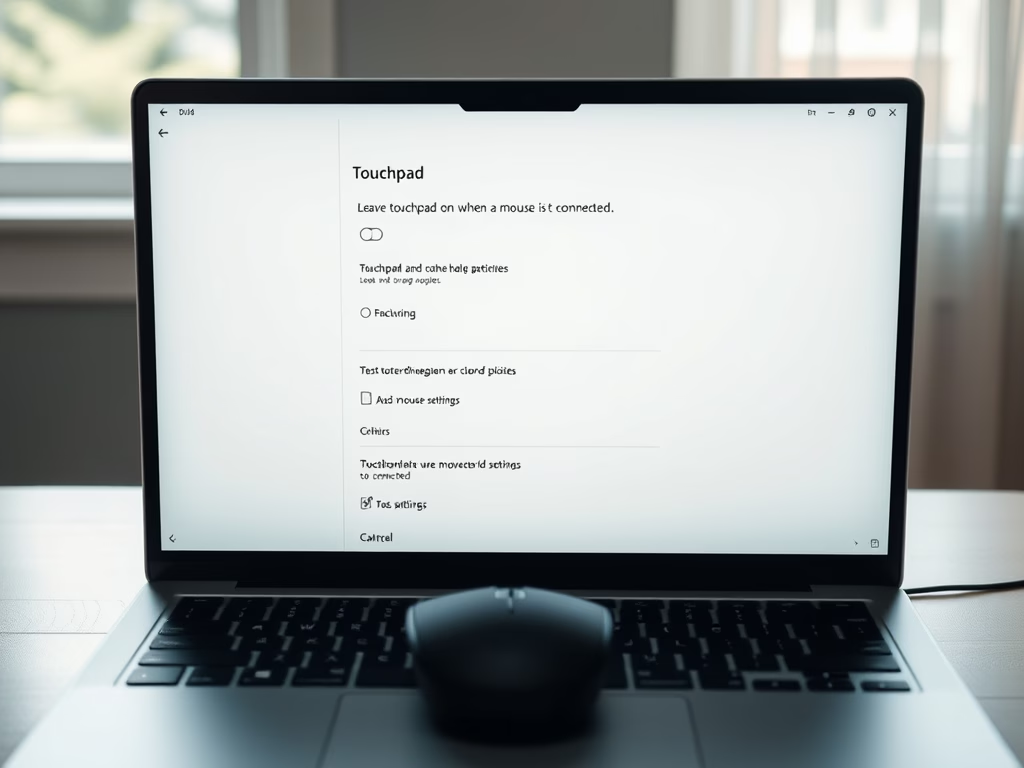
You can also manage how the touchpad behaves when you use another pointing device, such as a mouse. These guides cover disabling the touchpad when you are not using it. This helps most on a desk setup, where your palm often rests on the touchpad while you type.
Changing Touchpad Zoom and Advanced Settings
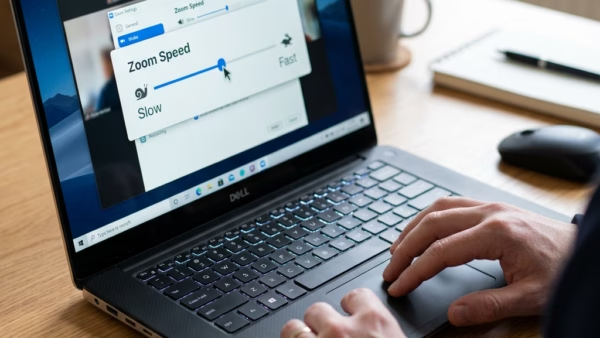
The last group is zoom. These guides cover adjustments for zoom speed and related display settings. The main zoom control is pinch to zoom, which lives under Scroll & zoom on the same Touchpad page.
Common questions
How do I turn off my touchpad if I'm using a mouse?
Prevent accidental palm clicks by switching the touchpad off automatically when a physical mouse is plugged in.
- Open Settings Bluetooth & devices Touchpad.
- Find the checkbox Leave touchpad on when a mouse is connected and clear it.
- Connect a USB or Bluetooth mouse. The touchpad should stop responding while the mouse is connected.
The touchpad comes back when you unplug or disconnect the mouse. To undo the change, tick the checkbox again. If the touchpad still reacts to your palm while no mouse is connected, use the sensitivity setting in the next step instead.
My touchpad is too sensitive, how do I fix it?
Reduce touchpad sensitivity to curb unwanted inputs, such as a palm brushing the surface while you type.
- Open Settings Bluetooth & devices Touchpad.
- Expand Taps.
- Open the Touchpad sensitivity dropdown and choose a lower level. The options run from the most sensitive to the least sensitive.
- Try typing and tapping for a few minutes. If real taps stop registering, go back up one level.
How do I make scrolling smoother on my 🪟 Windows 11 touchpad?
You can change scroll speed directly in the Windows 11 settings.
- Open Settings Bluetooth & devices Touchpad.
- Look for the Scrolling slider and drag it to a comfortable speed.
- Scroll a long web page to test it. Page movement should now match the new speed.
Not every PC shows a scrolling speed slider. The options depend on the touchpad driver. If yours has none, expand Scroll & zoom to check the two-finger scroll and direction options, and look in your manufacturer’s touchpad app for a speed control. Also note that the cursor speed slider only changes pointer movement, not scrolling.
What is touchpad haptic feedback?
Haptic feedback uses subtle vibrations to mimic the feel of a physical mouse click. It only works on touchpads built with haptic hardware, so older touchpads will not show it. You can turn the feature on or off and adjust its intensity in Settings Bluetooth & devices Touchpad. If the option is not there, your touchpad does not support it. To undo a change, set the option back to its previous state.
How do I change the double-click speed on my touchpad?
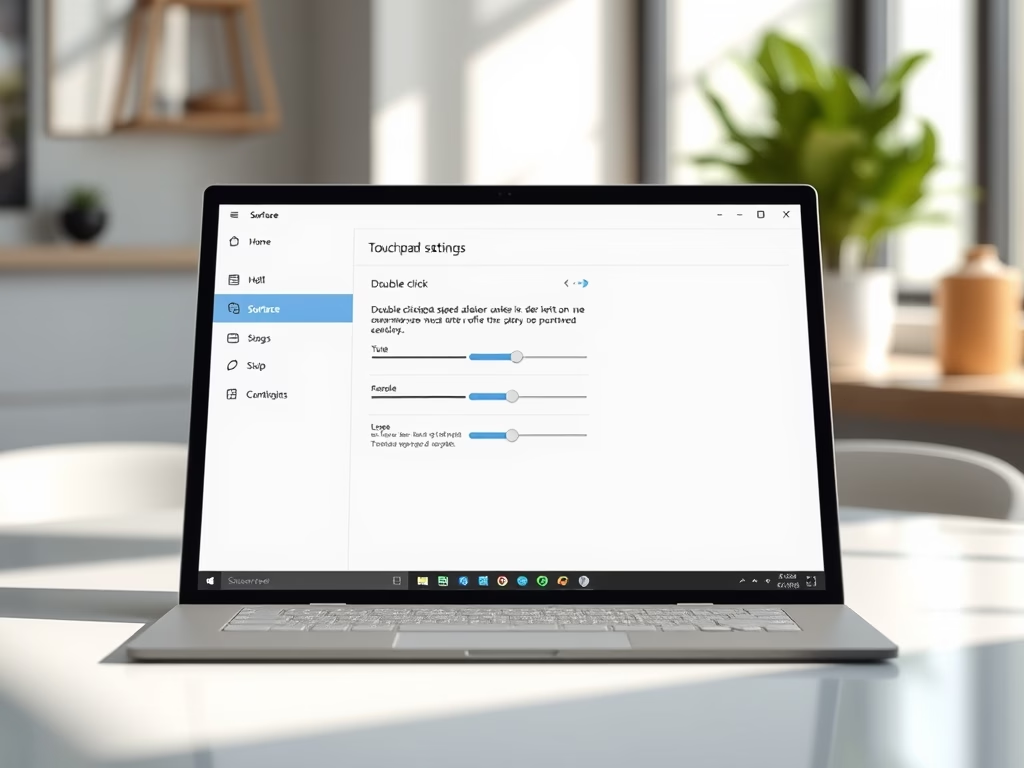
Microsoft Surface hardware allows double-click speed adjustments. Look for device-specific touchpad options in Settings Bluetooth & devices Touchpad, or inside a dedicated Surface touchpad app if your model has one. These options appear only on supported devices. On other laptops, the touchpad page shows only the options that your driver provides.
Have a question about this guide?
Answered by AI from this guide. Good questions may be added to this page — please don't include personal details.
Did this guide fix your problem?

About the Author
Richard
Tech Writer, IT Professional
Richard is a writer at Geek Rewind who turns complex IT tasks into clear, step-by-step guides. He draws on years of hands-on experience in system administration and enterprise IT operations, focusing on Windows, Linux and WordPress: the problems people actually run into, and the fixes that work. His server and WordPress guides come from systems he runs himself. Richard builds and maintains the platform behind Geek Rewind, from its Ubuntu servers and Nginx configuration to its custom WordPress plugins. Many new tutorials start with readers' questions, and he's always glad to answer them in the comments.
No comments yet — be the first to share your thoughts!