How to Change Mouse Pointer Speed In Windows 11

Mouse pointer speed in Windows 11 controls how fast the on-screen arrow moves when you slide your physical mouse. In the Settings app you can set it on a scale of 1 to 20, so the pointer no longer feels too fast or too slow.
A well-tuned speed helps you click small targets accurately without straining your hand or lifting the mouse again and again. It also makes everyday tasks feel smoother. This guide covers three ways to change it: the Settings app, the classic Control Panel and the Registry Editor.
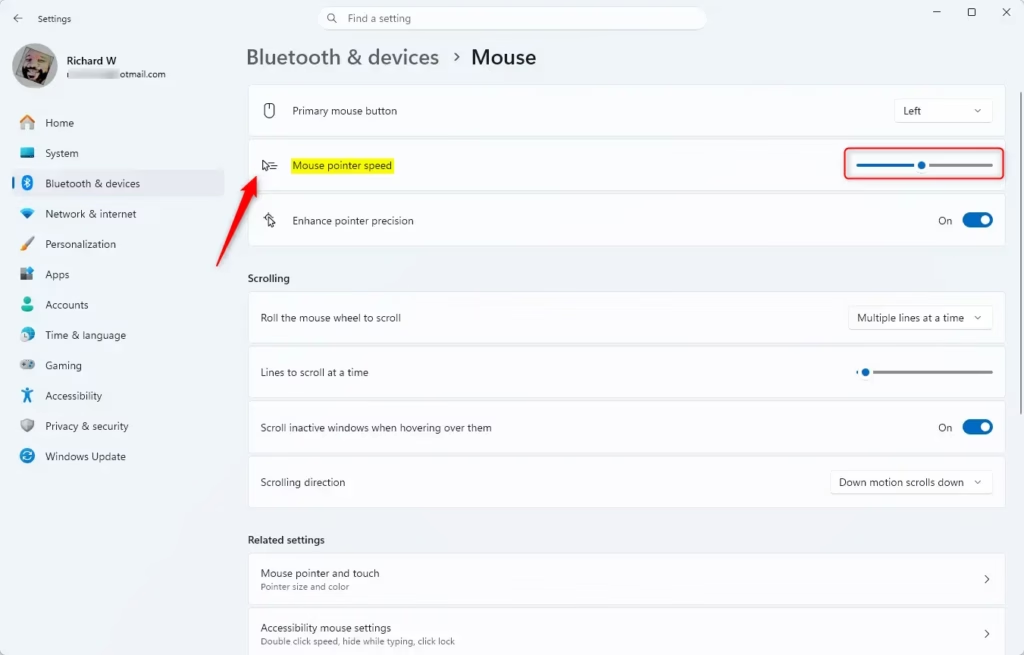
Open Settings , go to Bluetooth & devices, click Mouse, then drag the Mouse pointer speed slider left to slow down the cursor or right to speed it up. The change applies immediately as you move the slider.
Option 1Using the Settings App
The Settings app is the quickest method and the one most people should use. It works the same on Windows 11 Home and Pro, and the change applies immediately with no restart.
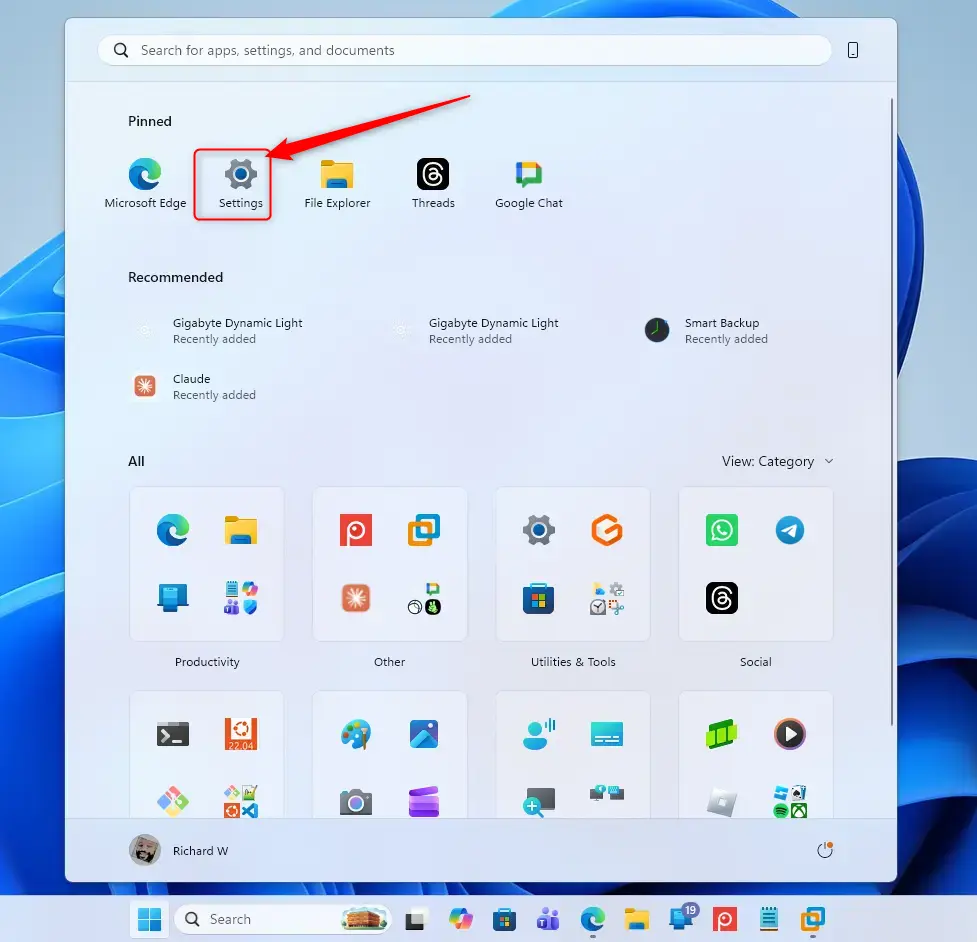
- Press the Win+I on your keyboard. The Settings app opens.
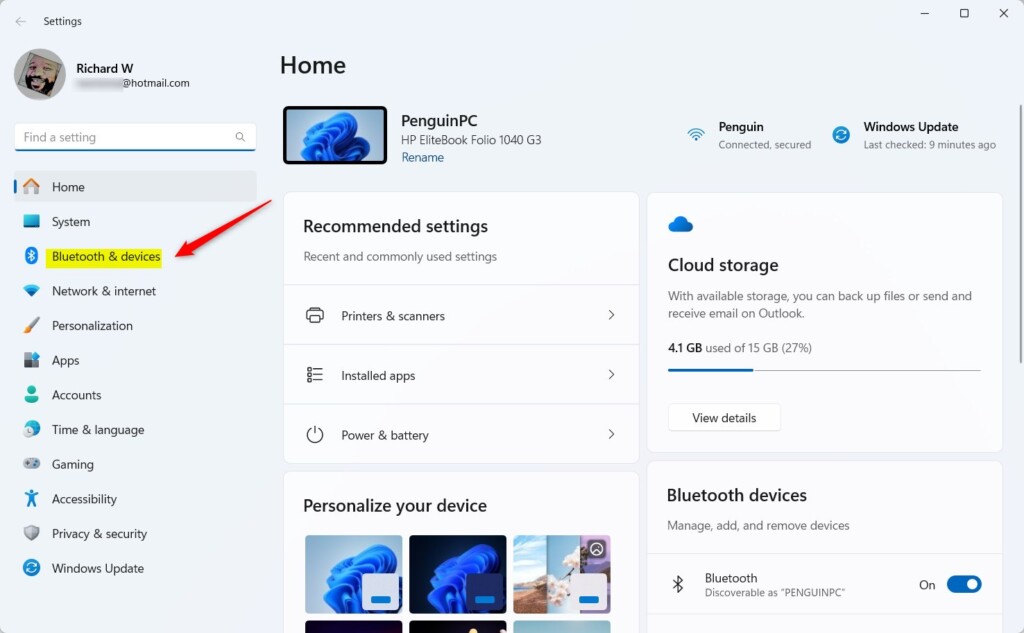
- Click Bluetooth & devices in the left menu. The list of connected devices appears on the right.
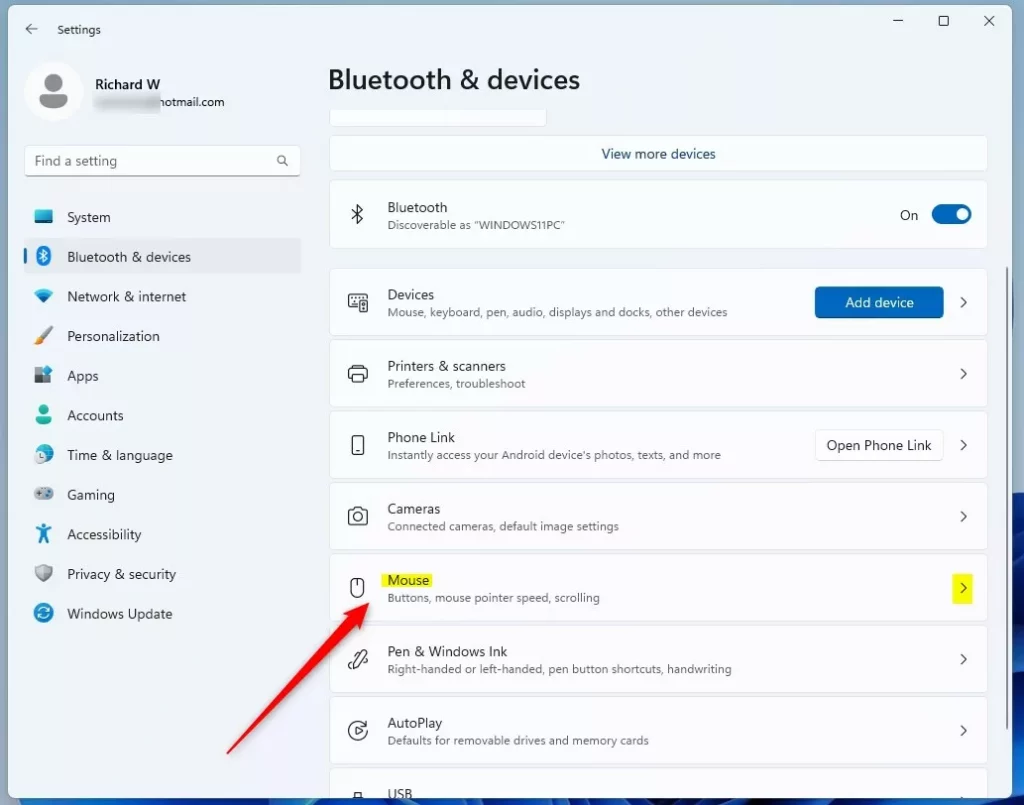
- On the right side, click Mouse. If you don’t see it, make sure a mouse is connected. A touchpad on its own may not show this page on every PC.
- Find the Mouse pointer speed slider. Drag it to the left to make the pointer slower, or to the right to make it faster.
- Move your mouse across the screen to test it. The new speed applies as soon as you move the slider, so you can adjust it a little at a time until it feels right.
- Close the Settings window when you’re done.
The slider runs from 1 (slowest) to 20 (fastest). The usual setting is 10. If you want to undo your changes, set the slider back to 10.
Option 2Using Control Panel
The classic Control Panel still works in Windows 11 and has the same speed setting. It’s useful if you’re used to older versions of Windows. Changes here take effect when you click Apply or OK, and you don’t need to restart.
- Click the search box on the taskbar and type Control Panel. Click the Control Panel result to open it.
- Click Mouse in the Control Panel window. If the view is set to Category and you don't see Mouse, open Hardware and Sound first, or change View by in the top-right corner to Large icons or Small icons.
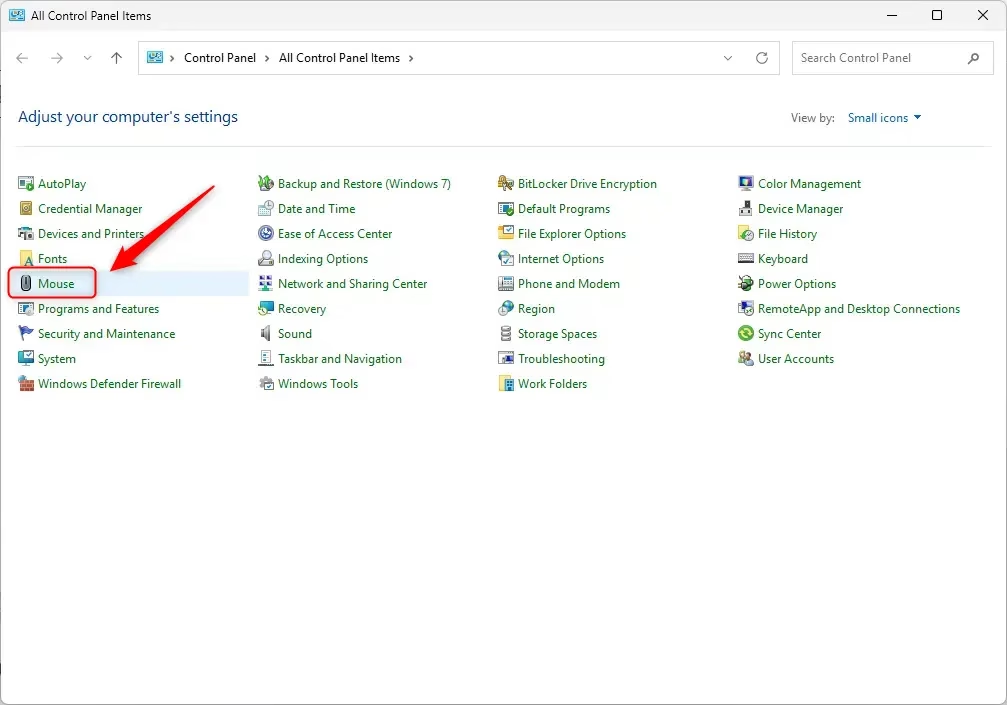
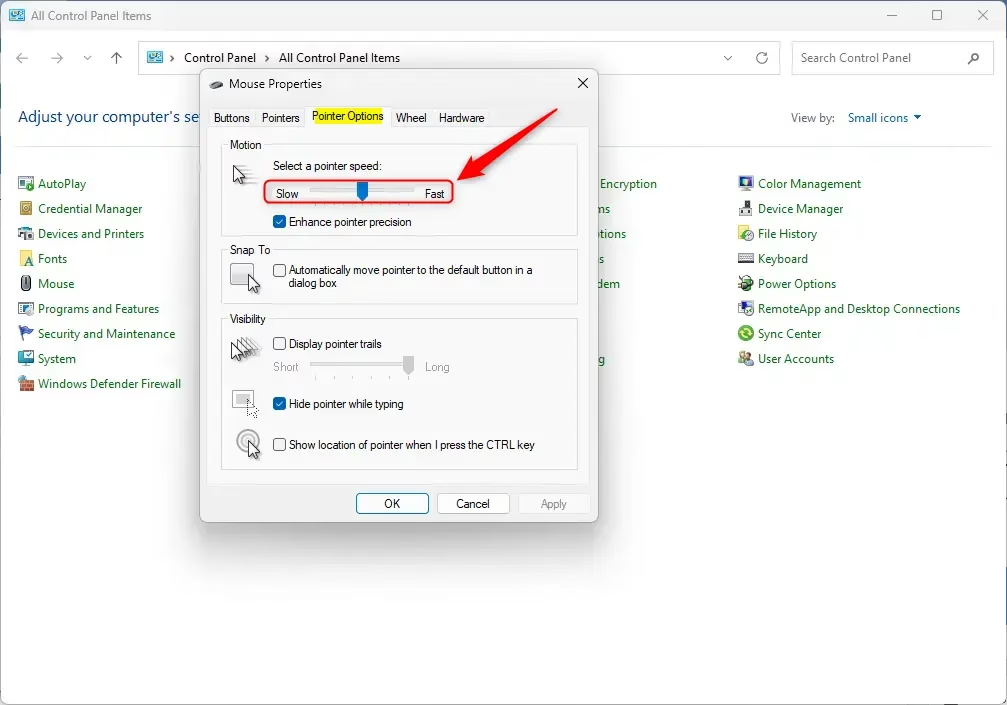
- In the Mouse Properties window that appears, click the Pointer Options tab at the top.
- Find the slider labeled Select a pointer speed. Move it left for slower movement or right for faster movement. This slider has fewer notches than the one in Settings, but it changes the same setting.
- Click Apply if you want to test the speed first. Move the mouse and check how it feels.
- Click the OK button to save your changes.
- Close the Control Panel window.
To undo, return to the same tab and move the slider back to its original position. You'll find the same Enhance pointer precision checkbox on this tab. It's a separate setting that adds acceleration, so leave it as it is unless you know you want to change it.
Option 3Using Registry Editor
The Registry is a database that stores Windows settings. Use this method only if the other two aren't available to you, for example when you're following a work procedure that edits values directly. A wrong change in the wrong place can cause problems, so before you start, you can back up by clicking File and then Export in the Registry Editor. The change here only affects your own user account.
- Type regedit into the Windows search bar and press Enter.
- If a User Account Control prompt appears, click Yes. The Registry Editor window opens.
- In the left pane, click through the folders to reach this location. You can also paste it into the address bar at the top of the window:
HKEY_CURRENT_USER\Control Panel\Mouse - With the Mouse folder selected, look at the right pane and find the entry named MouseSensitivity. Double-click it to open its settings.
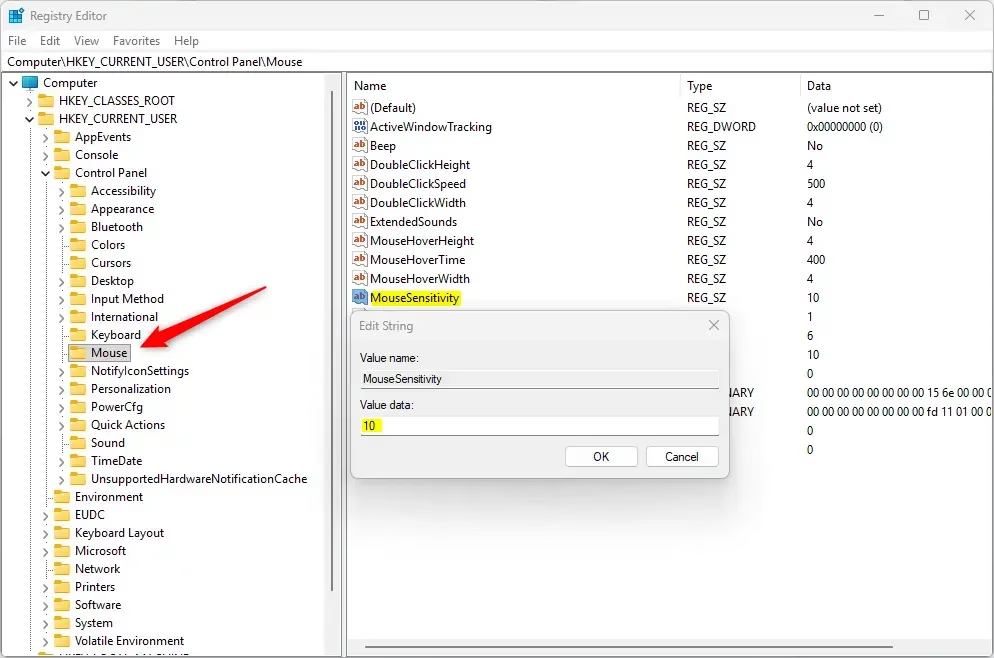
- A small Edit String window pops up. Type a number between 1 and 20 in the Value data box. A lower number makes the pointer slower and a higher number makes it faster. The default is 10.
- Click OK to confirm your new setting.
- Close the Registry Editor.
- Sign out of Windows and sign back in, or restart the PC. Registry edits to this value often don't take effect until you do.
If the speed in Settings or Control Panel doesn't match what you typed, the change hasn't been applied yet.
Summary
You now have three ways to change your mouse pointer speed in Windows 11. The Settings app is the quickest, Control Panel is familiar if you used older versions of Windows, and the Registry Editor gives you direct control over the number. Pick the one that suits you, test the pointer for a few minutes, and adjust until it feels right. If you change your mind, set it back to 10.
Frequently asked questions
How do I adjust my mouse cursor speed?
Open Settings with Windows key + I, then click Bluetooth & devices and select Mouse. Drag the Mouse pointer speed slider left to slow the pointer or right to speed it up. The scale runs from 1 to 20, and the change takes effect right away without a restart.
How to adjust mouse pointer in 🪟 Windows 11?
Open Settings and go to Bluetooth & devices, then Mouse. Drag the Mouse pointer speed slider to change how fast the arrow moves. To change how the pointer looks, open Settings, go to Accessibility, then Mouse pointer and touch, and adjust its size and color.
How do I change the cursor pointer settings?
Go to Settings, then Bluetooth & devices, then Mouse to change pointer speed. For pointer size and color, open Settings, then Accessibility, then Mouse pointer and touch. To pick a different pointer scheme, select Additional mouse settings and open the Pointers tab.
How do I change the cursor back to normal in 🪟 Windows 11?
Open Settings, go to Bluetooth & devices, then Mouse, and select Additional mouse settings. On the Pointers tab, open the Scheme list and choose Windows Default (system scheme). Click Apply, then OK to restore the standard arrow cursor.
Still have a question?
Answered by AI from this guide. Good questions may be added to this page — please don't include personal details.
Did this guide fix your problem?

About the Author
Richard
Tech Writer, IT Professional
Richard is a writer at Geek Rewind who turns complex IT tasks into clear, step-by-step guides. He draws on years of hands-on experience in system administration and enterprise IT operations, focusing on Windows, Linux and WordPress: the problems people actually run into, and the fixes that work. His server and WordPress guides come from systems he runs himself. Richard builds and maintains the platform behind Geek Rewind, from its Ubuntu servers and Nginx configuration to its custom WordPress plugins. Many new tutorials start with readers' questions, and he's always glad to answer them in the comments.
No comments yet — be the first to share your thoughts!