How to Turn Mouse Pointer Trails on or off in Windows 11

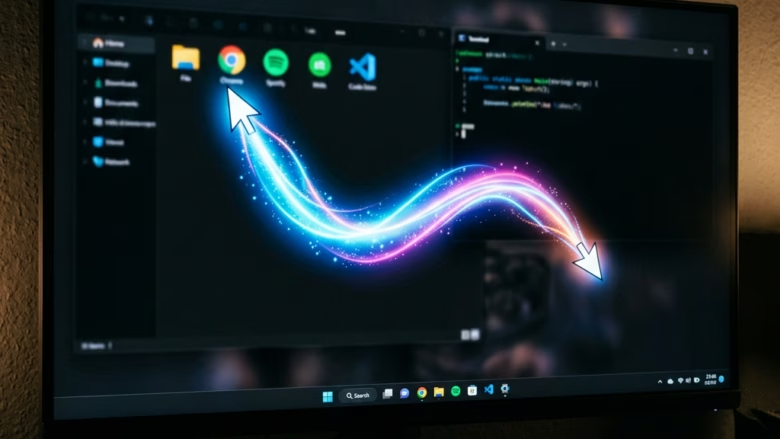
Mouse pointer trails leave a faded copy of the cursor behind it as you move the mouse. This makes the pointer easier to follow on busy screens, high-resolution displays or a projector.
The setting takes four short steps. Open Settings, go to Bluetooth & devices Mouse, open the classic Mouse Properties window, and tick or untick one box. A slider in that window sets how long the trail is. It works the same on Windows 11 Home and Pro, needs no administrator rights, and takes effect without a restart. To turn trails off later, follow the same steps and clear the checkbox.
Open Settings , go to Bluetooth & devices Mouse, click Additional mouse settings, then tick Display pointer trails on the Pointer Options tab. Adjust the slider to set trail length, click Apply, then OK. The trails appear immediately as you move the mouse.
How to Turn On Mouse Pointer Trails
Step 1Open Windows Settings
Open the Settings app first. It holds the mouse options, and either of these two methods gets you there:
- Using the keyboard: Press the Win + I at the same time. Settings opens straight away, and this is the quickest route.
- Using the Start menu : Click the Start button (the Windows logo) on the taskbar. Then click the Settings gear icon. If the gear is not in your pinned apps, type “Settings” in the search box and click the result.
You should now see the Settings window, with a list of categories down the left side.
Step 2Go to Mouse Settings
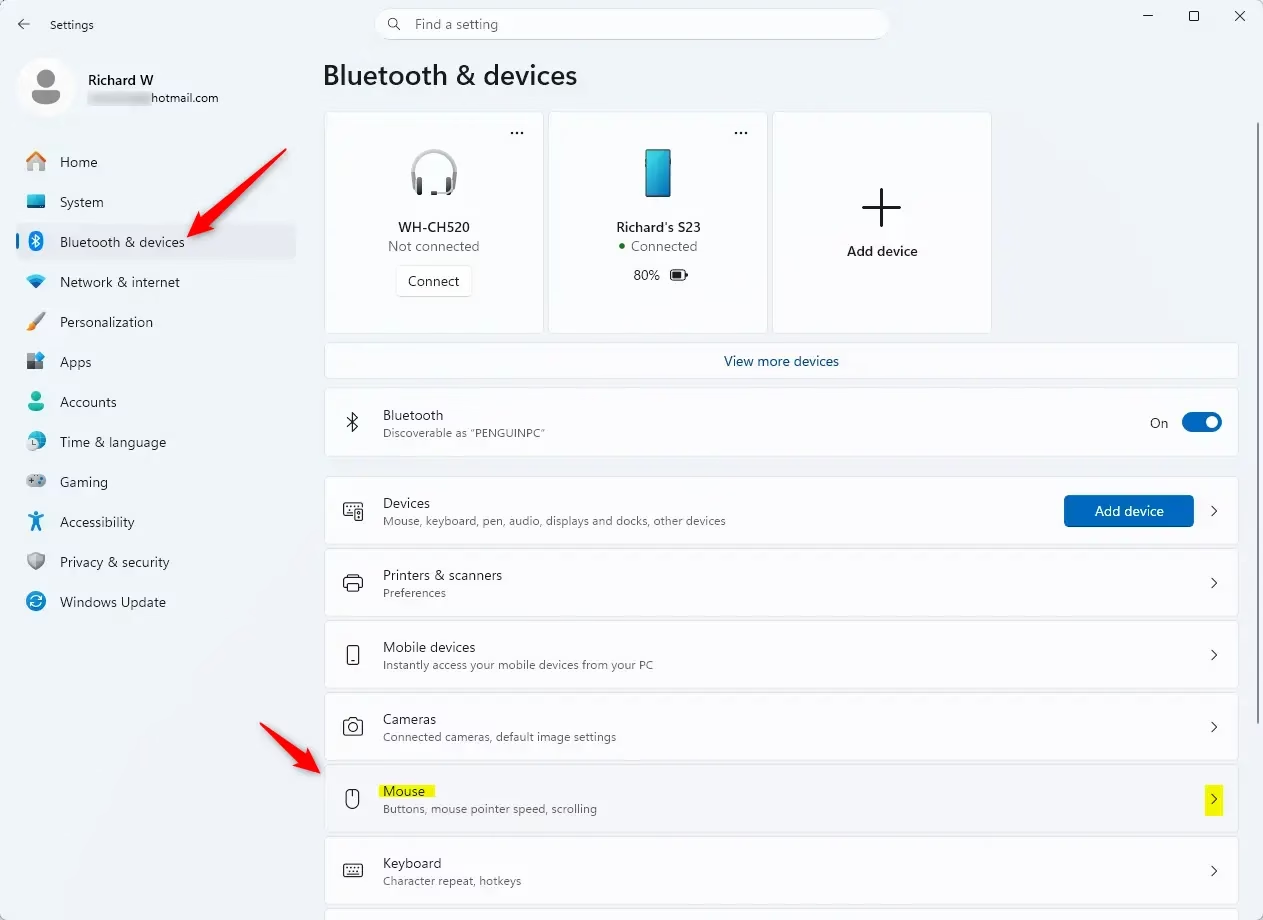
- Look at the list of categories on the left side of the Settings window.
- Click Bluetooth & devices. The page on the right changes to show your connected devices.
- Scroll down the page until you see Mouse, then click it.
The Mouse page opens, with options for the primary button, cursor speed and scrolling. If the window is narrow, the left list may collapse into icons. Hover over the Bluetooth icon, or widen the window, to find the right entry.
Step 3Find More Mouse Options
You need the older Control Panel window, which Windows 11 still links to from this page.
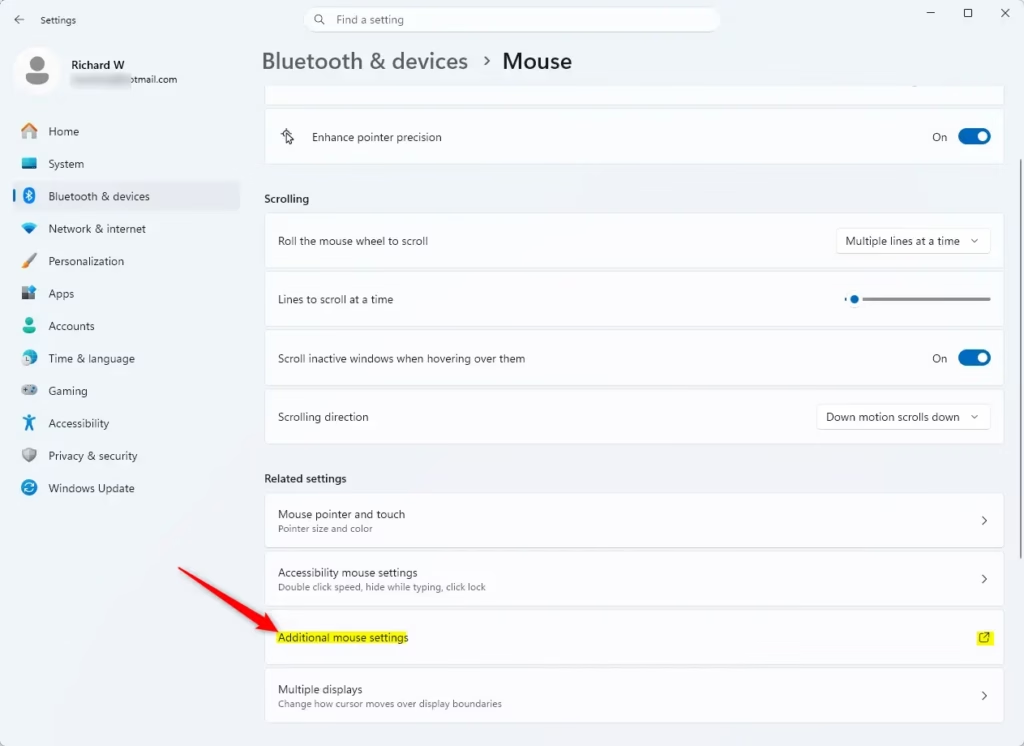
- Scroll to the bottom of the Mouse page. Look under Related settings.
- Click Additional mouse settings. On some builds this link is worded "Additional mouse options". It is the same link.
A window titled Mouse Properties opens on top of Settings. It holds legacy options, meaning older Control Panel settings carried over from previous versions of Windows. These control pointer behavior and appearance.
If the link is missing, the page may not have scrolled all the way down. Also check that you are on the Mouse page, not the Touchpad page.
Step 4Turn On Pointer Trails
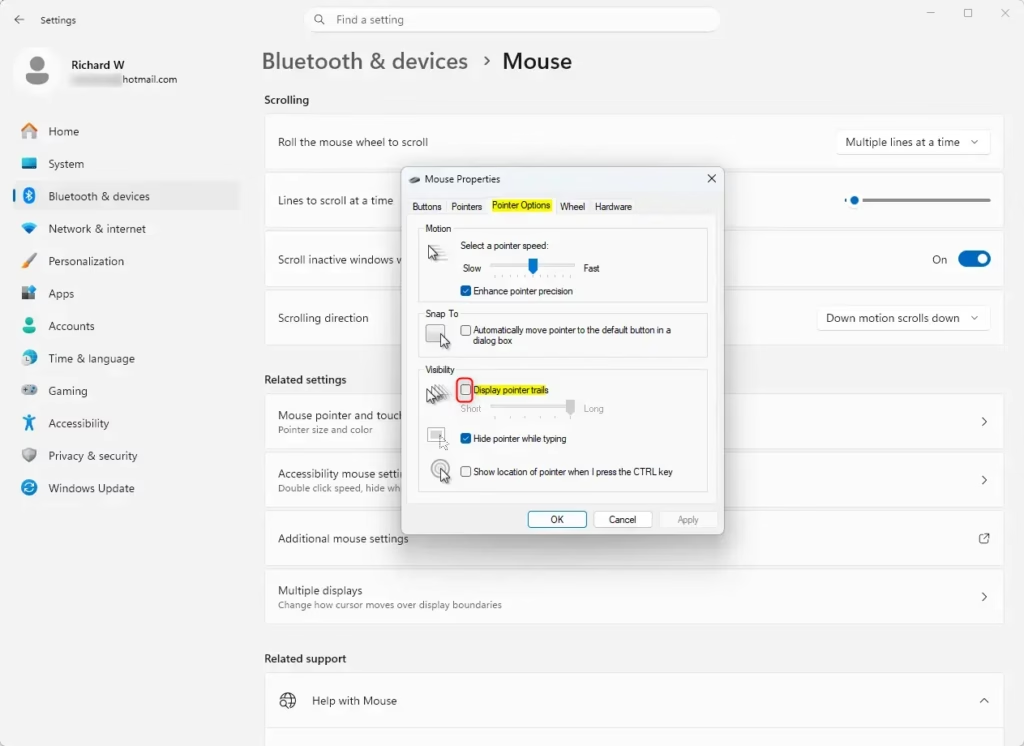
- In the Mouse Properties window, click the Pointer Options tab.
- Find the Visibility group and tick the Display pointer trails checkbox. A slider underneath becomes active.
- Drag the slider toward Short or Long to set how far the trail stretches behind the cursor. Start in the middle and adjust from there. A very long trail can look cluttered.
To turn pointer trails off later, clear the Display pointer trails checkbox. Then click Apply and OK as described below.
You may notice the Enhance pointer precision checkbox in the Motion group on the same tab. It changes how pointer speed responds to hand movement. Some gamers turn it off for steadier aim, while other people find fine control harder with it on. It has nothing to do with trails, so leave it as it is.
Step 5Save Your Changes
- Click Apply at the bottom of the Mouse Properties window. The trail starts working immediately.
- Click OK to save the setting and close the window.
- Move the mouse around the desktop and check the trail behind the pointer. If it is too long or too short, reopen Mouse Properties and adjust the slider.
If you click Cancel or close the window with the X, nothing is saved. You can then close Settings as well.
Reference:
Summary
To turn on mouse pointer trails in Windows 11, go to Settings Bluetooth & devices Mouse Additional mouse settings On the Pointer Options tab, tick Display pointer trails, set the length with the slider, then click Apply and OK. To turn them off, clear the same checkbox.
Was this guide helpful?

About the Author
Richard
Tech Writer, IT Professional
Richard is a writer at Geek Rewind who turns complex IT tasks into clear, step-by-step guides. He draws on years of hands-on experience in system administration and enterprise IT operations, focusing on Windows, Linux and WordPress: the problems people actually run into, and the fixes that work. His server and WordPress guides come from systems he runs himself. Richard builds and maintains the platform behind Geek Rewind, from its Ubuntu servers and Nginx configuration to its custom WordPress plugins. Many new tutorials start with readers' questions, and he's always glad to answer them in the comments.


No comments yet — be the first to share your thoughts!