How to Show Windows 11 Taskbar on All Displays

Windows 11 can put a taskbar on every monitor you have connected. That makes multitasking across several screens easier, because you can open and switch apps from whichever display you are working on.
Open Settings with Win+I, then go to Personalization Taskbar Taskbar behaviors and check “Show my taskbar on all displays”. A taskbar appears on every connected monitor immediately, with no restart. Under “When using multiple displays, show my taskbar apps on”, choose All taskbars, or one of the two options that keep open apps on the screen they run on.
Why change these settings?
Moving the mouse back to the main monitor just to switch apps gets old quickly on a multi-screen desk. With the taskbar on every screen, you can launch and switch programs where you are already working. That saves a few seconds each time, and those seconds add up over a busy day.
What happens when done?
With the Windows 11 taskbar multiple displays settings, a taskbar appears on every connected monitor. You can see your open apps and switch windows no matter which screen you are looking at. You also decide how program icons are spread out. You can show them on all screens, or only on the display where the app is currently running. The setting is available on Home, Pro and the other editions, and you don’t need administrator rights to change it.
By default, the Windows 11 taskbar shows the Start menu , Search, Task View, Widgets, Teams Chat, File Explorer , Microsoft Edge, and Microsoft Store buttons. These are what you will see copied to your other screens.
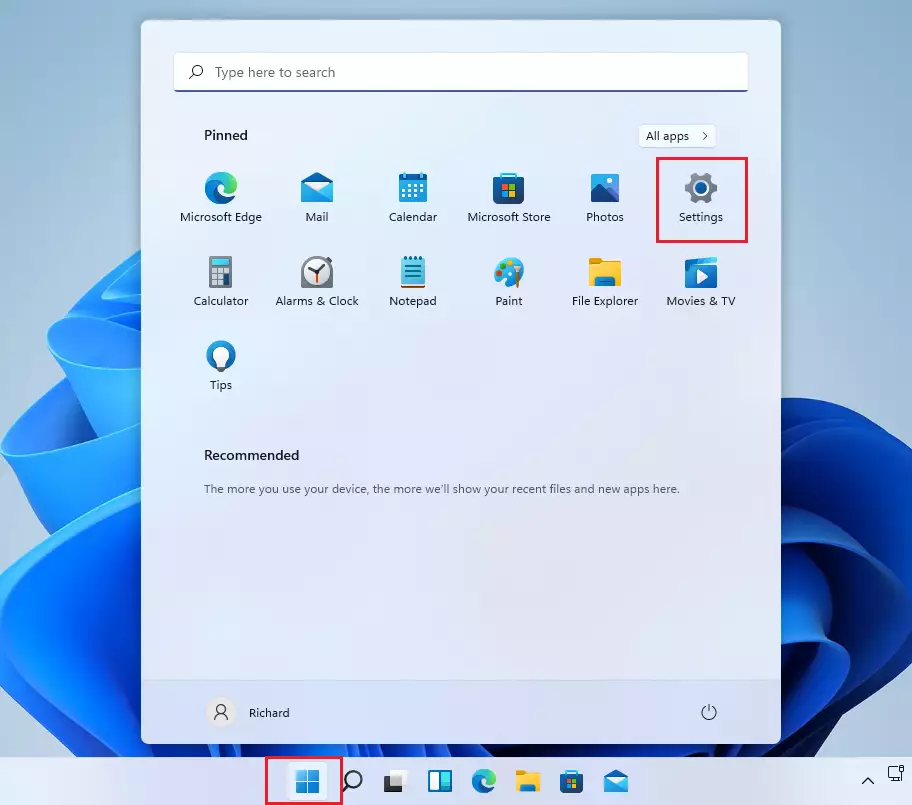
The options below only appear when Windows detects more than one display. Then follow these steps:
- Open Settings by pressing Win+I. You can also click Start and then the Settings gear icon. The Settings window opens.
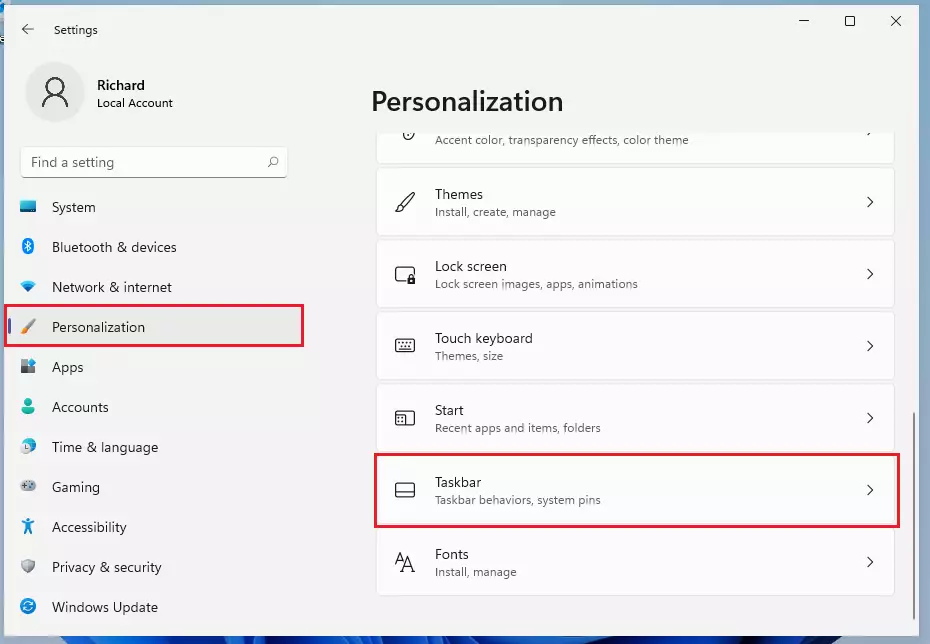
- In the menu on the left, click Personalization.
- On the right side of the window, click Taskbar. You will see the taskbar settings page, with sections such as Taskbar items and Taskbar behaviors.
- Scroll down and click Taskbar behaviors to expand the section. A list of options and checkboxes opens.
- Check the box next to Show my taskbar on all displays. A taskbar should appear on your other monitors right away.
Open Settings System Display and check that every monitor is listed. If one is missing, click Detect under the multiple displays section. Also check the cable and the monitor's input setting.
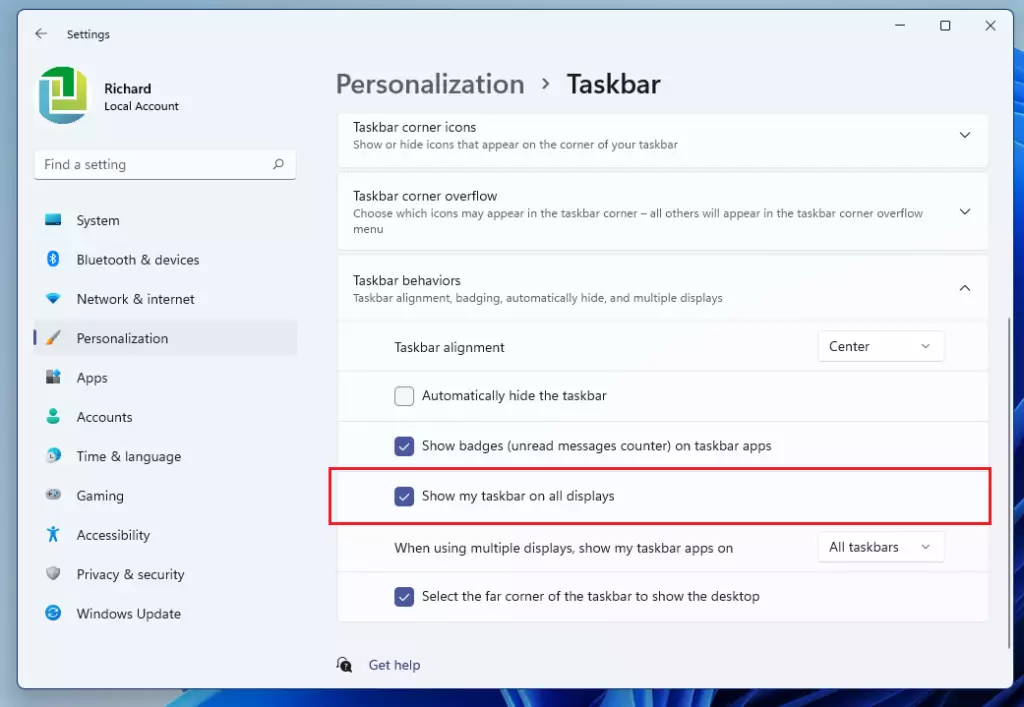
- In the same section, find the setting When using multiple displays, show my taskbar apps on. It becomes available once the checkbox above is on.
- Open the dropdown menu and choose the option you prefer:
- All taskbars: Shows your pinned and open apps on every screen.
- Main taskbar and taskbar where the window is open: Shows pinned apps only on the main screen, but open apps appear on the screen where you are using them.
- Taskbar where the window is open: Shows pinned apps only on the main screen and open apps only on the screen they are currently on.
If you are not sure which to pick, start with All taskbars. It is the simplest to use. Switch to one of the other two if the extra icons make your secondary screens feel cluttered.
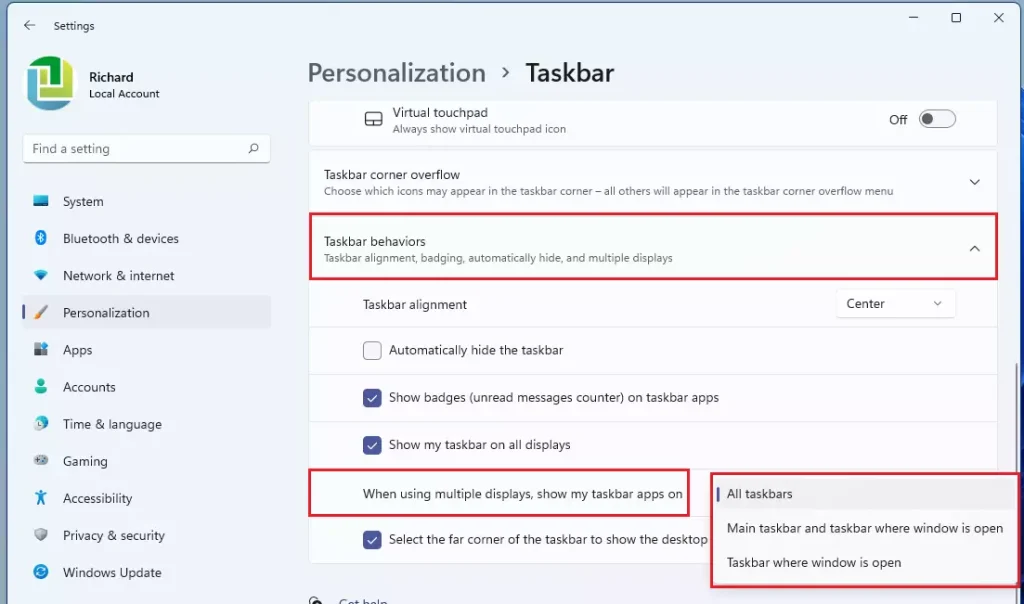
Windows applies each change as soon as you make it. You don't need to click a Save button or restart the PC, and you can simply close the Settings window when you are done. To undo everything, return to the same page and uncheck Show my taskbar on all displays. The extra taskbars disappear and only the main one remains.
Summary
- Why: To improve your workflow and stop jumping between screens to find your open apps.
- What: You get a taskbar on every monitor, with your own rules for how apps appear.
- Customization: You can show all apps everywhere, or keep your taskbars cleaner by showing only active programs.
- Efficiency: These settings make a multi-monitor setup much easier to work with day to day.
Configuring the Windows 11 taskbar multiple displays options adds a taskbar to every monitor, so you no longer jump between screens to find open apps. You also set the rules for how your programs appear. You can show all apps everywhere, or keep your taskbars cleaner by showing only active programs on the screen where they run.
Frequently asked questions
Why isn't my taskbar showing on both monitors?
Your taskbar only shows on one monitor when the "Show taskbar on all displays" option is turned off. Open Settings, go to Personalization, then Taskbar, and turn on that option under Multiple displays. If the second monitor still has no taskbar, check Settings System Display to confirm Windows detects the screen.
How to Display all open windows on taskbar?
Windows 11 shows the apps open on your current screen in the taskbar by default. To show every open window on every taskbar, open Settings, go to Personalization, then Taskbar, and set "When using multiple displays, show my taskbar apps on" to All taskbars. Each screen then lists all running apps.
How to make taskbar icons only?
Windows 11 already shows taskbar buttons as icons without text labels, and it has no setting to add labels. To make the taskbar less cluttered, turn off buttons you don't use under Taskbar items in Settings, or turn on Automatically hide the taskbar under Taskbar behaviors.
How do I move the 🪟 Windows 11 taskbar to another monitor?
You can't drag the Windows 11 taskbar to another monitor. It always sits at the bottom of a screen, and it follows your main display. To move it, open Settings, go to System, then Display, and select Make this my main display for the monitor you want. Turn on Show taskbar on all displays to get one on each screen.
Still have a question?
Answered by AI from this guide. Good questions may be added to this page — please don't include personal details.
Did this guide fix your problem?

About the Author
Richard
Tech Writer, IT Professional
Richard is a writer at Geek Rewind who turns complex IT tasks into clear, step-by-step guides. He draws on years of hands-on experience in system administration and enterprise IT operations, focusing on Windows, Linux and WordPress: the problems people actually run into, and the fixes that work. His server and WordPress guides come from systems he runs himself. Richard builds and maintains the platform behind Geek Rewind, from its Ubuntu servers and Nginx configuration to its custom WordPress plugins. Many new tutorials start with readers' questions, and he's always glad to answer them in the comments.
No comments yet — be the first to share your thoughts!