How to Switch Between Open Windows in Windows 11


Switching between open windows in Windows 11 lets you move across up to 20 or more running apps without closing or minimizing your work. Built-in keyboard shortcuts like Alt+Tab, taskbar buttons, and touchpad gestures speed up how you jump across your desktop.
This guide covers the methods in the order most people reach for them: Task View, Alt+Tab, Snap Layouts, and Virtual Desktops. Learn two or three and you will rarely need to hunt for a hidden window again.
Two quick extras before you start:
- Taskbar buttons: Click any app icon on the taskbar to bring its window to the front. If an app has several windows open, hover over the icon and click the thumbnail you want.
- Touchpad gestures: On a laptop with a precision touchpad, a three-finger swipe up opens Task View. A three-finger swipe left or right moves between recent windows. If nothing happens, check the Touchpad page under Bluetooth & devices in Settings. Gestures can be turned off there, and older or basic touchpads may not support them.
Press Alt+Tab to switch between open windows in Windows 11. Hold Alt, tap Tab to cycle through thumbnails, and release when the window you want appears. For a visual overview of all windows, press Win+Tab to open Task View instead.
Switch Between Open Windows in Task View
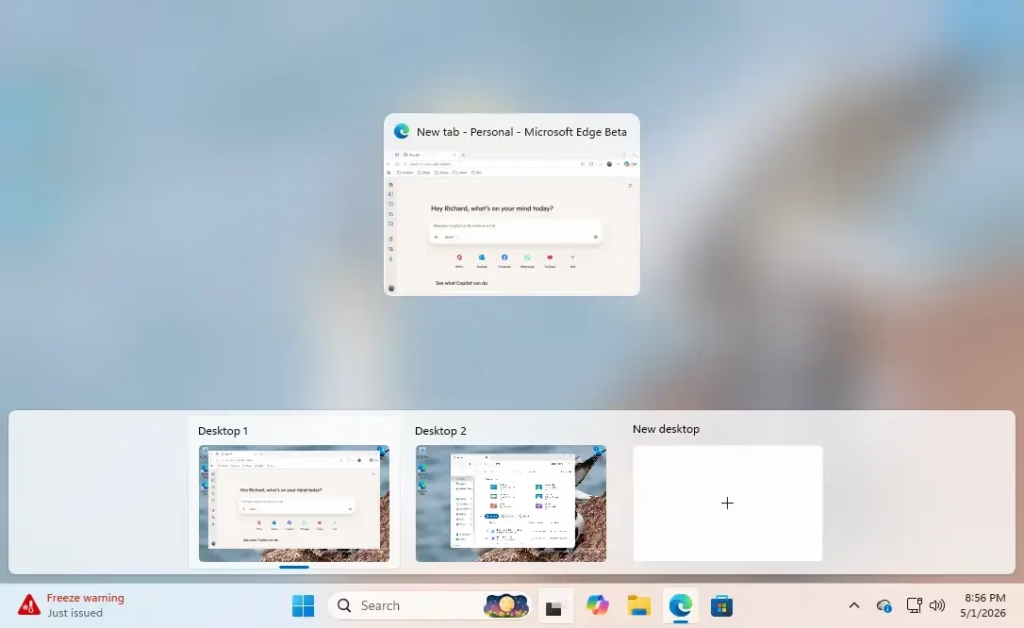
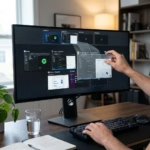
Task View gives you a visual overview of everything currently running. It also shows your virtual desktops, which keep separate projects apart.
- Press Win+Tab. You can also click the Task View button on the taskbar , if it is turned on. It is on by default, but it can be hidden in the taskbar settings.
- Look at the screen. Every open window appears as a thumbnail, and your virtual desktops appear along the bottom.
- Click the thumbnail of the window you want. Task View closes and that window comes to the front.
Unlike Alt+Tab, Task View stays open after you release the keys, so you can take your time choosing.
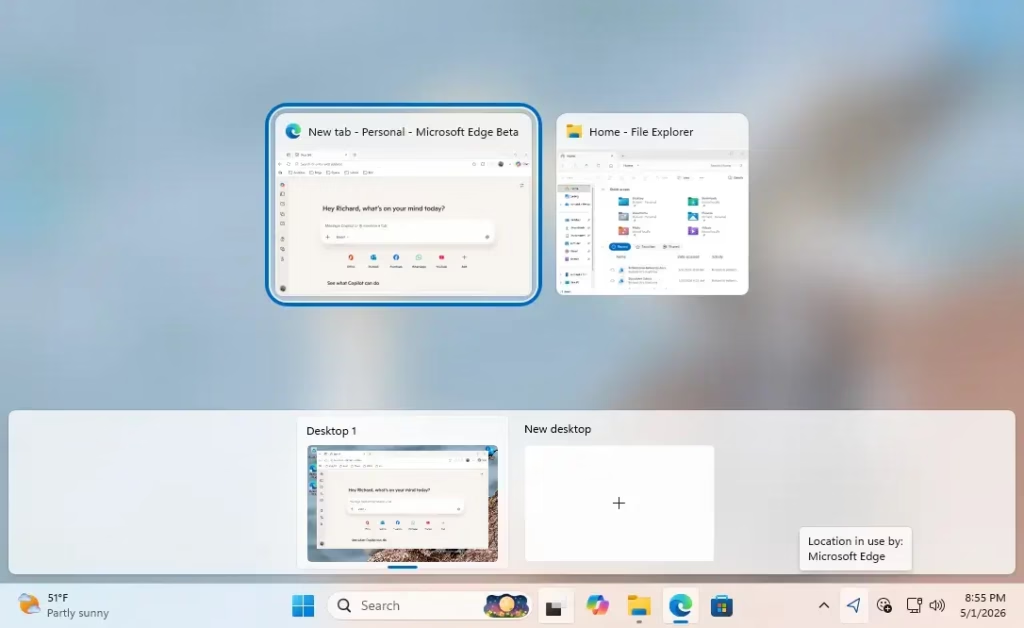
Mastering Alt+Tab
You can quickly switch windows in Windows 11 by holding down the Alt key and tapping the Tab key until the program you want appears. Releasing the keys immediately brings that window to the front of your screen, saving you from clicking taskbar icons.
- Hold down Alt.
- Tap Tab. A row of window thumbnails appears in the middle of the screen.
- Keep tapping Tab to move the highlight to the right. Add Shift (Alt+Shift+Tab) to move backward, or use the arrow keys.
- Release both keys when the window you want is highlighted. It comes to the front.
If you want the switcher to stay on screen after you let go, use Ctrl+Alt+Tab instead. Then pick a window with the arrow keys and press Enter.
A quick tap of Alt+Tab, without holding, jumps straight back to the last window you used. That makes it handy for flipping between two apps, such as a document and a browser.
Snap Layouts and Groups
Snap Layouts organize windows into specific grid positions, so you can see several apps at once and switch between them with a single click.
- Hover the mouse over the maximize button of any window. A small panel of layout choices appears.
- Click the zone in the layout where you want the current window to sit. The window snaps into place.
- Pick the next window for each remaining zone from the thumbnails Windows offers. The windows fill the layout.
You can also press Win+Z to open the layout panel from the keyboard.
Snapping creates a Snap Group. Finding that group in the taskbar later restores all connected windows at once. Hover over the taskbar icon of one of the apps in the group, and the group appears as a thumbnail you can click.
If the layout panel never shows up, open Settings, go to System, then Multitasking, and check that the snap options are switched on. Smaller screens offer fewer layouts because there is less room for them. This works the same in Home and Pro.
Managing Virtual Desktops
Virtual Desktops separate professional tasks from personal activities. Each desktop has its own set of open windows, so work apps do not clutter your personal browsing.
- Open Task View with Win+Tab.
- Click New desktop. A clean desktop is added to the row of desktops.
- Click the new desktop to switch to it, then open the apps you want there.
- To move an existing window, return to Task View and drag its thumbnail onto another desktop in the row.
You can also switch desktops from the keyboard with Win+Ctrl+Left and Win+Ctrl+Right. To remove a desktop, hover over it in Task View and click the X. Its windows are not closed. They move to the neighbouring desktop.
Windows may show apps from every desktop in Alt+Tab, depending on your multitasking settings. If you see windows you did not expect, check there.
Summary
Mastering a few core shortcuts transforms how Windows 11 handles multitasking. Alt+Tab delivers immediate speed, Task View provides structural organization, and Snap Layouts keep the desktop tidy. Workflow efficiency improves naturally when these tools become routine.
If you are unsure where to begin, start with Alt+Tab for day-to-day switching. Add Virtual Desktops once your desktop gets crowded.
Was this guide helpful?

About the Author
Richard
Tech Writer, IT Professional
Richard is a writer at Geek Rewind who turns complex IT tasks into clear, step-by-step guides. He draws on years of hands-on experience in system administration and enterprise IT operations, focusing on Windows, Linux and WordPress: the problems people actually run into, and the fixes that work. His server and WordPress guides come from systems he runs himself. Richard builds and maintains the platform behind Geek Rewind, from its Ubuntu servers and Nginx configuration to its custom WordPress plugins. Many new tutorials start with readers' questions, and he's always glad to answer them in the comments.

No comments yet — be the first to share your thoughts!