How to Switch Between Light Theme and Dark Mode in Windows 11

- 21 steps
- Needs administrator rights
- Includes a restart or sign-out
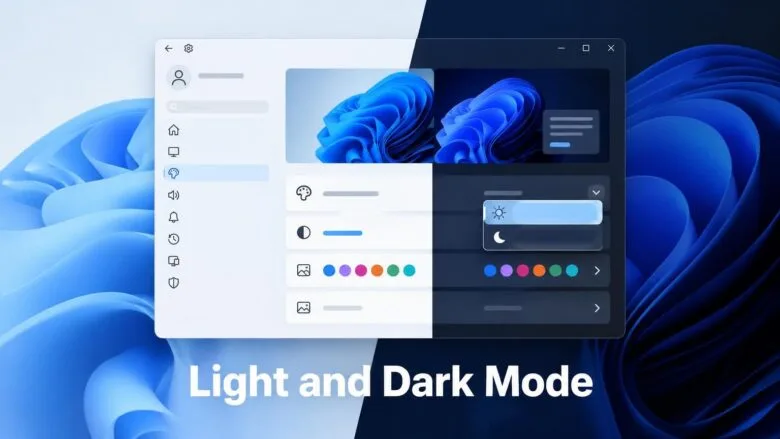
Windows 11 lets you switch between light theme and dark mode in Settings Personalization Colors. The change takes effect right away—you don’t need to restart your computer.
Light theme shows a white background with dark text; dark mode flips this to a dark background with light text. Both work the same on Windows 11 Home and Pro, and you don’t need administrator rights to change between them (unless Windows isn’t activated).
This article covers the Colors page where you make the switch, the Themes page for related settings, keyboard shortcuts to get there faster, and what to do if the option is greyed out or an app doesn’t follow your choice.
Open Settings Personalization Colors, then select Light in the Choose your mode list. The change applies immediately to Windows, the taskbar, Start menu, Settings and compatible apps, with no restart needed.
Before you start
Two terms appear throughout:
- Light mode and dark mode are the two color schemes Windows offers for its own surfaces (Start, taskbar, Settings, File Explorer) and for apps that follow the system. The light theme uses pale backgrounds with dark text. Dark mode reverses that.
- Accent color is the highlight color Windows uses for buttons, selected items and the Start menu when you turn that option on.
The light theme is the default on a fresh Windows 11 install. Dark mode is a setting, not a separate edition or download.
Switch between light theme and dark mode on the Colors page
The Colors page is the direct route. It changes only the color scheme and leaves your wallpaper, sounds and cursor alone.
Change Windows and apps together
This sets the taskbar, Start menu, Settings, File Explorer and compatible apps to the same mode in one step.
- Press Win+I to open Settings.

Windows 11 Start menu with Settings gear icon highlighted. - Select Personalization in the left pane.
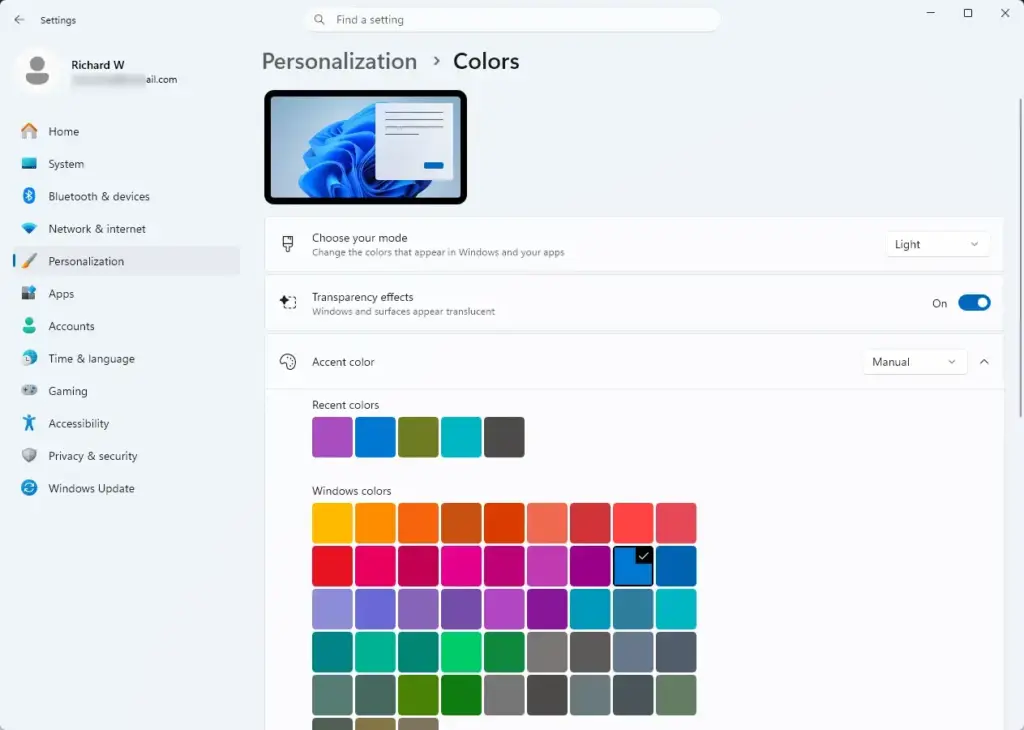
Settings › Personalization › Colors - Select Colors. The page shows a Choose your mode list near the top, below a preview of your current theme.
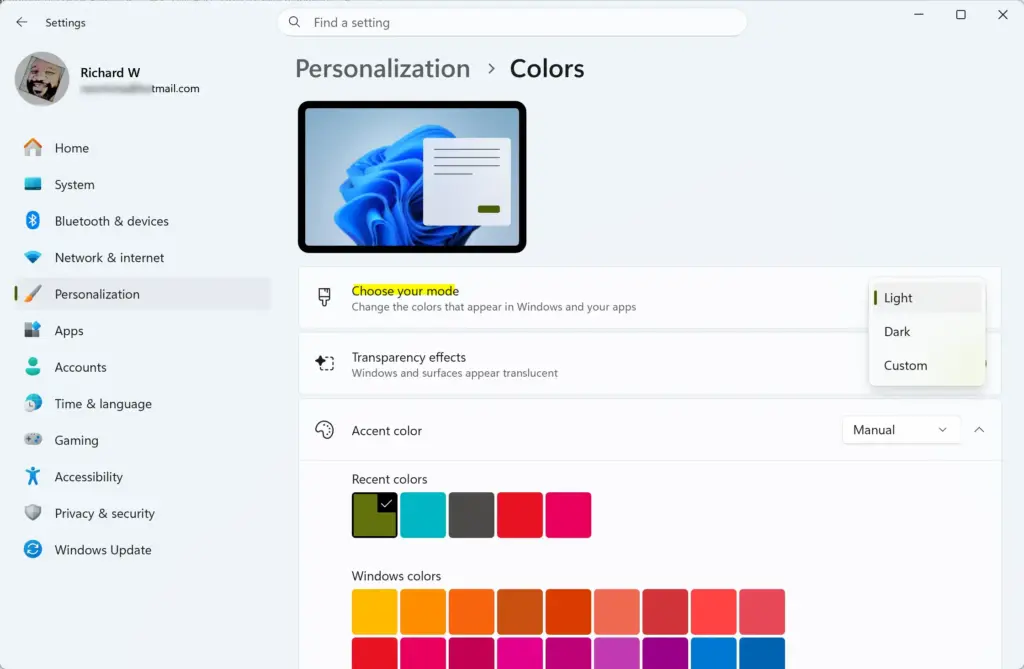
Settings > Personalization - Open the Choose your mode list and select Dark for dark mode, or Light for the light theme. The Settings window, taskbar and Start menu change color as soon as you pick the option.
If the list is greyed out (disabled) or nothing changes, go to the troubleshooting section below.
Use different modes for Windows and apps
This is useful if you want a dark taskbar and Start menu but light app windows, or the other way round. Windows calls this combination Custom.
- Open Settings Personalization Colors.
- Open the Choose your mode list and select Custom. Two more lists appear below it.
Settings > Personalization - Open Choose your default Windows mode and select Light or Dark. This controls the taskbar, Start menu and other system surfaces.
- Open Choose your default app mode and select Light or Dark. This controls apps that follow the system setting, including Settings and File Explorer.
You should now see the two parts of the interface in different modes. For example, a dark taskbar with a light File Explorer window.
To go back to a single mode, set Choose your mode to Light or Dark again.
Switch with a theme instead
A theme is a bundle: wallpaper, color mode, accent color, sounds and mouse cursor. Windows ships with a light theme and a dark theme, plus several picture-based themes. Use this route when you want the wallpaper to change along with the mode.
Apply Windows (light) or Windows (dark)
- Open Settings Personalization Themes.
- Find the row of theme thumbnails under Current theme. Select Windows (light) for the light theme or Windows (dark) for dark mode. The thumbnails are labeled when you hover over them.
- Wait a second or two. The color mode, wallpaper and accent color change together, and the preview at the top of the page updates.
Check what a picture theme does to your mode
Other themes in the list, such as the picture-based ones, set their own light or dark mode. If you pick one and the interface changes color unexpectedly, open Settings Personalization Colors and check Choose your mode. You can change the mode there without losing the theme’s wallpaper.
Open the setting faster
If you switch often, these routes save a few clicks. None of them adds a one-click toggle, because Windows 11 does not include a dark mode button in Quick Settings.
- From the desktopRight-click an empty area of the desktop and select Personalize. Settings opens on the Personalization page. Select Colors.
- From RunPress Win+R, type
ms-settings:colorsand press Enter. Settings opens directly on the Colors page. - From searchSelect Search on the taskbar, type colors and select the Colors settings result.
You can also pin the Colors page. Open it, then right-click it in the Settings left pane or use the Run command in a desktop shortcut. A desktop shortcut that targets ms-settings:colors works the same way as the Run command.
Adjust the look after you switch
The mode you choose affects which other options on the Colors page are available. Check these once after switching.
Show the accent color on Start and the taskbar
This option colors the taskbar and Start menu with your accent color. It works only when your Windows mode is dark.
- Open Settings Personalization Colors.
- Scroll to Accent color and choose Automatic (Windows picks a color from your wallpaper) or Manual (you pick a color from the swatches).
- Turn on Show accent color on Start and taskbar. The taskbar and Start menu take on the accent color.
If the toggle is greyed out, your Windows mode is set to light. Change Choose your mode to Dark, or use Custom with Choose your default Windows mode set to Dark. The toggle becomes available.
The separate Show accent color on title bars and window borders toggle works in either mode.
Transparency effects
Dark mode makes the translucent surfaces on the taskbar and Start menu more noticeable. If the blur looks distracting or reduces contrast, turn Transparency effects off on the same Colors page. The surfaces become solid.
Make apps and websites follow your choice
Windows applies the mode to its own interface and to apps built to follow it. Other software keeps its own setting. The most common cases:
Microsoft Edge
Edge follows the system mode by default. If it does not, open the Edge menu (the three dots), select Settings, then Appearance. Set Overall appearance to System default so Edge changes with Windows, or choose Light or Dark to fix it. These labels can shift slightly between Edge versions.
Microsoft Office
Word, Excel and other Office apps have their own theme. In any Office app, select File, then Account, and look for the Office Theme list. Choose the option that uses the system setting if you want Office to follow Windows. Otherwise pick a fixed theme.
Apps that ignore the setting
Some older desktop apps and a few legacy dialog boxes stay light in dark mode. Parts of the older Control Panel are one example. This is a limit of the app, not a fault with your setup. If an app has a theme or appearance option in its own settings, use that. Apps that follow the system sometimes need to be closed and reopened to pick up the change.
If the option is greyed out or nothing changes
Windows is not activated
On a copy of Windows that is not activated, the Personalization pages show a message that you need to activate Windows to personalize your PC, and the color options are locked. Open Settings System Activation to check your status. Activating Windows with a valid license or digital entitlement unlocks the options. Activation can require administrator rights.
A contrast theme is on
A contrast theme is a high-contrast color scheme designed for people with low vision or light sensitivity. If one is active, it overrides your light and dark mode settings. To turn it off:
- Open Settings Accessibility Contrast themes.
- Open the Contrast themes list and select None.
- Select Apply. The screen may go blank for a moment, then return with standard colors.
- Go back to Settings Personalization Colors and choose your mode again.
Your device is managed by an organization
On a work or school PC, an administrator can lock personalization settings. You see a message such as Some of these settings are hidden or managed by your organization, or the controls do not respond. Only your IT department can change this. On your own PC, check Settings Accounts Access work or school for a connected account.
File Explorer or the taskbar stays in the old mode
Occasionally the shell does not redraw after a switch. Restarting Windows Explorer (the process that draws the taskbar and desktop) fixes it without a full restart.
- Press Ctrl+Shift+Esc to open Task Manager.
- Select the Processes tab.
- Find Windows Explorer, right-click it and select Restart. The taskbar and desktop disappear for a moment and return in the new mode.
If that does not help, sign out and back in, or restart the PC.
Switching automatically at sunset or on a schedule
Windows 11 has no built-in schedule that changes between the light theme and dark mode by time of day. It is easy to confuse this with Night light (a feature that warms the screen’s colors in the evening). Night light does not change the mode, and it is found at Settings System Display Night light.
If you want an automatic switch, third-party tools exist—Auto Dark Mode is one popular example. Before installing any tool, check its source and user reviews. Remember: these tools change the same setting you’d adjust by hand, so you can still override them on the Colors page.
What to do next
To undo the change, open Settings Personalization Colors and set Choose your mode back to Light, or select Windows (light) on the Themes page if you used a theme. Installing a feature update does not normally change your mode, but applying a different theme can, so check the Colors page if your colors change unexpectedly. If you settle on dark mode, the next adjustments to look at are your accent color and, for evening use, Night light under Settings System Display.
Frequently asked questions
What does SDG stand for?
SDG stands for Sustainable Development Goal. These are global objectives set by the United Nations to address poverty, inequality, climate change, environmental degradation, peace, and justice by 2030.
What are the 17 SDGs?
The 17 SDGs are: no poverty, zero hunger, good health, quality education, gender equality, clean water, affordable energy, decent work, industry innovation, reduced inequality, sustainable cities, responsible consumption, climate action, life below water, life on land, peace and justice, and partnerships for goals.
How many SDGs are there?
There are 17 Sustainable Development Goals. The United Nations adopted them in 2015 as part of the 2030 Agenda for Sustainable Development, a universal call to action to end poverty and protect the planet.
What is UN Sustainable Development Goal 11 about cities?
UN Sustainable Development Goal 11 focuses on making cities and human settlements inclusive, safe, resilient, and sustainable. It addresses affordable housing, safe transportation, green spaces, disaster risk reduction, and cultural heritage protection.
Still have a question?
Answered by AI from this guide. Good questions may be added to this page — please don't include personal details.
Did this guide fix your problem?

About the Author
Richard
Tech Writer, IT Professional
Richard is a writer at Geek Rewind who turns complex IT tasks into clear, step-by-step guides. He draws on years of hands-on experience in system administration and enterprise IT operations, focusing on Windows, Linux and WordPress: the problems people actually run into, and the fixes that work. His server and WordPress guides come from systems he runs himself. Richard builds and maintains the platform behind Geek Rewind, from its Ubuntu servers and Nginx configuration to its custom WordPress plugins. Many new tutorials start with readers' questions, and he's always glad to answer them in the comments.
No comments yet — be the first to share your thoughts!