What to Do When Your Windows 11 PC Has No Audio

- 64 steps
- Needs administrator rights
- Includes a restart or sign-out
No sound on a Windows 11 PC usually comes down to the wrong output device, a muted volume, or a driver that needs fixing. Start with the quick checks: make sure the right speaker or headphones are picked in the sound menu, that the volume isn’t muted, and then run the built-in audio troubleshooter. In most cases, that’s all it takes.
If the sound still won’t come back, the cause is often one of three things. A device may be turned off, the Windows Audio service may have stopped, or the sound driver (the software that lets Windows talk to your speakers) may be faulty. This article covers each one, starting with the fastest fixes.
Go through the sections in order, from top to bottom. The early checks take only a few seconds. The later fixes, such as driver and system file repairs, take longer and are harder to undo. Steps that need administrator rights are marked, so you know when you need to sign in as an admin.
To fix no audio on Windows 11, first check that the correct output device is selected under Settings System Sound and that the volume isn’t muted in the Quick Settings panel. If sound still doesn’t play, run the Playing Audio troubleshooter from Settings System Troubleshoot Other troubleshooters. Most cases end there.
Check the Basics First
Many no-audio problems come from a muted app, the wrong output device, or a loose connection. Checking these first rules out a muted app, the wrong output device, or a loose cable before you change any system settings.
Check Volume, Mute and Physical Connections
Confirm the sound is not muted and that the hardware is connected and powered. A speaker icon with an X or a slash in the taskbar means the system volume is muted.
- Click the speaker icon at the right end of the taskbar. The Quick Settings panel opens with a volume slider.
- Drag the slider above zero. If the speaker icon next to the slider has a slash through it, click the icon to unmute. The slash disappears.
- Press the volume-up key on your keyboard. A volume indicator appears on screen. If it doesn’t, the keyboard keys may need an Fn key held with them.
- Check the hardware. Make sure external speakers are switched on, their volume knob is up, and the cable is in the audio output jack (usually green). For headphones, unplug them and plug them in again.
- Test with another source. Play a video in a different app or browser. If one app is silent and others work, the problem is in that app, not in Windows. See the volume mixer section below.
If you hear sound after any of these steps, you are done.
Select the Correct Output Device
Windows sends sound to one output device at a time. After you connect a monitor, headset, dock or Bluetooth speaker, it can switch to a device that is not producing sound. This is the most common reason for no audio on a PC that worked yesterday.
- Click the speaker icon in the taskbar to open Quick Settings.
- Click the icon to the right of the volume slider (Select a sound output). A list of output devices appears.
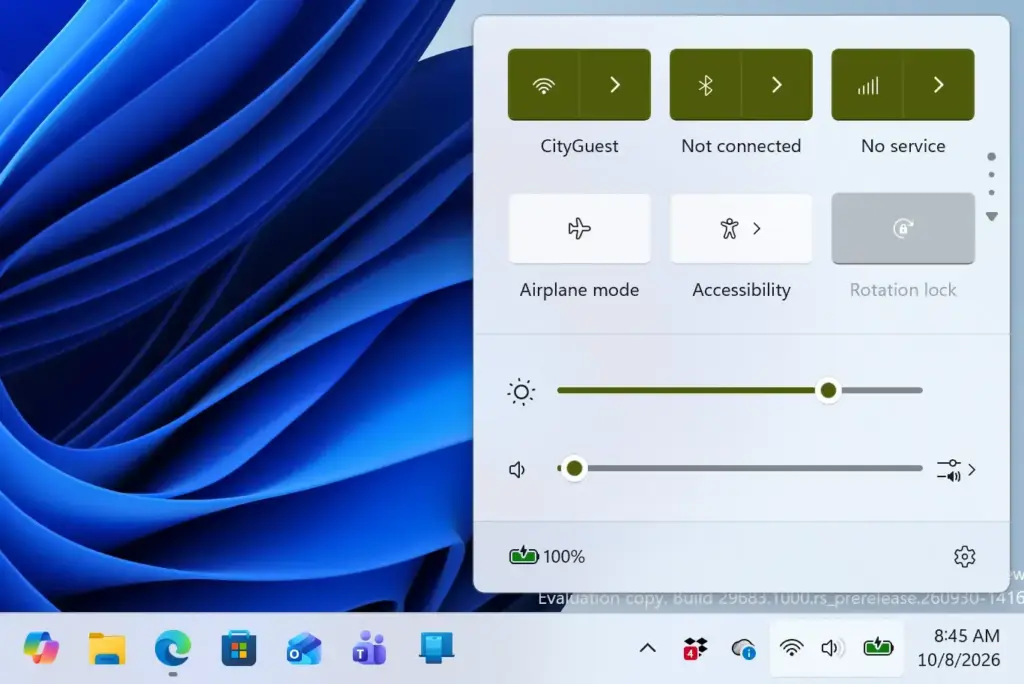
Notification Centre - Select your speakers or headphones from the list. If you are not sure which entry is which, try each one while audio plays.
You can also set the device in Settings. Open Settings System Sound. Under Output, select the device you want. Select the device name to open its properties page, where the Start test button plays a test tone. If you hear the tone, the hardware and driver work and the problem is elsewhere, such as the app you were using. 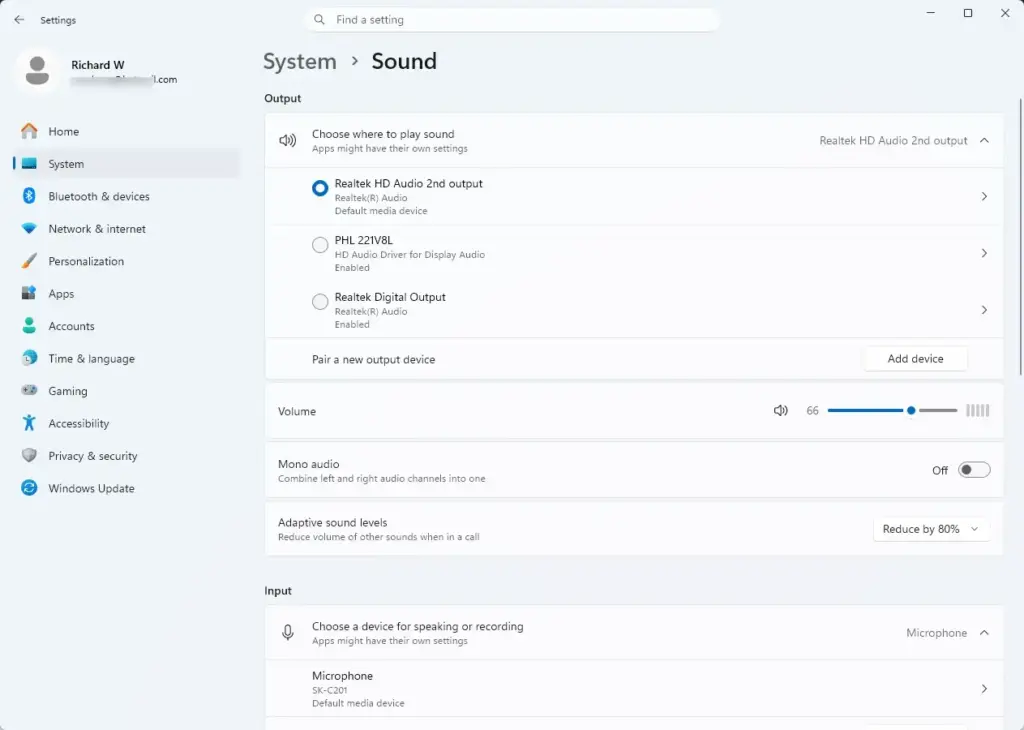
If the device you expect is missing from the list, it is disabled or its driver is not working. Go to the sections on disabled devices and drivers below.
Check the Volume Mixer for Muted or Misrouted Apps
The volume mixer sets volume per app. One app can be muted or turned to zero while the system volume is fine. Some apps can also send sound to a different output device.
- Open Settings System Sound.
- Scroll down to Advanced and select Volume mixer.
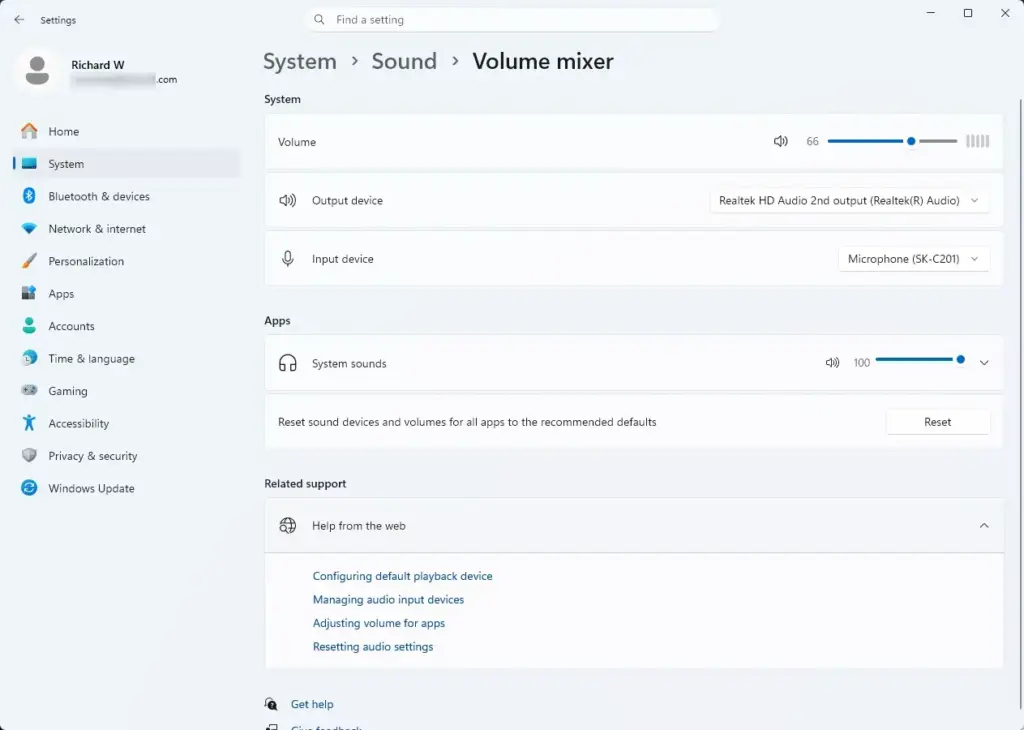
Settings › Sound › Volume mixer - Find the app that has no sound. Drag its slider up from zero.
- Expand the app’s entry if it offers an output device setting, and set it to Default or to the device you want.
For browsers, also check the tab itself. Right-click the tab title; if the option reads Unmute site, the tab is muted.
Run the Windows Audio Troubleshooter
The audio troubleshooter checks for common faults such as a stopped service, a disabled device or a bad setting, and applies fixes automatically. Run it before you change settings by hand.
- Open Settings System Troubleshoot Other troubleshooters.
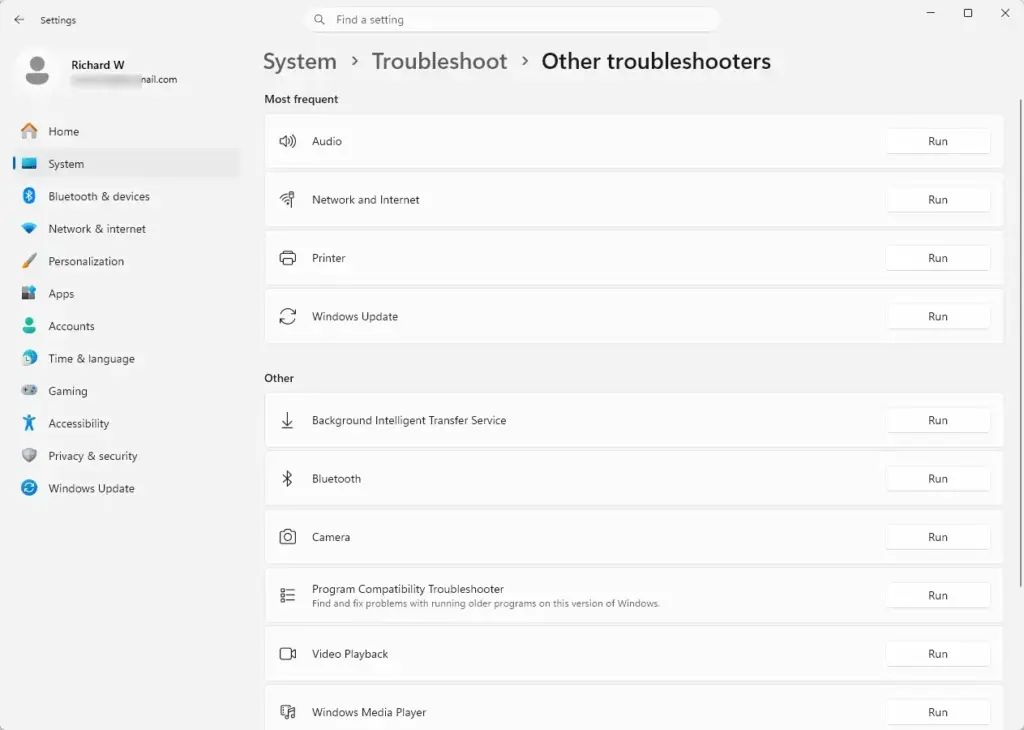
Settings › System › Troubleshoot › Other troubleshooters - Find Playing Audio (labelled Audio on some newer builds) and select Run.
- Select the device that has no sound when asked, then select Next.
- Follow the prompts. The troubleshooter may offer to apply a fix. Select Yes, apply this fix if it does.
The troubleshooter ends with a report listing what it found and fixed. If it says it could not identify the problem, move on to the next section.
You can also reach a sound troubleshooter from Settings System Sound. Look for Troubleshoot common sound problems near the output list or under Advanced. Its position changes between Windows 11 versions, so use the Other troubleshooters route above if you cannot find it.
Check That the Playback Device Is Enabled
A playback device can be disabled without any warning, and a disabled device does not appear in the Quick Settings list. This is the usual cause when your speakers or headphones simply do not appear as an option.
Show and Enable Disabled Devices
- Press Win+R, type
mmsys.cpland press Enter. The classic Sound window opens on the Playback tab. - Right-click an empty area of the device list and select Show Disabled Devices. Disabled devices now appear greyed out.
- Right-click your speakers or headphones and select Enable. The grey icon turns to a full-colour icon.
- Right-click the same device again and select Set as Default Device. A green check mark appears on the icon.
- Select OK.
Play a sound. A green level bar next to the device in the Playback tab moves when audio plays, even if you cannot hear it. If the bar moves but you hear nothing, the signal is leaving Windows and the issue is the speakers, cable or monitor.
If the list is empty even with disabled devices shown, Windows does not see any audio hardware. Go to the driver section.
Turn Off Audio Enhancements and Exclusive Mode
Audio enhancements are effects that Windows or the sound driver apply, such as bass boost or loudness. A faulty enhancement can silence a device. Exclusive mode lets one app take full control of a device, which can block every other app.
- Open Settings System Sound and select your output device under Output.
- Set the Audio enhancements toggle to Off. On some versions the toggle is labelled Enhance audio.
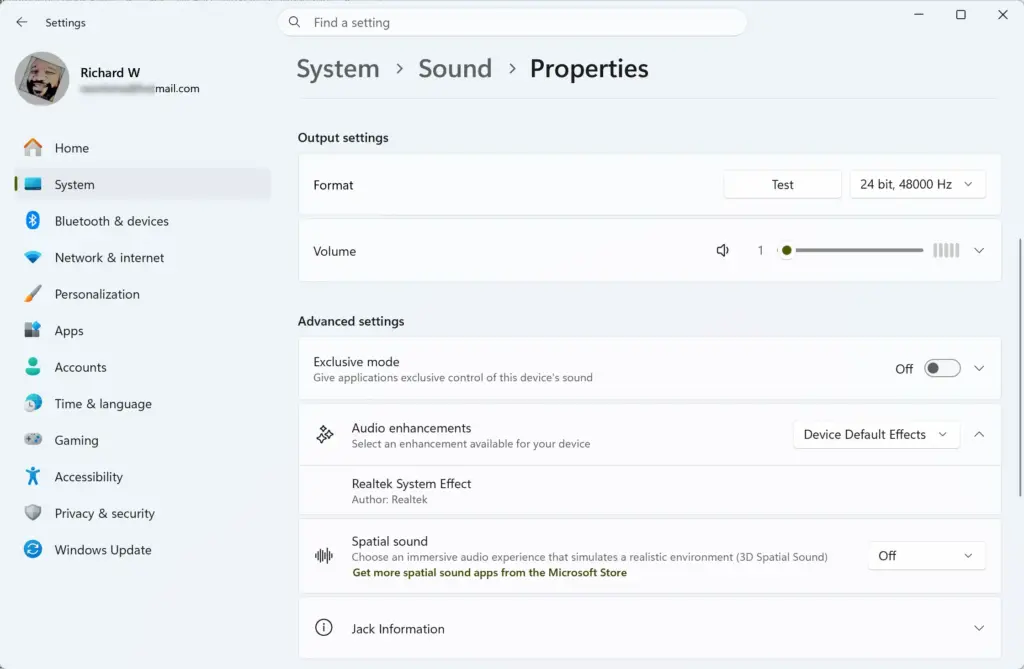
Settings > System > Sound - Select Start test and listen for the tone.
To check exclusive mode, go back to the classic Sound window with mmsys.cpl:
- On the Playback tab, double-click your device to open its properties.
- Select the Advanced tab.
- Clear the Allow applications to take exclusive control of this device check box.
- In the Default Format list, pick a different option, such as 24 bit, 48000 Hz (Studio Quality), and select Test. Some devices only work with certain formats. If the test fails, try another entry.
- Select OK.
To undo these changes, set the toggle back to On and tick the exclusive-control box again. The format setting is safe to leave on whichever option works.
Restart the Windows Audio Services
Windows Audio is the service (a background program) that handles all sound. If it stops or hangs, you get no audio and often a red X on the taskbar speaker. Restarting it is quick and safe. This step requires administrator privileges.
- Press Win+R, type
services.mscand press Enter. If prompted by User Account Control, select Yes. The Services window opens. - Scroll to Windows Audio. The Status column should read Running and the Startup Type should read Automatic.
- Right-click Windows Audio and select Restart. If Restart is greyed out, the service is stopped, so select Start.
- Find Windows Audio Endpoint Builder in the same list (it manages the devices that sound goes to) and restart it the same way. Restarting it also restarts Windows Audio, and Windows may ask you to confirm.
If a service refuses to start and shows an error, note the error text. Restart the PC and try again. A repeated failure points to damaged system files, covered in the last fix section.
If Startup Type reads Disabled or Manual, double-click the service, set Startup type to Automatic, select Apply, then select Start.
Fix the Audio Driver
A driver is the software that lets Windows talk to your sound hardware. A corrupt, outdated or mismatched driver is a common cause of no audio after a Windows update or a big system change.
Check Device Manager for Audio Problems
- Right-click the Start button and select Device Manager.
- Expand Sound, video and game controllers and look at the entries. Typical names include Realtek Audio, Intel Smart Sound Technology or a High Definition Audio Device.
- Look for a yellow warning triangle or a down arrow on an icon. A down arrow means the device is disabled. A warning triangle means a driver fault.
- If you see a disabled device, right-click it and select Enable device.
- Expand Audio inputs and outputs too. Speakers and headphones appear there.
If Sound, video and game controllers is missing, or contains only an Unknown device, Windows has no working driver for your audio hardware. Select View Show hidden devices to make sure nothing is concealed.
Update the Audio Driver
An update lets Windows search for a newer driver. This step requires administrator privileges.
- In Device Manager, right-click your audio device under Sound, video and game controllers.
- Select Update driver.
- Select Search automatically for drivers. Windows reports whether it found a better driver.
- If it finds one, let it install, then restart the PC.
Windows often reports that the best driver is already installed even when it isn’t the latest. For a better source, download the audio driver from your PC maker’s support site, using your exact model name. For a desktop with a custom-built motherboard, use the motherboard maker’s site. If your sound goes through HDMI or DisplayPort to a monitor or TV, update the graphics driver from the graphics card maker instead (the GPU), because that driver carries the HDMI audio.
Roll Back the Driver
If the sound stopped after a driver update, go back to the previous version. This step requires administrator privileges.
- In Device Manager, right-click your audio device and select Properties.
- Select the Driver tab.
- Select Roll Back Driver. If the button is greyed out, there is no earlier driver stored, so skip to the next section.
- Choose a reason when asked, select Yes, and restart the PC.
Uninstall the Device and Let Windows Reinstall It
- In Device Manager, right-click your audio device and select Uninstall device.
- Leave the driver-removal box unticked and select Uninstall. The entry disappears from the list.
- Restart the PC. Use Restart, not Shut down.
Fix No Audio on Bluetooth and HDMI Devices
Wireless and digital outputs add their own failure points. If your no-audio problem only affects one of these, start here.
Bluetooth Headphones and Speakers
- Open Settings Bluetooth & devices Devices. Check that the device shows as Connected, not just Paired.
- If it is not connected, switch it off and on, then select Connect.
- If it still stays silent, select the three dots next to the device and select Remove device. Put the device in pairing mode and pair it again with Add device Bluetooth.
- Open Quick Settings and choose the Bluetooth device as the sound output.
Pairing again clears an out-of-date connection record. This fixes many cases where the device connects but plays nothing.
HDMI, DisplayPort and Monitor Speakers
- Check that the monitor or TV itself is not muted and that its volume is up. Many monitors have their own volume control in the on-screen menu.
- Check the cable at both ends, or try a different port.
- Open the output list in Quick Settings and select the monitor or TV, usually named after its model or shown as a digital output.
If the monitor does not appear in the list, update the graphics driver as described above. Monitors with no built-in speakers will never show audio output, so plug speakers into the PC instead.
Undo a Recent Change That Broke Sound
If the sound stopped right after a Windows update or an installation, removing that change can restore it.
Uninstall a Recent Windows Update
This removes only the update, not your files. This step requires administrator privileges.
- Open Settings Windows Update Update history.
- Scroll to Related settings and select Uninstall updates.
- Select the most recent update from around the date the sound stopped, then select Uninstall.
- Restart the PC when asked.
Use System Restore
System Restore returns system files and drivers to an earlier point. It only works if restore points exist on your PC. Windows 11 does not always have System Restore turned on. Search for Create a restore point in the Start menu and open it to check. If the System Restore button is available, select it and follow the wizard to pick a date when your sound worked. The restore needs a restart and will remove apps and drivers installed after that date.
Repair Damaged System Files
If the audio service will not start and drivers will not stay installed, damaged Windows files may be the cause. Run these two checks last because they take time. These steps require administrator privileges.
- Right-click the Start button and select Terminal (Admin). Select Yes at the User Account Control prompt.
- Type
sfc /scannowand press Enter. The scan takes several minutes. It ends with a message saying whether it found and repaired problems. - If it reports that it could not fix some files, run
DISM /Online /Cleanup-Image /RestoreHealthand press Enter. This needs an internet connection and can take a while. - Restart the PC when both commands finish.
The progress sometimes appears to stall at a fixed percentage. Leave it running.
Check for a Hardware or BIOS Cause
If the output bar moves in the Sound window, the driver is installed and the service runs, but you still hear nothing, test the hardware itself. Plug in a different pair of headphones, or connect the speakers to another device such as a phone. If they work there, the PC’s audio output is at fault.
On a desktop, also check that you are using the correct jack. Front-panel jacks need to be connected to the motherboard, and a loose front-panel cable gives silence on those ports only. Onboard audio can also be turned off in the BIOS or UEFI settings (the low-level setup screen that runs before Windows starts). The setting name and location differ by manufacturer, so check your PC or motherboard manual before you change anything there.
If this didn’t work
Connect a USB headset or a Bluetooth speaker. If it plays sound, Windows and its audio stack are fine and the PC’s built-in audio hardware or jack has failed. Cut this sentence. Keep the closing to three or four sentences that say what a working USB headset or Bluetooth speaker proves and what to do if nothing plays. If nothing plays sound, including USB devices, note the exact error from Device Manager or the services list and contact your PC maker’s support with it. If you rolled back a driver or removed an update, you can reinstall it at any time from Device Manager or Windows Update once a fixed version is available.
Frequently asked questions
Why isn't my computer making any sound from the Speakers?
Your PC is most likely sending sound to the wrong output device, or the volume is muted. Click the speaker icon on the taskbar and select Speakers from the list. Then open Settings, go to System Sound, and check that the volume is up and not muted. If Speakers doesn't appear, the device may be disabled.
How can I fix audio issues in 🪟 Windows 11?
Start with the built-in troubleshooter. Open Settings, go to System Troubleshoot Other troubleshooters, and select Run next to Playing Audio. Then restart your PC. If sound still fails, restart the Windows Audio service or update the sound driver in Device Manager. Check that the right output device is selected first.
How do I fix the volume on my laptop?
Click the speaker icon in the taskbar and drag the slider to raise the volume. If it stays low or silent, right-click the speaker icon, choose Open Volume mixer, and check that the app you're using isn't muted or turned down. You can also try the volume keys on your keyboard, which may need the Fn key held down.
Why isn't there any sound in Windows Media Player?
Windows Media Player is often muted separately from the rest of Windows. Right-click the speaker icon on the taskbar, open Volume mixer, and check that Windows Media Player isn't muted or turned down. Then check the volume control inside the player itself. If the file still plays silently, its audio format may not be supported.
Still have a question?
Answered by AI from this guide. Good questions may be added to this page — please don't include personal details.
Did this guide fix your problem?

About the Author
Richard
Tech Writer, IT Professional
Richard is a writer at Geek Rewind who turns complex IT tasks into clear, step-by-step guides. He draws on years of hands-on experience in system administration and enterprise IT operations, focusing on Windows, Linux and WordPress: the problems people actually run into, and the fixes that work. His server and WordPress guides come from systems he runs himself. Richard builds and maintains the platform behind Geek Rewind, from its Ubuntu servers and Nginx configuration to its custom WordPress plugins. Many new tutorials start with readers' questions, and he's always glad to answer them in the comments.
No comments yet — be the first to share your thoughts!