Set the Default Playback Device in Windows 11

To set the default playback device in Windows 11, open Settings System Sound and choose your speakers or headphones under Output. The default playback device is the speaker, headphone set, monitor or other audio hardware that Windows uses for sound unless you tell an app otherwise.
The same choice is available from the taskbar volume menu and from the classic Sound control panel (mmsys.cpl). None of these methods needs administrator rights. This post covers all three, plus what to do when a device is missing, greyed out, or keeps switching back.
To set the default playback device in Windows 11, press Win+I, select System, then Sound, and choose your speakers or headphones under Output. The selected device, marked by a filled circle, becomes the default for system sounds and most app audio straight away.
What the default playback device controls
A playback device is any piece of hardware that plays sound. Windows 11 lists built-in speakers, wired and Bluetooth headphones, USB headsets, HDMI or DisplayPort monitors, and virtual devices, which are software-only outputs such as those created by audio software. Windows sends system sounds, music, video and most app audio to whichever one is the default.
Windows also tracks a default communications device. Calling apps such as Teams or Zoom can use it. Most people leave both set to the same hardware, but the classic Sound control panel lets you split them. That is covered later in this post.
Input devices are listed separately under Input in the same Settings page.
Set the default playback device in Settings
These steps set the default playback device from the Settings app, which is the route Microsoft expects most people to use. Connect or pair the device first so it appears in the list.
- Press Win+I. This opens Settings.

- Select System in the left pane. The System pages open on the right.
- Select Sound. The page lists your output and input devices.
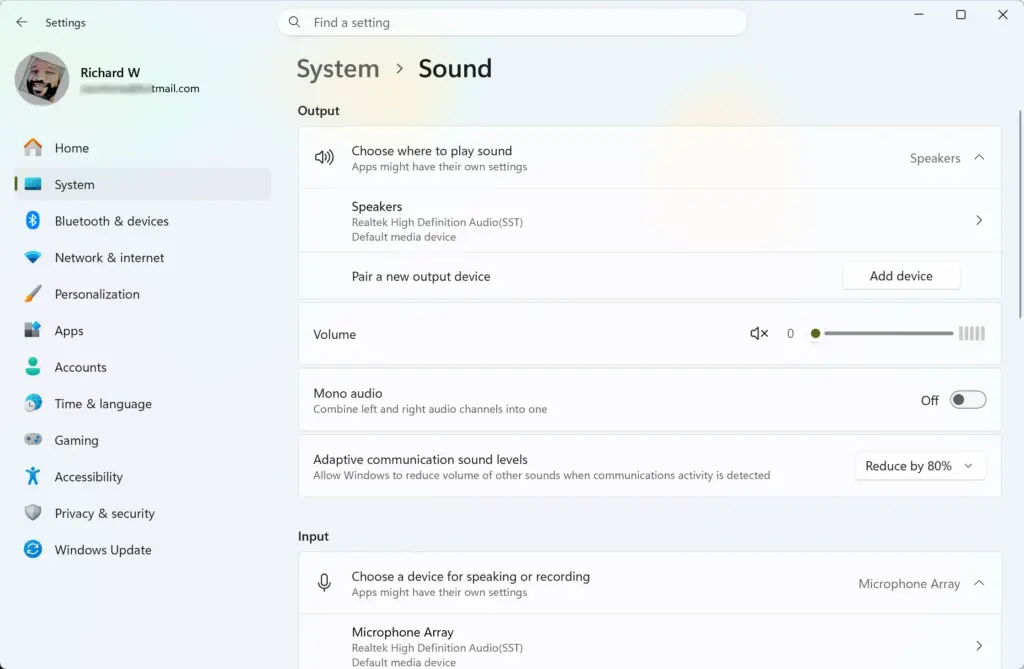
Settings › System › Sound - Find the Output section. On current builds it is titled Choose where to play sound and lists every active playback device.
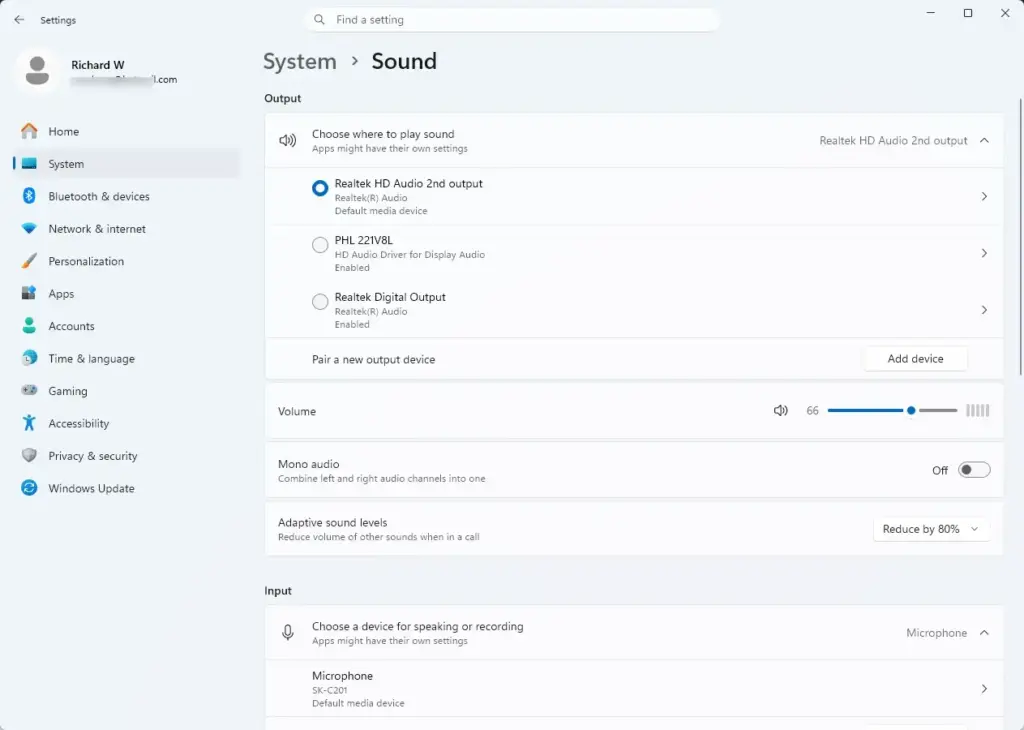
Settings › Sound › Output - Select the device you want. A radio button (a small circle) fills in next to it, and Windows switches to it right away.
- Play a video or music clip. The sound should now come from the device you chose.
If sound still plays from the old device, check whether the app has its own output setting. The section on per-app output below explains how.
Windows 11 has changed this page between releases. On the original 21H2 release, the Output section shows a single drop-down labelled Choose your output device instead of a list. Select the drop-down and pick the device. The result is the same.
Set it as the default for audio, communications, or both
On recent builds of Windows 11, selecting a device name in the Output list opens its properties page. That page includes a Set as default sound device option. Its drop-down lets you use the device for general audio, for calls, for both, or for neither. The exact wording of these choices can differ between builds, so read the options on your screen before you pick one.
If you do not see this option, use the classic Sound control panel described below. It has had separate default and communications settings for many Windows versions.
Test the new default
Open the device’s properties page by selecting its name in the Output list. Select Test sound and listen for a short tone. If you hear nothing, check the volume slider on that page, the physical volume on the speakers, and the mute button on any headset.
The properties page also lets you choose an output format and turn on Enhance audio, a sound-processing option that some drivers include. Leave these alone unless you have a specific reason to change them.
Choose a different output for one app
Windows 11 can send one app’s audio to a different device from the default. This is useful for playing music through speakers while a call stays on a headset. The per-app setting overrides the default, which is why some apps ignore the change you made.
- Open Settings System Sound
- Scroll down and select Volume mixer. A list of apps that are playing or have played sound appears.
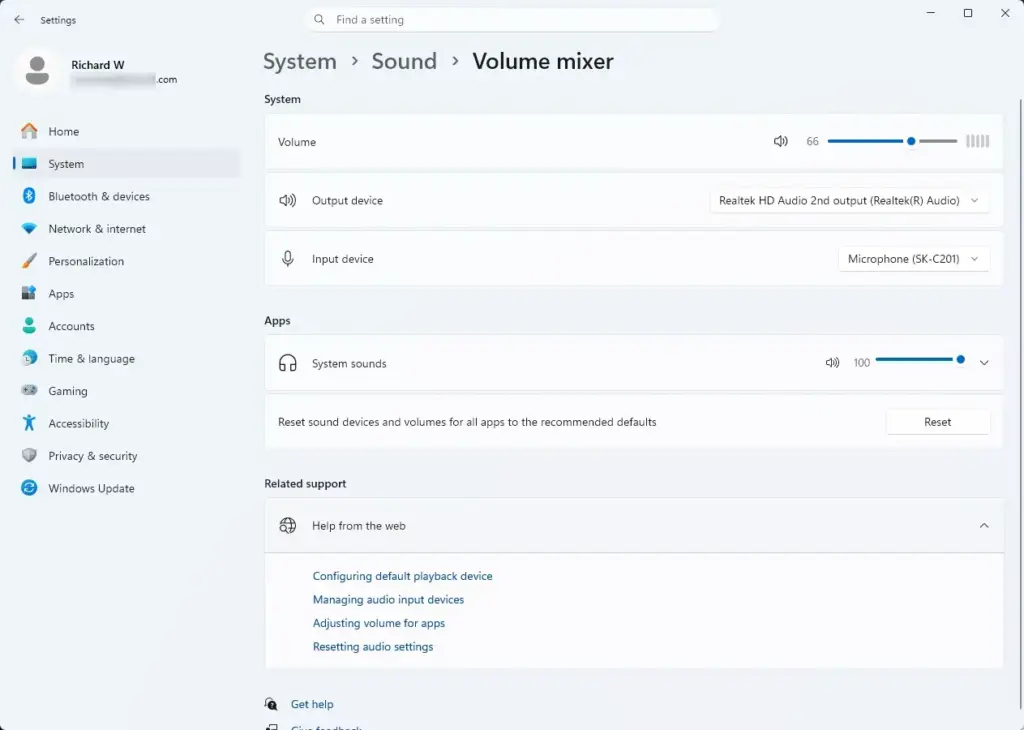
Settings › Sound › Volume mixer - Find the app and open its Output device drop-down. This option is on Windows 11 22H2 and later.
Settings › Sound › Output - Choose Default to follow the system default, or pick a specific device.
Windows only lists apps that have used the sound system in the current session.
Switch the default from the taskbar
The taskbar gives you the fastest way to change the default playback device when you swap between speakers and headphones during the day. It uses Quick Settings (the panel that opens from the network, speaker and battery icons).
- Select the speaker icon at the right end of the taskbar . You can also press Win+A. Quick Settings opens.
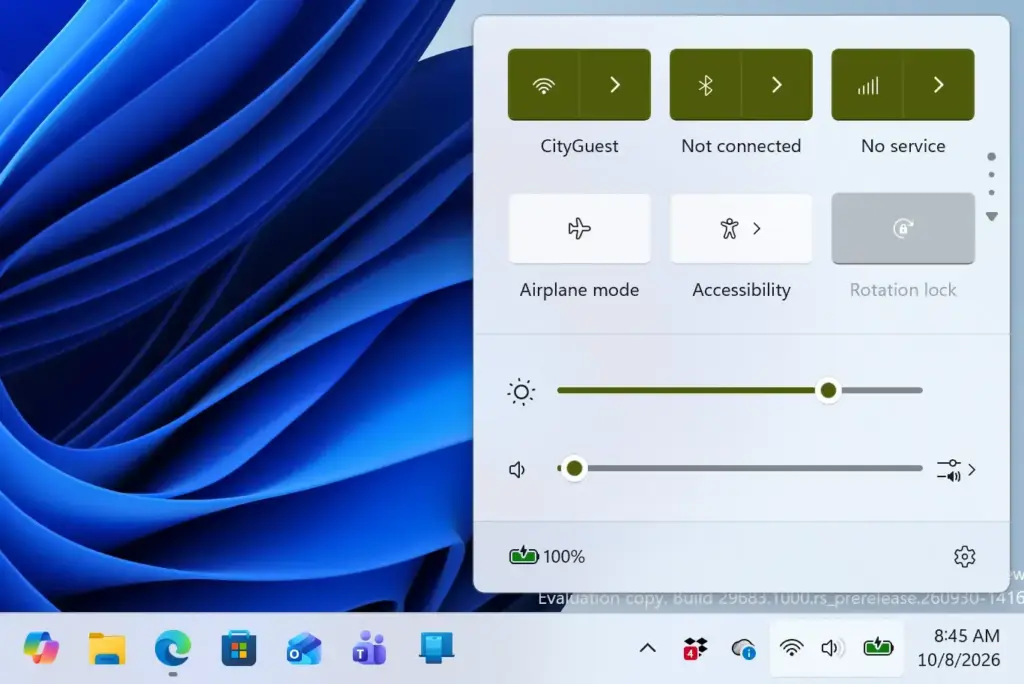
- Select the small icon next to the volume slider. On current builds its tooltip reads Select a sound output.
- Choose your device from the list. The panel closes the list, and Windows uses that device from now on.
If you cannot see a volume slider, select the pencil icon in Quick Settings, then Add, and choose Volume. If the taskbar shows no speaker icon at all, check that your audio driver is installed.
The earlier post on changing the default sound output device in Windows 11 audio settings shows the same change with screenshots of the Settings page. If you only use built-in speakers and one other device, setting default speakers in Windows 11 covers that case.
Use the classic Sound control panel
The Sound control panel is the older Windows dialog box that still ships with Windows 11. It shows every playback device, including disabled ones, and lets you set the default device and default communications device separately.
- Press Win+R. The Run dialog opens.

Run dialog - Type
mmsys.cpland press Enter. The Sound dialog box opens. - Select the Playback tab. Each device shows a status such as Default Device, Ready, Disabled or Not plugged in.
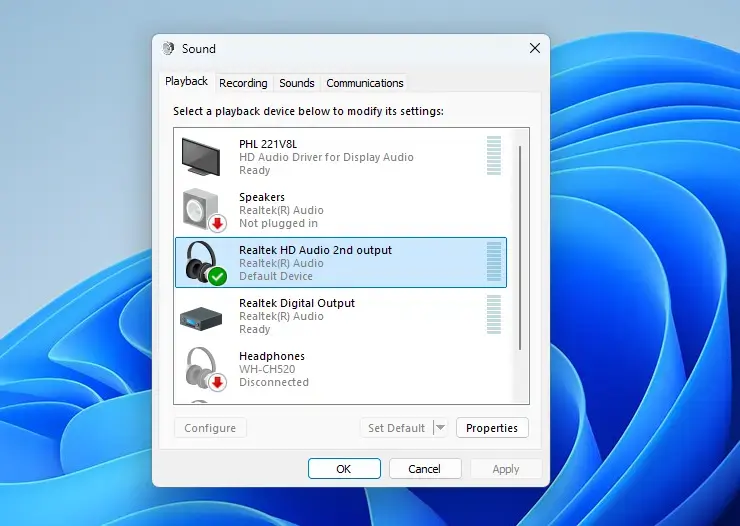
- Right-click the device you want. A short menu appears.
- Choose Set as Default Device. A green check mark moves to that device.
- Select OK. The dialog closes, and Windows saves the setting.
You can also reach this dialog from Settings System Sound. Scroll down and select More sound settings.
Default Device and Default Communication Device
The right-click menu offers two separate choices. Set as Default Device controls general audio such as music, video and system sounds. Set as Default Communication Device controls calls in apps that follow the communications default. A green phone icon marks the communications device.
Setting the two to different devices works well if you want music on speakers and calls on a headset. If calls sound wrong, check that the headset is set as the communications device and that the calling app’s own audio settings are not overriding it.
The classic panel can also stop apps from taking full control of a device. Select a device, choose Properties, open the Advanced tab, and review the Exclusive Mode options. Turning these off stops an app from taking sole control of the device. Not every driver shows this tab.
If your device is missing or greyed out
A device that does not appear in the list cannot be made the default. In most cases Windows either does not see the hardware, or the device is turned off in software. Work through these checks in order.
Check the connection first
Make sure the device is powered on and plugged into the right port. For HDMI or DisplayPort monitors, the monitor itself must be on and set to the correct input before it appears as a playback device. For Bluetooth headphones, confirm in Settings Bluetooth & devices that the headset says Connected, not Paired. A paired but disconnected headset does not show up as an output.
If the device was never added, the post on adding a hardware device to a Windows 11 PC walks through pairing and detection.
Show disabled devices
Windows hides devices that someone has turned off. Turning one back on often fixes a device that is missing from the Sound dialog.
- Press Windows + R, type
mmsys.cpl, and press Enter. The Sound dialog opens. - Select the Playback tab. The list of devices appears.
- Right-click an empty area of the list. A short menu opens.
- Select Show Disabled Devices. Greyed-out devices now appear in the list.
- Right-click the greyed-out device and choose Enable. Its status changes to Ready.
- Right-click the device again and choose Set as Default Device.
Windows may ask for administrator approval when you turn on a device, even though setting the default does not need it. If you are on a work or school PC, an administrator may have disabled the device on purpose, and you will need to ask them.
On recent builds, Settings System Sound Advanced > All sound devices lists disabled devices too. Select the device and choose Allow to turn it back on.
Check the audio driver
If the hardware is connected and enabled but still missing, the driver may be the problem. Right-click Start, choose Device Manager, and expand Sound, video and game controllers and Audio inputs and outputs.
A yellow warning icon on an entry means the driver has an error. Right-click the entry and choose Update driver. Unplugging and reconnecting a USB device after a driver update often makes it appear.
You can also copy the device's hardware ID and search the manufacturer's website for a matching driver. The post on locating your device ID in Windows 11 covers a related lookup for the PC itself.
Why Windows keeps changing your default
Windows 11 often switches the default when you connect new audio hardware. Plug in a USB headset, or pair and connect a Bluetooth headset, and Windows may move sound to it straight away. When you unplug it, Windows moves back to the previous device.
Three situations cause most of the surprises:
- A monitor or TV connected over HDMI can take over as the default when it wakes up or reconnects.
- An app that has its own output setting, such as a browser, game or video-call tool, ignores the system default.
- Audio software from the sound card maker may apply its own rules and override your choice at sign-in.
If the swaps are the problem, disable the device you never use. Open the Sound dialog, right-click the unused device on the Playback tab, and choose Disable. A disabled device cannot grab the default. To reverse it, use Show Disabled Devices and choose Enable.
If you want the opposite, with Windows switching for you, read how to change the default sound output device automatically in Windows 11.
How to undo the change
Changing the default is not permanent. To go back, repeat any method above and select the previous device. Windows keeps no history, so choose it by name. If you used Set as Default Communication Device, undo that separately: right-click the device you want for calls and set it again, or pick a different one.
What to do next
If the right device is now selected but the sound is quiet or distorted, open its properties page in Settings System Sound Then check the volume slider and the output format. If one app still plays through the wrong speakers, check its Output device setting in the Volume mixer. To make Windows pick devices without your input, move on to the post on switching the default output automatically.
Have a question about this guide?
Answered by AI from this guide. Good questions may be added to this page — please don't include personal details.
Did this guide fix your problem?

About the Author
Richard
Tech Writer, IT Professional
Richard is a writer at Geek Rewind who turns complex IT tasks into clear, step-by-step guides. He draws on years of hands-on experience in system administration and enterprise IT operations, focusing on Windows, Linux and WordPress: the problems people actually run into, and the fixes that work. His server and WordPress guides come from systems he runs himself. Richard builds and maintains the platform behind Geek Rewind, from its Ubuntu servers and Nginx configuration to its custom WordPress plugins. Many new tutorials start with readers' questions, and he's always glad to answer them in the comments.
No comments yet — be the first to share your thoughts!