How to Pair AirPods and Bluetooth Headphones with Windows 11

Pairing AirPods with Windows 11 takes about a minute: open Settings Bluetooth & devices, select Add device, and put the AirPods in pairing mode. AirPods use standard Bluetooth , so Windows treats them like any other headphones, and the same steps work for most Bluetooth headphones and earbuds.
This guide covers the full pairing steps and how to switch your sound output to the headphones. It explains what to do when the AirPods do not appear or the sound is wrong. It also covers Microsoft’s pairing improvements, which reach PCs at different times.
Open Settings Bluetooth & devices, select Add device, then choose Bluetooth . Put the AirPods in the charging case with the lid open, hold the setup button on the back until the status light flashes white, and select them in the list. Windows shows “Your device is ready to go” when pairing succeeds, and the AirPods then appear as Connected.
What to check before you pair
Three quick checks save most of the trouble later. Each takes under a minute.
- Charge the headphones. A very low battery can stop pairing mode from starting.
- Confirm your PC has Bluetooth . Open Settings Bluetooth & devices If you see a Bluetooth toggle at the top, the hardware is present. If the page has no toggle, see how to find Bluetooth settings in Windows 11.
- Disconnect the headphones from your phone. AirPods and many other headphones reconnect to the last device they used. If they sit connected to your iPhone, Windows may not see them.
Pairing does not need administrator rights. A standard user account can do every step below.
How to pair AirPods with 🪟 Windows 11
Windows 11 finds Bluetooth devices from the Settings app. The AirPods case has a physical button that starts pairing mode (the state where the headphones broadcast so a new device can find them).
Pair AirPods from Settings
These steps show how to pair AirPods with Windows 11 from start to finish. Keep the AirPods close to the PC while you work.
- Open Settings . Press Win+I, or right-click the Start button and choose Settings.

- Select Bluetooth & devices. It is in the left sidebar. The page opens with a Bluetooth toggle at the top.

Windows Settings menu highlighting the Bluetooth and devices option for printers - Turn on the Bluetooth toggle. If it already reads On, leave it. If you cannot turn it on, see how to enable or disable Bluetooth in Windows 11.
- Select Add device. It sits near the top of the page. The Add a device window opens.
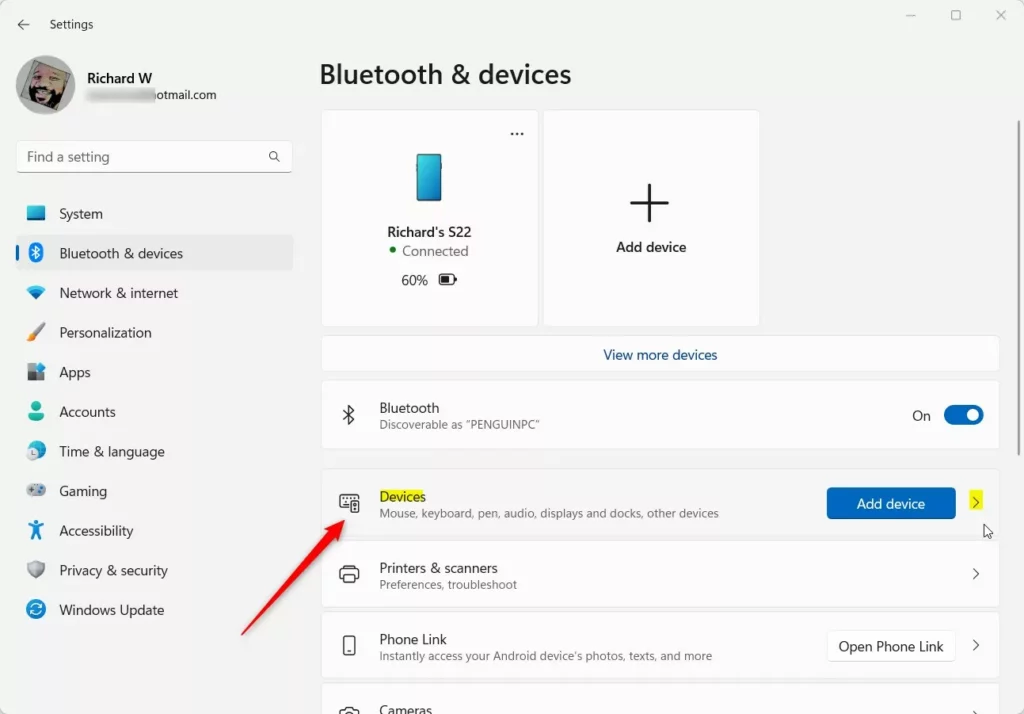
Windows 11 Bluetooth and devices settings with add device option. - Choose Bluetooth . Windows starts scanning for nearby devices. A list begins to fill below the options.
- Put the AirPods in the charging case. Keep the lid open so the status light is visible.
- Hold the setup button on the back of the case. Keep holding until the status light flashes white. White flashing means the AirPods are in pairing mode.
- Select your AirPods in the list. They appear under their name, such as “USERNAME’s AirPods”. Windows shows Connecting for a few seconds.
- Wait for the Your device is ready to go message. This confirms the pairing worked. Take the AirPods out of the case and put them in your ears.
- Select Done. The AirPods now appear under Devices on the Bluetooth & devices page, with the status Connected.
If the AirPods never appear, the light has probably stopped flashing white. Pairing mode times out after a short while. Close the lid, reopen it, and hold the button again.
Pair AirPods Max and other Bluetooth headphones
The steps above are the same for any Bluetooth headphones. Only the way you start pairing mode (step 7) changes.
- AirPods Max: press and hold the noise control button until the status light flashes white. They have no charging case with a setup button.
- Other brands: hold the power button or a dedicated Bluetooth button until a light flashes or a voice says the headphones are pairing. The exact action varies by maker, so check the manual if nothing happens.
- Headphones with a pairing switch: slide it to the Bluetooth position, then hold the power button.
In the Add a device list, pick the headphones by their model name. If several similar names appear, switch the headphones off and on and see which entry disappears and returns.
Pair faster with Swift Pair
When it is on, put the headphones in pairing mode with the PC nearby. A notification appears in the corner of the screen. Select Connect and Windows pairs the device.
Swift Pair works with devices that support it, so do not rely on it for every pair of headphones. If the pop-up never shows, pair from Settings instead. To turn the feature on or off, see how to enable or disable Bluetooth Swift Pair in Windows 11.
Set the AirPods as your sound output
A connected device is not always the device Windows plays sound through. If music still comes from your speakers after pairing, switch the output yourself.
- Open Settings . Press Win+I.
- Select System. It is the first item in the left sidebar.
- Select Sound. The page lists your output devices under Output.
- Choose your AirPods under Output. Select the entry with your headphones’ name. A radio button or highlight confirms the choice.
- Play a sound to test. Start a video or song. Audio should now come from the headphones and not the speakers.
Click the volume icon, then select the small arrow next to the volume slider in Quick Settings and choose the headphones from the list.
What works with AirPods on 🪟 Windows 11
Windows plays audio, takes calls, and uses the AirPods microphone. Apple-specific features that rely on other Apple devices do not carry over. That includes automatic switching between Apple devices and Siri. These are limits of the platform, not signs that pairing failed.
Many headsets also show up as two entries in the sound list: one for stereo music and one for hands-free calls. When an app starts using the microphone, Windows can switch to a hands-free call mode that uses the microphone, and audio quality drops. If music sounds thin during a call, that is the reason. After the call, choose the stereo entry again under Settings System Sound
Faster pairing in newer 🪟 Windows 11 builds
Newer Windows 11 updates pair Bluetooth headphones faster. Microsoft’s October 15, 2026 release notes for Windows 11 describe the changes. According to Microsoft, headphones should pair, reconnect, play audio, and handle calls more reliably. AirPods pairing is up to 15 seconds faster. You can read the details in the Windows Experience Blog post on everyday experiences.
Microsoft is rolling this out gradually, so some PCs get it later than others. Your PC may not have the change yet even if a friend’s does. Open Settings Windows Update and select Check for updates to install anything waiting. The pairing steps in this guide stay the same either way.
Fix AirPods and Bluetooth headphone pairing problems
Most failures come from the headphones not being in pairing mode, another device holding the connection, or a stale pairing record. Work through these in order.
The AirPods do not appear in the list
Check that the status light is flashing white. A solid light or no light means pairing mode is not active. Hold the setup button on the case again until the light flashes.
Next, check that the AirPods are not connected to your phone. Turn off Bluetooth on the phone, then try again. Also check that the PC is not in airplane mode, which switches Bluetooth off. Open Quick Settings from the taskbar and confirm that Airplane mode is off and Bluetooth is on.
The AirPods are connected but there is no sound
Windows connected the device but is still sending audio elsewhere. Follow the steps in the sound output section above and choose the AirPods under Output. If the entry is missing, remove the device and pair again using the steps below.
Remove and pair the headphones again
A broken pairing record (the saved details Windows keeps about each paired device) causes odd symptoms: repeated disconnects, no connection after a reboot, or a pairing that fails every time. Removing the device clears the record. This does not delete anything from the headphones. You pair them again afterward.
- Open Settings Bluetooth & devices The Devices list shows each paired device as a card.
- Select the three dots on the AirPods card. A small menu opens.
- Choose Remove device. Confirm if Windows asks. The card disappears from the list.
- Put the AirPods back in pairing mode. Hold the setup button until the light flashes white.
- Select Add device Bluetooth and pick the AirPods. Use the earlier pairing steps from step 4 onward.
Run the Bluetooth troubleshooter
Windows includes a built-in troubleshooter that checks the Bluetooth service (the background program that runs Bluetooth) and common settings. Open Settings System Troubleshoot Other troubleshooters, then select Run next to Bluetooth. Follow the prompts. If the entry is missing on your version of Windows 11, skip this step.
Bluetooth still fails on every device
If no Bluetooth device pairs, the problem is likely the Bluetooth driver (the software that lets Windows talk to the Bluetooth hardware). Reinstalling it often fixes this. The steps are in how to reinstall the Bluetooth driver in Windows 11. That task needs administrator rights (permission to change system-wide settings).
Reconnect, disconnect, and rename your headphones
After the first pairing, AirPods and most headphones reconnect when you open the case or switch them on. If Windows does not reconnect them, open Settings Bluetooth & devices, find the headphones under Devices, and select Connect. Select Disconnect to release them, which lets your phone take over.
If you own more than one pair, the default names can blur together. You can change the label Windows shows; see how to rename Bluetooth devices in Windows 11. For the general process with any other gadget, how to pair and unpair Bluetooth on Windows 11 covers the same Settings page.
What to do next
If your headphones are paired but the problem persists, check Windows Update, because the pairing and reconnection improvements Microsoft describes arrive on PCs in stages. To undo the setup, remove the device from Settings Bluetooth & devices and pair it again later. If you use hearing aids that connect over Bluetooth, the steps differ. See how to pair Bluetooth hearing aids in Windows 11 Hearing devices settings.
Frequently asked questions
How to pair airpods to laptop?
Open Settings Bluetooth & devices, then select Add device and choose Bluetooth. Open the AirPods case with the earbuds inside, and hold the setup button on the back until the status light flashes white. When your AirPods appear in the list, select them. Windows connects them as headphones.
How to pair airpods pro 3?
Open the AirPods Pro 3 case next to your PC and hold the setup button on the back until the status light flashes white. In Windows, go to Settings Bluetooth & devices, select Add device, and choose your AirPods Pro from the list. If they don't appear, disconnect them from any iPhone first.
How to pair airpods to PC?
Turn on Bluetooth in Settings Bluetooth & devices, then select Add device. Put the AirPods in pairing mode by holding the setup button on the case until the light flashes white. Select them when they appear. Then check your output under Settings System Sound
How to pair airpods 4?
Open the AirPods 4 case with the earbuds inside, and hold the setup button on the back until the status light flashes white. On your PC, go to Settings Bluetooth & devices, select Add device, and pick AirPods 4 from the list. If they don't show up, disconnect them from your iPhone and try again.
How to pair airpods pro 3 to laptop?
Open the AirPods Pro 3 case beside your laptop and hold the setup button on the back until the light flashes white. In Windows, open Settings Bluetooth & devices, select Add device, and choose Bluetooth. Select your AirPods Pro when they appear. Then pick them as your output under Settings System Sound
How to pair airpods pro?
Turn on Bluetooth on your PC, then open the AirPods Pro case with the earbuds inside. Hold the setup button on the back until the status light flashes white. In Settings Bluetooth & devices, select Add device and choose your AirPods Pro. If Windows can't find them, disconnect them from any iPhone first.
Still have a question?
Answered by AI from this guide. Good questions may be added to this page — please don't include personal details.
Did this guide fix your problem?

About the Author
Richard
Tech Writer, IT Professional
Richard is a writer at Geek Rewind who turns complex IT tasks into clear, step-by-step guides. He draws on years of hands-on experience in system administration and enterprise IT operations, focusing on Windows, Linux and WordPress: the problems people actually run into, and the fixes that work. His server and WordPress guides come from systems he runs himself. Richard builds and maintains the platform behind Geek Rewind, from its Ubuntu servers and Nginx configuration to its custom WordPress plugins. Many new tutorials start with readers' questions, and he's always glad to answer them in the comments.
No comments yet — be the first to share your thoughts!