How to Turn Allow Bluetooth Devices to Find This PC on or off in Windows 11

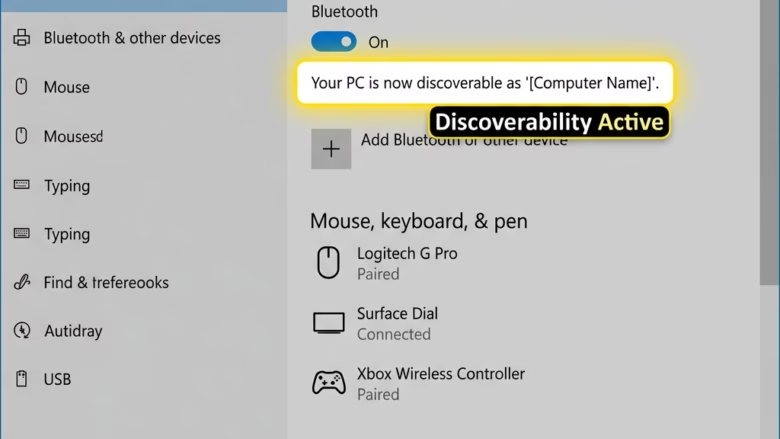
The “Allow Bluetooth devices to find this PC” setting in Windows 11 controls whether your computer announces itself to nearby Bluetooth hardware. When it is on, wireless headphones, mice, speakers, phones and other accessories can see your PC in their device lists, and you can pair them.
When you are not pairing anything new, turn discovery off. Anyone nearby with a scanner can see a discoverable PC, which is a small but real risk in airports, cafes and offices. Turning it off does not disconnect devices you have already paired. It only stops new devices from finding your PC. You can switch it on or off at any time from the classic Bluetooth settings window, as the steps below show.
Go to Settings Bluetooth & devices Devices, scroll to Related settings, select More Bluetooth settings, choose the Options tab, and check or uncheck Allow Bluetooth devices to find this PC. Click Apply then OK.
Turn On or Off Bluetooth Device Discovery in 🪟 Windows 11
How to Turn It On or Off
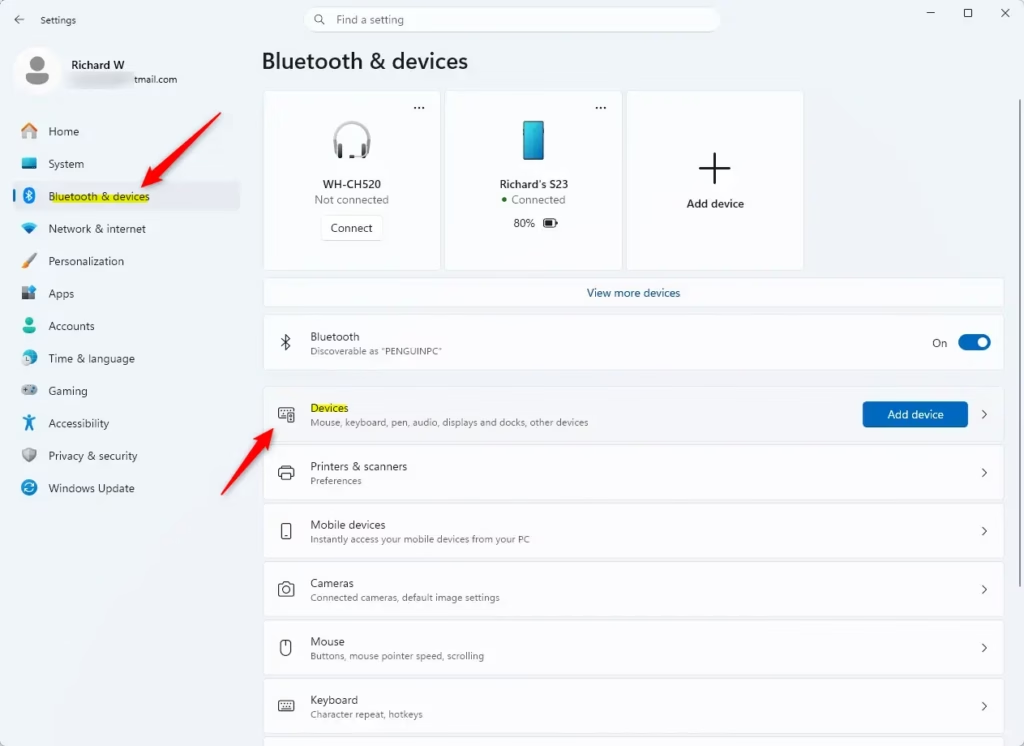
- Select Start, then select Settings Bluetooth & devices Devices.
The Settings app is where you manage whether nearby phones, speakers and other gadgets can detect your PC and connect to it. You should now see the list of your paired devices, with an Add device button at the top. Make sure the Bluetooth toggle at the top of the Bluetooth & devices page is set to On. If Bluetooth is off, nothing can find the PC whatever the discovery setting says.
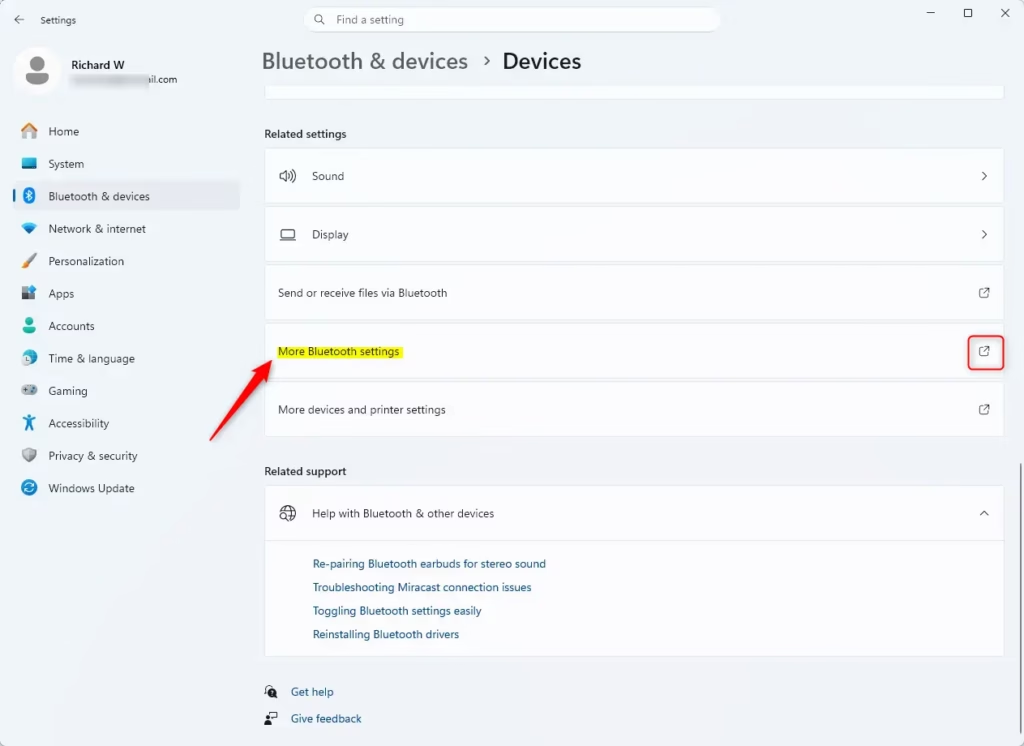
Open Bluetooth & devices > Devices - In Bluetooth & devices Devices, scroll down to Related settings and select More Bluetooth settings.📝NoteIf More Bluetooth settings is missing under Related settings, the Windows device might not have a Bluetooth adapter, or the drivers for the adapter might not be installed.
Open Device Manager and look for a Bluetooth category. If it is not there, or the adapter shows a warning icon, install or update the driver from your PC maker or the adapter maker, then check again.
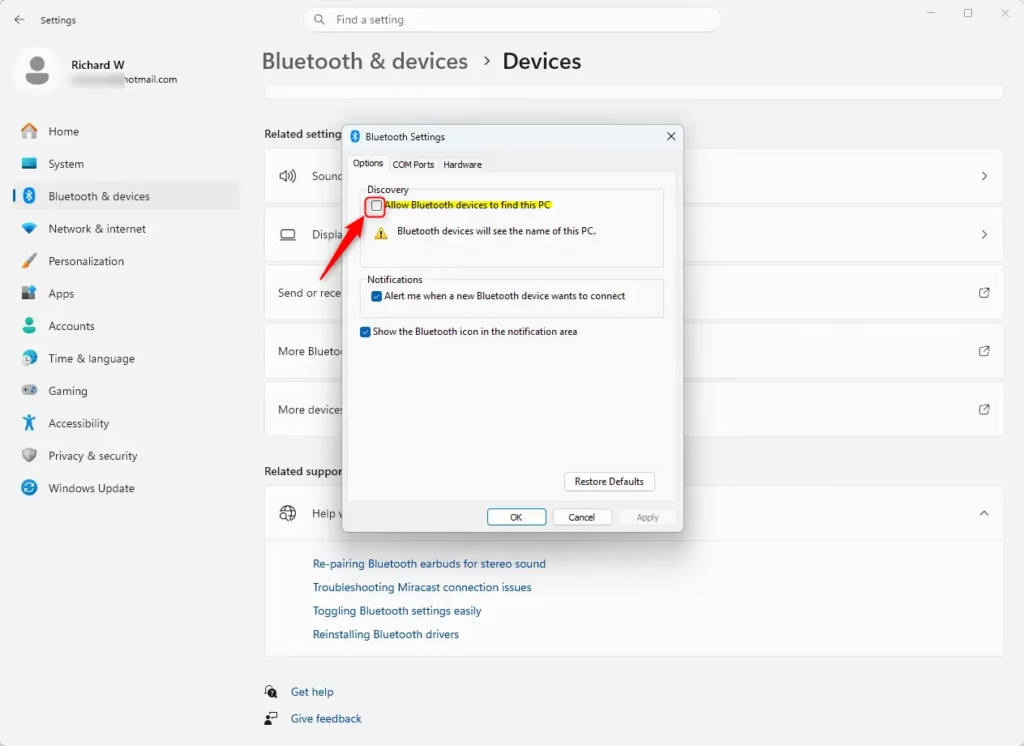
- Wait for the Bluetooth Settings window to open. This is the older-style dialog with several tabs. Select the Options tab if it is not already showing.
- Under Discovery, select the Allow Bluetooth devices to find this PC check box to turn the feature on. Clear the check box to turn it off.
- Select Apply, then select OK to save the change and close the window. You do not need to restart the PC. To undo the change, reopen the window and set the check box back the way it was.📝Good to KnowThe settings window works the same on Windows 11 Home and Pro.
Note that Windows still makes the PC visible for a short time while the Add a device pairing screen is open, even when this box is cleared. That is normal, so you can leave discovery off and still pair new accessories.
Reference:
Summary
The “Allow Bluetooth devices to find this PC” setting makes the computer visible to nearby hardware. That is useful when you pair new accessories such as mice or headphones. Turn it on while you pair, then turn it off again once you are done so the PC is not visible to everyone around you.
Have a question about this guide?
Answered by AI from this guide. Good questions may be added to this page — please don't include personal details.
Did this guide fix your problem?

About the Author
Richard
Tech Writer, IT Professional
Richard is a writer at Geek Rewind who turns complex IT tasks into clear, step-by-step guides. He draws on years of hands-on experience in system administration and enterprise IT operations, focusing on Windows, Linux and WordPress: the problems people actually run into, and the fixes that work. His server and WordPress guides come from systems he runs himself. Richard builds and maintains the platform behind Geek Rewind, from its Ubuntu servers and Nginx configuration to its custom WordPress plugins. Many new tutorials start with readers' questions, and he's always glad to answer them in the comments.
No comments yet — be the first to share your thoughts!