How to Find Bluetooth Settings in Windows 11

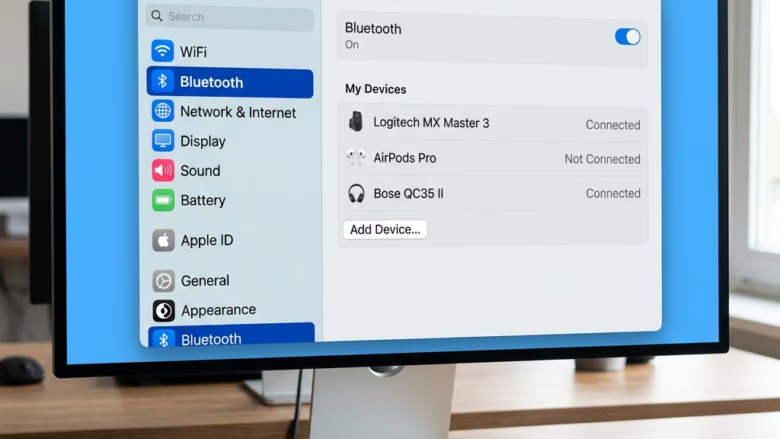
Bluetooth settings in Windows 11 let you connect and manage wireless devices like mice, keyboards, and headphones from one central menu. Every Windows 11 PC has this built-in menu, whether or not the PC has Bluetooth hardware. You use it to pair new gadgets, remove old ones, and check your wireless adapter.
The short version: press the Win plus I to open Settings , then click Bluetooth & devices. If a device keeps dropping its connection, switch Bluetooth off and back on with two clicks. That often clears the problem.
Press the Win plus I to open Settings , then click Bluetooth & devices. Toggle Bluetooth on or off, view paired devices, and click More Bluetooth settings under Related settings for advanced options like discovery mode.
Step 1Open the Windows Settings App
The Windows Settings app is where you manage Bluetooth and most other computer preferences. You can reach it in two ways, and both open the same window.
- Press the Win and the I key at the same time. This is the fastest route.
- Or click the Start button in the taskbar , then click the gear icon labeled Settings. If you don’t see it on the Start menu , type “Settings” into the search box and press Enter.
You should now see the Settings window, with a list of categories on the left and the main options on the right.
Step 2Go to Bluetooth & devices
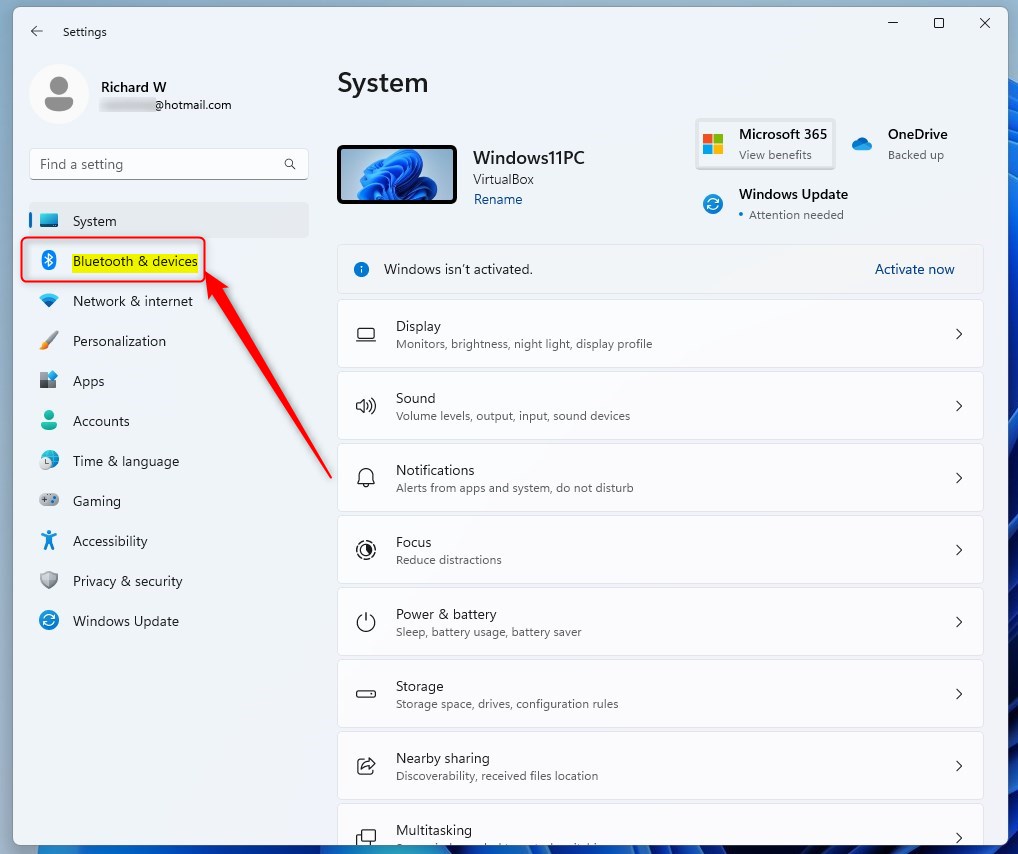
- Look at the list on the left side of the Settings window.
- Click Bluetooth & devices.
Below it you will see your connected devices and entries for printers & scanners, mice, and other hardware attached to the computer. If you don’t see a Bluetooth toggle at all, the PC may have no Bluetooth adapter, or its driver may be missing. The last part of this tutorial covers that.
Step 3Go to the Devices Section
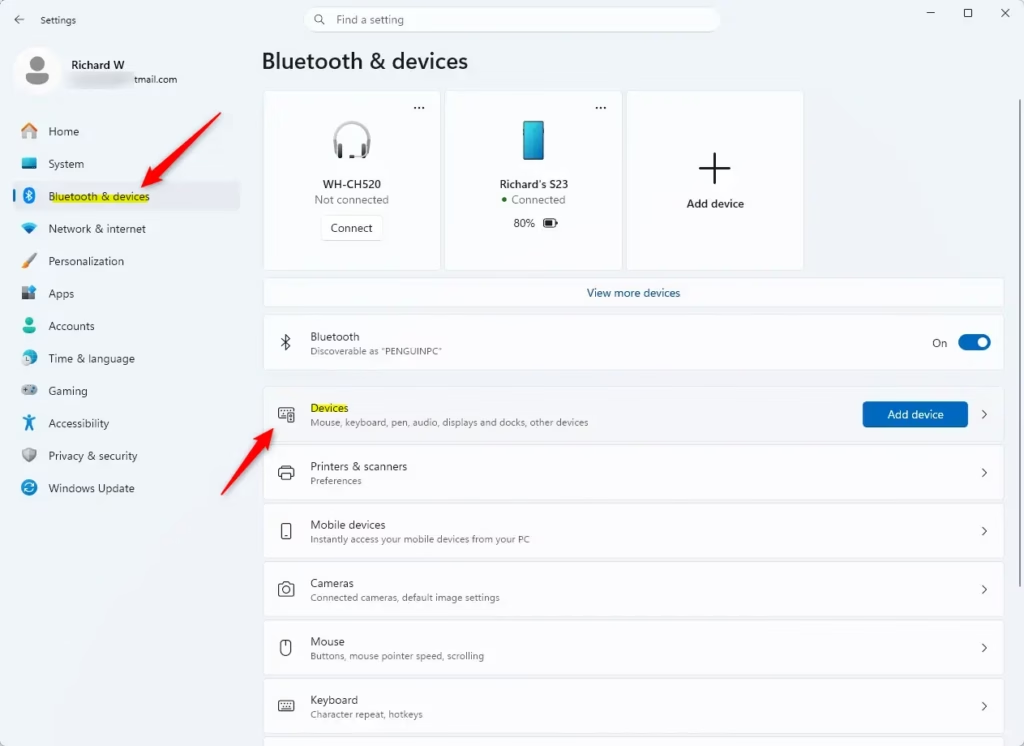
- Under the main Bluetooth & devices heading, click Devices.
This opens a list of your paired devices and Bluetooth adapters. Each device shows whether it is connected. To remove a device you no longer use, click the three-dot menu next to it and choose the remove option. To pair it again later, go back and click Add device. On some Windows 11 versions the Devices entry is not a separate page, and the device list appears directly on the main Bluetooth & devices page.
Step 4Find "More Bluetooth settings"
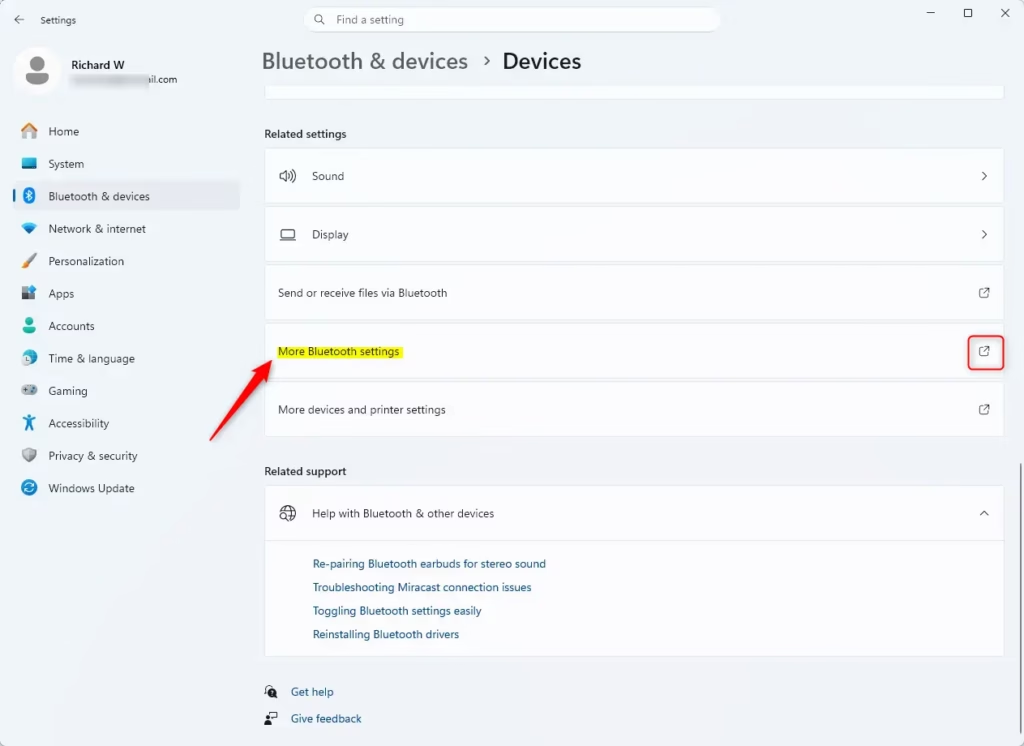
The More Bluetooth settings link opens a classic, older-style window with extra options. It sits under a Related settings heading.
- On the Devices page, scroll down until you see Related settings. On some versions this heading is on the main Bluetooth & devices page instead.
- Click More Bluetooth settings.
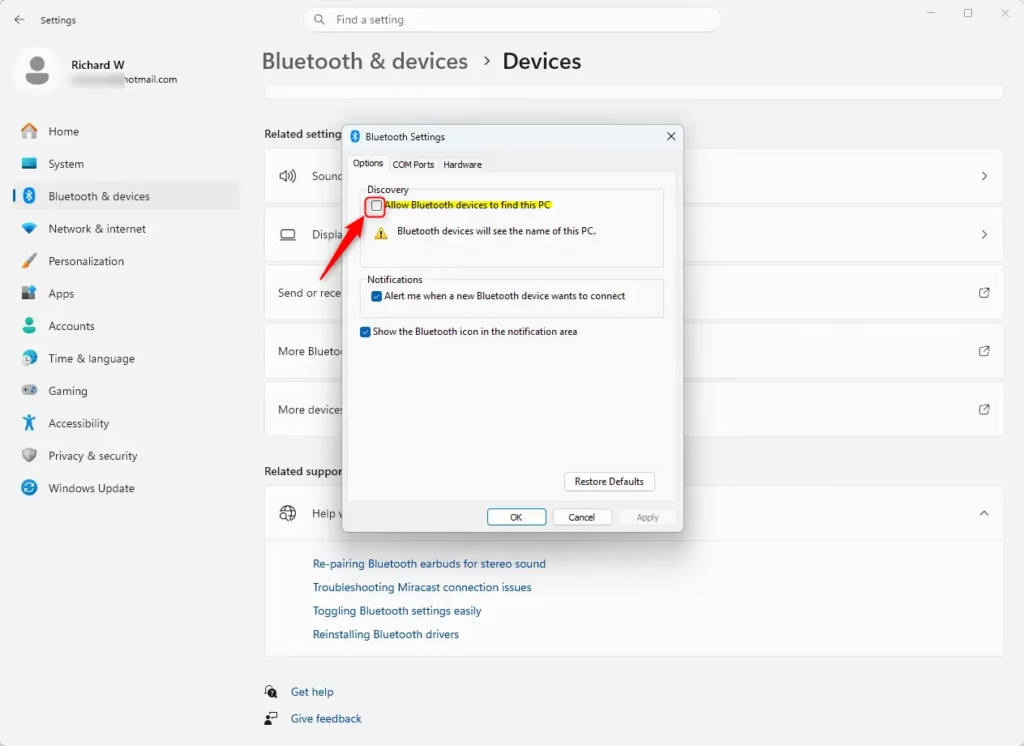
A separate Bluetooth Settings window should open. It has extra hardware configuration tools and does not look like the rest of Settings.
If the More Bluetooth settings link is missing, the PC probably has no built-in Bluetooth hardware, or the drivers are missing. Drivers are software that lets your PC communicate with hardware. Check the PC's specifications or the manufacturer's website to confirm it supports Bluetooth, then download the right driver. A USB Bluetooth adapter is a cheap fix for a desktop that has none. A disabled adapter can also hide these options, so make sure the Bluetooth toggle at the top of the page is turned on.
Step 5Look at the Bluetooth Settings Window
The Bluetooth Settings window controls how other hardware finds your computer. The most useful option here is Allow Bluetooth devices to find this PC. Turn it on while you pair speakers, mice, or phones, so they can see the PC and connect. Your exact choices depend on your wireless adapter and your Windows 11 version.
What You Might Find in Advanced Bluetooth Settings
Hardware differences and recent Windows updates can change which options you see. The window usually offers these controls:
- Discovery Settings: These control whether other Bluetooth devices can see your PC, and whether it can see them. You need this when connecting new gadgets. Once a device is paired, you can usually turn discovery off again.
- Connection Options: These help your PC manage Bluetooth connections. For example, it may reconnect automatically to devices you've used before, or ask you before a new device connects. Some adapters also offer power-saving options.
- Hardware Properties: This shows details about your Bluetooth adapter, such as the maker, the model, and the driver version. The driver version is handy when you are troubleshooting or looking for an update.
- Bluetooth Icon Management: You may be able to choose whether the Bluetooth icon shows in the system tray, the area near the clock on your taskbar.
Changing settings you don't understand can break Bluetooth. If you're unsure about a setting, leave it at its default or ask someone who knows before changing it. If you change something and Bluetooth stops working, go back to the same window and restore the previous setting. Restarting the PC afterward can also help.
Reference:
Summary
To recap, open Settings with Windows key + I, click Bluetooth & devices, and then click Devices. Under Related settings, click More Bluetooth settings. This opens a separate window with controls for Bluetooth discovery, connections, and hardware details. If the link is not there, check that the PC has a Bluetooth adapter and that its driver is installed.
Was this guide helpful?
0% of readers found this helpful (1 votes)

About the Author
Richard
Tech Writer, IT Professional
Richard is a writer at Geek Rewind who turns complex IT tasks into clear, step-by-step guides. He draws on years of hands-on experience in system administration and enterprise IT operations, focusing on Windows, Linux and WordPress: the problems people actually run into, and the fixes that work. His server and WordPress guides come from systems he runs himself. Richard builds and maintains the platform behind Geek Rewind, from its Ubuntu servers and Nginx configuration to its custom WordPress plugins. Many new tutorials start with readers' questions, and he's always glad to answer them in the comments.




No comments yet — be the first to share your thoughts!