How to Disable Command Prompt in Windows 11

- 10 steps
- Needs administrator rights
- Group Policy needs Windows 11 Pro, Enterprise or Education
- Includes a restart or sign-out
Disabling Command Prompt stops people from running text-based commands that can break your Windows 11 PC. Command Prompt, also known as cmd.exe, is a built-in tool that lets you run instructions directly to change system files.
Blocking access to this tool adds a safety net for shared computers in homes or schools. On Windows 11 Pro or Enterprise you can turn it off in a few minutes with the Local Group Policy Editor. On Windows 11 Home you can get the same result with the Registry Editor, covered further down.
Open Group Policy Editor with Win+R and gpedit.msc (Pro/Enterprise only), navigate to User Configuration Administrative Templates System, double-click Prevent access to the command prompt, select Enabled, and click OK. On Home edition, use Registry Editor to create a DWORD value named DisableCMD set to 1 at 🗝️HKEY_CURRENT_USER\
What happens when you disable the Command Prompt?
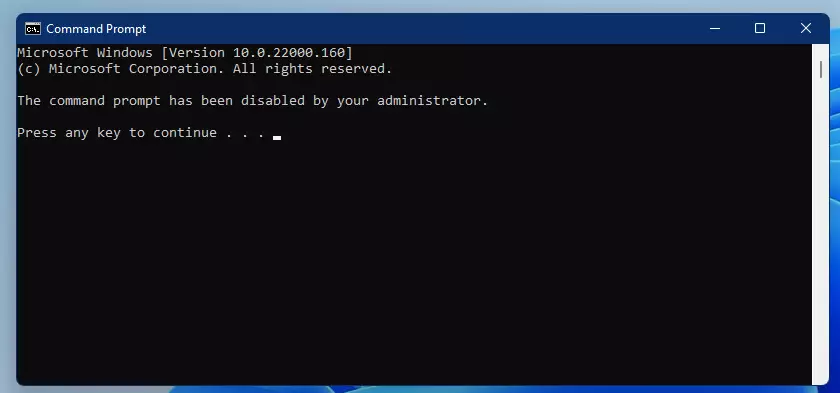
When you disable Command Prompt, Windows blocks the app from opening. Anyone who tries to launch it sees an error message saying the command prompt has been disabled by the administrator. Depending on the setting you choose, this also stops batch files and other command-line scripts from running, which helps keep malicious software from using the command line.
Two things to know before you start:
- The setting applies to the user account it is configured for, not the whole PC. Administrator accounts are affected too, so you can lock yourself out if you apply it to your own account.
- It blocks cmd.exe only. PowerShell and other tools are separate programs, so this is a safety net, not a complete lock-down.
Comparison: Registry vs. Group Policy
| Method | Best For | Difficulty |
|---|---|---|
| Group Policy | Windows 11 Pro/Enterprise | Easy |
| Registry Editor | Windows 11 Home | Advanced |
How to disable Command Prompt using Group Policy (Pro/Enterprise)
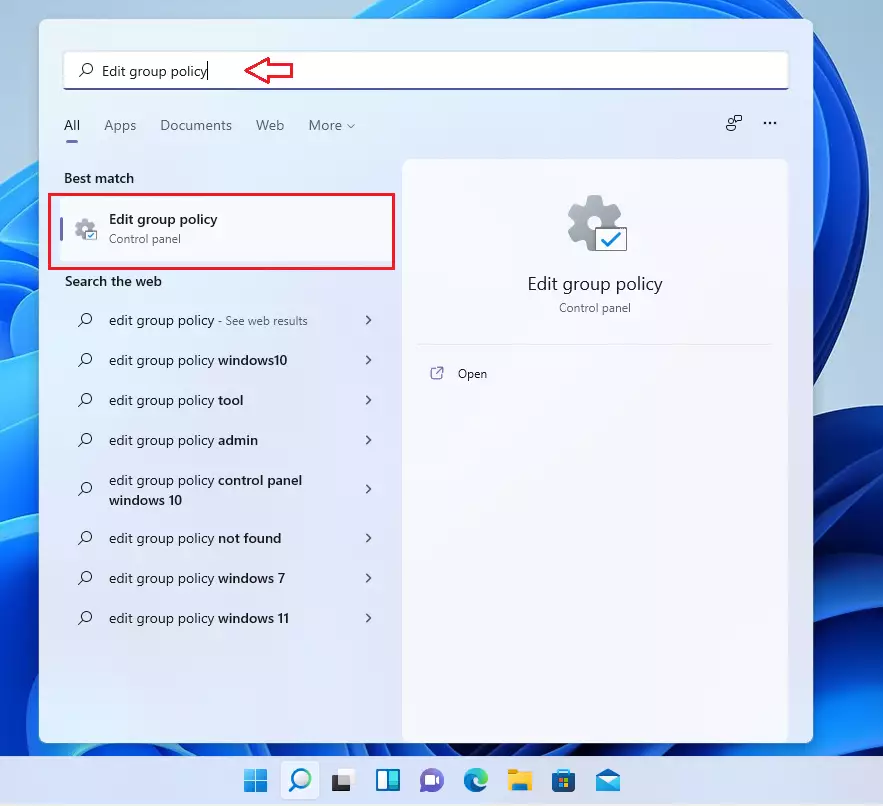
In short, you open the editor with the Run box, go to User Configuration Administrative Templates System, and turn on the policy that blocks access. The steps below walk through it.
- Press Win+R, type gpedit.msc, and press Enter. The Local Group Policy Editor opens. If Windows says it cannot find gpedit.msc, you are on Home edition.
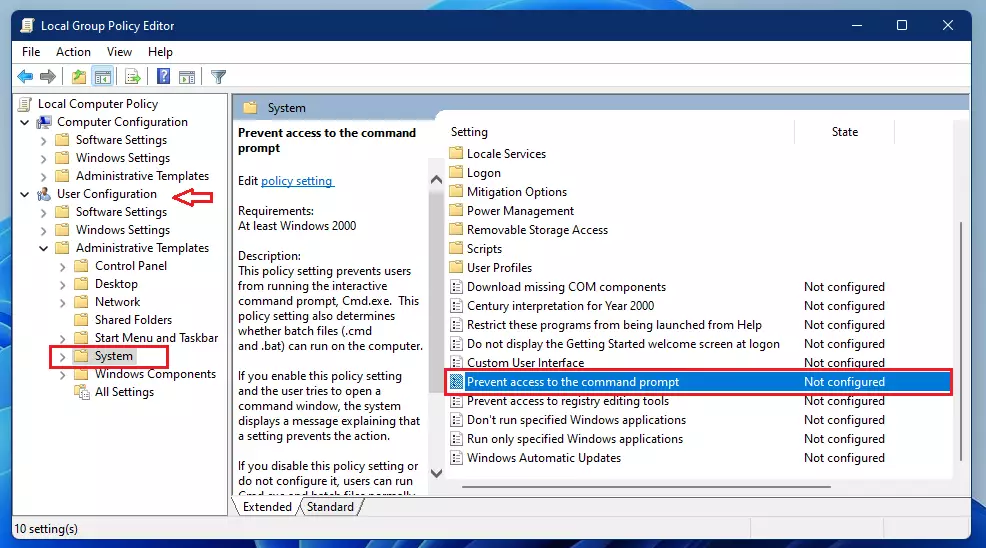
- In the left pane, go to User Configuration Administrative Templates System. Click System and a long list of policies appears in the right pane.
- Scroll the list, find Prevent access to the command prompt, and double-click it. A settings window opens for that policy.
- Select Enabled. In the Options box you can also choose whether to disable command prompt script processing as well. Set it to Yes to block batch files too, or No to block only the prompt window.
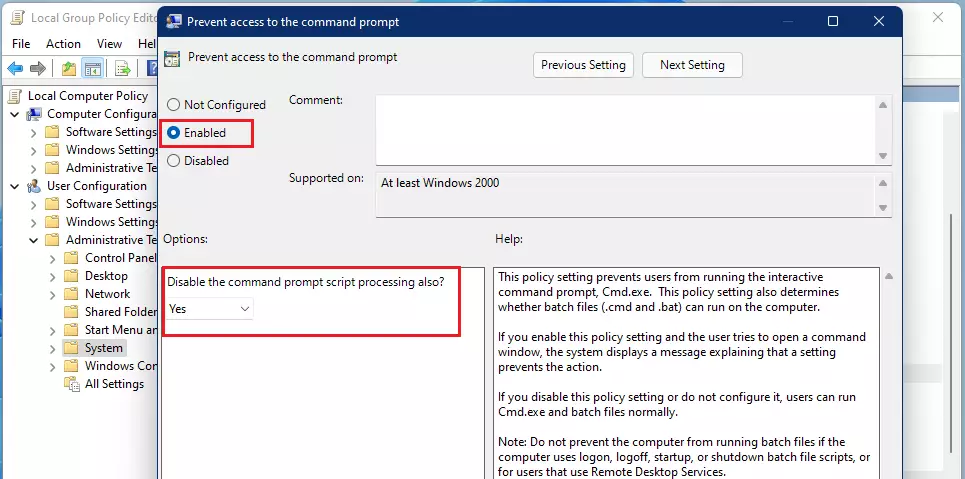
- Click OK. If the change doesn’t take effect immediately, sign out and back in or restart your computer. Then try opening Command Prompt. You should see the error message instead of the command window.
To undo this, open the same policy again and select Not Configured (or Disabled), then click OK. Sign out and back in to apply it.
How to disable Command Prompt via Registry Editor
Use the Registry Editor if you run Windows 11 Home and do not have the Group Policy Editor. You open Registry Editor (regedit) with the Run box, go to 🗝️HKEY_CURRENT_USER\
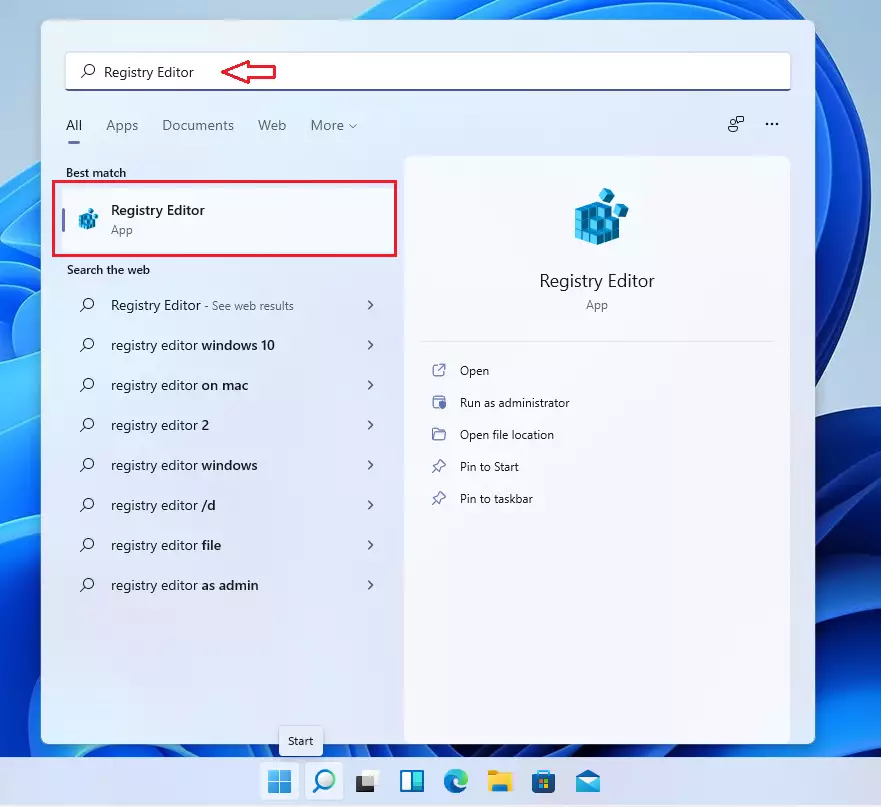
- Press Win+R, type regedit, and press Enter. Click Yes if User Account Control asks for permission. Registry Editor opens.
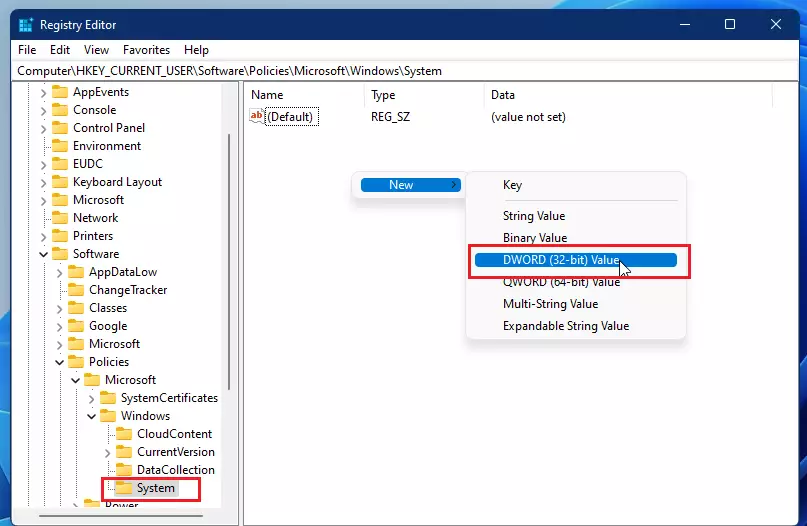
- In the left pane, navigate to 🗝️HKEY_CURRENT_USER\
Software\ . If the System key does not exist, right-click the Win, select New Key, and name it System. Then click it so it is selected.Policies\ Microsoft\ Windows\ System
HKEY_CURRENT_USER\Software\Policies\Microsoft\Windows\System
- Right-click in the empty space in the right pane, select New, and choose DWORD (32-bit) Value. A new entry appears with its name highlighted for editing.
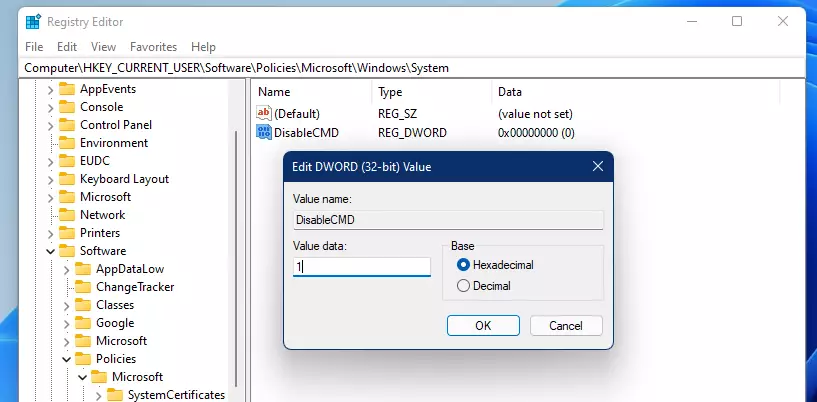
- Name the new value DisableCMD and press Enter. The name must match exactly, or Windows ignores it.
DisableCMD
- Double-click
DisableCMDand set its Value data to 1 to block the command prompt and batch scripts, or to 2 to block only the prompt itself while scripts still run. Click OK. Sign out and back in, or restart, then test by trying to open Command Prompt.
To undo this, delete the DisableCMD value, or set its data to 0. If Command Prompt is blocked for your only account, you will need another administrator account to make this change.
Pro Tip: Testing the Restriction
Before you lock yourself out, create a new standard user account on your PC. Apply the changes to that account first. Because the setting is stored per user, your main administrator account stays untouched, so you can still reach Command Prompt and reverse the change if something goes wrong.
Once you have confirmed the block works on the test account, apply it to the accounts you actually want to restrict. Keep at least one administrator account without the restriction so you can always undo it.
Summary
Disabling Command Prompt on your Windows 11 PC adds an extra layer of security. Choose the Group Policy Editor for Pro and Enterprise editions, or the Registry Editor for Home. Either way, the changes can be undone by an administrator: set the policy back to Not Configured, or remove the DisableCMD value.
Have a question about this guide?
Answered by AI from this guide. Good questions may be added to this page — please don't include personal details.
Did this guide fix your problem?

About the Author
Richard
Tech Writer, IT Professional
Richard is a writer at Geek Rewind who turns complex IT tasks into clear, step-by-step guides. He draws on years of hands-on experience in system administration and enterprise IT operations, focusing on Windows, Linux and WordPress: the problems people actually run into, and the fixes that work. His server and WordPress guides come from systems he runs himself. Richard builds and maintains the platform behind Geek Rewind, from its Ubuntu servers and Nginx configuration to its custom WordPress plugins. Many new tutorials start with readers' questions, and he's always glad to answer them in the comments.
No comments yet — be the first to share your thoughts!