How to Change from a Microsoft Account to a Local Account in Windows 11

Switching from a Microsoft account to a local account in Windows 11 lets you use your PC offline with just a username and password instead of a cloud-connected Microsoft login. A Microsoft account syncs your settings to online servers. A local account keeps its sign-in details only on your computer.
Privacy concerns and the desire to stop Windows from tracking your activity drive many people to make this switch. You can finish the whole change in the Settings app in under 5 minutes. You do not lose your files and you do not reinstall Windows. The steps work the same on Windows 11 Home and Pro.
Open Settings Accounts Your info and click Sign in with a local account instead. Enter your Microsoft account password to confirm, then create a username and password for your local account. Your files remain on your PC, but syncing and automatic OneDrive sign-in stop working.
Why Change to a Local Account?
Switching to a Windows 11 local account stops Microsoft from tracking your app use and settings across the cloud. Your sign-in lives on your machine instead of a web server, and you do not need to enter an email address every time you turn on your computer. This setup gives you more privacy and works without an internet connection.
- More privacy: Your settings and files are not linked to your Microsoft account online.
- No syncing: Your settings won’t automatically copy to other devices.
- Simpler login: You use a username and password specific to your computer.
Know what you give up before you start. Some things depend on a Microsoft account:
- Settings sync, such as themes and saved Wi-Fi networks, stops working across your devices.
- Microsoft Store, Xbox and some Microsoft 365 apps will ask you to sign in again when you use them. You can sign in to individual apps without converting the whole Windows account back.
- OneDrive stops signing in automatically. Files already in your OneDrive folder stay on the PC, but check that they are fully downloaded before you rely on them offline.
- If your PC uses device encryption, the recovery key is often saved to your Microsoft account. Check that you have a copy of it somewhere safe before you switch.
Also, make sure you are signed in as the account you want to convert. You can only change the account you are currently using.
How to Change to a Local Account
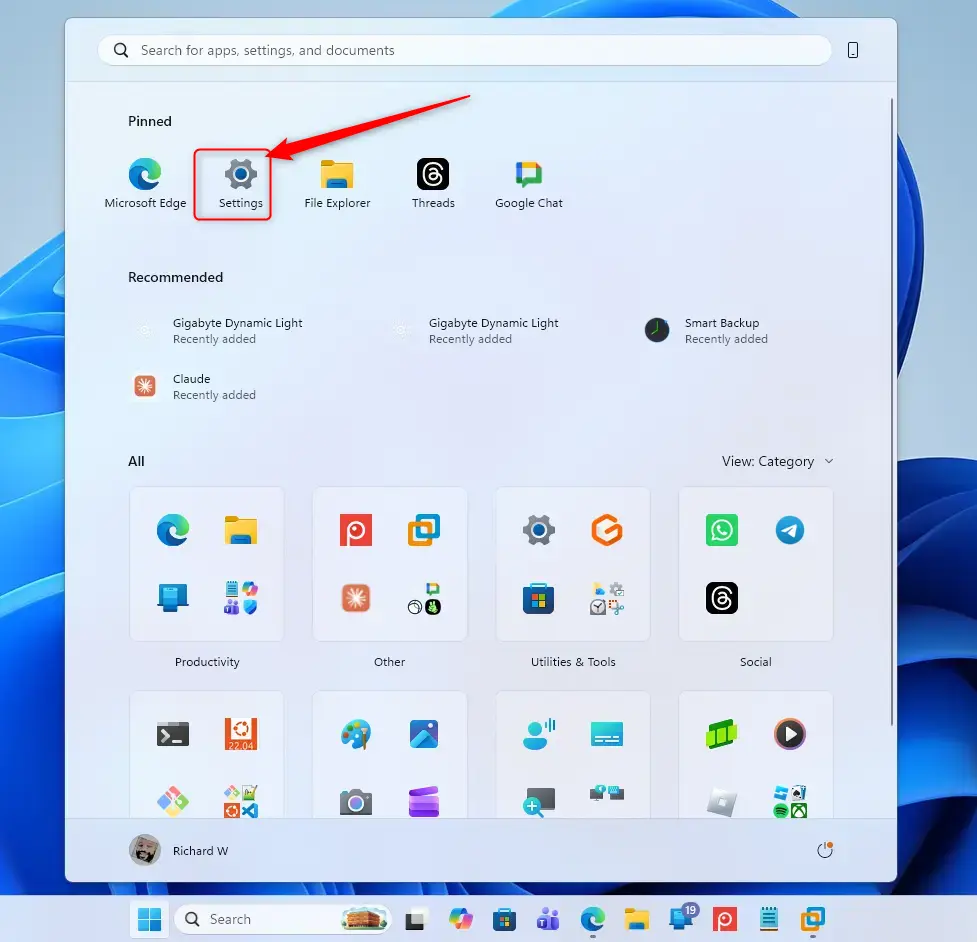
Step 1Open Settings
- Press Win+I on your keyboard. You can also click the Start button and then the gear icon for Settings.
- Check that the Settings window opens. If you used the Start menu and don’t see a gear icon, type “Settings” in the Start search box and press Enter.
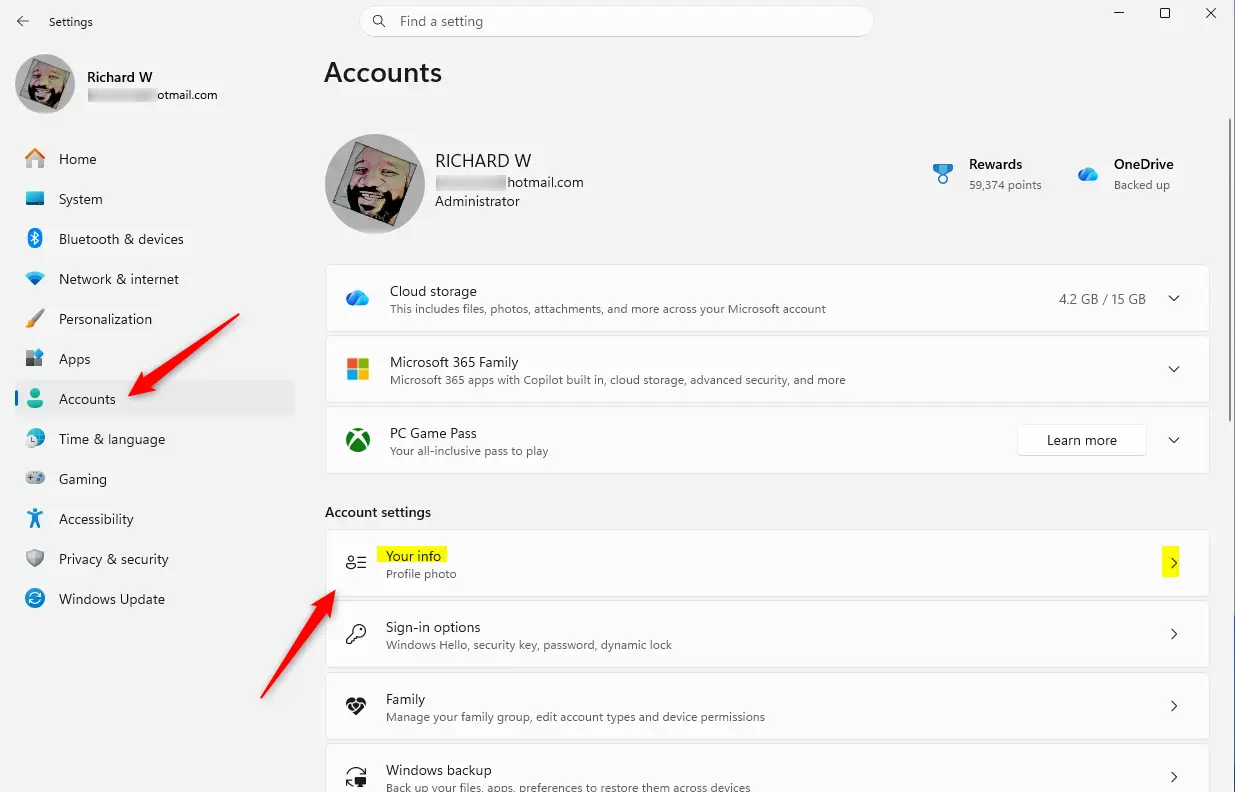
Step 2Go to Your Account Settings
- In the Settings window, select Accounts from the left sidebar.
- Click Your info. In some builds it sits near the top of the Accounts page, under your name and email address.
- Look at the page that opens. Your name and Microsoft email address should show at the top. That confirms you are on a Microsoft account.
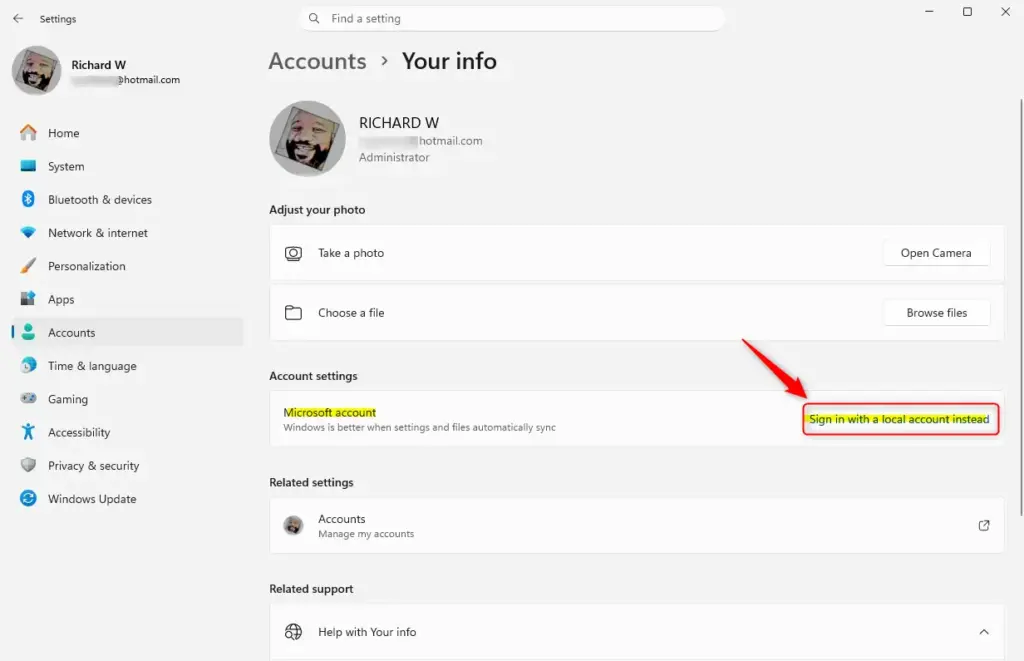
Step 3Start the Switch
Find the link on the Your info page. It is under Account settings, and it reads Sign in with a local account instead. This link only appears when Windows detects an active Microsoft login. Computers already running a local profile lack this option entirely.
- Click Sign in with a local account instead.
- Read the screen that appears. It asks whether you are sure you want to switch, and it warns that you will lose syncing across your devices. Click Next to continue.
If you don't see the link, there are three common reasons. You may already be using a local account. The PC may be managed by a work or school account, in which case an administrator controls the sign-in. Or you may be on a build where Microsoft has moved the option. In that case, look for a similar sign-in option on the same page.
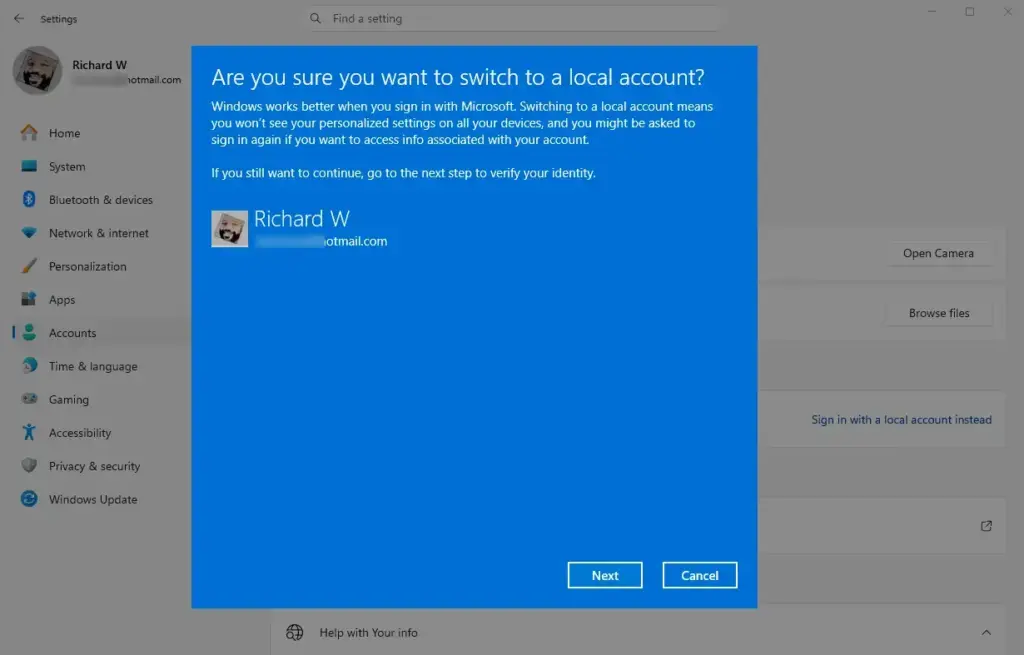
Step 4Enter Your Microsoft Account Password
Windows needs to confirm your identity before it lets you change the sign-in type.
- Enter the password for your current Microsoft account. If you normally sign in with a PIN, Windows may ask for your PIN instead.
- Click Next.
If the password is rejected, check that Caps Lock is off. If you've forgotten it, reset it at Microsoft's website first, then come back to these steps.
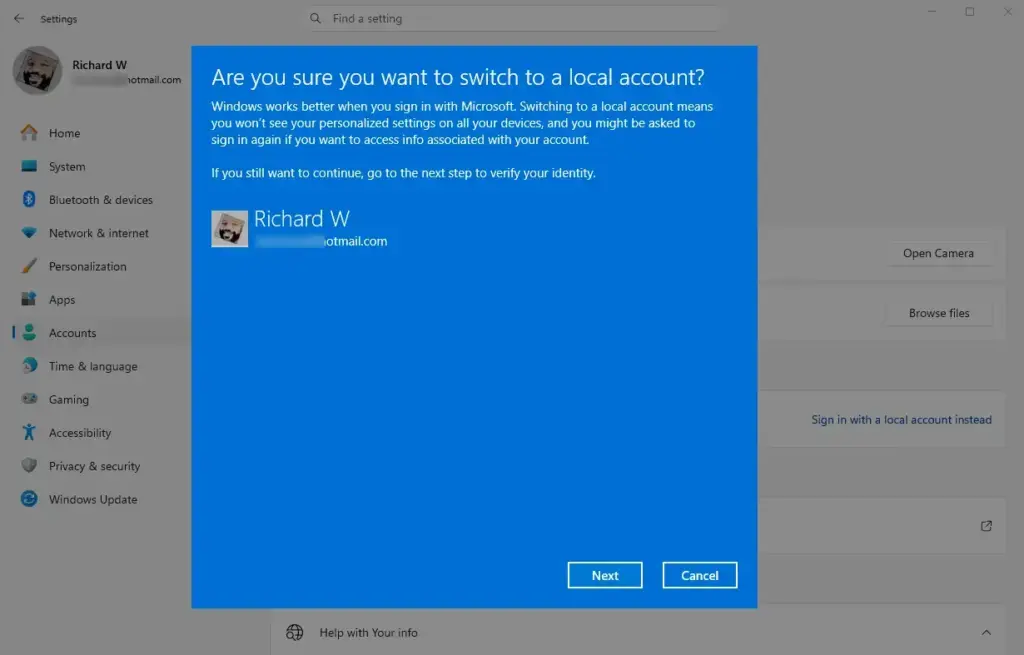
Step 5Create Your Local Account Details
Take your time with the password. A local sign-in does not have the online recovery tools that Microsoft accounts use if you get locked out.
- Username: This is the name you'll use to log in. Make it something you like. It must be different from other usernames on your PC.
- Password: Choose a strong password. You can't easily reset this online like a Microsoft account password.
- Password Hint: This helps you remember your password. Make it a clue, but not too obvious.
I don't recommend that. Write the password down and keep it somewhere safe until you know it by heart.
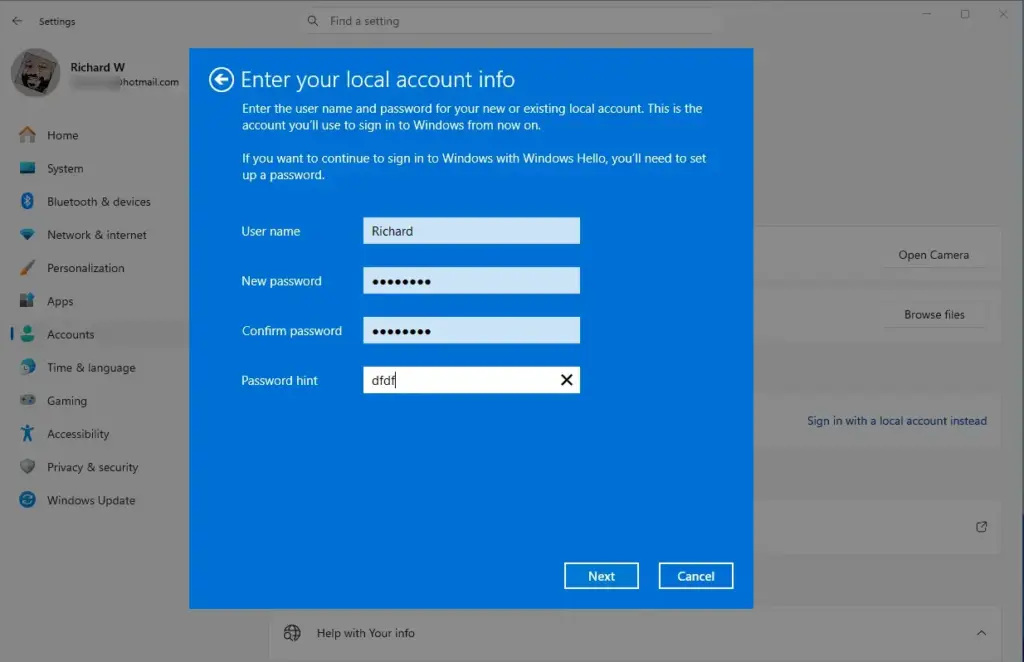
Step 6Finish the Sign-Out
- Once your new local account details are entered, click Next.
- Wait for the confirmation screen. It tells you the account is ready and that you need to sign out.
- Save any open work, then click Sign out and finish.
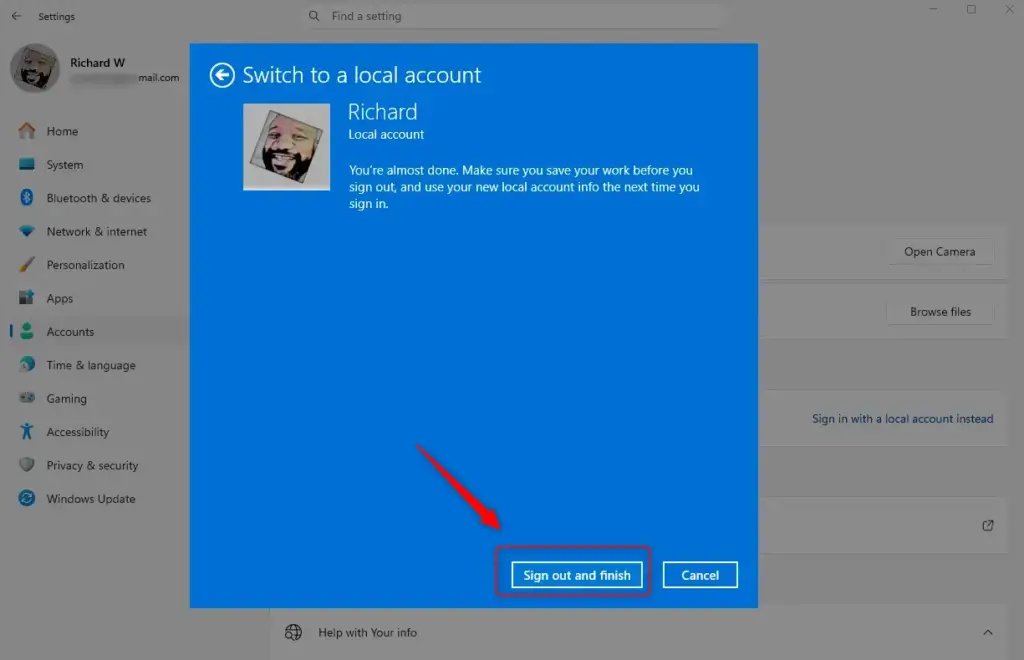
Your computer will sign you out. This takes a few seconds, and you do not need to restart.
Step 7Sign Back In
At the login screen, your new local account username will be visible. Enter the password you just created. You are now logged into your Windows session using your local account.
Your desktop, documents and installed programs should look the same as before. To confirm the change, open Settings Accounts Your info It should now show your username with Local account under it. To undo the change later, use the Sign in with a Microsoft account instead link on that same page.
Reference:
Summary
Switching from a Microsoft account to a local account in Windows 11 involves using the Settings app to enter your current password and then creating a new username, password, and hint for your computer. Your files stay in place. What you lose is cloud syncing and automatic sign-in to Microsoft services, and you can reverse the change at any time.
Was this guide helpful?
50% of readers found this helpful (4 votes)

About the Author
Richard
Tech Writer, IT Professional
Richard is a writer at Geek Rewind who turns complex IT tasks into clear, step-by-step guides. He draws on years of hands-on experience in system administration and enterprise IT operations, focusing on Windows, Linux and WordPress: the problems people actually run into, and the fixes that work. His server and WordPress guides come from systems he runs himself. Richard builds and maintains the platform behind Geek Rewind, from its Ubuntu servers and Nginx configuration to its custom WordPress plugins. Many new tutorials start with readers' questions, and he's always glad to answer them in the comments.
the option to go back to local acct – NO LONGER EXISTS.