How to Disable Search Indexer Backoff in Windows 11


- 2 ways to do it
- Needs administrator rights
- Group Policy needs Windows 11 Pro, Enterprise or Education
- Includes a restart or sign-out
Search indexer backoff controls how much computer power Windows uses to scan and catalog your files while you work. When it is on, Windows slows indexing down during busy tasks so the system stays fast and responsive. This is the default. Turning it off makes Windows run file indexing at full speed all the time. That can take system resources away from your other apps, especially on older PCs or while the index is first being built.
You need administrator rights to change this setting. There are two ways to do it. Use Group Policy Editor on Windows 11 Pro, Enterprise, or Education. Use Registry Editor on Windows 11 Home. Pick one method only.
To enable or disable search indexer backoff in Windows 11, use either the Local Group Policy Editor or Registry Editor. In gpedit.msc, navigate to Computer Configuration Administrative Templates Windows Components Search, then modify the ‘Disable indexer backoff’ policy. Alternatively, in regedit, adjust the DWORD value ‘DisableBackoff’ under 🗝️HKEY_LOCAL_MACHINE\
Option 1Using Group Policy Editor
Group Policy Editor is built into Windows 11 Pro, Enterprise, and Education. It is not included in Home, so if the editor won’t open on your PC, skip to the Registry Editor method below. Sign in with an administrator account before you start.
- Open the Local Group Policy Editor. Type
gpedit.mscin the Windows search bar and press Enter. The Local Group Policy Editor window opens. If a User Account Control prompt appears, click Yes. - In the left pane, go to this location:
Computer Configuration Administrative Templates Windows Components Search
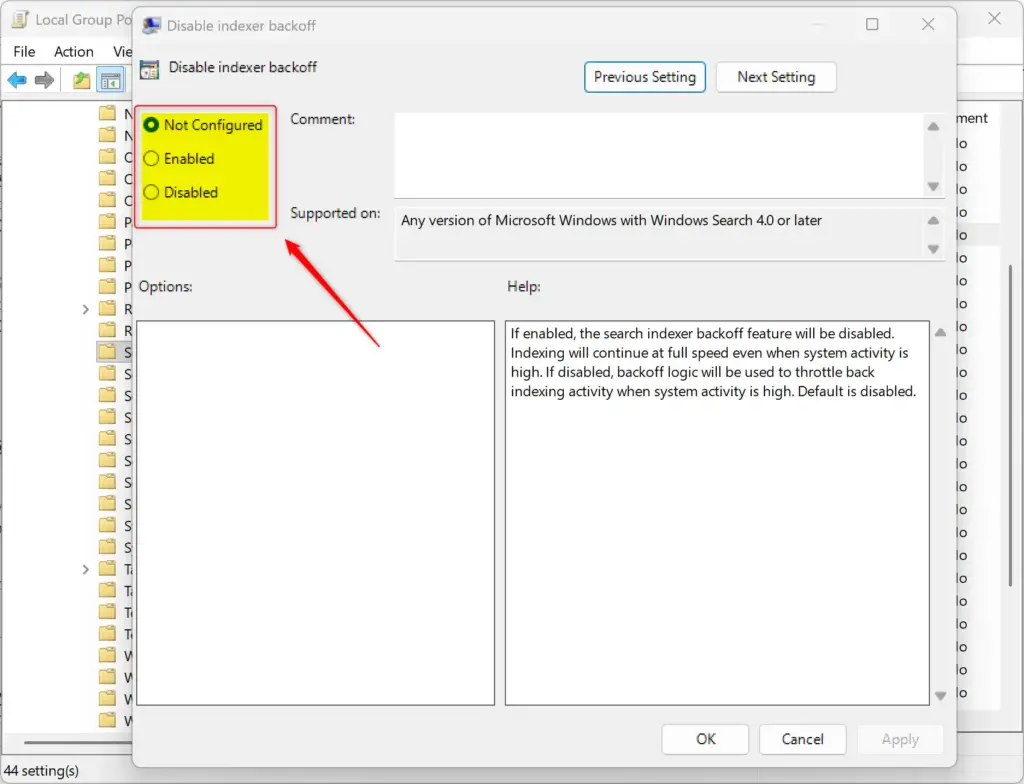
The Search policies are now listed in the right pane. - In the right pane, find the policy named Disable indexer backoff and double-click it. A settings window opens with three options: Not Configured, Enabled, and Disabled.
The naming is easy to misread. The policy is called “Disable indexer backoff”, so setting it to Enabled turns backoff off. Now choose one of the next two steps, then continue to step 7.
- Decide whether you want backoff on or off, then follow step 5 or step 6.
- To Turn On Search Indexer Backoff (Default Setting):
- Select Not Configured. This returns Windows to its default behavior. Choosing Disabled also leaves backoff running, but Not Configured is the cleaner way to undo the change.
- Click OK. Then go to step 7.
- To Turn Off Search Indexer Backoff:
- Select Enabled.
- Click OK. The window closes and the policy now shows its new state in the list. Then go to step 7.
- Close the Local Group Policy Editor. The change should apply on its own. If search indexing doesn’t behave differently, restart your PC or sign out and back in. To undo the change later, reopen the policy and set it back to Not Configured.
Option 2Using Registry Editor
Registry Editor works on every edition of Windows 11, including Home, where Group Policy Editor is missing. This method changes one registry value that tells Windows whether to slow its search indexing during busy tasks. Mistakes in the registry can cause system problems, so back it up first. In Registry Editor, click File Export, choose All as the export range, give the file a name, and save it somewhere safe. You can double-click that file later to restore the registry.
To Turn On Search Indexer Backoff (Default Setting):
To turn backoff on, the value below must either not exist or be set to 0.
- Open Registry Editor. Type
regeditin the Windows search bar and press Enter. Click Yes if User Account Control asks for permission. - Go to this path:
HKEY_LOCAL_MACHINE\SOFTWARE\Policies\Microsoft\Windows\Windows Search. You can paste it into the address bar at the top of the window. - Look in the right pane for a value named
DisableBackoff. If it exists, double-click it and set its data to0, or right-click it and select Delete. If the value isn't there, backoff is already on and you don't need to do anything.
To Turn Off Search Indexer Backoff:
You need to create or modify the following value.
- Open Registry Editor by typing
regeditin the Windows search bar and pressing Enter. - Go to this path:
HKEY_LOCAL_MACHINE\SOFTWARE\Policies\Microsoft\Windows\Windows Search. If the last key in the path doesn't exist, right-click its parent key, select New > Key, and name it to match the last part of the path. - Right-click an empty space in the right pane and select New > DWORD (32-bit) Value. A new value appears with its name highlighted for editing.
- Name the new value
DisableBackoffand press Enter. - Double-click
DisableBackoff. The Edit DWORD (32-bit) Value window opens. - Set Value data to
1. - Click OK. The value now shows the new data in the right pane.
Close Registry Editor when you are finished. Restart your PC so Windows Search picks up the change. To undo it, set the value back to 0 or delete it, as described in the first list.
Summary
Search indexer backoff decides whether Windows slows file indexing while you use your computer. Leaving it on, which is the default, saves system resources for your apps. Turning it off makes Windows index files at full speed all the time. Use Group Policy Editor on Pro, Enterprise, or Education, or Registry Editor on any edition including Home. Either way, you can switch back to the default whenever the extra load becomes a problem.
Have a question about this guide?
Answered by AI from this guide. Good questions may be added to this page — please don't include personal details.
Did this guide fix your problem?

About the Author
Richard
Tech Writer, IT Professional
Richard is a writer at Geek Rewind who turns complex IT tasks into clear, step-by-step guides. He draws on years of hands-on experience in system administration and enterprise IT operations, focusing on Windows, Linux and WordPress: the problems people actually run into, and the fixes that work. His server and WordPress guides come from systems he runs himself. Richard builds and maintains the platform behind Geek Rewind, from its Ubuntu servers and Nginx configuration to its custom WordPress plugins. Many new tutorials start with readers' questions, and he's always glad to answer them in the comments.
No comments yet — be the first to share your thoughts!