How to Fix Windows Search Indexing in Windows 11

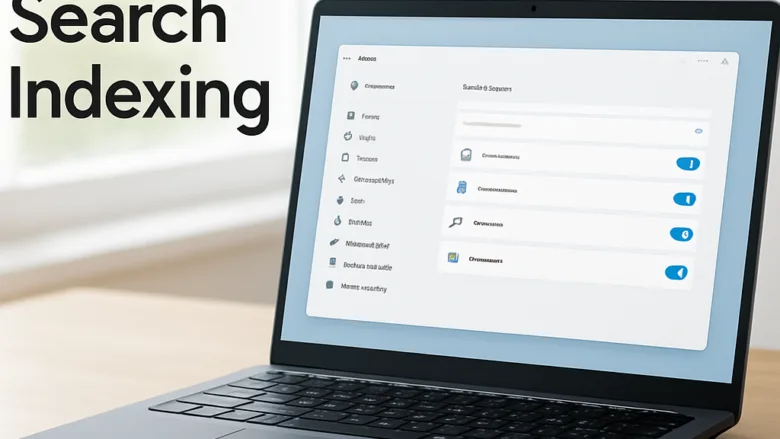
Windows search indexing is a background service that catalogs over 100,000 files on your hard drive so you can find apps, emails, and documents instantly from the taskbar . When indexing breaks, you stop finding important files. Your PC can also feel sluggish, because the system keeps getting stuck trying to read corrupted folders.
You can fix most search problems in Windows 11 in one of three ways: rebuild the index database, restart the Windows Search background service, or add missing folders back into your search locations. Start with the least disruptive fix, adding the folder, and move on to a rebuild only if that doesn’t help. These steps work the same on Windows 11 Home and Pro.
Windows search indexing creates a hidden list of your files so you can find them in the taskbar . To fix missing files or manage this background process, use the Indexing Options menu in the Control Panel or switch to Enhanced Search in your Windows privacy and security settings.
Choose what Windows searches
The index only covers the folders, drives, and file types you tell Windows to include. If a folder isn’t on the list, its files won’t show up in search results , however well the rest of the index works. Getting this right means Windows checks your important documents and skips temporary files.
- Select Start, type Indexing Options, and open the Control Panel result. A window opens showing how many items are indexed and which locations are included.
- Click Modify. You will see a list of Indexed Locations.
- Tick the box next to each folder or drive you want searched. If a folder is missing from the list, expand the drive to find it. Click Show all locations if you need system-wide locations, and approve the administrator prompt.
- Untick any location you want Windows to ignore.
- Click OK. Windows starts indexing the new locations in the background, and the status at the top of the window will show that items are being indexed.
To undo a change, open the same window and tick or untick the location again. New folders can take a while to appear in search results , especially if they hold many files.

Search deeper and faster
By default, Windows 11 searches the main user folders, such as Documents, Pictures, Music, and the Desktop, and it matches file names only. These two changes widen that. Use them when you need to find text buried inside your documents or files stored elsewhere on the PC.
To search your entire PC (Enhanced mode):
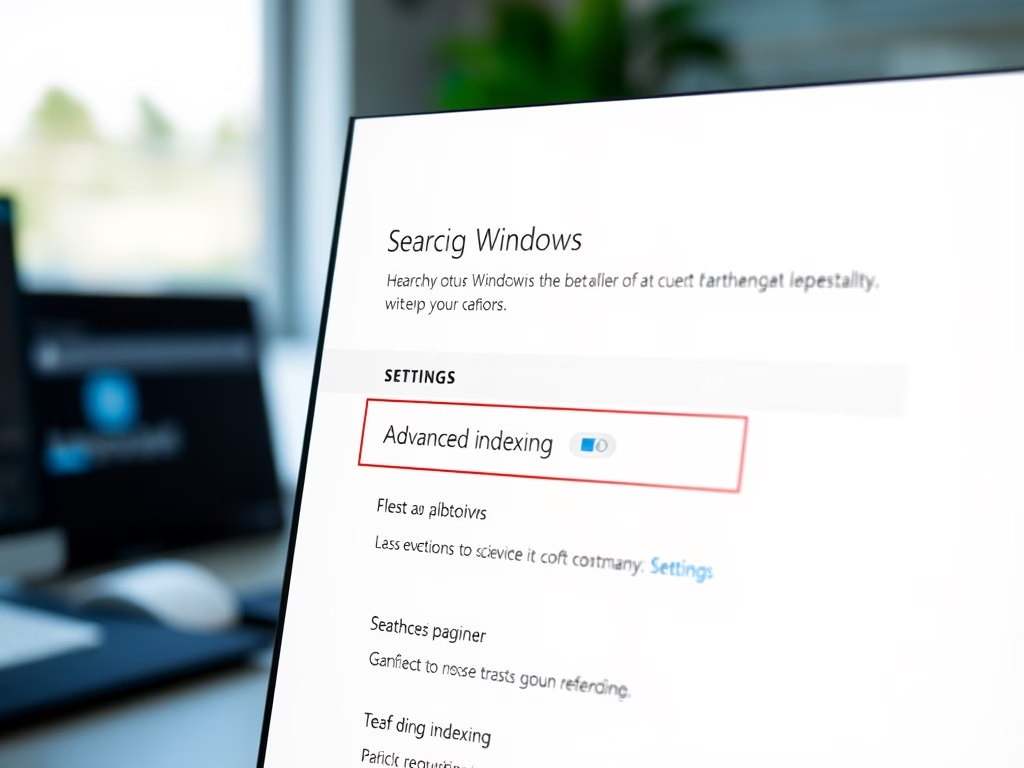
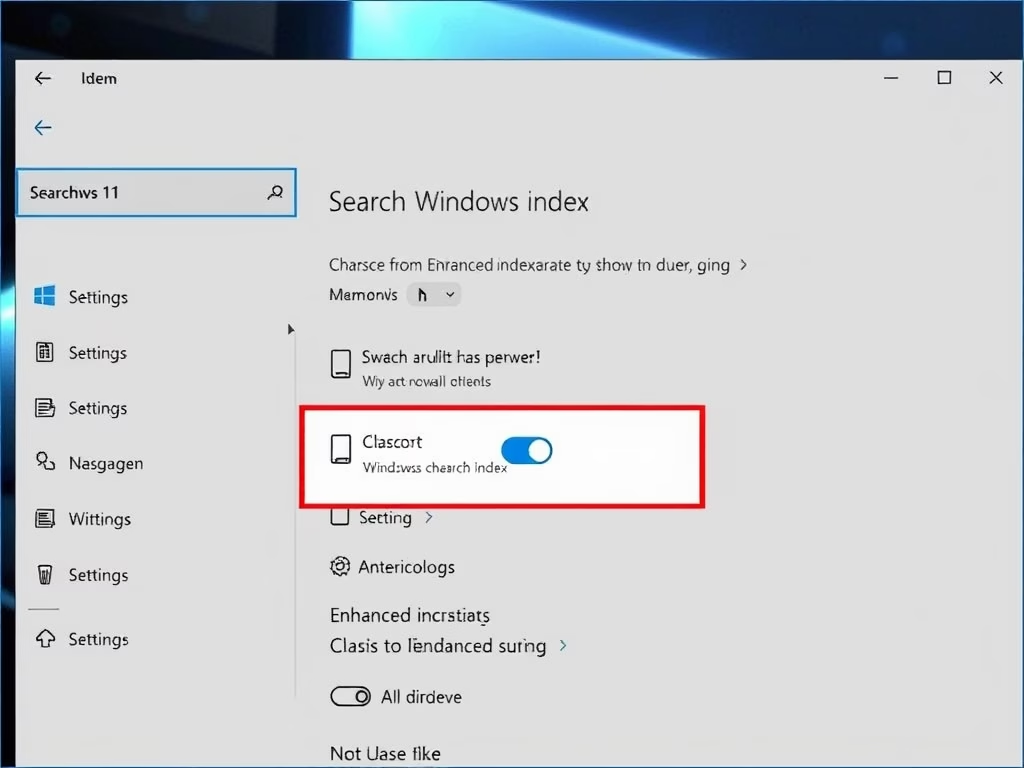
- Open Settings Privacy & security > Searching Windows.
- Under Find my files, choose Enhanced instead of Classic. If you don't see this option, update Windows 11 first, because older builds don't include it.
- Wait for indexing to finish. The same page has an indexing status line that shows progress.
Enhanced mode indexes far more files, so expect more CPU and disk activity at first, which matters on a laptop running on battery. Switching back to Classic reverses the change.
To search the text inside files:
- Open Indexing Options from the Start menu, then click Advanced and approve the administrator prompt.
- Go to the File Types tab.
- Select a file extension in the list, such as .txt or .docx.
- Choose Index Properties and File Contents.
- Click OK. Windows re-indexes those file types, which can take a while.
File content indexing makes the index larger. Turn it on only for the file types you actually search by content.


Stop and manage indexing
Indexing can use a noticeable amount of battery, CPU, and disk space, particularly right after you add many files. You have two options: pause it for a while, or move the database to another drive.
To pause indexing:
- Open Indexing Options from the Start menu.
- If indexing is running, click Pause. The status line should change to show that indexing is paused. The button only appears while there is work to do.
The pause is temporary, and indexing picks up again on its own later. Windows also slows indexing automatically when the PC is busy or running low on battery.
To move the index database:
- In Indexing Options, click Advanced and approve the administrator prompt.
- On the Index Settings tab, find Index location and click Select new.
- Pick a folder on the drive you want to use, then click OK.
- Restart the PC if Windows asks you to. Windows rebuilds the index at the new location, so results may be incomplete for a while.
Choose a drive that will always be connected. If the drive disappears, search stops working until it returns. To undo the move, select the original location again.


Fix broken search results
When search stops working or can't find files you know exist, work through these fixes in order. Each one is more disruptive than the last, so stop as soon as search works again.
1. Run the built-in troubleshooter.
- Open Settings System Troubleshoot Other troubleshooters
- Find Search and Indexing and click Run.
- Choose the option that matches your problem, such as files not showing in search results, and follow the prompts.
2. Restart the Windows Search service.
- Select Start, type Services, and open the Services app.
- Scroll down to Windows Search, right-click it, and choose Restart.
- If the option is missing, choose Start instead. If it won't start, check that the service's startup type is not set to Disabled.
3. Rebuild the index.
- Open Indexing Options from the Start menu and click Advanced. Approve the administrator prompt.
- On the Index Settings tab, under Troubleshooting, click Rebuild.
- Click OK when Windows warns that the rebuild can take a long time.
The old database is deleted and a new one is built from scratch. Search results will be incomplete until it finishes, which can take from minutes to hours depending on how many files you have. Leave the PC on and plugged in while it works.

Common questions
Why is Windows search missing my files?
Windows might not be looking in the folder where your files are saved, or the search database might be damaged. Check the folder first, since that's the simpler fix.
- Open Indexing Options from the Start menu and click Modify.
- Tick the folder that holds your files, then click OK.
- Wait for indexing to finish and try your search again.
If the folder was already included and results are still missing, click Advanced in the same window and use Rebuild on the Index Settings tab.
Does Windows search indexing slow down my computer?
Yes, it can. While Windows builds or updates its list of files, background indexing uses extra CPU power, memory, and disk activity. This usually happens shortly after setting up a new PC, adding a large number of new files, or rebuilding the index. It should settle down once indexing finishes. If it doesn't, open Indexing Options and check whether the number of indexed items is still climbing. A rebuild that never finishes can point to a corrupted folder or a very large location you can exclude.
How do I make Windows search inside my documents?
Change your file type settings in Indexing Options to tell Windows to read the text inside your files. By default, Windows searches only file names (plus some file properties) unless you turn on file content indexing.
- Open Indexing Options, click Advanced, and go to the File Types tab.
- Select the file extension you want, then choose Index Properties and File Contents.
- Click OK and let Windows re-index.
How do I rebuild the search index in 🪟 Windows 11?
Open Indexing Options, click Advanced, and click Rebuild on the Index Settings tab. This deletes the old search list and creates a fresh one, which fixes most missing search results. Expect it to take a while, and don't judge the results until the status in Indexing Options shows indexing is complete.
Can I search my whole computer instead of just indexed folders?
Yes. Open Settings Privacy & security > Searching Windows and set Find my files to Enhanced. This tells Windows to look through all your folders and drives instead of only your usual document and desktop locations. It uses more resources while it builds the index, so give it time. You can switch back to Classic at any point.
Frequently asked questions
How to fix Windows search index problems?
Start by adding missing folders in Indexing Options, which fixes most search problems. If results still don't appear, rebuild the index from the Advanced settings. You can also restart the Windows Search service in Services. Start with the least disruptive fix and move to a rebuild only if needed.
How to turn search indexing back on?
Turn indexing back on by starting the Windows Search service. Open Services from the Start menu, find Windows Search, and set Startup type to Automatic. Then click Start. Once the service is running, Windows resumes indexing your included folders in the background.
How to check 🪟 Windows 11 installation indexing?
Open Indexing Options from the Start menu to check your index status. The top of the window shows how many items are indexed and whether indexing is complete or still in progress. Check that your important folders appear under Included locations. If the count is zero or never changes, the index needs a rebuild.
How to turn on search indexing 🪟 Windows 11?
Search indexing is on by default in Windows 11. To confirm it runs, open Settings, select Search, then Searching Windows, and choose Enhanced for deeper results across your PC. If indexing stays off, start the Windows Search service in Services and set its Startup type to Automatic.
How to tclassic modef Windows search indexer?
To switch the Windows search indexer to classic mode, open Settings, select Search, then Searching Windows, and choose Classic. Classic mode indexes only your included locations, which uses less background activity. The change may take a few minutes to take effect.
What is searxh indexing on 🪟 Windows 11?
Search indexing is a background service that builds a catalog of your files, including their names, contents, and emails. Windows uses this catalog to return results from the taskbar search box in seconds, instead of scanning your whole drive every time you search.
Still have a question?
Answered by AI from this guide. Good questions may be added to this page — please don't include personal details.
Did this guide fix your problem?

About the Author
Richard
Tech Writer, IT Professional
Richard is a writer at Geek Rewind who turns complex IT tasks into clear, step-by-step guides. He draws on years of hands-on experience in system administration and enterprise IT operations, focusing on Windows, Linux and WordPress: the problems people actually run into, and the fixes that work. His server and WordPress guides come from systems he runs himself. Richard builds and maintains the platform behind Geek Rewind, from its Ubuntu servers and Nginx configuration to its custom WordPress plugins. Many new tutorials start with readers' questions, and he's always glad to answer them in the comments.
No comments yet — be the first to share your thoughts!