Turn Off Web Results in Start Menu Search in Windows 11

- 13 steps
- Needs administrator rights
- Includes a restart or sign-out
Turn off web results in Start menu search by changing one setting in Settings. Web results are Bing suggestions that appear next to your apps, files and settings when you type in Start. To turn them off in Windows 11, open Settings Privacy & Security Search and switch off the setting for web and Microsoft Store suggestions.
That setting arrived with the optional preview update KB5120998 on October 28, 2026. Microsoft describes it as a choice over whether web and Microsoft Store suggestions appear alongside local search results. This post covers where to find it, what to do if it is missing, and how to switch it back on.
To turn off web results in Start menu search in Windows 11, open Settings, select Privacy & Security, then select Search and switch off the web and Microsoft Store suggestions setting. Web results are Bing suggestions that appear next to your apps and files. The setting comes with optional preview update KB5120998, so you may need to install that update first.
What web results in Start menu search are
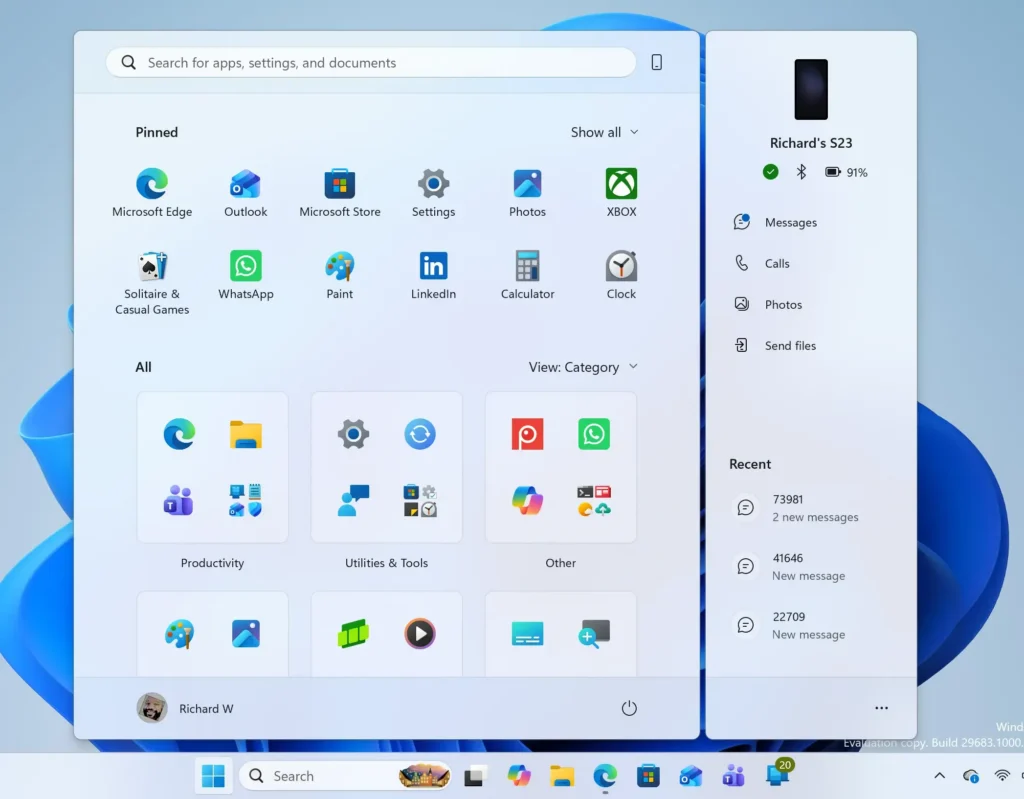
When you type in the Start menu, Windows searches your PC first. It can also show suggestions from the web and the Microsoft Store (the app catalog built into Windows) in the same list.
These suggestions can crowd out the apps and files you wanted. Typing a few letters of a program name and getting a web page suggestion first slows you down. That is the main reason people turn them off.
What you need before you start
The setting you need is part of the optional preview update KB5120998, released on October 28, 2026. An optional preview update is a test release that Windows does not install automatically unless you ask for it. Without that update, or a later one, the setting does not exist on your PC.
Installing an update needs an administrator account. You need administrator privileges for that step. Microsoft’s release notes suggest you can change the setting as a standard user, but they do not state it outright. Treat that as unconfirmed.
Microsoft lists the update as rolling out, so it may reach some PCs later than others. The release notes do not mention a Home versus Pro difference. They also do not say whether a restart is needed after you change the setting.
How to Turn Off Web Results in Start Menu Search in 🪟 Windows 11
These steps turn off web results in Start menu search by changing the web and Microsoft Store suggestions setting in the Settings app. One caution first: Microsoft’s notes name the setting by what it does, not by its exact label, so the wording on your screen may differ slightly.
- Open Settings. Press Win+I. The Settings window opens with a list of categories on the left.
Start Menu - Select Privacy & Security. Click it in the left pane. The page lists privacy options for your PC.

- Select Search. The path is Settings Privacy & Security Search. If you do not see a setting about web or Microsoft Store suggestions on this page, go to the section below on a missing setting.
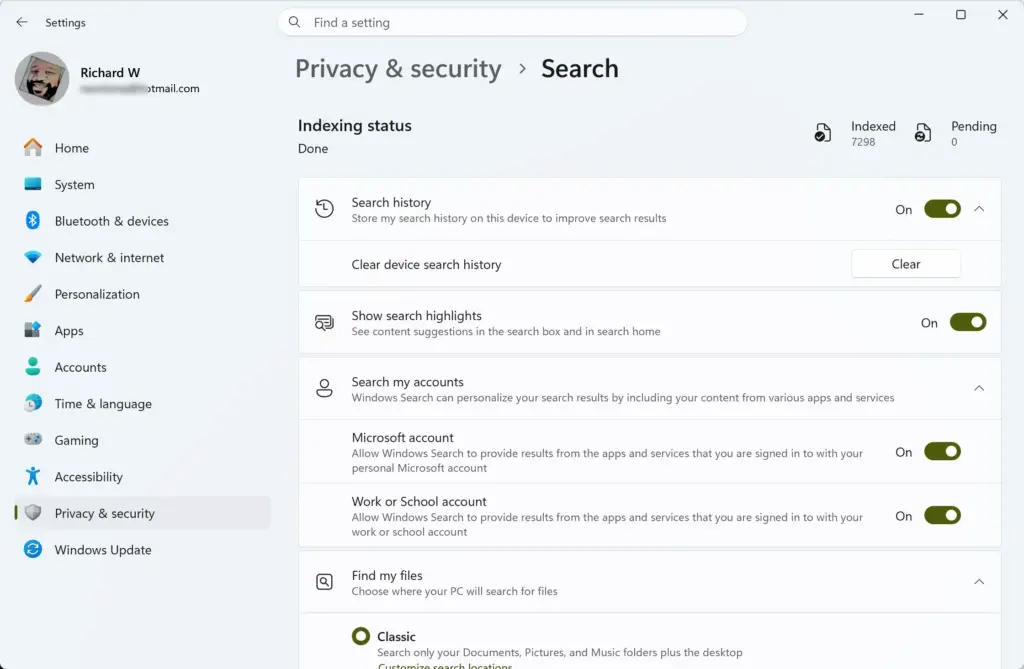
Settings › Privacy & security › Search - Find the web and Microsoft Store suggestions setting. Microsoft describes it as a choice over whether these suggestions appear alongside local search results. The exact on-screen label is not confirmed in the source material.
- Turn the setting off. Choose the option that stops web and Microsoft Store suggestions from appearing with local results. The source does not say whether the control is a toggle or a list, so pick the option that matches that meaning.
- Close Settings. Click the X in the top-right corner. Windows saves the change as you make it, so there is no Apply button to find.
- Test Start menu search. Press the Win, then type a common word such as weather. Check whether web suggestions still appear below your local results.
If web suggestions are gone, you are done. If they still appear, read the next two sections before you try again.
If Start menu search still shows web results
Microsoft’s October 7, 2026 announcement says it plans to bring the new Windows Search experience to the Start menu next year. In initial previews, searching from the Start menu still uses the existing search experience.
That matters for this task. The new setting is documented under Settings Privacy & Security Search, and the notes describe it for Search in general. Microsoft’s notes do not say how the setting behaves in the current Start menu search. I cannot confirm that it removes web results from the Start menu on every build.
If you turned the setting off and the Start menu still shows web suggestions, take these actions in order:
- Sign out of Windows and sign back in, then repeat the test search.
- Restart the PC and test again.
- Restart the Start menu process, which reloads the interface without a full reboot. The post on how to restart the Start menu process in Windows 11 shows the steps.
These actions refresh the Start menu. They are general housekeeping, not fixes that Microsoft documents for this setting.
If the setting is missing from Settings
The most likely reason is that your PC does not have the update that added it. Microsoft’s notes tie the setting to KB5120998, an optional preview update. If your PC only receives standard updates, the setting may not appear until a later release includes it.
To check, open Settings Windows Update and select Check for updates. Optional preview updates are not installed automatically, so look for an option to download optional updates on that page. Installing one needs an administrator account. You may need to restart afterward.
Two other things can hide the setting. The update is rolling out gradually, so it can arrive on your PC later than on others. A work or school PC may also be managed by an administrator, who controls which updates and options users see. This post does not cover managed PCs. If your school or employer manages your PC, ask your IT team.
If the setting is not there and you cannot install the update, there is no confirmed alternative in this post. Do not use registry tweaks from random sites in its place without checking them first.
Registry and Group Policy methods
Many older guides turn off web search by editing the registry (the database where Windows stores its settings) or by changing a Group Policy setting (a rule an administrator sets to control Windows behavior). I have not confirmed a registry value or a policy name for this task, so this post does not give one.
[Registry method: to be verified]
How to turn web results back on
Turning suggestions off deletes nothing, so you can switch them back on at any time. To bring them back, repeat the steps above and choose the option that allows web and Microsoft Store suggestions alongside local results.
- Open Settings. Press Win+I.
- Select Privacy & Security. Click it in the left pane.
- Select Search. The page opens at Settings Privacy & Security Search.
- Find the web and Microsoft Store suggestions setting. It is the same setting you changed earlier.
- Turn the setting on. Choose the option that shows web and Microsoft Store suggestions with local results.
- Test Start menu search. Press the Win and type a common word to confirm that suggestions return.
What changes in the search layout
Microsoft is also changing how search results look. Microsoft’s October 7, 2026 announcement describes a new layout. It puts all results in one list, instead of a list on the left and a large preview pane on the right. Microsoft says this reduces visual clutter.
That layout belongs to the new Windows Search experience, not the existing Start menu search. If your results look different from what you remember, the layout may be the cause, not your web suggestions setting. Microsoft also plans filters for narrowing results in categories such as files, but it lists them as planned and not yet available.
What to do next
With web suggestions off, you can tune the rest of the Start menu to match. The Windows 11 Start menu customization guide covers pins, recommendations and layout, and enabling the expanded Start menu shows more pinned apps at once. If the Start menu itself misbehaves, repairing the Windows 11 Start menu is the next task. To make the menu fit your screen, see changing the Start menu size.
Have a question about this guide?
Answered by AI from this guide. Good questions may be added to this page — please don't include personal details.
Did this guide fix your problem?

About the Author
Richard
Tech Writer, IT Professional
Richard is a writer at Geek Rewind who turns complex IT tasks into clear, step-by-step guides. He draws on years of hands-on experience in system administration and enterprise IT operations, focusing on Windows, Linux and WordPress: the problems people actually run into, and the fixes that work. His server and WordPress guides come from systems he runs himself. Richard builds and maintains the platform behind Geek Rewind, from its Ubuntu servers and Nginx configuration to its custom WordPress plugins. Many new tutorials start with readers' questions, and he's always glad to answer them in the comments.
No comments yet — be the first to share your thoughts!