How to Restart Start Menu Process in Windows 11

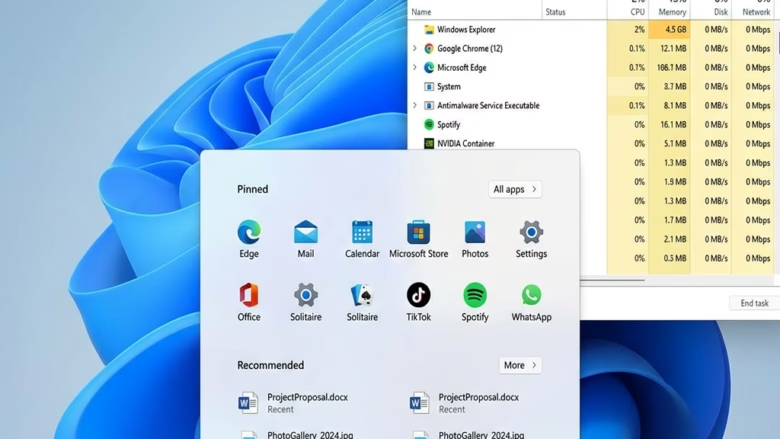
Restarting the Start menu fixes a frozen or unresponsive Start menu in under 30 seconds, and you don’t need to reboot the PC. The program behind the menu is StartMenuExperienceHost.exe. Now and then it stops responding to mouse clicks or the Win.
You can force that process to close from Task Manager (the built-in tool that lists running apps and processes), and Windows starts a fresh copy right away. This only refreshes the Start menu . Restarting Windows Explorer is a bigger step, because it reloads the whole taskbar and desktop as well.
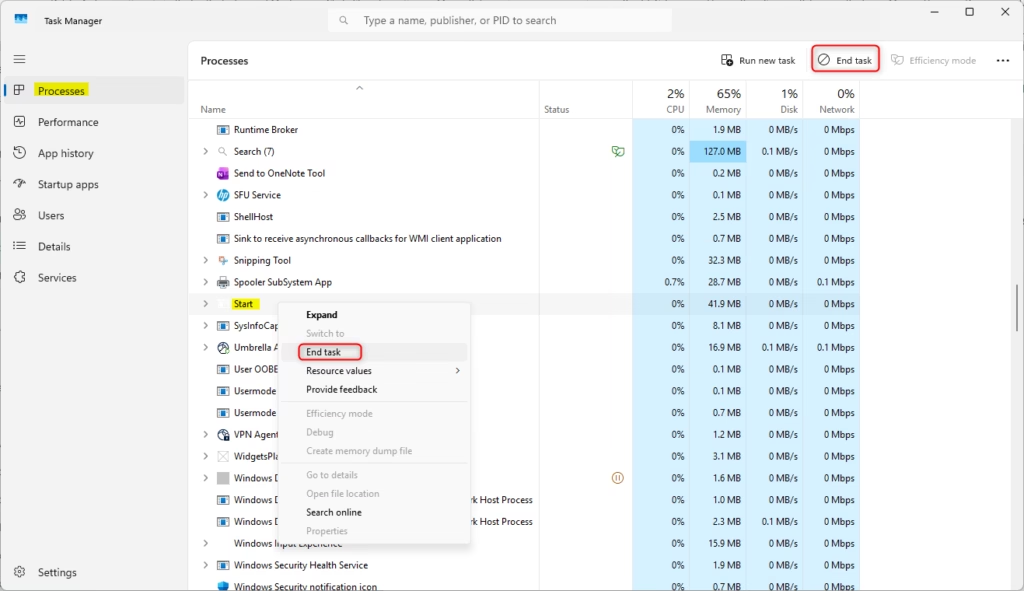
Press Ctrl+Shift+Esc to open Task Manager , click the Processes tab, right-click Start , and choose End task. Windows relaunches the process within seconds. Press the Win to verify the Start menu now opens normally.
Pro Tip: Accessing Task Manager
- Press Ctrl+Shift+Esc together.
- Wait a second or two. The Task Manager window should open on top of everything else. If a User Account Control prompt appears, choose Yes.
This shortcut works even when the Start menu is completely dead. It also works if the taskbar is frozen.
Restarting the Start Menu via Task Manager
Use this method first whenever the Start menu freezes or stops responding. Windows restarts the process by itself after you end it.
- Press Ctrl+Shift+Esc to open Task Manager .
- Click the Processes tab. If you see only a short list of apps, click More details at the bottom of the window first.
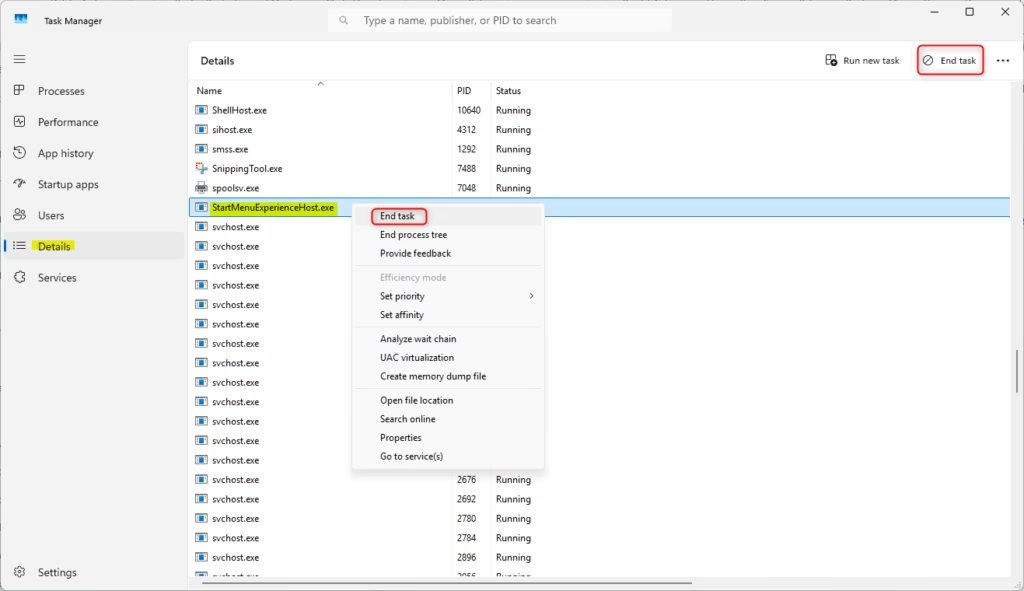
- Scroll down to find Start. It is usually listed under Windows processes. On the Details tab, the same process appears as StartMenuExperienceHost.exe.
- Right-click Start and choose End task.
- Wait a moment. Any open Start menu will vanish, and the process should relaunch automatically.
- Press the Win to test the menu. It should now open normally.
If the Start entry is missing from the list, it probably hasn’t run yet in this session. Press the Win once, then look again.
Normally you don’t have to do anything after ending the task, because Windows brings the process back. If the menu still doesn’t work, you can check which apps launch at sign-in by opening the Startup folder. It is a local folder that holds shortcuts to apps set to start with Windows. This won’t restart the Start menu itself, but it helps you spot a program that interferes with it.
- Press Win+R to open the Run dialog box.
- Type or paste shell:startup into the Open field. The command is shown below.
- Press Enter. A File Explorer window should open showing your Startup folder.
C:\Windows\SystemApps\Microsoft.Windows.StartMenuExperienceHost_cw5n1h2txyewy\StartMenuExperienceHost.exe
An empty folder is normal. Many startup apps are managed in Settings Apps Startup instead. If the Start menu still won’t come back after ending the task, signing out and back in, or restarting the PC, will bring it back.
Using Command Prompt or PowerShell
If you prefer the command line, you can restart the process from a terminal instead of Task Manager . Open Windows Terminal, Command Prompt or PowerShell, and run the command shown under the matching heading below. Press Enter after you type it. The Start menu should close and then come back within a few seconds.
Command Prompt:
taskkill /f /im StartMenuExperienceHost.exe
PowerShell:
Stop-Process -Name "StartMenuExperienceHost" -Force
Both commands do the same thing as End task in Task Manager. If you get an "access denied" message, close the window and reopen it with Run as administrator.
Advanced Repair: System File Checker
If the Start menu keeps freezing, damaged Windows system files may be the cause. System File Checker (SFC) is a built-in tool that scans protected system files and replaces any that are corrupted or missing. It needs an administrator account.
- Press the Windows key and type cmd.
- Right-click Command Prompt in the results and select Run as administrator. Click Yes if User Account Control asks for permission. The window title should read Administrator: Command Prompt.
- Type
sfc /scannowand press Enter. - Wait for the scan to reach 100%. This can take 10 to 20 minutes, so leave the window open. SFC repairs missing or corrupted files on its own as it goes.
- Read the result message. Restart the PC if SFC says it repaired files, then test the Start menu again.
If SFC reports that it found nothing wrong, the problem is probably not a damaged system file, and the other methods above are the better fix.
Summary
In short, the Start menu in Windows 11 runs as StartMenuExperienceHost.exe. When it locks up, you can reset it from Task Manager or the command line, and run SFC if the problem keeps coming back.
Have a question about this guide?
Answered by AI from this guide. Good questions may be added to this page — please don't include personal details.
Did this guide fix your problem?

About the Author
Richard
Tech Writer, IT Professional
Richard is a writer at Geek Rewind who turns complex IT tasks into clear, step-by-step guides. He draws on years of hands-on experience in system administration and enterprise IT operations, focusing on Windows, Linux and WordPress: the problems people actually run into, and the fixes that work. His server and WordPress guides come from systems he runs himself. Richard builds and maintains the platform behind Geek Rewind, from its Ubuntu servers and Nginx configuration to its custom WordPress plugins. Many new tutorials start with readers' questions, and he's always glad to answer them in the comments.
No comments yet — be the first to share your thoughts!