How to Enable End Task in Windows 11 Taskbar

End task in the Windows 11 taskbar adds a right-click shortcut that closes a frozen or stuck app without opening Task Manager (a system monitor that shows running apps and resource use). Microsoft introduced it in Windows 11 version 23H2 so you can force-quit an unresponsive program in one step.
You turn it on once in the Settings app , under System For developers After that, right-clicking any open app icon on the taskbar shows an End task option that stops the app right away. It works on both Windows 11 Home and Pro, and you do not need to restart your PC.
Go to Settings System For developers and toggle “End task” to On. Right-click an app icon on the taskbar to see and select the “End task” option for frozen applications.
What happens when done?
Once enabled, right-clicking an app icon on your taskbar shows an End task entry in the menu. The app has to be running, so a pinned app that is closed will not show it. Selecting it forces that program to close immediately. It is a quick way to deal with an unresponsive process without restarting your computer.
Here is how it works day to day:
- Right-click the taskbar icon of the app that is frozen. A menu opens above the icon.
- Click End task. The app window disappears and its process stops.
Be aware that End task does not ask you to save anything. Any unsaved work in that app is lost, so try closing the window normally first and give the app a minute if it is only busy.
How to enable or disable End Task
To enable End task, open the Settings app and go to the developer options. The setting is on the For developers page, but it does not require Developer Mode or any developer skills. Once it is on, you can right-click any app on your taskbar and close it instantly without opening Task Manager . You can turn it off again at any time by flipping the same switch.
The steps below use Windows 11 version 23H2 and later. The wording on the page can differ slightly between builds.
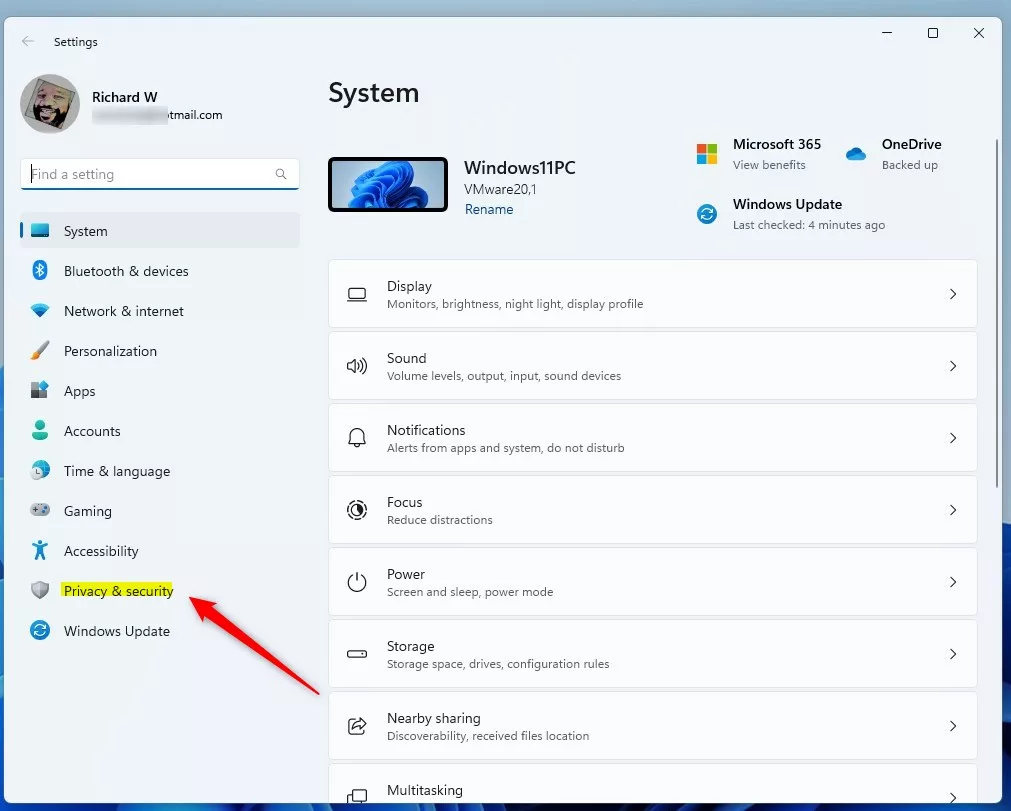
- Open the Settings app. You can do this by clicking the Start menu and choosing Settings, or by pressing the Win+I on your keyboard to launch the Windows Settings app. The Settings window opens with a list of categories on the left.
- Click System in the left-hand menu. The System page opens on the right with display, sound, notifications and other options.
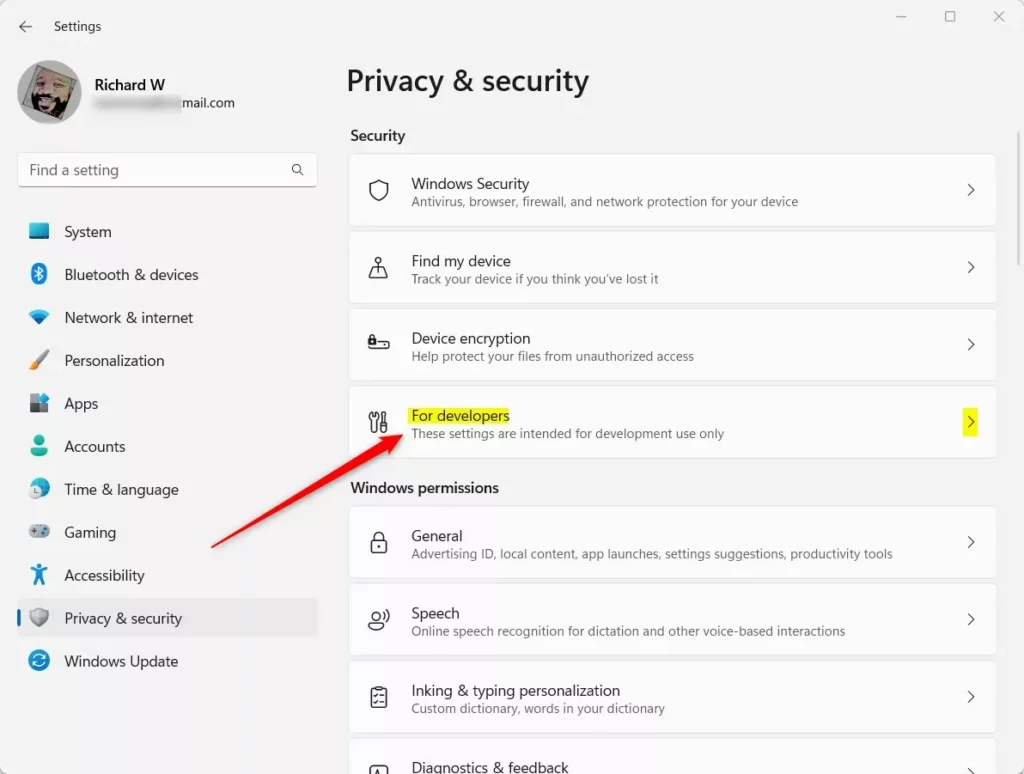
- Find and select the For developers tile on the right side of the screen. You may need to scroll down the System page to reach it. The For developers page opens with a list of developer-related switches.
- Look for the End Task option. Toggle the switch to On to enable it. The switch moves to the right and the label reads On.
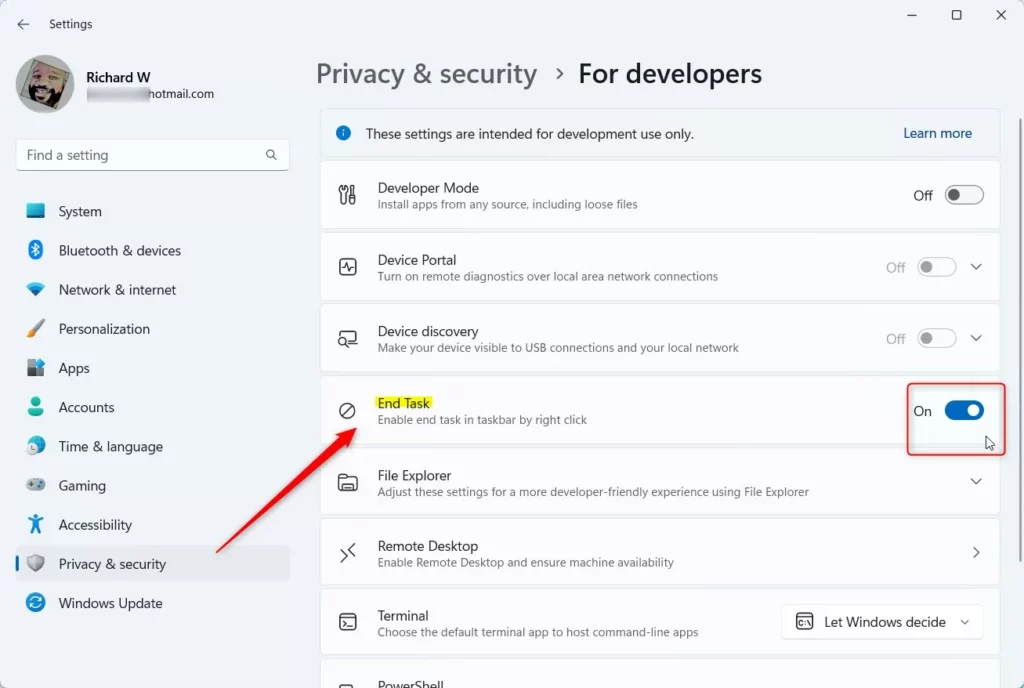
Close the Settings app once you have made your choice. The change applies right away, with no sign-out or restart needed. To test it, open any app, right-click its taskbar icon and check that End task is in the menu.
To undo the change, go back to Settings System For developers and set the End Task switch to Off.
Troubleshooting and Limitations
If you do not see the option, your Windows 11 build is probably too old. The feature arrived in version 23H2, so install the latest updates first. You can check in Settings Windows Update by clicking Check for updates, then restart if Windows asks you to.
If the toggle is still missing after updating, check your version with the Windows key + R and the winver command, or in Settings System About. Keep in mind that this feature is only for Windows 11. It is not in Windows 10.
Summary
Turning on the End Task option in Windows 11 lets you close frozen apps right from the taskbar, which saves a trip to Task Manager. It takes one switch in Settings, needs no restart, and you can turn it off again whenever you like.
Have a question about this guide?
Answered by AI from this guide. Good questions may be added to this page — please don't include personal details.
Did this guide fix your problem?

About the Author
Richard
Tech Writer, IT Professional
Richard is a writer at Geek Rewind who turns complex IT tasks into clear, step-by-step guides. He draws on years of hands-on experience in system administration and enterprise IT operations, focusing on Windows, Linux and WordPress: the problems people actually run into, and the fixes that work. His server and WordPress guides come from systems he runs himself. Richard builds and maintains the platform behind Geek Rewind, from its Ubuntu servers and Nginx configuration to its custom WordPress plugins. Many new tutorials start with readers' questions, and he's always glad to answer them in the comments.
No comments yet — be the first to share your thoughts!