Microsoft Is Making Taskbar and Start More Personal in Windows 11

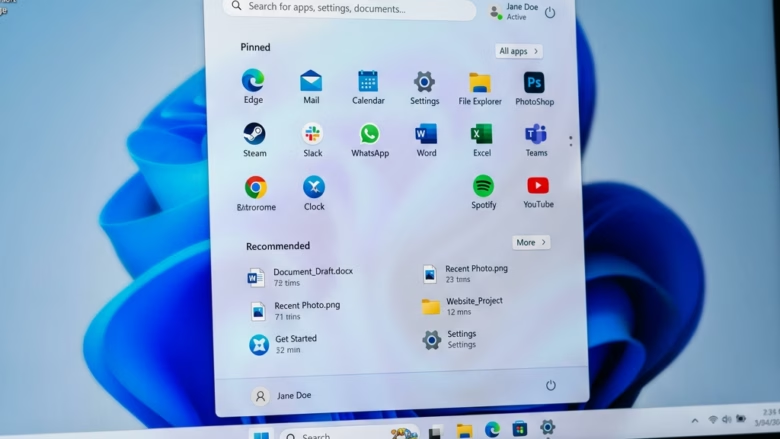
Personalizing the Windows 11 taskbar and Start menu is getting more flexible. Microsoft’s Windows Experience Blog post from October 15, 2026 says Windows now offers more flexibility to personalize Start and your taskbar. This article covers what that means in practice: where the taskbar sits, how big it is, and how much the Start menu shows.
Microsoft is rolling these changes out gradually, so some PCs will get them later than others. Not every option will appear on every PC on the same day. Where a feature is still in testing or not ready, this article says so.
You can move the Windows 11 taskbar to the top, left, or right side of the screen. Open Settings, then go to Personalization Taskbar and expand Taskbar behaviors. Choose the screen edge you want, and the taskbar moves once you pick it. If you don’t see the option, your PC may not have the gradual rollout yet, so check Windows Update.
Making the Taskbar More Personal
By default, the taskbar sits at the bottom of the screen and holds your open apps and shortcuts. Microsoft wants people to have more say in how it looks and works. The sections below cover each change in turn.
The release notes describe this only as more flexibility to personalize Start and the taskbar. They do not name a single update or build that delivers every option, so this article does not credit one either.
Taskbar Positions
Taskbar placement is no longer locked to the bottom edge. The Windows 11 taskbar can now move to the top, left, or right side of the display, whichever suits how you work.
With the new options, users can:
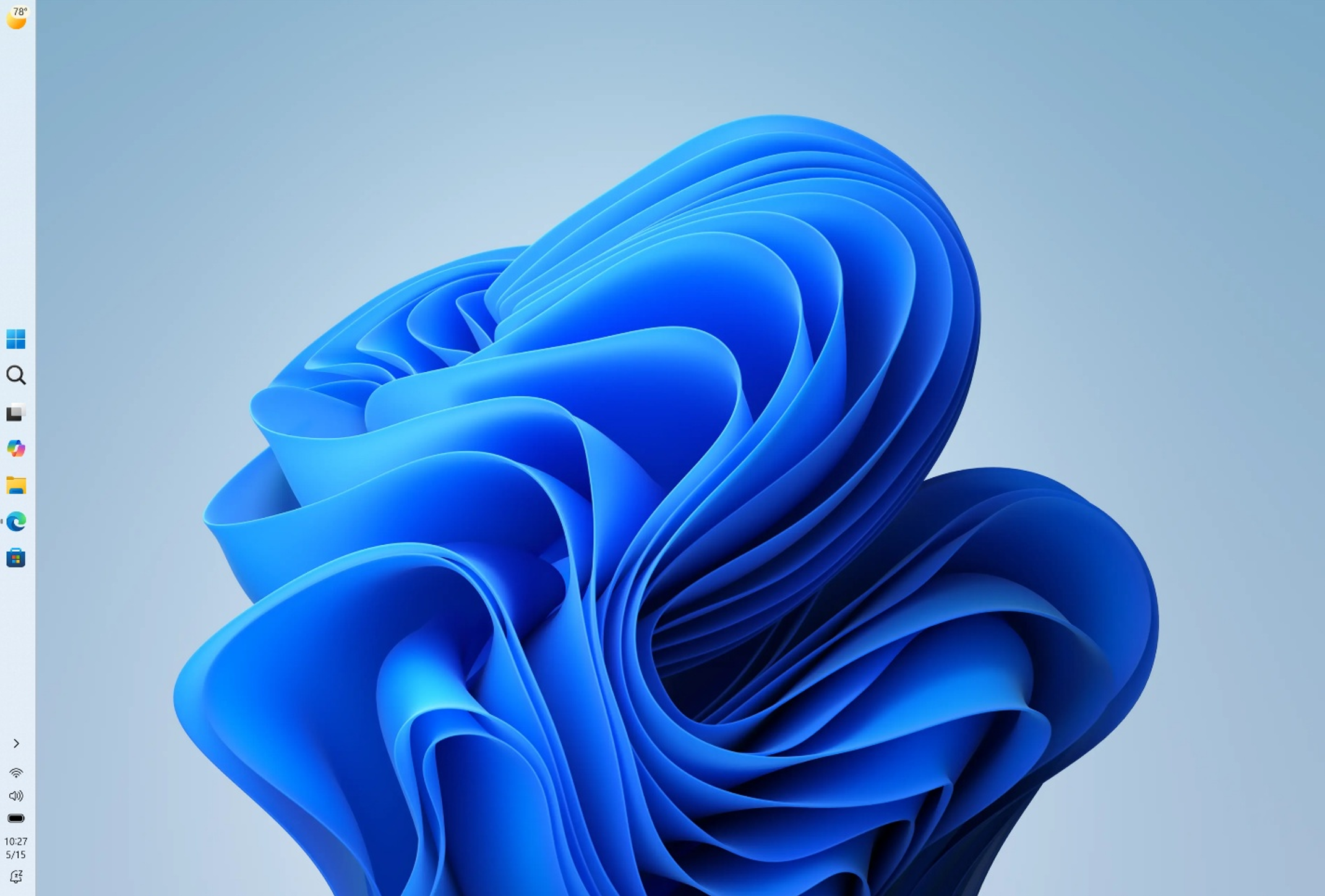
- Put the taskbar on the top, bottom, left, or right side of the screen. (See Figure 1).
- Choose how icons line up on the taskbar. When the taskbar is on the left or right, icons can sit at the top or in the center. When it is on the top or bottom, icons can sit on the left or in the center.
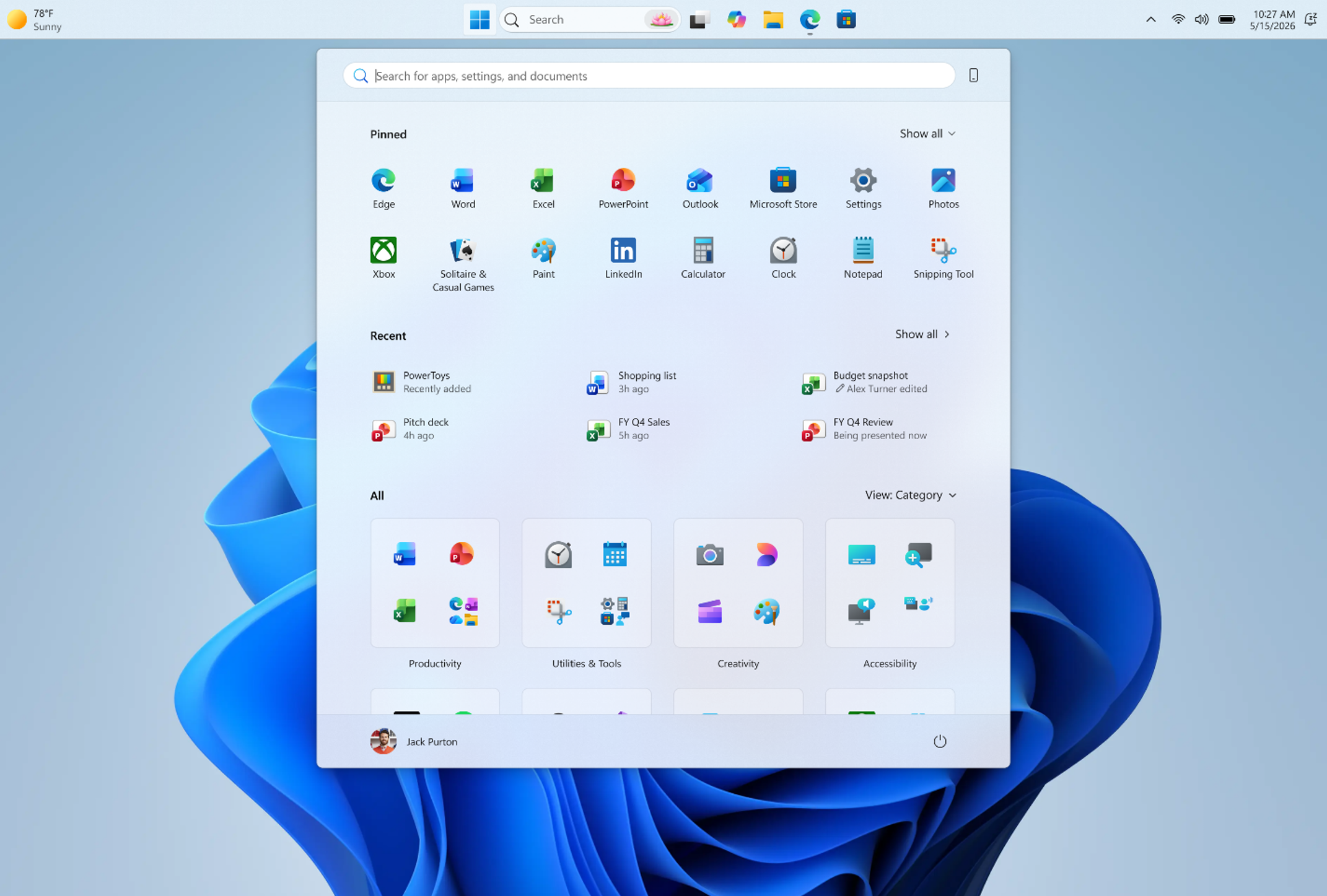
- Open Start, Search, and other menus near the taskbar. For example, if the taskbar is at the top, the Start menu opens from the top. (See Figure 2).
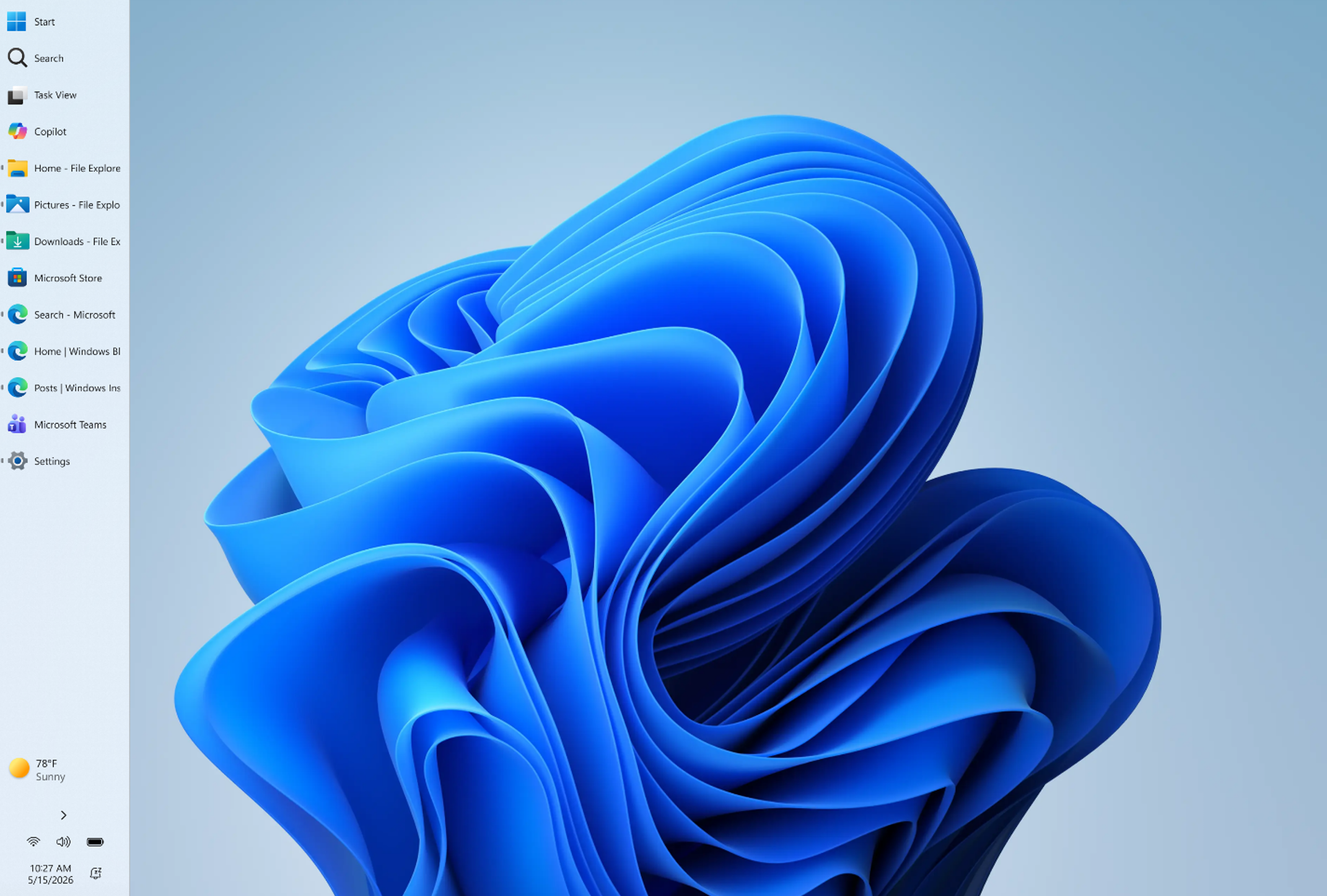
- See every window clearly. If the taskbar is on the side and you choose “Never combine” for taskbar buttons, each app window gets its own button. That makes it quicker to find and switch between apps. (See Figure 3).
Each layout has its own benefit. A side taskbar leaves more vertical room for code, because most monitors are wider than they are tall and a side bar costs width rather than height. A top taskbar can feel more comfortable, since your eyes and mouse stay closer to where you already look.
A side taskbar with separate buttons for each window helps you track several tasks at once. Pick the layout that matches the work you do most.
Smaller Taskbar
(Figure 1) shows the taskbar on the left.
Putting You in Control of Start
(Figure 3) displays the taskbar on the left with individual buttons for each app window.To reposition the taskbar:
- Open Settings. The Win+I shortcut opens it quickly.
- Go to Settings Personalization Taskbar. The Taskbar settings page opens.
- Expand Taskbar behaviors. You should now see the new controls for placement and icon alignment.
- Pick the screen edge you want and the icon alignment that suits it. The taskbar should move as soon as you make the choice.
If you do not see the placement option, your PC probably has not received the change yet. Because the rollout is gradual, some PCs will get it later. Check Windows Update, and remember that features like this often reach Windows Insider builds (early test versions) before the general release.
To undo the change, go back to the same page and set the taskbar to the bottom again.
More Control Over Your Layout
(Figure 4) highlights the new settings page for the taskbar.
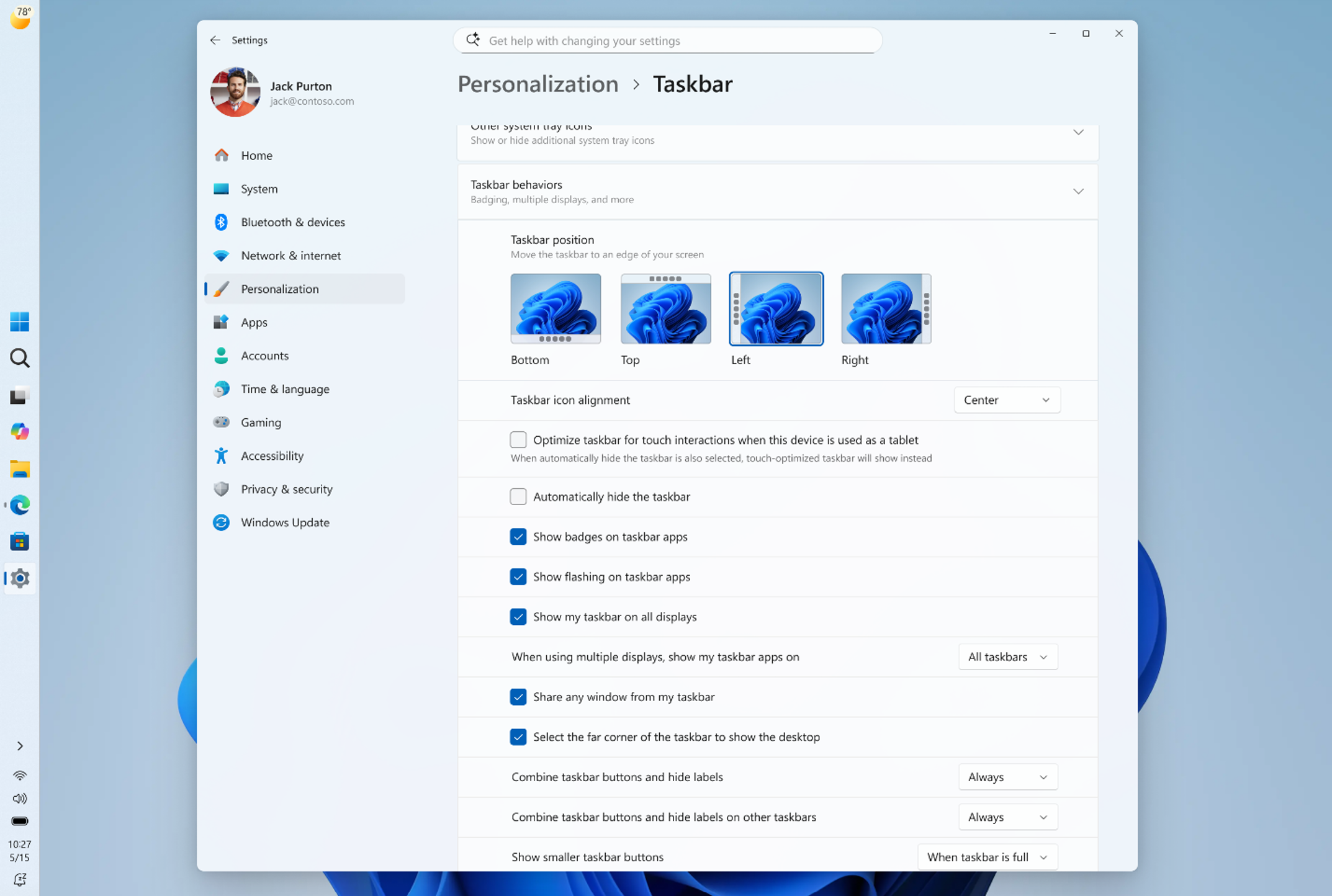
Microsoft continues refining these features for better appearance and performance. A few pieces are still in development and will arrive in a later update:
- Automatically hiding the taskbar, and how it works with touch screens, is not ready for these new positions.
- Touch gestures for these new positions are still being worked on.
- Search boxes are not ready for these new positions. For now, you will see a search icon instead.
Smaller Taskbar
Bulky elements can clutter a small display. Shrinking the Windows 11 taskbar scales down both the icons and the taskbar height, which frees screen space for the programs you are using. This helps most on laptops and other small screens.
The change takes effect immediately, without a restart.
Testers in the Windows Insider program can try this today. If you are not in that program, the option may not appear until it reaches the public release. As with the other changes, some PCs will receive it later than others. To shrink the taskbar:
- Open Settings.
- Go to Settings Personalization Taskbar. The Taskbar settings page opens.
- Expand Taskbar behaviors.
- Find Show smaller taskbar buttons and select Always. Both the icons and the taskbar height should shrink right away.
If the setting is missing, the rollout has not reached your PC yet. To go back to the normal size, return to the same setting and choose a different value. No sign-out or restart is needed either way.

Putting You in Control of Start
Everyone uses a PC differently. Some people want a minimal launcher with only pinned programs. Others want recent files in view at all times.
Microsoft is updating Start to fit both habits. This is part of the same push to give people more flexibility to personalize Start and the taskbar.
More Control Over Your Layout
Tailoring the Windows 11 Start menu reduces visual noise. You can hide recommended sections and unpin apps you do not use to build a cleaner launcher.
Microsoft is streamlining this process. Soon, users will be able to:
- Show or hide sections like Pinned apps, Recommended items, and All apps independently. There will be one setting for each section.
- Use a separate setting for file recommendations. Right now, turning off “Recommended” in Start also turns off recent files in other places, such as File Explorer. With this change, you can stop seeing file recommendations in Start without affecting recent files elsewhere.
- Choose the size of the Start menu, either Small or Large. This helps Start look the same size on different screens.
- Hide your name and profile picture in Start. This helps with privacy when you share your screen or stream.
Because these are described as coming soon, and the rollout is gradual, you may not see all of them in your Start settings yet. Some PCs will get them later than others.
To check what your PC offers, open Settings Personalization Start and look through the toggles and size choices listed there. Each one is an on/off or size choice, so you can reverse it the same way you set it.
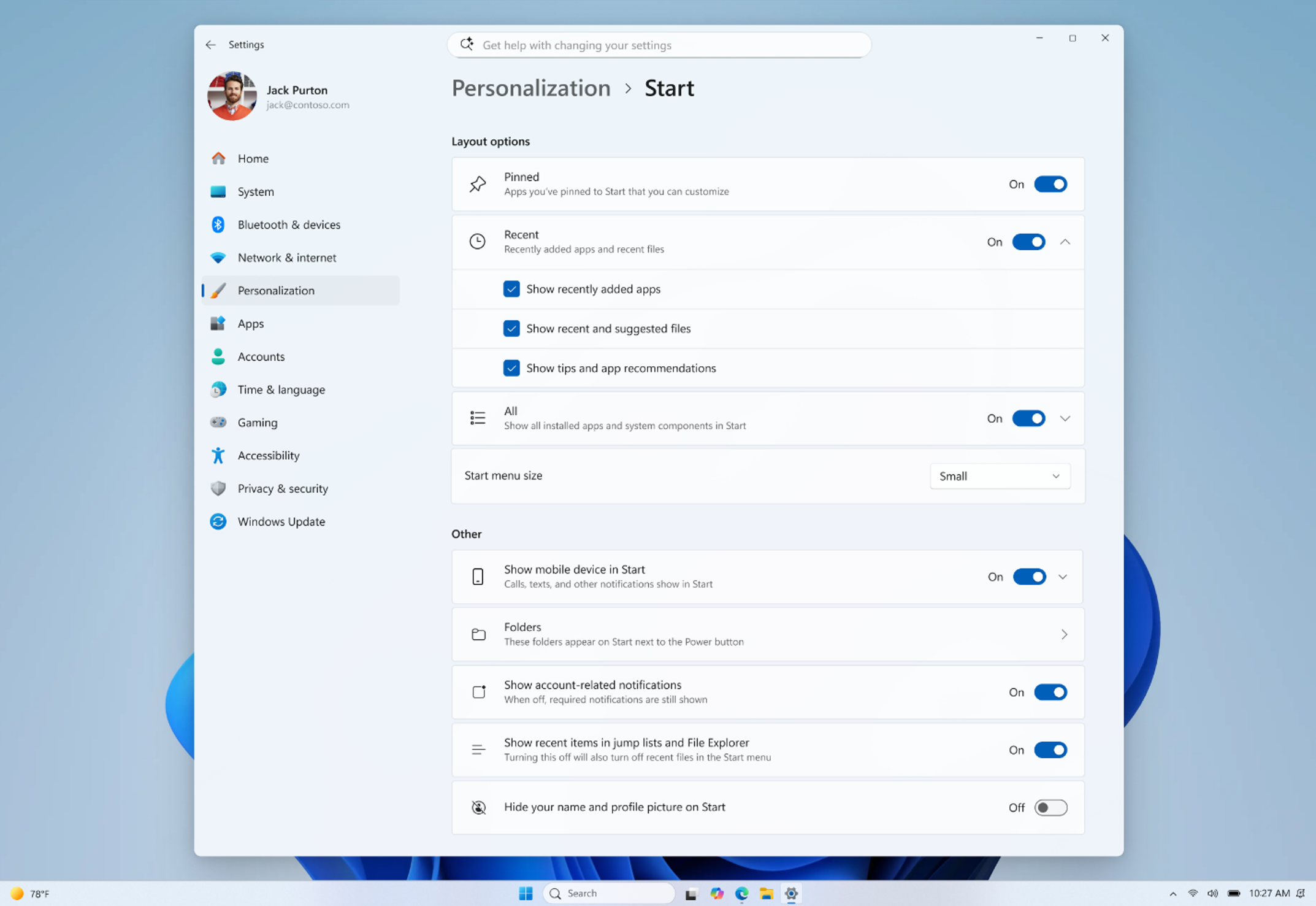
The Start menu settings work together. To show only pinned apps, turn off “Recommended” and “All apps”. To see everything, keep all of them turned on. That gives you a flexible way to set up Start for your own needs.
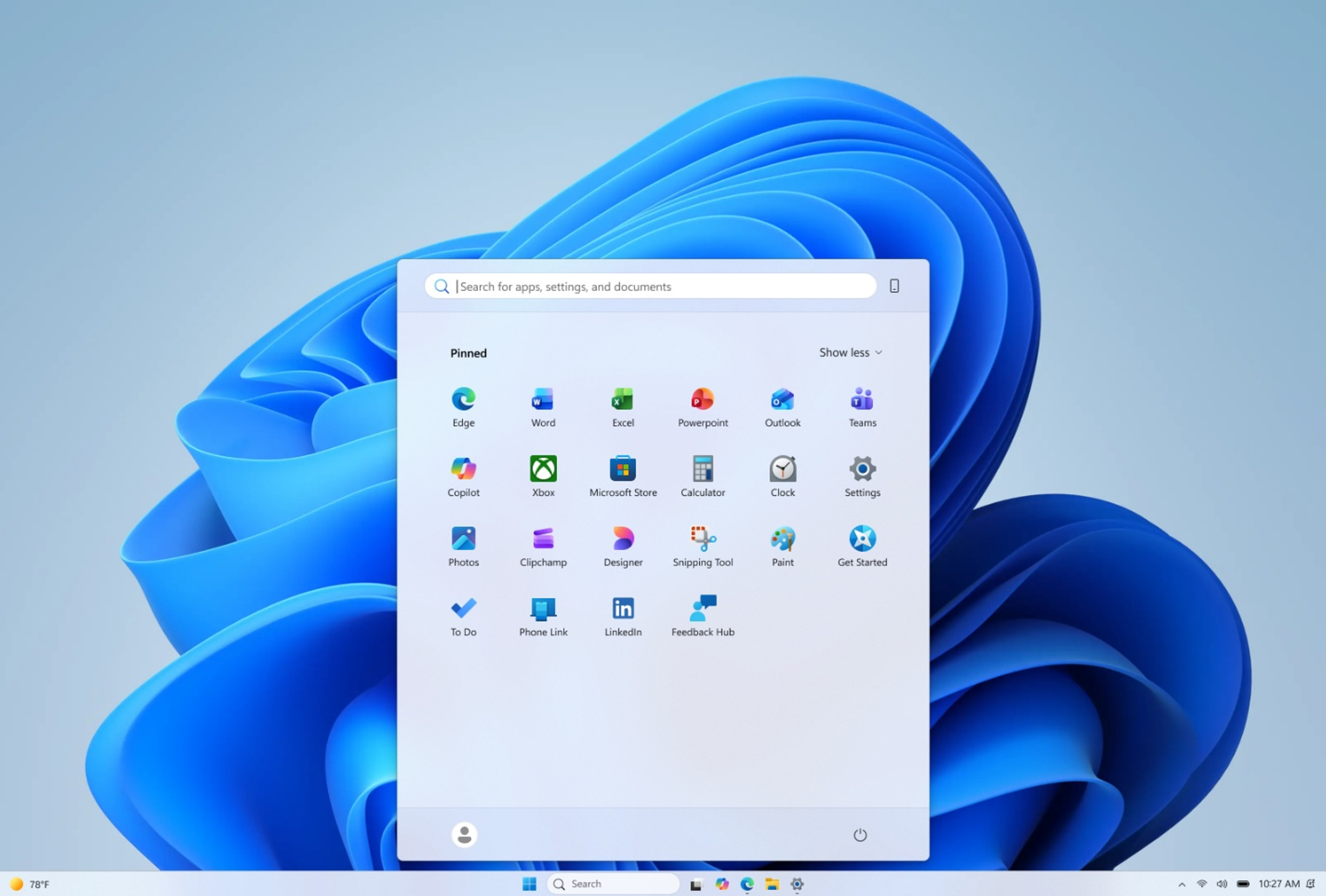
Reference:
Summary
Microsoft is adding new personalization options for the Windows 11 taskbar and Start menu. Users can move the taskbar anywhere, choose its size, and control more of what appears in Start. The rollout is gradual, so some PCs will get these options later than others.
Have a question about this guide?
Answered by AI from this guide. Good questions may be added to this page — please don't include personal details.
Did this guide fix your problem?

About the Author
Richard
Tech Writer, IT Professional
Richard is a writer at Geek Rewind who turns complex IT tasks into clear, step-by-step guides. He draws on years of hands-on experience in system administration and enterprise IT operations, focusing on Windows, Linux and WordPress: the problems people actually run into, and the fixes that work. His server and WordPress guides come from systems he runs himself. Richard builds and maintains the platform behind Geek Rewind, from its Ubuntu servers and Nginx configuration to its custom WordPress plugins. Many new tutorials start with readers' questions, and he's always glad to answer them in the comments.
No comments yet — be the first to share your thoughts!