How to Change Taskbar Position to Top or Side in Windows 11

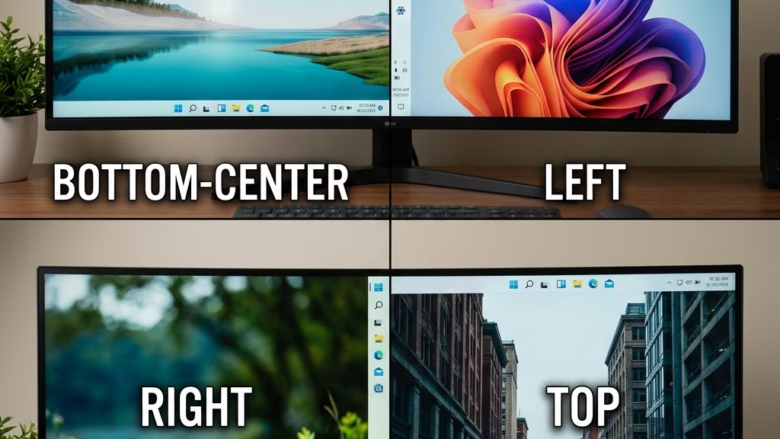
By default, Windows 11 pins the taskbar to the bottom of the screen. The taskbar is the strip that holds the Start button, your open app icons and the clock. Moving it to the top or to a side edge gives you a different use of screen space. A vertical bar on a wide monitor, for example, frees up height.
One caution before you start. Microsoft has described a taskbar position control for Windows 11, but it is rolling out gradually, and many builds still do not show it. This tutorial walks through where the option appears when you have it, and what to check if you do not.
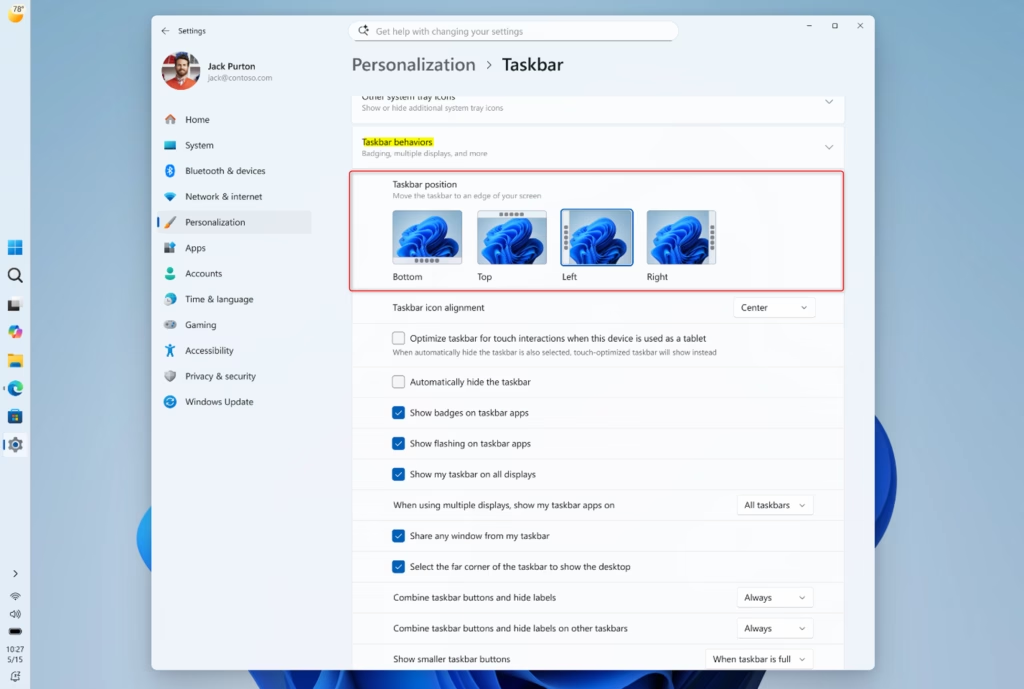
Right-click an empty spot on the taskbar and select Taskbar settings. In Settings, go to Personalization Taskbar, expand Taskbar behaviors, find Taskbar alignment or Taskbar position, click the dropdown and choose Bottom, Top, Left or Right. The taskbar moves immediately without restart.
Finding the New Taskbar Settings
Taskbar settings live in the main Settings app , under Personalization. The quickest way in is through the taskbar itself.
- Right-click an empty spot on the taskbar . Avoid app icons, because they open a different menu. A small pop-up menu should appear.
- Click Taskbar settings. The Settings app opens on Personalization Taskbar.
- Scroll down to the section called Taskbar behaviors and expand it if it is collapsed. This is where the alignment and button options are.
Run Windows Update and install what is offered. You can also join the Windows Insider Program, Microsoft’s public testing channel for upcoming features, to get new options early. Insider builds can be less stable, so avoid them on a work machine you depend on. Staying current with updates matters for security either way.
Choosing Your Taskbar’s New Home
On builds that include the position control, you can move the taskbar away from the bottom edge from the Taskbar behaviors section.
- In Taskbar behaviors, find the option called Taskbar alignment or Taskbar position. The exact wording can change as the feature rolls out.
- Click the dropdown menu. You should see these choices:
- Bottom (Default): The normal spot for the Windows taskbar.
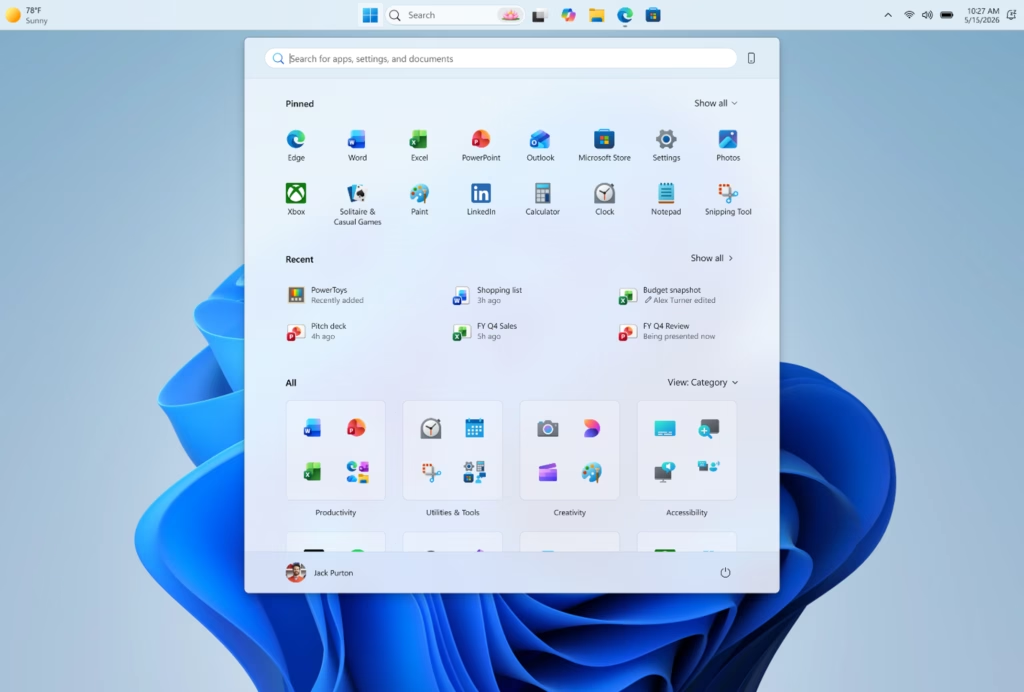
- Top: The taskbar sits along the top edge of the screen.
- Left: The taskbar becomes a vertical bar on the left side.
- Right: The taskbar becomes a vertical bar on the right side.
- Select the position you want. The taskbar should move straight away, and you do not need to restart.
To undo the change, open the same dropdown and choose Bottom (Default).
If you only see Left and Center choices, you are looking at the older icon alignment setting. That setting only moves the icons within the bar. It does not move the bar itself. In that case your build does not have the position control yet.
Docking the taskbar on the side suits wide monitors. They have more horizontal room than vertical, so a side bar takes little of what you have. You see more of a document or web page without scrolling, which helps most on displays of about 24 inches or larger.
Aligning Your Icons (When Vertical)
Taskbar icon alignment controls where your app icons sit on the bar. On a vertical taskbar, it decides whether they cluster at the top or sit in the middle of the strip.
- Stay in the Taskbar behaviors settings and look for Taskbar icon alignment. The name may differ slightly on your build. On many current builds it is simply called Taskbar alignment.
- With the taskbar on the left or right, you should be offered Top or Center for the icons along the vertical bar.
- With the taskbar at the top or bottom, the choices are Left or Center.
- Pick an option. The icons should shift immediately.
Aligning icons to the top of a vertical taskbar mirrors the familiar anchoring of the Start button in a corner, which many people find easier to get used to. The same logic applies when the bar is at the top. The Start menu opens from that edge, so it stays close to the button that launched it.
Seeing Every Window at a Glance
The Combine taskbar buttons and hide labels setting controls whether windows from the same app share one icon or each get their own button with a text label. Setting it to Never gives every open window a separate labelled button. That works best on a wide, horizontal taskbar.
- Go back to Settings Personalization Taskbar.
- Expand Taskbar behaviors.
- Find Combine taskbar buttons and hide labels. On current builds this is a dropdown with choices such as Always, When taskbar is full and Never. Choose Never to show labels. Older builds may show a simple on/off option instead, in which case leave it unchecked or off.
- Check the taskbar. Windows from the same app should now appear as separate buttons with names.
If the setting is missing, you are on an earlier Windows 11 release. This option arrived in a later update to Windows 11 version 22H2, so install the latest updates first. To undo it, set the dropdown back to Always.
Separate labelled buttons help developers, writers and other heavy multitaskers who keep several files open in one application. With the taskbar at the top or on a side, you get a persistent list of open windows, which cuts clutter and makes it quicker to find the one you want.
What's Still Being Worked On?
Auto-hide and older tablet-mode behaviors are the most likely to misbehave once the bar leaves the bottom edge.
- Auto-hide and Tablet Mode: The option that hides the taskbar automatically, and the way the taskbar behaves on tablets, may not work properly when the bar is moved from the bottom.
- Touch Gestures: Some touch gestures may not yet be fully supported for the new taskbar positions.
- Search Box: The full search box may shrink to a search icon when the taskbar is in a different position. This is expected to improve.
- Per-Monitor Settings & Drag and Drop: Different taskbar positions on different screens, and dragging files onto taskbar icons, are areas Microsoft is still working out.
If one of these gets in your way, the fix is simple: move the taskbar back to Bottom (Default) and carry on. Microsoft continues to refine stability as it adds layout options, so these gaps should shrink with future updates.
Reference:
Summary
Once the taskbar position option is available on your build, a few clicks in Windows Settings give you a layout that fits your screen and your habits. Try the position, icon alignment and button settings together, and revert any of them from the same menu if they do not suit you.
Was this guide helpful?
0% of readers found this helpful (3 votes)

About the Author
Richard
Tech Writer, IT Professional
Richard is a writer at Geek Rewind who turns complex IT tasks into clear, step-by-step guides. He draws on years of hands-on experience in system administration and enterprise IT operations, focusing on Windows, Linux and WordPress: the problems people actually run into, and the fixes that work. His server and WordPress guides come from systems he runs himself. Richard builds and maintains the platform behind Geek Rewind, from its Ubuntu servers and Nginx configuration to its custom WordPress plugins. Many new tutorials start with readers' questions, and he's always glad to answer them in the comments.


You don’t mention that you need to be a Windows Insider to use this.