Windows 11 Is Getting a Smaller Start Menu – Here’s How to Change It!

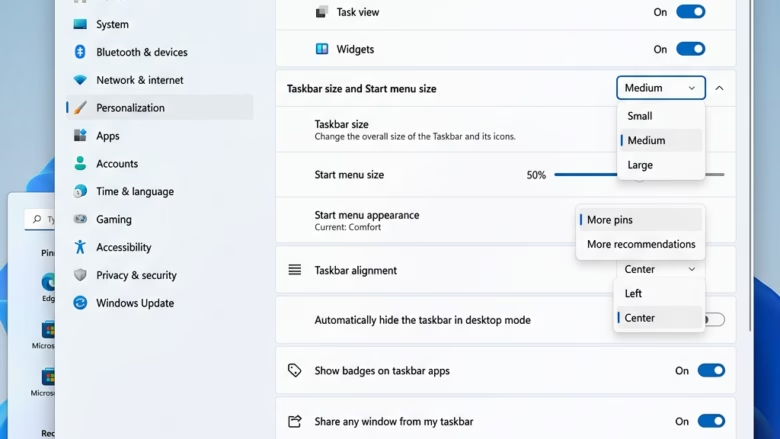
Compact view in Windows 11 shrinks the Start menu so it takes up less of the screen. Microsoft includes this layout option in recent Insider builds, giving you a way to scale down the default panel size. It is a preview feature, so it is not on every PC yet.
You turn it on from the Taskbar page of the Settings app. The goal is to cut down empty space so the menu looks closer to the classic Windows 10 layout. The steps below show where the option lives, what to do if it is missing, and how to switch back.
To make the Windows 11 Start menu smaller, open Settings with Win+I, go to Personalization Taskbar, expand Taskbar behaviors, and select Small from the Start menu size option. This feature is available in recent Windows Insider builds and takes effect immediately.
How to Change Your 🪟 Windows 11 Start Menu Size
Why change the Start menu size?
The Start menu holds your pinned apps, your recommended items and the list of every installed application. Depending on your screen and how you work, it can feel too big or too small. Changing its dimensions helps you use screen space better, which matters most on small laptop displays.
What happens when you change the size?
A smaller menu reduces the footprint on screen. A larger one packs more items into view at once, so you scroll less. Pick the layout that gets you to your programs fastest.
Step 1Open Settings
Start by opening the Settings app. You can do it either of these ways:
- Press Win+I on the keyboard. Settings opens straight away.
- Or right-click an empty spot on your Desktop and click Personalize in the menu that appears. This opens Settings on the personalization pages.
Step 2Go to Taskbar Settings
The Taskbar settings page holds the controls you need to change your Windows 11 Start menu size. If you used the keyboard shortcut, you will need to go to Personalization first. If you came from the Desktop menu, you are already there.
- In Settings, click Personalization on the left side if it is not already open.
- In the Personalization window, click Taskbar. The taskbar options appear on the right.
- Scroll down to the section called Taskbar behaviors. Click it to expand it.
Warning: Be careful on this page. Some options move the taskbar to a different position on the screen. For this task, only touch the size controls. If you change something by accident, set it back to what it was before you leave the page.
Step 3Find the Start Menu Size Setting
Taskbar behaviors is the section where the Start menu size option appears. Once it is expanded, you may see extra layout controls below the usual taskbar choices.
- In the Taskbar behaviors section, look for a new option related to the Start menu size.
- If you do not see it, your PC has not received the feature yet. Nothing is wrong with your settings.
This feature is being tested with Windows Insiders, the members of Microsoft’s public testing community. That means it may not appear for everyone right away, even on an Insider build, because Microsoft turns features on in stages. It is expected to reach everyone later. In the meantime, open Settings, go to Windows Update, and install anything that is waiting. Then restart and check again. The feature behaves the same on Home and Pro editions. What matters is your build, not your edition.
Step 4Choose Your Start Menu Size
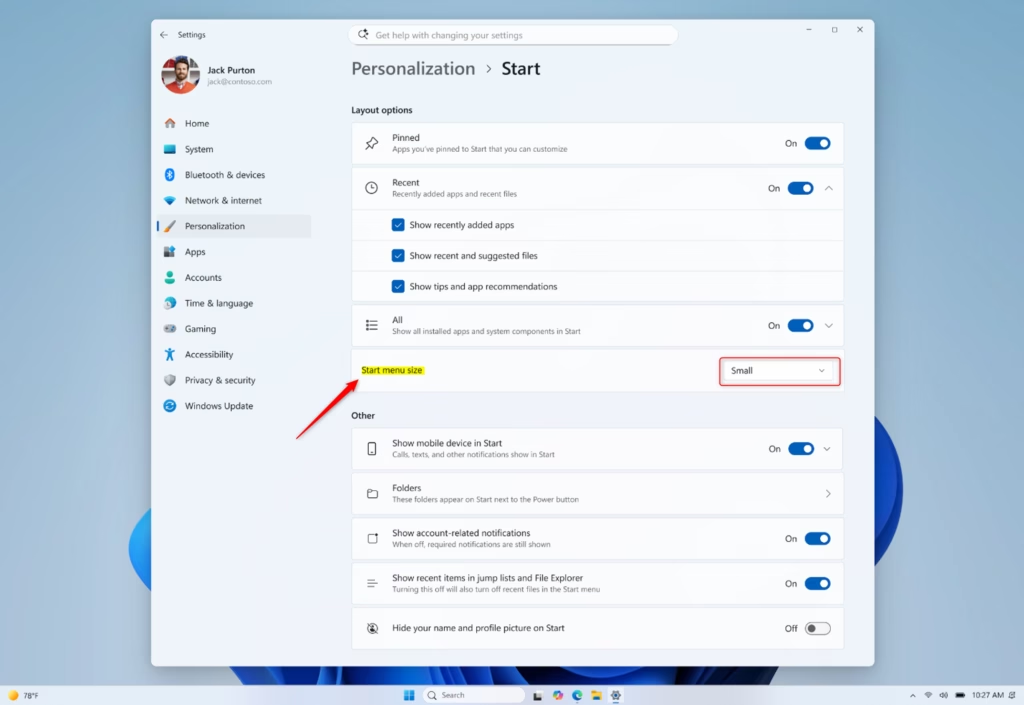
You get two choices for the Windows 11 Start menu size: Small and Large. Pick the compact option to free up screen space, or the bigger one to see more apps at once. Your choice takes effect right away, with no restart needed.
- Find the Start menu size control. It may be a dropdown menu or a set of radio buttons, depending on the build.
- Choose between:
- SmallThis makes the Start menu more compact. It is good if you want more space on your screen.
- LargeThis makes the Start menu bigger. It shows more apps and items without needing to scroll as much.
- Select the size that works best for you.
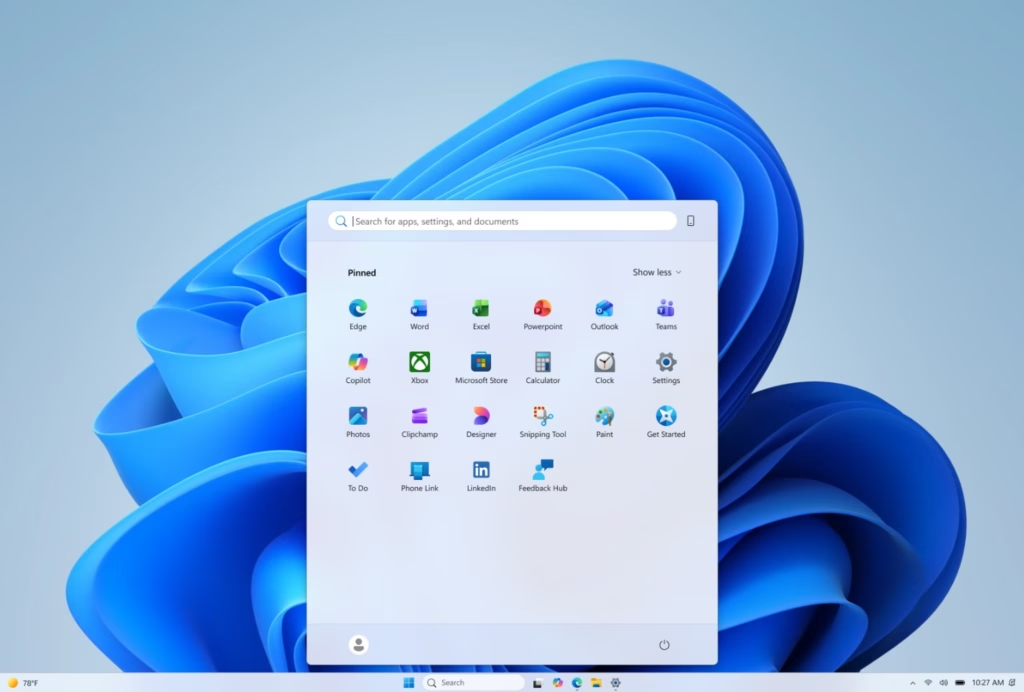
- Click the Start button on the taskbar to check the result. The menu should now open at the new size.
The display updates immediately and no restart is required. To undo the change, return to the same place and choose the other size.
Practical Tip: Try both Small and Large for a few days each. How you use your PC decides which one is better. People who pin lots of apps often prefer Large, while those who mostly search for apps by name usually do fine with Small.
Step 5Other Start Menu Tweaks (Bonus!)
Besides size, you can trim the Start menu by hiding parts you do not use. Turning off recommended files, pinned apps or the all apps list gives you a cleaner panel that fits your workspace better. On recent builds, most of these switches are on the Start page under Personalization, but where they sit can change between Insider builds.
- Section Toggles: You can turn on or off sections like “Pinned,” “Recommended,” and “All apps.” This lets you build a very simple Start menu.
- File Recommendations: You can stop seeing recent files in the Start menu. This setting is separate from the File Explorer recommendations, so turning it off in one place does not change the other.
- Hide Name and Profile Picture: If you show your screen to others, you can hide your name and picture from the Start menu for privacy.
Reference:
Summary
To make the Windows 11 Start menu smaller or larger, go to Settings Personalization Taskbar Taskbar behaviors and select the size you prefer. If the option is not there, your PC has not received the feature yet. Update Windows, check again later, and switch back at any time by picking the other size.
Have a question about this guide?
Answered by AI from this guide. Good questions may be added to this page — please don't include personal details.
Did this guide fix your problem?

About the Author
Richard
Tech Writer, IT Professional
Richard is a writer at Geek Rewind who turns complex IT tasks into clear, step-by-step guides. He draws on years of hands-on experience in system administration and enterprise IT operations, focusing on Windows, Linux and WordPress: the problems people actually run into, and the fixes that work. His server and WordPress guides come from systems he runs himself. Richard builds and maintains the platform behind Geek Rewind, from its Ubuntu servers and Nginx configuration to its custom WordPress plugins. Many new tutorials start with readers' questions, and he's always glad to answer them in the comments.
No comments yet — be the first to share your thoughts!