How to Hide or Show Account Name and Profile Picture on Start Menu in Windows 11

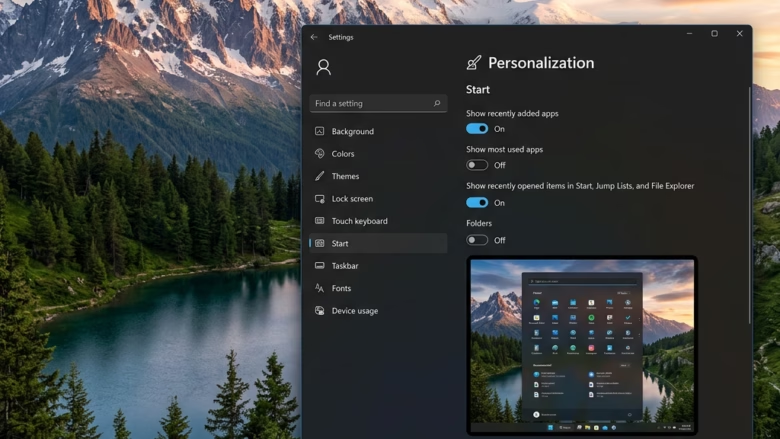
Hiding your account name and profile picture on the Windows 11 Start menu keeps your personal details off the screen each time you open the menu. It helps when you share a PC with family, roommates, or coworkers and don’t want them to see your real name or photo.
You can make the change in the Settings app, and it takes effect straight away. This only changes what the main Start menu shows. Your name and picture still appear if someone clicks the profile icon at the bottom of the Start menu , so it is a privacy tweak and not a security control.
Open Settings Personalization Start, scroll to Other settings, and toggle Hide your name and profile picture on Start to On. Your account name and picture disappear from the Start menu immediately without restarting.
Option 1Using Settings
The Settings app is the simplest way to hide or show your account name and picture. The option sits under Personalization, on the Start page. Turn it on to hide your details and off to show them again. The change applies immediately, with no restart or sign-out.
- Press Win+I to open Settings. You should see the Settings window with a list of categories on the left.
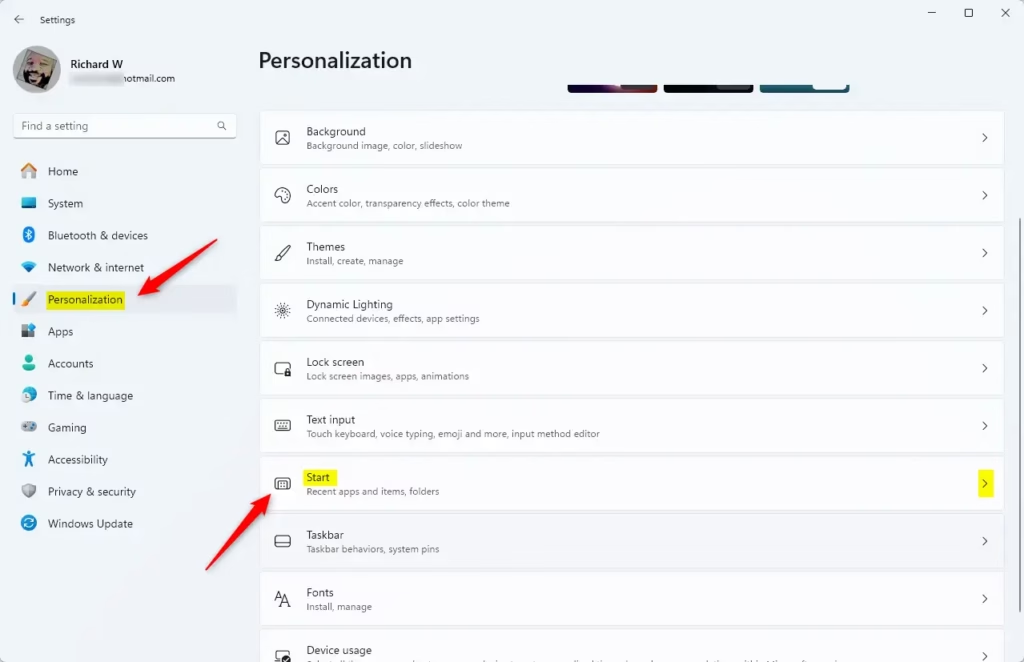
- On the left side, click Personalization.
- On the right side, click Start. The Start options page opens.
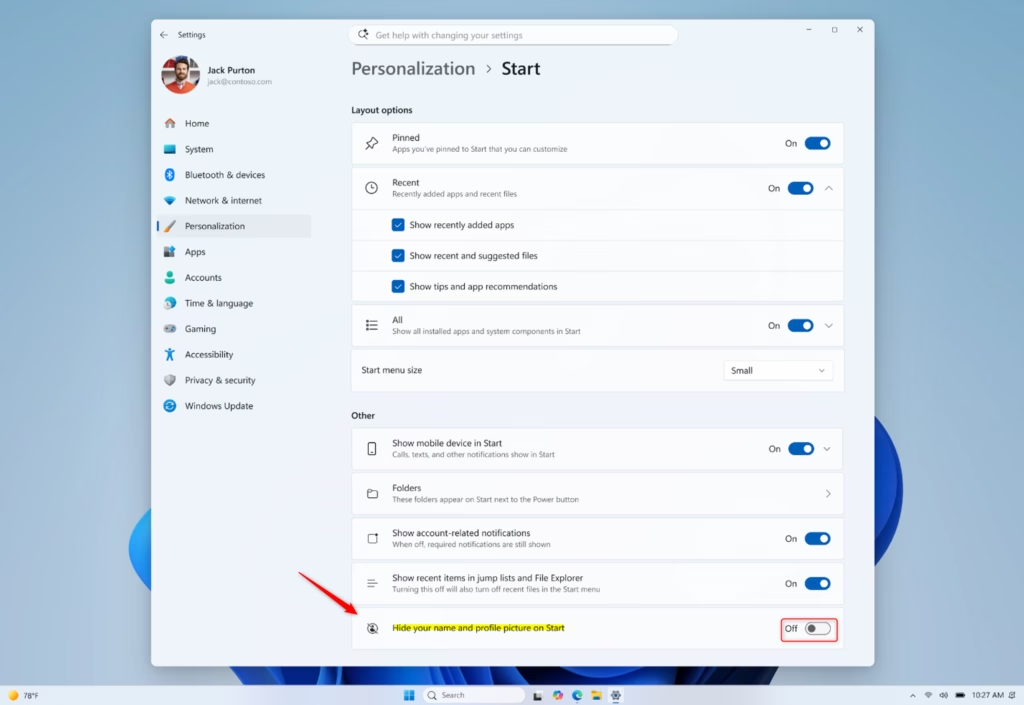
- Scroll down to the section called Other settings.
- Find the option called Hide your name and profile picture on Start.
- Set the toggle to On to hide your name and picture.
- Set the toggle to Off to show them again. Off is the default, so your information is visible until you change it.
- Open the Start menu to check the result. Your name and picture should be gone, or back, depending on the toggle.
- Close the Settings window.
If you can’t find this option, your build of Windows 11 may not include it yet. Check Windows Update for pending updates, or use the Registry Editor method below. The setting works the same on Home and Pro. To undo the change, go back to the same page and flip the toggle.
Option 2Using the Registry Editor
Use it if the option is missing from Settings or you prefer to set system values directly. It works on both Windows 11 Home and Pro, and you need administrator rights.
Before you start, consider creating a restore point or exporting the key you are about to change. In Registry Editor, you can do this through File and then Export.
What happens after you make the change? Your account name and picture will be hidden or shown on the Start menu, depending on the value you set.
To Hide Account Name and Profile Picture on Start Menu:
These steps hide your name and picture. They create the value if it doesn't exist yet.
- Press Windows key + R to open the Run box.
- Type
regeditand press Enter. Click Yes if a User Account Control prompt appears. (Requires administrator privileges) Registry Editor opens. - In the Registry Editor, go to this location:
HKEY_CURRENT_USER\Software\Microsoft\Windows\CurrentVersion\Policies\Explorer - Right-click the Personalization key in the left pane.
- Select New, then select DWORD (32-bit) Value. A new value appears in the right pane with its name ready to edit.
- Name the new value
NoUserNameInStartMenu. - Double-click the new
NoUserNameInStartMenuvalue. The Edit DWORD (32-bit) Value box opens. - Set the Value data to
1. - Click OK.
- Sign out and back in, or restart the PC, so the Start menu picks up the new value.
To Show Account Name and Profile Picture on Start Menu (Default):
To show your name and picture again, edit the same value. You don't need to create anything new if it already exists.
- Follow steps 1-6 from the "Hide" section above to create or find the
NoUserNameInStartMenuvalue. - Double-click the
NoUserNameInStartMenuvalue. - Set the Value data to
0. - Click OK.
Restart the PC, or sign out and back in, so the interface displays the updated setting. If you ever want to drop the registry override altogether, you can also right-click the value and choose Delete. Then use the Settings toggle instead.
Reference:
Summary
For most people, the Settings app is all you need: go to Personalization Start and use the Hide your name and profile picture on Start toggle. If that option is missing, or you want to set it by hand, you can change the NoUserNameInStartMenu DWORD value in the Registry Editor. Either way, you can reverse the change later by flipping the toggle or setting the value back.
Have a question about this guide?
Answered by AI from this guide. Good questions may be added to this page — please don't include personal details.
Did this guide fix your problem?

About the Author
Richard
Tech Writer, IT Professional
Richard is a writer at Geek Rewind who turns complex IT tasks into clear, step-by-step guides. He draws on years of hands-on experience in system administration and enterprise IT operations, focusing on Windows, Linux and WordPress: the problems people actually run into, and the fixes that work. His server and WordPress guides come from systems he runs himself. Richard builds and maintains the platform behind Geek Rewind, from its Ubuntu servers and Nginx configuration to its custom WordPress plugins. Many new tutorials start with readers' questions, and he's always glad to answer them in the comments.
No comments yet — be the first to share your thoughts!