How to Show or Hide Your Mobile Device Name in Windows Share on Windows 11

Windows Share on Windows 11 is the built-in sharing menu. You use it to send links and files from your PC to nearby devices and linked devices. Changing your mobile device name visibility controls whether the name of your connected phone or tablet appears in that menu.
Hiding the device name keeps your local network more private and stops your phone from showing up on other nearby Windows 11 PCs. You can turn the setting on or off in the Settings app whenever you like. The change applies to the one device you pick, so other linked devices keep their own settings.
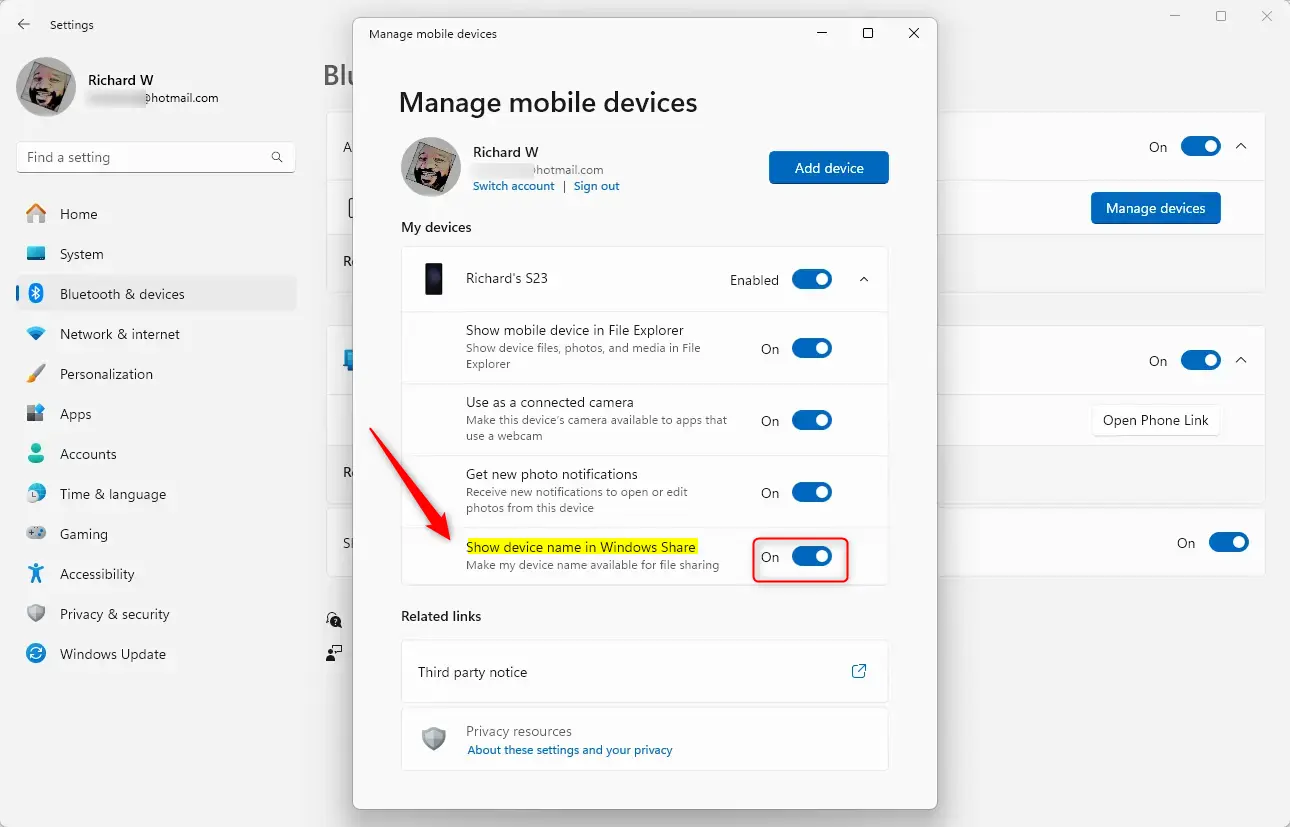
Open Settings , press Win+I, go to Bluetooth & devices Mobile devices, expand your device, and toggle the Show device name in Windows Share switch on or off. The change applies immediately.
What is “Show Device Name in Windows Share”?
With this setting on, your Windows 11 PC displays your phone or tablet’s name in the Windows Share menu. If you share files often, this is useful. You can confirm the right device before you send, which helps you avoid sending a file to the wrong destination. This matters most when you have several devices linked, or when similar device names appear on the same network.
Easy Steps to Turn On or Off Your Mobile Device Name
- Open the Settings app: Click the Start button (the Windows logo on the taskbar ) and select Settings. A faster way is to press the Win+I. Either way, the Settings window opens with a list of categories down the left side.
- Go to Bluetooth & devices: In the left pane of the Settings window, click Bluetooth & devices. The right side now shows your Bluetooth toggle and a set of tiles for connected hardware.
- Find Mobile devices: On the right side, find the tile called Mobile devices and click it. If you can’t see this tile, your Windows 11 version may be out of date. Run Windows Update (Settings Windows Update ) and check again.
- Manage your devices: Next to the option “Allow this PC to access your mobile device,” click the Manage devices button. If that option is switched off, the device list may not appear, so turn it on first. A list of your linked phones and tablets should now appear.
- Choose your device: Under My devices, find the mobile device you want to change and click the arrow beside it to expand it. If the list is empty, the phone isn’t linked yet. See the requirements further down.
- Toggle the device name visibility: Find the setting Show device name in Windows Share and turn the switch On to show the name or Off to hide it. The change takes effect straight away and shouldn’t need a restart. To undo it, come back to the same spot and flip the switch the other way. You can then close Settings.
You can change the Windows Share device name setting directly in the Settings app on Windows 11. To show or hide your phone name, open Settings, click Bluetooth & devices, and select Mobile devices. Then expand your device and use the Show device name in Windows Share switch. It takes only a few clicks, and you can reverse it at any time.
Why Use This Feature?
- It makes sharing easier by clearly showing which device you’re sending files to, so you can check the name before you confirm a transfer.
- It helps you manage multiple devices if you have more than one linked, because each device can be told apart by name in the Share menu.
- You can turn it off anytime for privacy or simplicity. This is a good idea on shared or public networks, where you may not want your phone name visible.
More Helpful Tips
- To use this, you need to be signed into your Microsoft account on your PC. Without it, the Mobile devices page may not let you link or manage a phone.
- Link your phone to Windows 11 with the Phone Link feature. Your phone must appear under My devices before the name setting is available.
- You can share files easily from Windows Share directly to your Android phone once it is linked.
- If you want to disconnect your phone later, don’t forget to sign out from the device in Settings. Doing so removes the link, so the phone no longer appears in your device list.
Once the phone is linked, you can share files directly between your computer and your Android phone. You can also control whether its name is shown in the Share menu.
If you run into trouble linking a phone or finding the setting, this guide on allowing your PC to access mobile devices in Windows 11 provides additional help.
Summary
The Show device name in Windows Share setting helps you identify connected hardware quickly during file transfers. Leave it on if you share files often and want to check the destination. Turn it off if you would rather keep your phone name out of view. You can change it at any time under Settings Bluetooth & devices Mobile devices
Have a question about this guide?
Answered by AI from this guide. Good questions may be added to this page — please don't include personal details.
Did this guide fix your problem?

About the Author
Richard
Tech Writer, IT Professional
Richard is a writer at Geek Rewind who turns complex IT tasks into clear, step-by-step guides. He draws on years of hands-on experience in system administration and enterprise IT operations, focusing on Windows, Linux and WordPress: the problems people actually run into, and the fixes that work. His server and WordPress guides come from systems he runs himself. Richard builds and maintains the platform behind Geek Rewind, from its Ubuntu servers and Nginx configuration to its custom WordPress plugins. Many new tutorials start with readers' questions, and he's always glad to answer them in the comments.
No comments yet — be the first to share your thoughts!