How to Share Windows from the Taskbar in Windows 11

Taskbar sharing in Windows 11 lets you share any open window directly from your taskbar during an active meeting call. It works with apps like Microsoft Teams, so you can start sharing without switching back to the meeting window to find the share controls.
You can also mute or unmute your call straight from the taskbar while sharing. You turn the feature on or off in Settings, which controls whether the sharing button shows up on your taskbar during calls. The option is in recent builds of Windows 11. If you can’t find it, run Windows Update and check again.
Open Settings , go to Personalization Taskbar Taskbar behaviors, then check the box next to Share any window from my taskbar. The share button appears on your taskbar during active Microsoft Teams calls immediately, with no restart needed.
How to Turn On or Off “Share Any Window” from the Taskbar Using Settings
The quickest way to turn taskbar window sharing on or off is the Settings app. The path is Personalization, then Taskbar, then Taskbar behaviors. This works the same on Windows 11 Home and Pro. The setting only decides whether the share button appears on the taskbar . It doesn’t change how your meeting app works.
- Open the Settings app. Click the Start menu (the Windows icon on the taskbar ) and select Settings. Or press Win+I to open it directly. You should see the Settings window with a list of categories on the left.
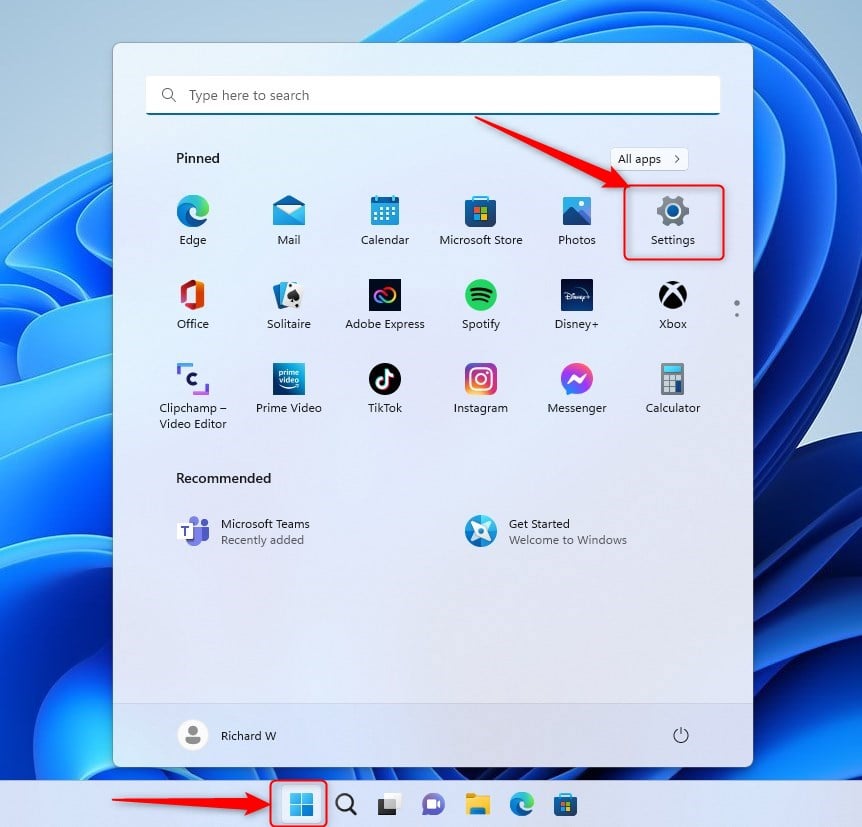
Open Settings from the Start menu or by pressing Win+I - In Settings, click Personalization on the left menu. The personalization options (background, colors, themes and so on) appear on the right.
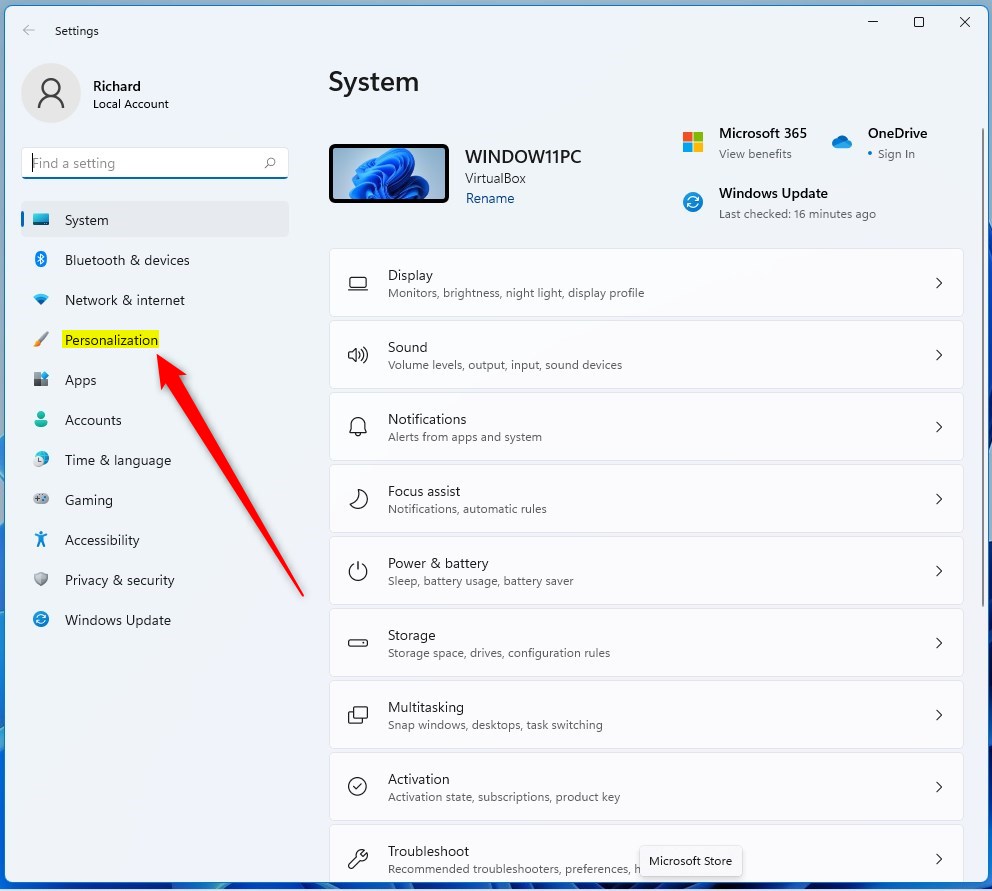
Click Personalization in the Settings app - On the right side, click Taskbar. The taskbar settings page opens.
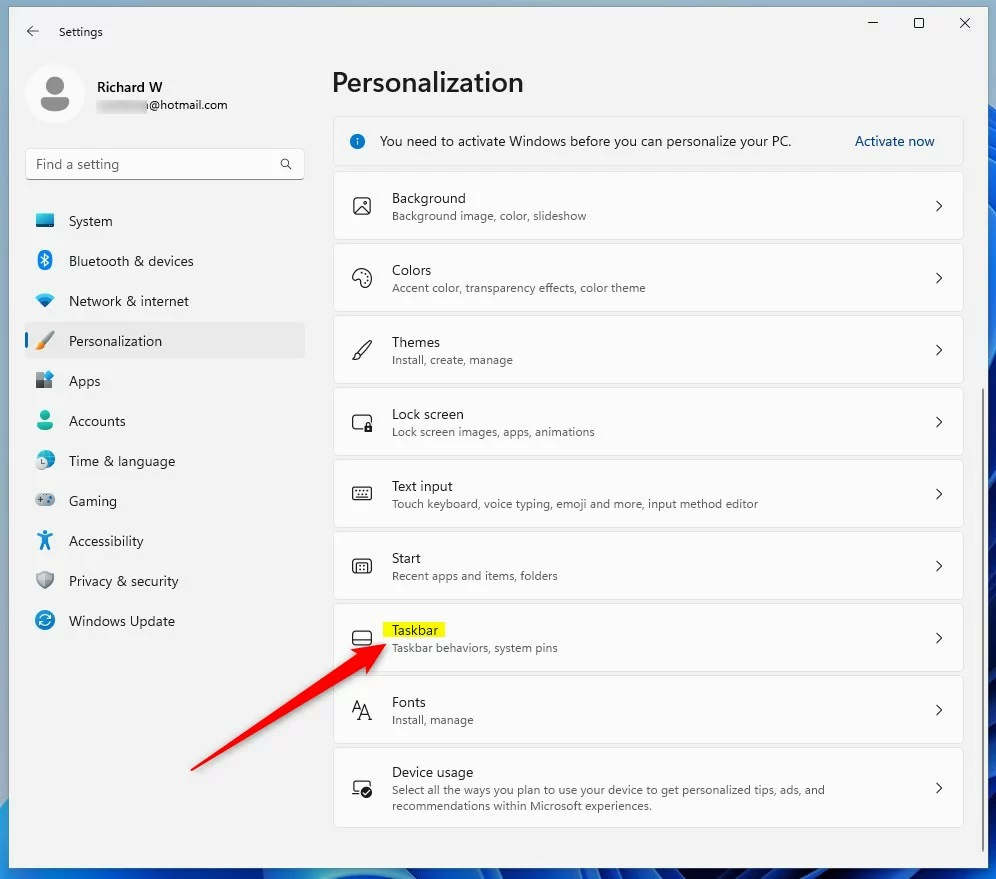
Click Taskbar to open taskbar settings - Scroll down and click Taskbar behaviors to expand it. A list of options for taskbar alignment, badges and sharing appears.
- Find Share any window from my taskbar and tick the box to turn it on. Untick it to turn it off. The change applies right away, so you don’t need to restart.
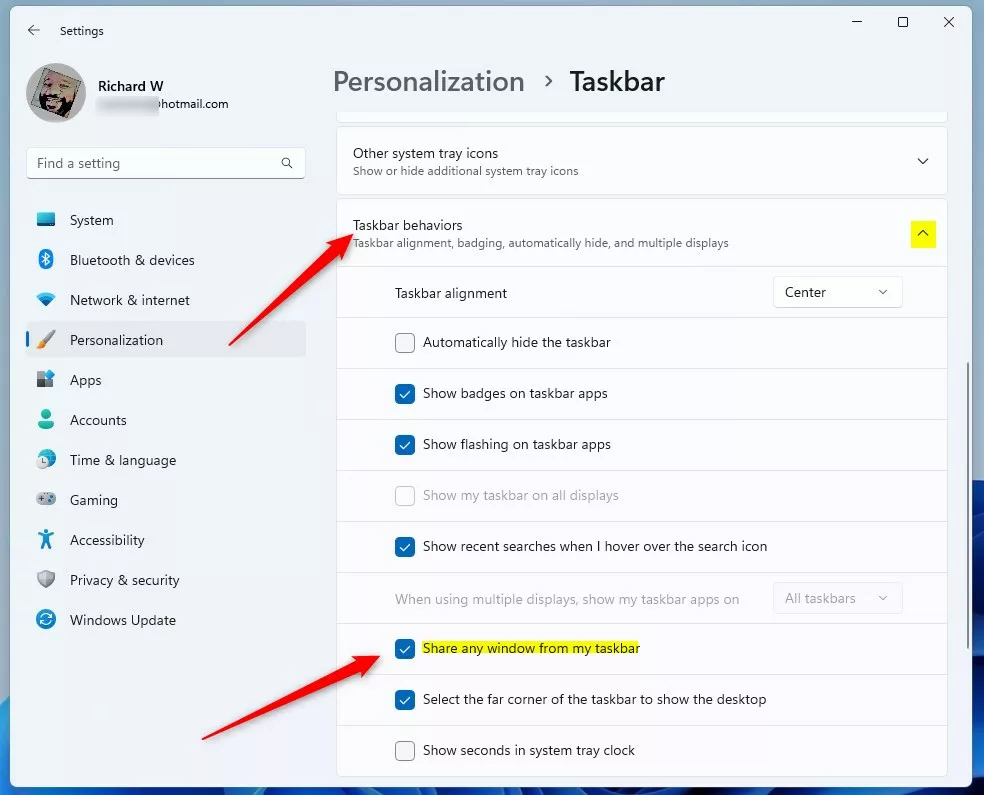
Check this box to enable sharing windows from the taskbar - Close the Settings app when you’re done.
If the option is missing, your Windows 11 version probably predates the feature. Install the latest updates and look again. If the box is greyed out on a work or school PC, an administrator may be controlling it through policy.
How to Share a Window From the Taskbar During a Meeting
With the setting on, you can share an open app with everyone in a meeting without digging through menus. You need to be in an active call in Microsoft Teams or another meeting app that supports taskbar sharing. The button doesn’t appear when you’re not in a call. It also won’t appear in apps that don’t support the feature.
- Join or start a meeting in Microsoft Teams (or a similar app).
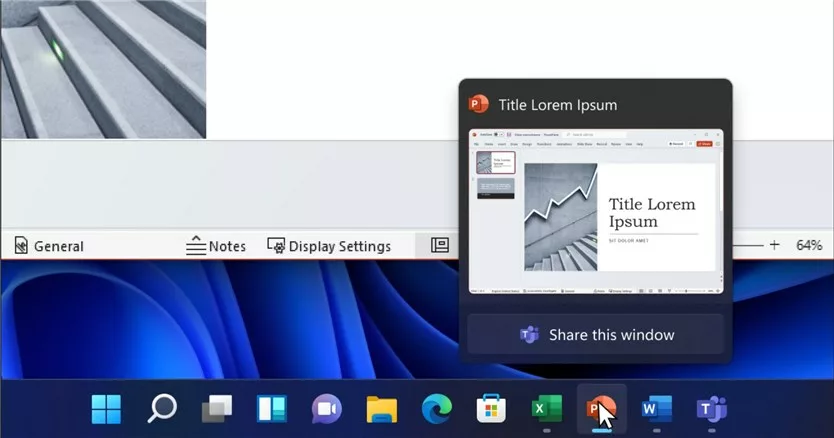
- Hover your mouse over the apps on your taskbar . A thumbnail preview of each open window appears.
- Look for the new button on the preview. It lets you share your window with everyone in the meeting.
- Click Share this Window on the window you want to show. Meeting participants should now see that window.
- To stop sharing, hover over the window again and click Stop Sharing.
- To switch to something else, hover over another window and click Share this Window. You can pick a different window at any time this way.
You can also mute or unmute yourself from the taskbar during the call, so you don’t have to return to the meeting window.
How to Turn On or Off "Share Any Window" Using the Registry Editor (Advanced)
This is the better choice if you manage several PCs or want to script the change. Check each step before you make it, because a wrong value in the registry can cause system errors. The steps are the same on Home and Pro.
Follow these steps carefully, and consider backing up the registry or creating a restore point first. If you're unsure, ask someone to help.
- Open the Registry Editor:
- Press Windows key + R, type
regedit, and press Enter. Click Yes if User Account Control asks for permission. - Or read this guide on how to open the registry in Windows 11.
- Press Windows key + R, type
- In Registry Editor, go to this key. You can paste it into the address bar at the top of the window:Registry
HKEY_CURRENT_USER\Software\Microsoft\Windows\CurrentVersion\Explorer\Advanced
- Check that you're on the right key. The key's values should appear in the right pane.
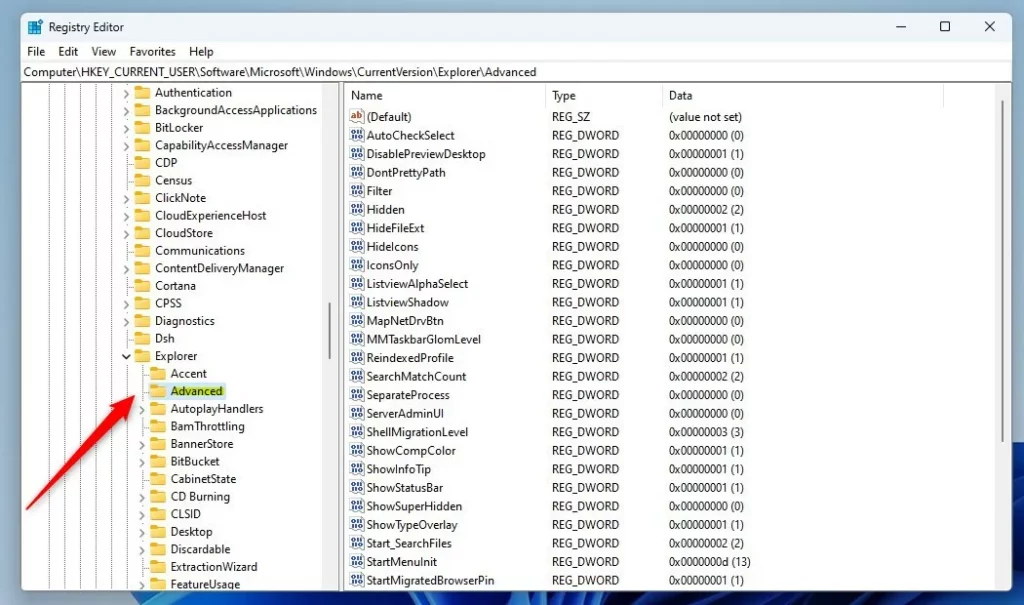
Navigate to the Advancedkey in Registry Editor - If you don't see the
Advancedfolder, right-click onExplorer, select New Key, and name itAdvanced. - On the right side, right-click an empty area and select New DWORD (32-bit) Value. A new value appears with its name highlighted for editing.
- Name the new value
TaskbarSn. If a value with this name already exists, skip creating it and use that one in the next step. - Double-click
TaskbarSnand set the Value data to:- 1 to turn ON window sharing
- 0 to turn OFF window sharing
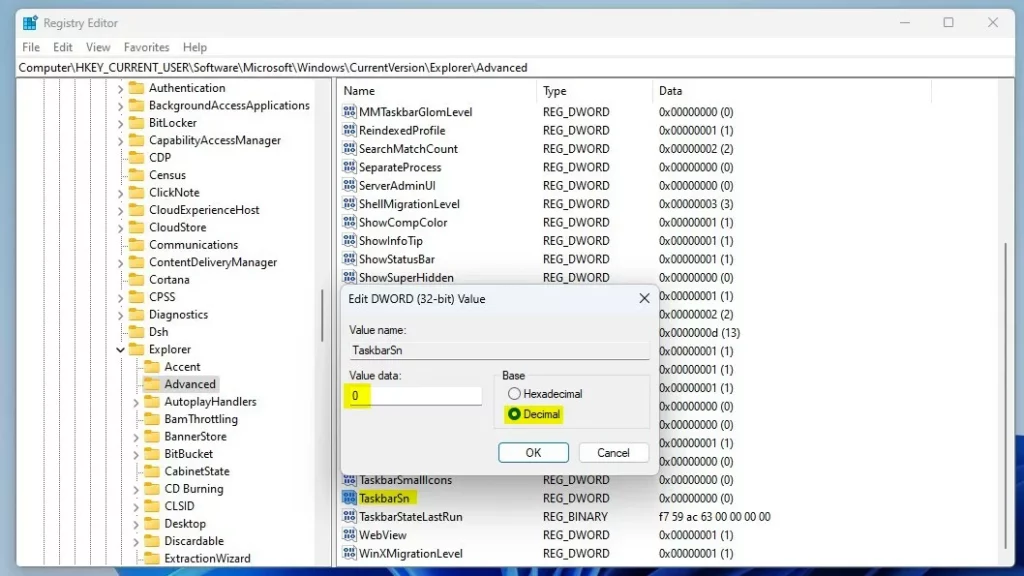
Set the value data for TaskbarSnto 1 (on) or 0 (off) - Close the Registry Editor and restart your computer to apply the change.
To undo the change, go back to the same value, set it to the opposite number, and restart again. You can also switch the option back in Settings, as described earlier.
Summary
Taskbar window sharing Windows 11 speeds up online meetings by letting you broadcast any open app straight from your taskbar. You can turn this tool on or off through the Settings app or the Registry Editor depending on your preference. Try these steps to make screen sharing faster during your next video call.- Windows 11 lets you share any open window directly from the taskbar during meetings.
- You can turn this feature on or off using the easy Settings app or the more advanced Registry Editor.
- This helps make sharing your screen faster and easier when using Microsoft Teams or other meeting apps.
- Try these steps to customize your Windows 11 to match how you like to work.
More Info
For official announcements and updates, check Microsoft’s blog: Microsoft Windows Insider Blog
Have a question about this guide?
Answered by AI from this guide. Good questions may be added to this page — please don't include personal details.
Did this guide fix your problem?

About the Author
Richard
Tech Writer, IT Professional
Richard is a writer at Geek Rewind who turns complex IT tasks into clear, step-by-step guides. He draws on years of hands-on experience in system administration and enterprise IT operations, focusing on Windows, Linux and WordPress: the problems people actually run into, and the fixes that work. His server and WordPress guides come from systems he runs himself. Richard builds and maintains the platform behind Geek Rewind, from its Ubuntu servers and Nginx configuration to its custom WordPress plugins. Many new tutorials start with readers' questions, and he's always glad to answer them in the comments.
No comments yet — be the first to share your thoughts!