How to Move the Taskbar to the Top, Left, or Right Side in Windows 11

- 14 steps
- Includes a restart or sign-out
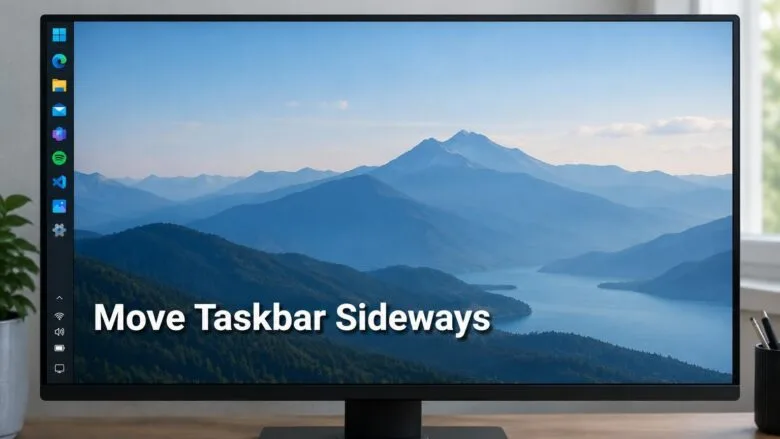
The taskbar in Windows 11 can sit at the bottom, top, left, or right edge of the screen, and you choose the edge in Settings Personalization Taskbar. The taskbar is the bar that holds the Start button, your pinned and running apps, and the notification area. Microsoft added the position choices in Windows update KB5120998, the number Microsoft uses to label the update.
Moving the taskbar to a side of the screen takes a few clicks. Each position changes which features you keep, so check that before you choose. The steps use the Settings app only. You do not need Registry Editor.
Open Settings, select Personalization, then Taskbar, expand Taskbar behaviors, and set Taskbar position to Left, Right, or Top. The taskbar moves to that edge immediately, with no restart needed. This option comes with Windows update KB5120998, so install that update if Taskbar position is missing. The search box and smaller taskbar work only at the top or bottom.
Before you start: what the update adds
Check whether the update is installed
Checking takes under a minute and saves time if the option turns out to be missing. Open Settings, select Windows Update, and then select Update history. Look for KB5120998 in the list of installed updates.
If the number is not there, do not stop. The reliable test is the Taskbar page itself, which the steps below walk you through. If the Taskbar position setting is absent, jump to the section on a missing option.
How to move the taskbar to the side of the screen in 🪟 Windows 11
Use the numbered steps below to move the taskbar to the top, left, or right edge. They also work for moving it back to the bottom. Follow them in order from the first step to the last.
- Press Win+I to open Settings. The Settings window opens with the list of categories on the left.

Start Menu - Select Personalization in the left-hand list. The personalization options for background, colors, themes, and the taskbar appear on the right.
- Select Taskbar. This page holds every taskbar option, including the items you can show and hide.
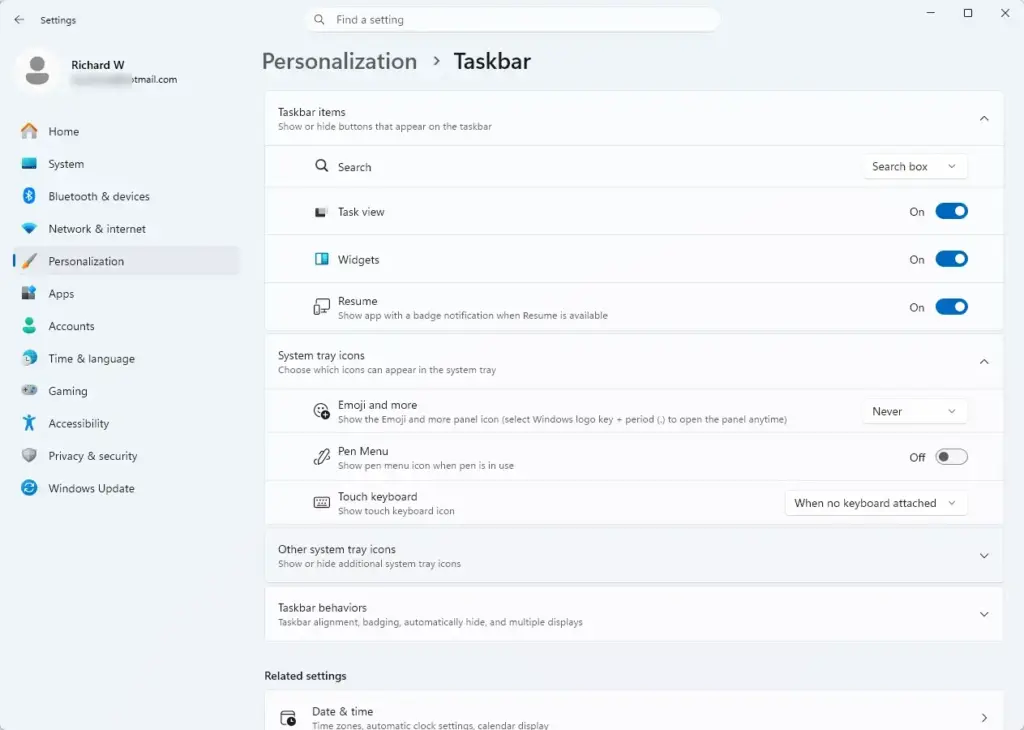
Windows 11 settings menu for managing optional diagnostic data sharing - Scroll down to Taskbar behaviors. If the section is collapsed, select its name to expand it.
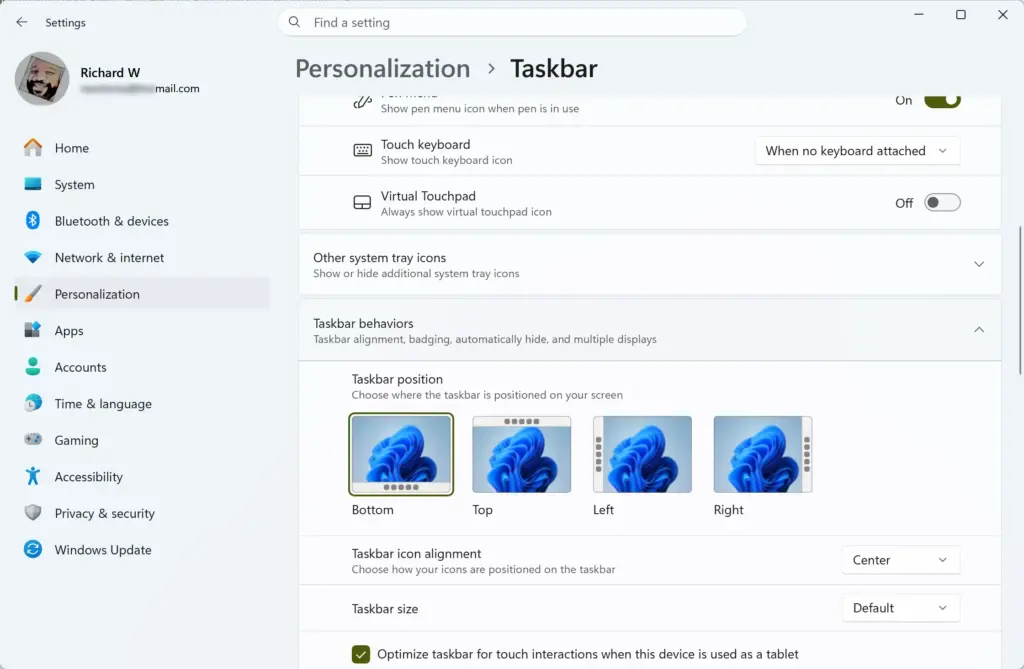
Settings > Personalization > Taskbar - Find Taskbar position in the expanded section. This is the setting that controls which screen edge the taskbar uses.
- Select Taskbar position to see your choices. They are Bottom, Top, Left, and Right.
- Choose Left, Right, or Top. The taskbar moves to that edge of the screen.
- Check the new position on your screen. Open the Start menu and a few apps to confirm the layout suits the way you work.
- Close Settings. The taskbar stays where you put it.
If you prefer a shortcut to the same page, right-click an empty part of the taskbar and select Taskbar settings. That opens Settings on the Taskbar page, so you can continue from the step that expands Taskbar behaviors.
If the taskbar does not move
If you choose a position and nothing changes, reopen the Taskbar position setting and confirm your choice is the one selected. If the setting shows the old value, select your new position again. If it still reverts, install any Windows updates that are waiting to be installed and try again, as described in the section on a missing option.
What changes at each position
Each edge suits a different screen shape and way of working. Try a position for a day before you settle on it. The position you pick also decides which taskbar features remain available.
Top
Moving the taskbar to the top keeps the search box and the smaller taskbar available. Only the top and bottom positions support both the search box and the smaller taskbar. If you rely on the search box on the taskbar, the top is the only alternative to the default bottom edge.
Left or right
A taskbar on the left or right edge runs vertically along the side of the screen. The search box and the smaller taskbar do not work in these positions, because Microsoft supports them only for the top and bottom. If you want the search box to stay on the taskbar, choose Top or Bottom instead.
A side taskbar takes horizontal space instead of vertical space. On a widescreen monitor, that leaves more height for documents and web pages. On a narrower screen, it can leave less room for app windows, so test it before you commit.
Bottom
Bottom is the standard Windows 11 position, and it supports every taskbar feature. Choose it when you want the full feature set or when you want to undo a move.
If the Taskbar position setting is missing
Some PCs do not show Taskbar position under Taskbar behaviors. The most likely cause is that the update that adds the setting is not installed yet. A second possibility is that something on the PC is blocking the setting.
Install pending Windows updates
Open Settings, select Windows Update, and select Check for updates. Let Windows download and install what it finds. Restart the PC if Windows asks you to.
After the restart, open Settings Personalization Taskbar and expand Taskbar behaviors again. Look for Taskbar position. Then repeat the steps above to choose a new edge.
Check whether the setting is blocked
If the setting is still missing on an up-to-date PC, read how to enable or disable changing taskbar position on screen in Windows 11. It explains how to allow or block changes to the taskbar position. Your work or school PC may restrict this setting. If you are not sure, ask the IT administrator who manages your PC.
How to move the taskbar back to the bottom
Undoing the move uses the same setting. Nothing is permanent, and you can switch edges as often as you like. Follow these steps to restore the default.
- Press Win+I to open Settings.
- Select Personalization, and then select Taskbar.
- Expand Taskbar behaviors if it is collapsed.
- Select Taskbar position.
- Choose Bottom. The taskbar returns to the bottom edge of the screen.
Once the taskbar is back at the bottom, the search box and the smaller taskbar are supported again.
Taskbar position is not the same as taskbar alignment
Windows 11 has a second taskbar setting that people often confuse with position. Alignment decides whether the icons sit in the center of the taskbar or at its left end. Position decides which screen edge the whole bar uses.
If you want the icons on the left but the bar still at the bottom, you do not need to move the bar at all. The post on moving the Windows 11 taskbar to the left or center covers that change. For a wider look at the same settings, see the related guide on changing the taskbar position, how to change taskbar position to top or side in Windows 11.
If the taskbar misbehaves after you move it
A moved taskbar can look different from what you expect, especially on the left or right. Check the position first, then match your problem to the cases below.
- The taskbar seems to vanish. Confirm which edge you chose, and look along all four edges of the screen. If it still does not appear, read why the taskbar keeps disappearing in Windows 11.
- The taskbar does not respond to clicks. The problem is unrelated to its position. Follow what to do when the Windows 11 taskbar freezes completely.
- The search box is gone. You chose Left or Right. Move the taskbar to Top or Bottom to get the search box back.
What to do next
If the Taskbar position setting is missing, install the latest updates in Settings Windows Update. If the setting is still missing after updating, check whether your work or school manages this PC. To go back to the standard layout, set Taskbar position to Bottom. Once you settle on a position, you can change the taskbar color to suit your desktop. See how to change the Windows 11 taskbar color.
Have a question about this guide?
Answered by AI from this guide. Good questions may be added to this page — please don't include personal details.
Did this guide fix your problem?

About the Author
Richard
Tech Writer, IT Professional
Richard is a writer at Geek Rewind who turns complex IT tasks into clear, step-by-step guides. He draws on years of hands-on experience in system administration and enterprise IT operations, focusing on Windows, Linux and WordPress: the problems people actually run into, and the fixes that work. His server and WordPress guides come from systems he runs himself. Richard builds and maintains the platform behind Geek Rewind, from its Ubuntu servers and Nginx configuration to its custom WordPress plugins. Many new tutorials start with readers' questions, and he's always glad to answer them in the comments.
No comments yet — be the first to share your thoughts!