How to Change the Windows 11 Taskbar Color

Changing the Windows 11 taskbar color lets you override the default look and apply an accent shade to your taskbar and Start menu. You can also apply it to title bars and window borders, but that is a separate switch, covered below. Everything happens in Settings. You don’t need to restart, and the change shows up as soon as you make it.
Windows 11 requires the right color mode before the taskbar tint option becomes available. In Light mode the option is greyed out, because Light mode disables accent colors on the taskbar entirely. Set the mode to Dark, or to Custom with the Windows mode set to Dark. Check this first, because it is the most common reason the option looks dead.
- Press the Win+I to open Settings.
- Select Personalization from the left-hand menu.
- Click Colors. The color settings page opens.
- Find the Choose your mode dropdown at the top of the page.
- Open the dropdown and pick Dark. If you choose Custom, a second setting appears for the default Windows mode. Set that one to Dark too. The app mode can stay on Light or Dark, whichever you prefer.
Open Settings with Win+I, select Personalization Colors, set Choose your mode to Dark, scroll down to Show accent color on Start and taskbar, and toggle it On. The taskbar adopts your accent color immediately.
Enabling Accent Colors on the Taskbar and Start Menu
By default Windows keeps the taskbar a neutral color. To override that, you turn on one switch on the Colors page. Once it is on, Windows paints the taskbar and the Start menu with your chosen accent color.
- Open Settings by pressing the Win+I.

Windows 11 Start menu with Settings gear icon highlighted. - Select Personalization from the left sidebar.
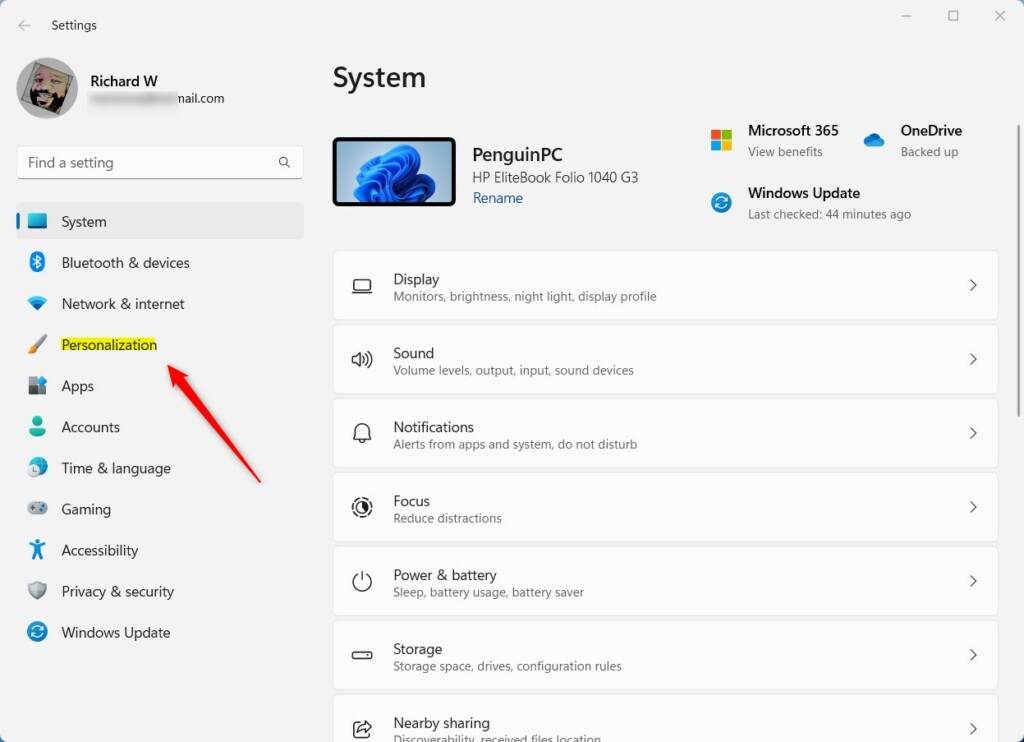
Windows 11 Personalization in the Settings app - Click Colors to open the color customization panel.
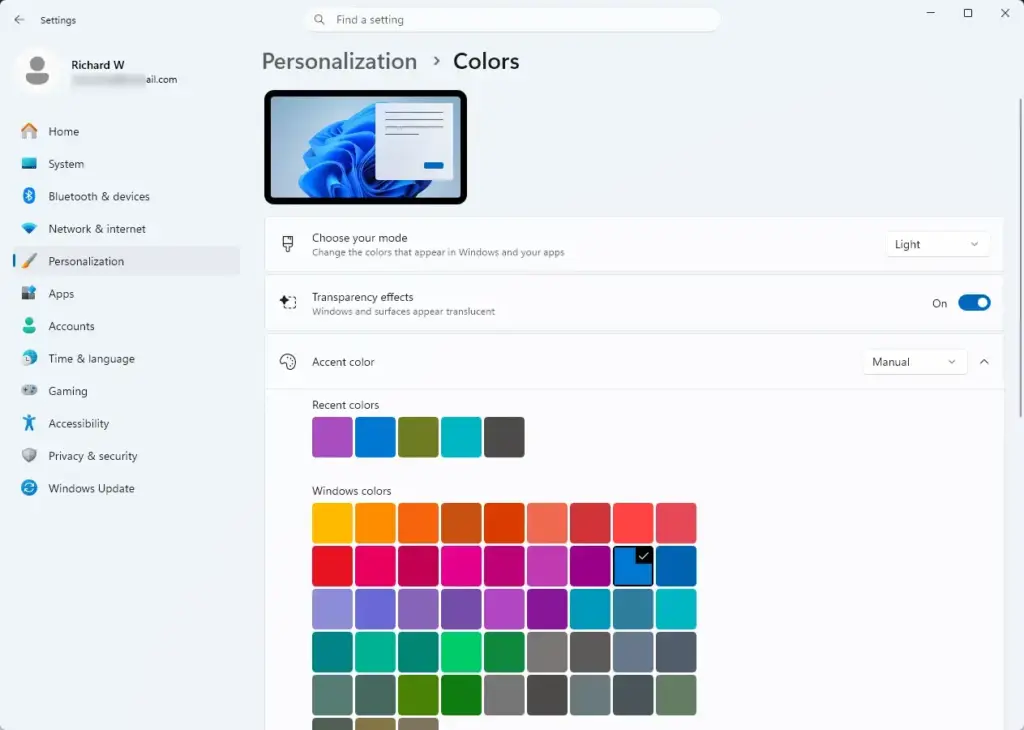
Settings › Personalization › Colors - Scroll down to the Show accent color on Start and taskbar option. It sits below the accent color setting.
- Click the toggle switch next to it to turn it On.
If you also want the color on title bars and window borders, turn on the separate Show accent color on title bars and window borders switch just below it. To undo any of this, turn the toggle back to Off and the taskbar returns to its neutral color.
Choosing and Customizing Your Accent Color
The accent color decides which shade the taskbar and windows use. You can let Windows match your wallpaper automatically, or pick a specific color yourself. The change applies right away, so you can try a few shades and see the result on the taskbar as you go.
- Go back to Settings, select Personalization, and click Colors.
- Find the Accent color setting near the top of the page, just below the mode and effects options.
- Change the dropdown from Automatic to Manual if you want full control over the shade. The color palette appears below it.
- Click any tile in the Windows colors palette. The taskbar changes immediately.
- For a shade that isn’t in the palette, click View colors next to Custom colors. A full color picker opens. Choose your color, then click Done to apply it.
Windows then samples the dominant color of your current wallpaper and uses it for the taskbar. The result can look washed out or too bright on some wallpapers. If you don’t like it, switch to Manual and pick a color yourself.
If this didn’t work
If the taskbar color option is greyed out, work through these causes in order, starting with the most likely.
- Check the mode. Under Choose your mode, make sure you are on Dark, or on Custom with the Windows mode set to Dark. Light mode greys out the toggle.
- Check your theme. Some themes, and contrast themes in particular, override your color choices. Open Personalization, go to Themes, and select one of the default Windows themes. This restores access to the color toggles so you can customize the taskbar again.
- Check for a work or school policy. If the device is managed by an organization, a policy can lock the color settings. A default theme won’t fix that. You will need to ask your IT administrator, because the setting is controlled centrally.
After switching themes, go back to Colors. You may need to turn Show accent color on Start and taskbar on again, because changing the theme can reset it.
Frequently asked questions
Can I set dark color for taskbar alone 🪟 Windows 11?
Yes, but only by splitting the Windows mode from the app mode. Open Settings, go to Personalization, then Colors, and set Choose your mode to Custom. Set Choose your default Windows mode to Dark and Choose your default app mode to Light. The taskbar and Start menu turn dark while your apps stay light.
How to change the colour of time, bars, Wi-Fi, and battery from white to another colour?
You can't recolor the clock, signal bars, Wi-Fi, and battery icons to a custom color. Windows picks their color for contrast. They turn white on dark taskbars and black on light ones. To change them, change the taskbar background in Settings under Personalization, then Colors.
How can I change my taskbar from black to white?
Open Settings, go to Personalization, then Colors. Set Choose your mode to Custom and set Choose your default Windows mode to Light. The taskbar turns white. If it still has color, turn off Show accent color on Start and taskbar.
How to disable location services?
Turning off location services stops every app from using your location, and some features, like weather or Find My Device, may stop working. Open Settings, go to Privacy & security, then Location. Turn off the Location services switch.
Can I change the color of the bottom taskbar in 🪟 Windows 11?
Yes. Windows 11 colors the whole taskbar as one bar, so you can't color just one side. Open Settings, go to Personalization, then Colors. Set the mode to Dark, turn on Show accent color on Start and taskbar, and pick a shade under Accent color.
Still have a question?
Answered by AI from this guide. Good questions may be added to this page — please don't include personal details.
Did this guide fix your problem?

About the Author
Richard
Tech Writer, IT Professional
Richard is a writer at Geek Rewind who turns complex IT tasks into clear, step-by-step guides. He draws on years of hands-on experience in system administration and enterprise IT operations, focusing on Windows, Linux and WordPress: the problems people actually run into, and the fixes that work. His server and WordPress guides come from systems he runs himself. Richard builds and maintains the platform behind Geek Rewind, from its Ubuntu servers and Nginx configuration to its custom WordPress plugins. Many new tutorials start with readers' questions, and he's always glad to answer them in the comments.
No comments yet — be the first to share your thoughts!