Turn Off Windows Spotlight on the Desktop Background in Windows 11

Windows Spotlight changes your desktop photo on a schedule. To stop it, switch the background to a picture, solid color or slideshow.
To turn it off, follow these steps:
- Open Settings Personalization Background
- Change Personalize your background from Windows spotlight to Picture, Solid color or Slideshow.
Windows Spotlight (a feature that downloads rotating photos from Microsoft) also puts a Learn more about this picture icon on your desktop. Switching to any other background option removes both the rotating photos and that icon. The change takes effect at once, and you do not need to restart.
The steps below cover the desktop background. A separate section covers the lock screen, which has its own Spotlight setting.
To turn off Windows Spotlight on the desktop background in Windows 11, open Settings , select Personalization, then select Background. Open the Personalize your background drop-down list and choose Picture, Solid color or Slideshow. The rotating photos stop and the Learn more about this picture icon disappears from your desktop, with no restart needed.
Before you start
You do not need administrator rights. The setting applies only to the account you are signed in to, so each user on a shared PC changes their own.
The steps match current Windows 11 versions (each numbered version of Windows is called a build). Desktop Spotlight arrived in a mid-cycle update to Windows 11 version 22H2 (the feature update released in late 2022), so a PC on an older build may not offer Windows spotlight as a desktop background at all. In that case the rotating photos you see are not coming from this setting. The troubleshooting section covers this.
Home and Pro editions use the same screen, so there is no edition difference for this task.
Turn off Windows Spotlight on the desktop background
These steps stop the rotating desktop photos by replacing them with a fixed picture you choose.
- Open Settings. Press Windows + I, or right-click Start and choose Settings.

- Select Personalization in the left pane. The right side shows a preview of your current desktop and lock screen.
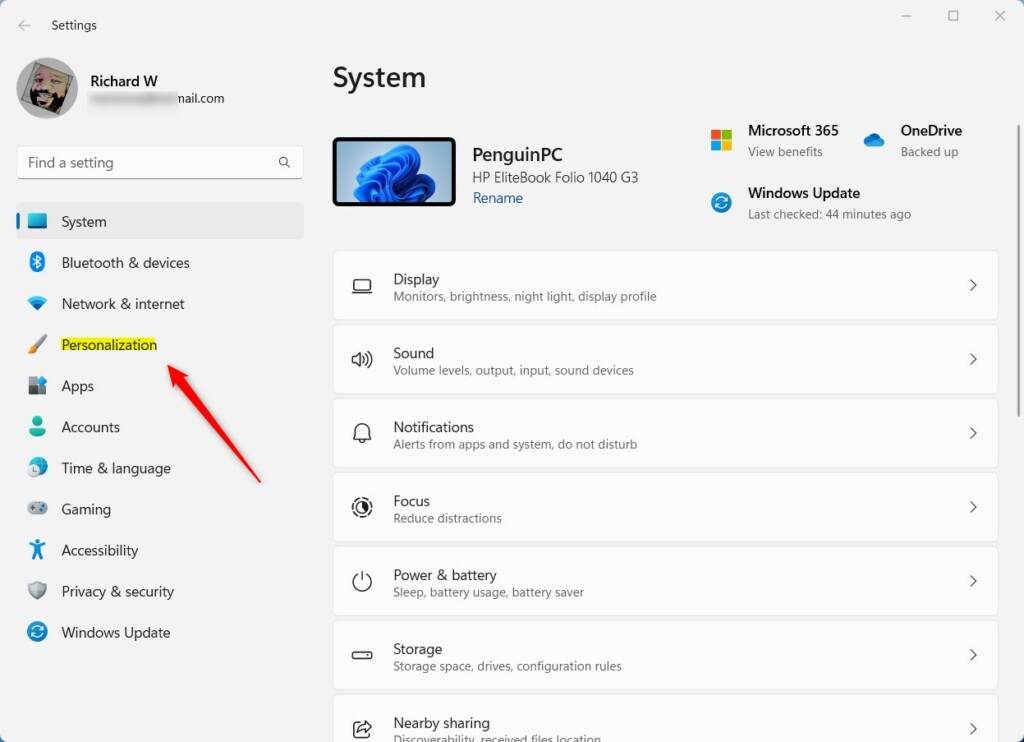
Windows 11 Personalization in the Settings app - Select Background. Next to Personalize your background, a drop-down list shows Windows spotlight if the feature is active. If the list is greyed out, go to the troubleshooting section below.
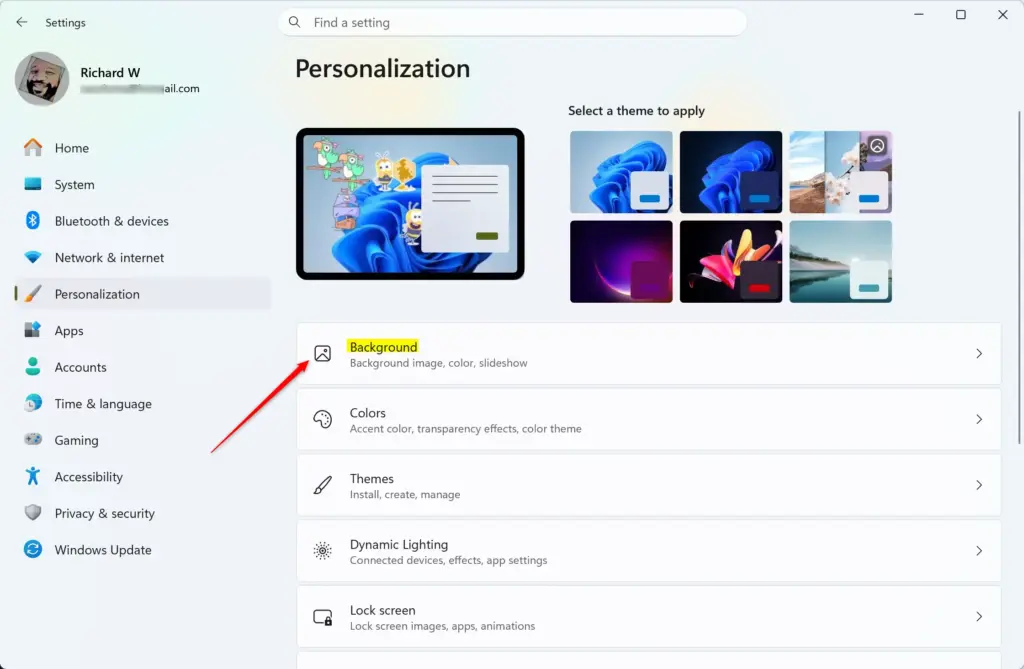
Settings › Personalization › Background - Open the Personalize your background drop-down list. It offers Windows spotlight, Picture, Solid color and Slideshow.
- Choose Picture. The page changes to show a Choose a photo row of recent images and a Browse photos button. The Learn more about this picture icon disappears from your desktop.
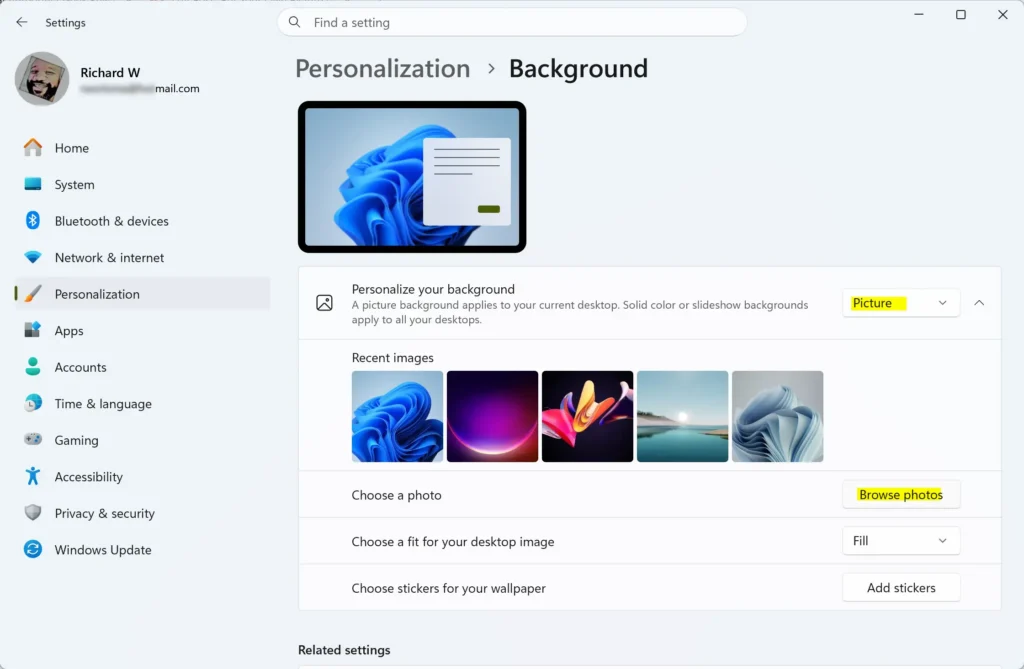
- Pick an image under Recent images, or select Browse photos and choose your own file. The desktop switches to that image straight away.
- Open the Choose a fit for your desktop image list. Choose Fill, Fit, Stretch, Tile, Center or Span. Fill suits most photos because it covers the screen without distorting the image.
- Close Settings. Look at your desktop. The picture stays the same from now on, and the Spotlight icon is gone.
The Recent images row can include pictures Windows used earlier. If you want a fixed image that is not a Spotlight photo, use Browse photos and pick a file of your own.
Use a solid color or a slideshow instead
A fixed photo is not the only way to stop Spotlight. If you want something other than a fixed photo, choose one of these options at step 5 above instead.
- Solid color replaces the picture with a flat color. Choose a swatch under Choose your background color, or select View colors to pick a custom shade. This is the lightest option and gives a clean desktop.
- Slideshow rotates through a folder of your own pictures. Select Browse next to Choose albums for your slideshow and point it at a folder. Then set how often the picture changes in the Change picture every list.
Slideshow still changes your desktop on a timer, but the images come from your own folder, not from Microsoft.
Turn off Windows Spotlight on the lock screen
Windows keeps a separate setting for it. Skip this section if you only want the desktop changed.
- Open Settings. Press Windows + I.
- Select Personalization in the left pane.
- Select Lock screen. The page shows a Personalize your lock screen drop-down list.
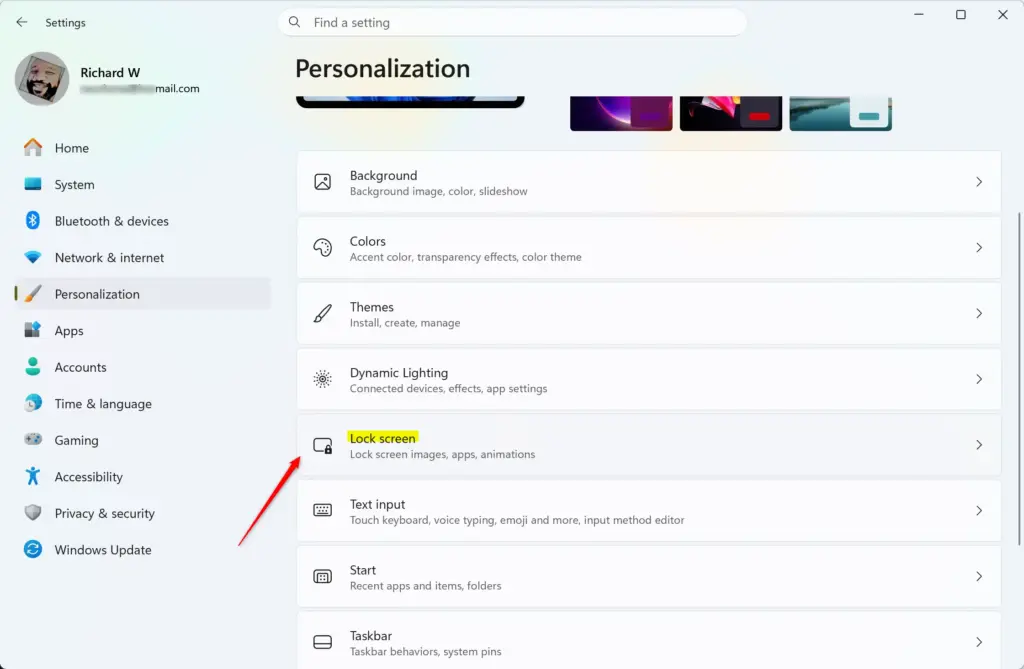
Settings › Personalization › Lock screen - Open the Personalize your lock screen list. Choose Picture or Slideshow in place of Windows spotlight.
- Choose your image or folder. Lock your PC with Windows + L to check the result.
When Windows spotlight is active on the lock screen, the page also shows a checkbox labeled Get fun facts, tips, tricks, and more on your lock screen. That checkbox disappears when you switch to Picture or Slideshow, because tips only appear with Spotlight.
If the option is missing, greyed out or changes back
If the option is missing, greyed out or changes back, find the matching case below. Most problems fall into one of four. Check the symptom that matches what you see.
Windows spotlight is not in the list
If Windows spotlight is not offered, your PC is probably on a build that predates desktop Spotlight. Open Settings Windows Update and select Check for updates. Install what it finds and restart. After the update, return to Settings Personalization Background and look at the list again.
If the option is missing and you still see rotating photos, something other than this setting is changing your wallpaper. A manufacturer app, a third-party wallpaper tool or a theme with a built-in slideshow are the usual causes. Check the apps installed on your PC and the theme you applied under Settings Personalization Themes
The Personalize your background list is greyed out
Open Settings System Activation and check the status. Activate Windows with a valid product key or digital license, then try again.
A greyed-out list can also come with the message Some of these settings are managed by your organization. This means a work or school policy controls the background, and you cannot override it from Settings. Ask your IT administrator to change the policy. On a work PC, leave the policy in place and ask your IT administrator about changes.
The Spotlight icon is still on the desktop
The Learn more about this picture icon should vanish when you choose Picture, Solid color or Slideshow. If it stays, refresh the desktop. Right-click an empty area of the desktop, choose Show more options, then choose Refresh.
If the icon is still there, sign out and sign back in. The icon belongs to Spotlight, so it should not remain once another background is active.
The background changes back to Spotlight later
Applying a different theme under Settings Personalization Themes replaces your chosen background with the theme's own picture. Check Settings Personalization Background again after you change themes. A major Windows update can also reset personalization choices on some PCs, so check the page after a feature update.
On a PC that signs in with a Microsoft account, settings can carry over to your other devices (this is called syncing). If another device is still on Spotlight, check that your current PC still shows your chosen background after you sign in.
Turn Windows Spotlight back on
You can reverse this change at any time, and no files are deleted when you switch away from Spotlight.
- Open Settings. Press Windows + I.
- Select Personalization Background
- Open the Personalize your background list. Choose Windows spotlight.
- Check your desktop. The Learn more about this picture icon returns, and a Spotlight photo replaces your fixed background.
The photo may take a moment to download, and it needs an internet connection. If the desktop keeps your old wallpaper for a while, give it a few minutes and refresh the desktop.
The photos you chose with Browse photos stay in their folders. Selecting Picture again later brings them back under Recent images.
What to do next
Open Settings Personalization Themes to save your chosen background, colors and sounds as a named theme you can switch back to. If you also want fewer promotional suggestions in Windows, check the notifications and tips settings under Settings System Notifications Your desktop now keeps the picture or color you picked until you change it.
Have a question about this guide?
Answered by AI from this guide. Good questions may be added to this page — please don't include personal details.
Did this guide fix your problem?

About the Author
Richard
Tech Writer, IT Professional
Richard is a writer at Geek Rewind who turns complex IT tasks into clear, step-by-step guides. He draws on years of hands-on experience in system administration and enterprise IT operations, focusing on Windows, Linux and WordPress: the problems people actually run into, and the fixes that work. His server and WordPress guides come from systems he runs himself. Richard builds and maintains the platform behind Geek Rewind, from its Ubuntu servers and Nginx configuration to its custom WordPress plugins. Many new tutorials start with readers' questions, and he's always glad to answer them in the comments.
No comments yet — be the first to share your thoughts!