How to Change Windows 11 Lock Screen Background

The Windows 11 lock screen background is the first image you see before you enter your password or PIN. You can change it in under 30 seconds from the Settings app. Windows 11 gives you three choices: a single photo, a slideshow of photos from a folder, or Windows Spotlight. Spotlight is a feature that downloads new pictures from around the world and rotates them regularly.
Open Settings (press Win+I), then go to Personalization Lock screen and open the Personalize your lock screen list. Pick Windows Spotlight, Picture or Slideshow; for Picture or Slideshow, choose your photo or folder. The new background shows as soon as you lock the PC with Win+L. No restart is needed.
The short version works the same on Windows 11 Home and Pro. No restart is needed, and you can switch back at any time.
These steps customize your Windows 11 lock screen background from start to finish:
- Open Settings . Any of the three methods in the next section works, and the Settings window opens.
- Click Personalization. It is in the left menu, and the right side shows theme, background and color pages.
- Click Lock screen. You should see a preview of your current lock screen and a list called Personalize your lock screen.
- Open the Personalize your lock screen list. Three choices appear: Windows Spotlight, Picture and Slideshow.
- Select Windows Spotlight, Picture, or Slideshow. If you chose Spotlight, you are done and can skip to step 8.
- Choose your photo or folder. This only applies to Picture and Slideshow, because Windows asks for the photo or the folder.
- Check the preview. It should show the photo or folder you picked.
- Lock your PC to test the result. Sign back in when you have seen the new background.
The rest of this tutorial walks through each step, and the last section covers what to do when the background won’t change.
There are three ways to open Settings . Use whichever is quickest for you, because they all lead to the same window.
- Press Windows key + I on your keyboard. Press both keys at the same time. This is the fastest way, and it opens Settings straight away.
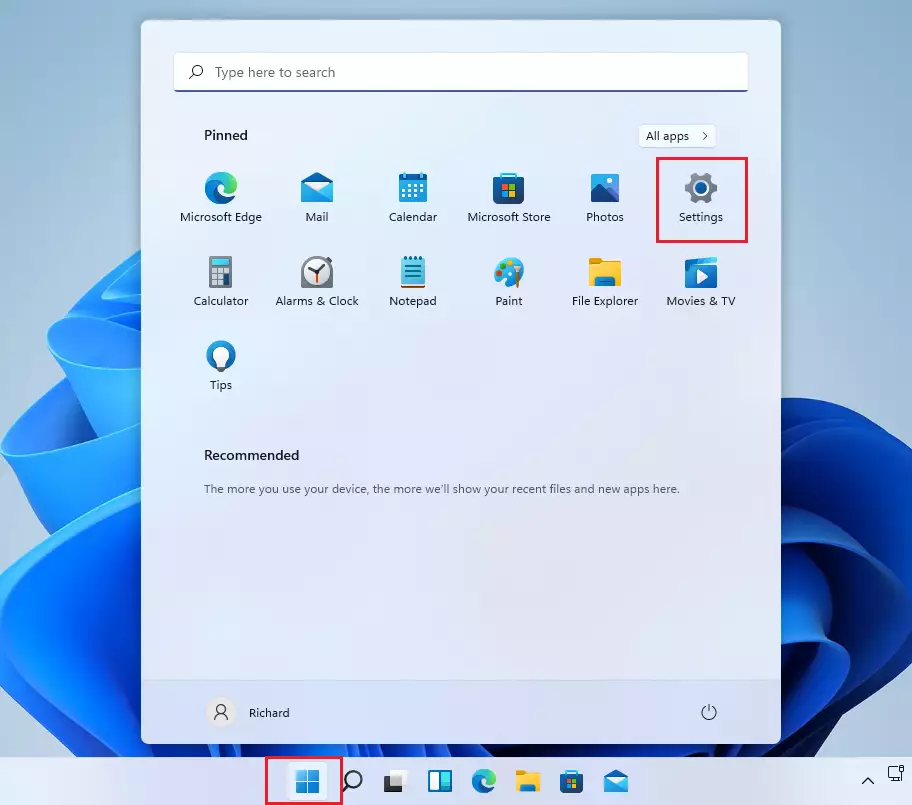
- Click the Start button, then click Settings. The Start button is the Windows icon on the taskbar . If you don’t see Settings in the pinned apps, click All apps and look for it in the list.
- Type Settings into the search box on the taskbar . Click the Settings app when it appears in the results.
Use any one of these. The Settings window should open with a list of categories down the left side.
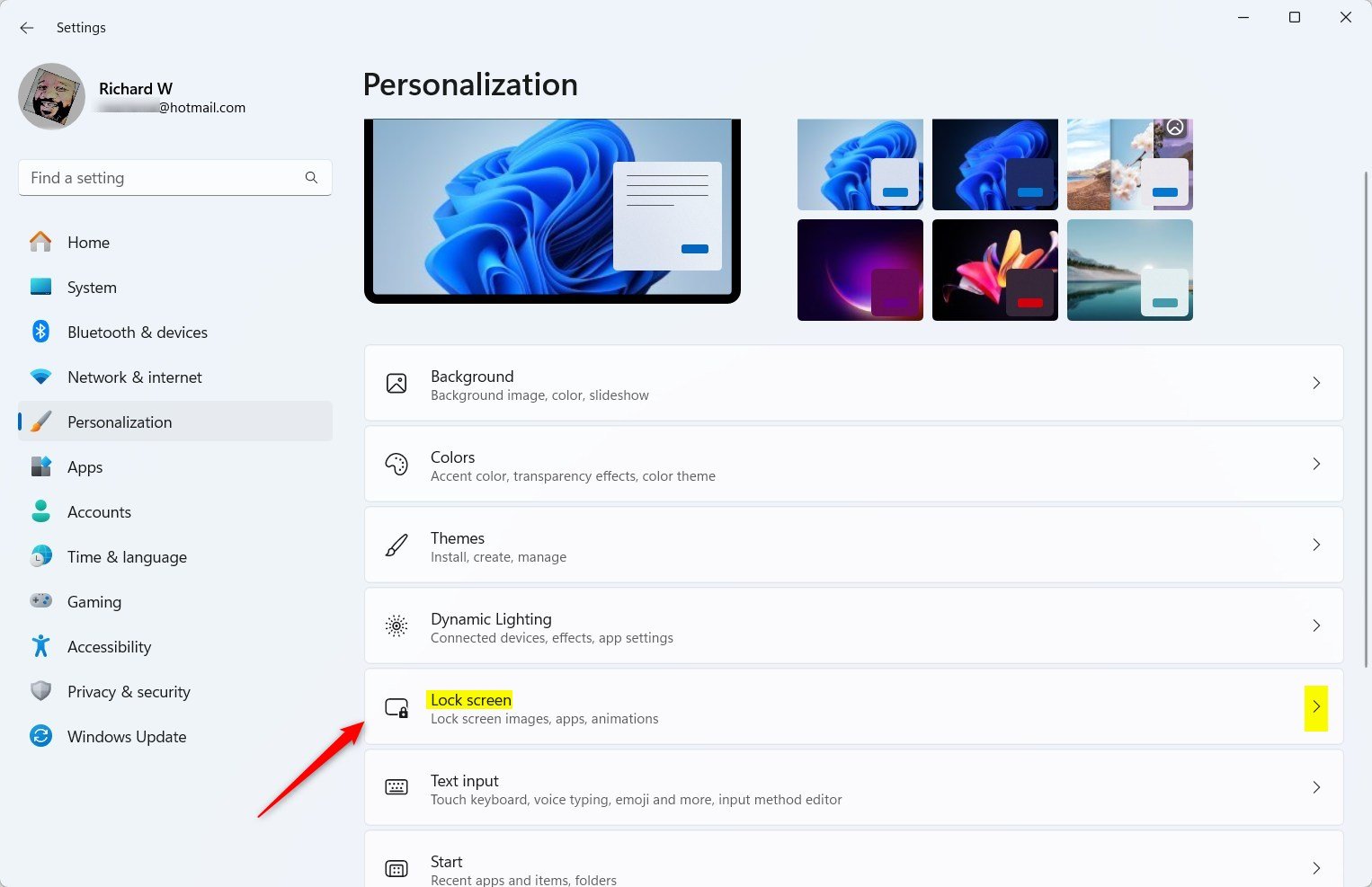
- Click Personalization in the left menu of Settings. The right side now shows theme, background, colors and related pages. If you can't see the left menu, make the Settings window wider.
- Click Lock screen on the right side. You should now see a preview of your current lock screen and a list called Personalize your lock screen.
The full path is Settings Personalization Lock screen This is the page you will use for every change in this tutorial.
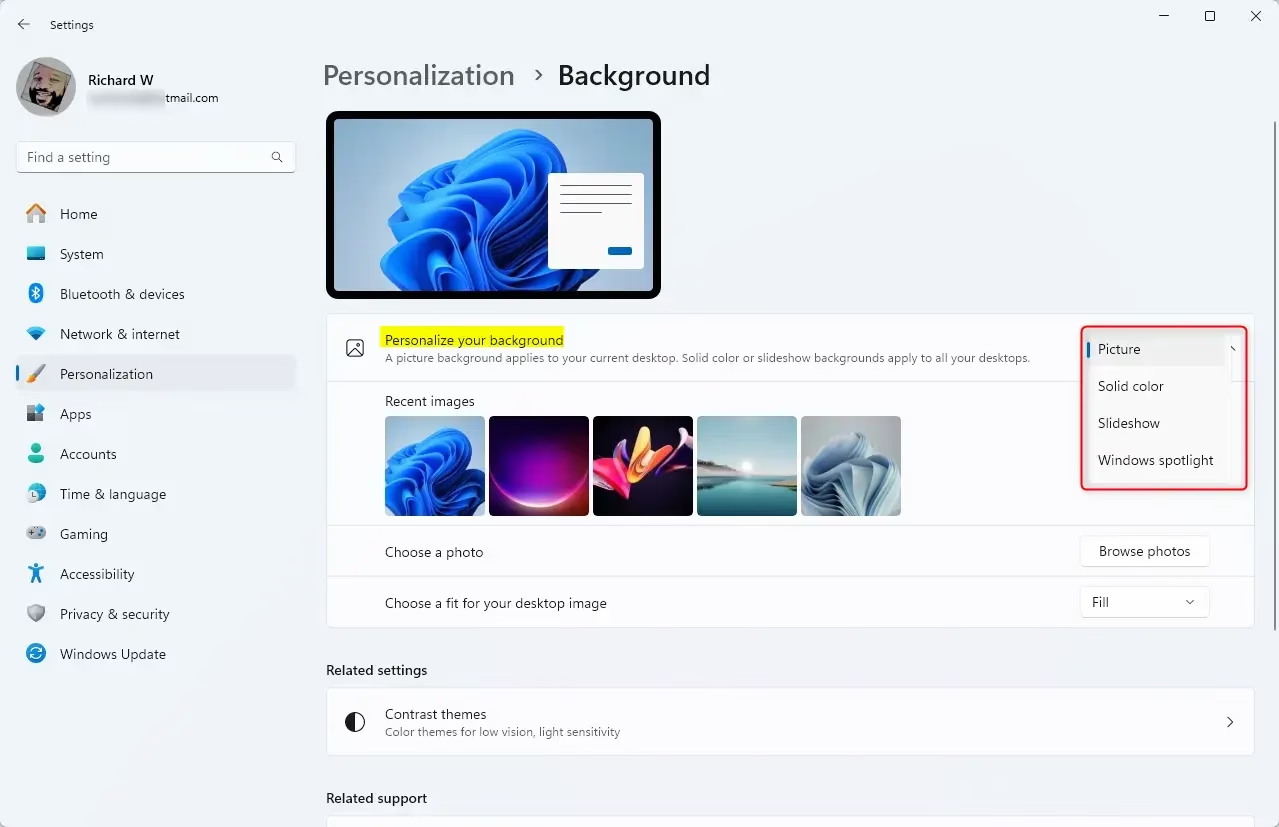
The Personalize your lock screen list controls what shows on the lock screen background. Open it and pick one of the three choices.
- Click the Personalize your lock screen list. A short menu drops down with three choices.
- Click the choice you want. The preview at the top of the page updates to match.
Here is what each choice does:
- Windows Spotlight: Shows pictures from Microsoft that change regularly. It can also show tips about Windows. It needs an internet connection to download new images.
- Picture: Lets you pick one photo you like. You can choose from the pictures Windows offers or any photo saved on your computer.
- Slideshow: Lets you pick a folder of photos. Your lock screen will cycle through them like a slideshow.
You can switch between these at any time. Your photos and folders are not touched when you change modes.
Windows Spotlight is usually on by default, so you may already be seeing a new picture every day. If you chose it, there is nothing more to select. To test it, press Windows key + L. This locks the screen, and you will see the current Spotlight image. Sign back in when you are done.
If Windows Spotlight is missing from the list or greyed out, the cause is usually one of these:
- Your PC has no internet connection, so it can't download pictures. Reconnect and check the list again.
- The PC is managed by a school or employer, and an administrator has turned Spotlight off by policy. You can't change this yourself.
In either case, Picture and Slideshow still work.
To use your own photos, follow the steps for the mode you want. Both lists carry on from step 5 above, where you picked the mode.
For a single photo, with Picture selected:
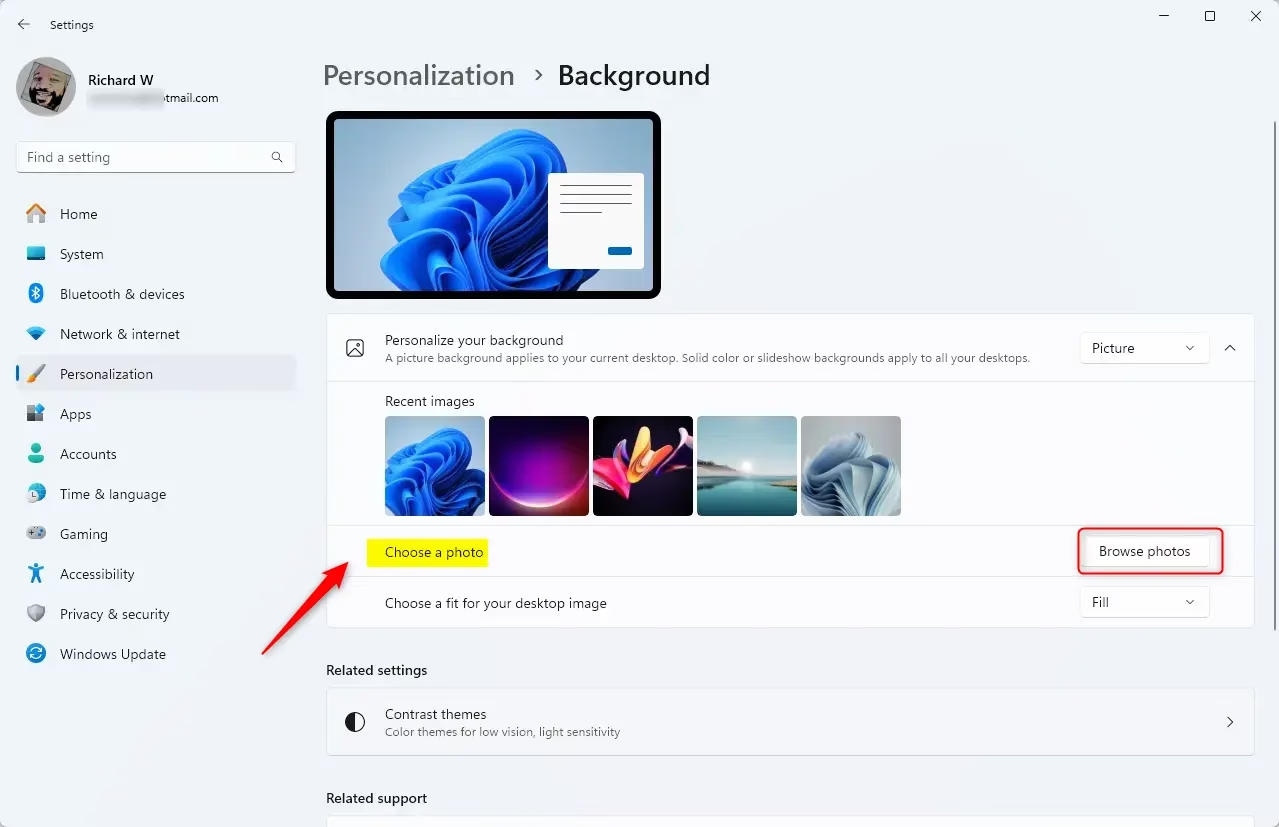
- Click one of the recent picture thumbnails. A row of recent pictures appears once Picture is selected.
- Click Browse photos instead if your photo isn't in the row. The button label may be worded slightly differently on some builds. Select the file and confirm.
- Check the preview at the top of the page. It should now show your photo.
For a slideshow, with Slideshow selected:
- Pick a folder that holds the pictures you want. Windows may already list a folder such as Pictures.
- Remove the listed folder or add your own. Use the folder button next to the list of albums and select the folder.
- Check the preview to confirm the folder you chose is listed.
For the best result, use images at or near your screen resolution so they don't look stretched or blurry. To undo any of this, set the list back to Windows Spotlight.
Troubleshooting Tips
If your lock screen background is stuck or not updating, run through these checks:
- Make sure Windows Spotlight is still the selected option, if that is the mode you want. Open the Personalize your lock screen list to see what is selected.
- Verify that your chosen personal photo hasn't been moved, renamed or deleted from its original folder. The same applies to a slideshow folder. If the files were on an external drive, plug it back in.
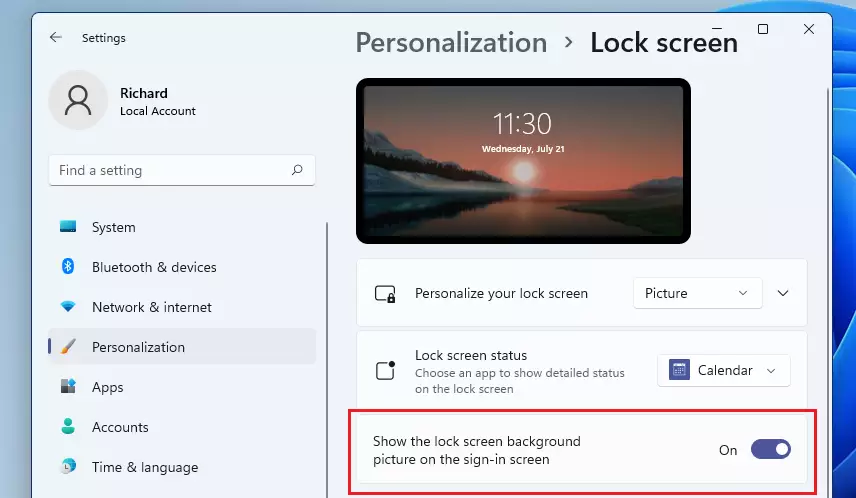
- Check that the setting to show the lock screen picture on the sign-in screen is turned on.
- For Spotlight, confirm the PC is online. New images can take a while to appear, so give it a day.
The steps below cover the sign-in screen setting.
- Go to Start > Settings Personalization Lock screen You should see the same page as before.
- Scroll down to Show lock screen picture on the sign-in screen. Depending on your Windows 11 build, the wording may be slightly longer, but it is the toggle about the sign-in screen.
- Turn the toggle On. When it is off, the sign-in screen shows a plain colored background instead of your picture.
Changes apply immediately, and you don't need to restart. Press Windows key + L to check the result.
If the options are greyed out on a work or school PC, an administrator probably controls them, and you will need to ask your IT department.
Summary
- Changing your lock screen background lets you personalize your Windows 11 PC.
- You can use Windows Spotlight, a single picture, or a slideshow of photos.
- Choose photos that make you happy or show your favorite memories.
- Enable the lock screen picture on the sign-in screen to see it before logging in.
- Follow the steps above to customize your lock screen. You can change it back whenever you like.
Customizing your lock screen background lets you personalize your computer with your own photos or fresh images from Microsoft. You can switch between a single picture, a slideshow, or Windows Spotlight at any time through Personalization Lock screen in Settings, so your sign-in screen looks the way you want.
Have a question about this guide?
Answered by AI from this guide. Good questions may be added to this page — please don't include personal details.
Did this guide fix your problem?

About the Author
Richard
Tech Writer, IT Professional
Richard is a writer at Geek Rewind who turns complex IT tasks into clear, step-by-step guides. He draws on years of hands-on experience in system administration and enterprise IT operations, focusing on Windows, Linux and WordPress: the problems people actually run into, and the fixes that work. His server and WordPress guides come from systems he runs himself. Richard builds and maintains the platform behind Geek Rewind, from its Ubuntu servers and Nginx configuration to its custom WordPress plugins. Many new tutorials start with readers' questions, and he's always glad to answer them in the comments.
No comments yet — be the first to share your thoughts!