How to Show or Hide the Lock Screen Background on the Sign-in Screen in Windows 11

The sign-in screen background in Windows 11 is the picture that appears on your display right before you enter your password or PIN. Turning off this background removes the image and leaves a solid accent color behind your login box. This works the same on Windows 11 Home, Pro, and Enterprise.
Hiding the picture gives you a clean, distraction-free startup look. Keeping it enabled matches your personalized lock screen. You can change this setting at any time in the Settings app, and nothing is lost either way. The picture comes back as soon as you turn the option back on.
Open Settings , go to Personalization, then Lock screen. Toggle “Show the lock screen background picture on the sign-in screen” to On to display it, or Off to hide it.
Option 1Turn On or Off the Lock Screen Background for Your Account Using Settings
- Press
Win + Ion your keyboard. The Settings app opens. - Click Personalization in the left pane. The personalization options appear on the right.
- Click Lock screen on the right side. You will see the lock screen options, including the background and the status settings.
- Scroll down to the setting called “Show the lock screen background picture on the sign-in screen”. It is usually near the bottom of the page.
- Set the toggle to On to show the picture, or Off to hide it. The change applies immediately, and you do not need to restart.
- Close the Settings window.
- To check the result, press Win+L to lock the PC. The sign-in screen shows the picture or the solid accent color, depending on what you chose.
This method uses the main Settings app and updates the display picture only for your current user account, without touching other profiles on the computer. To undo it, go back to the same page and flip the toggle the other way.
If the toggle is greyed out, or Settings says some settings are managed by your organization, a policy is controlling it. This usually happens on work or school PCs. In that case, ask your administrator to change the policy.
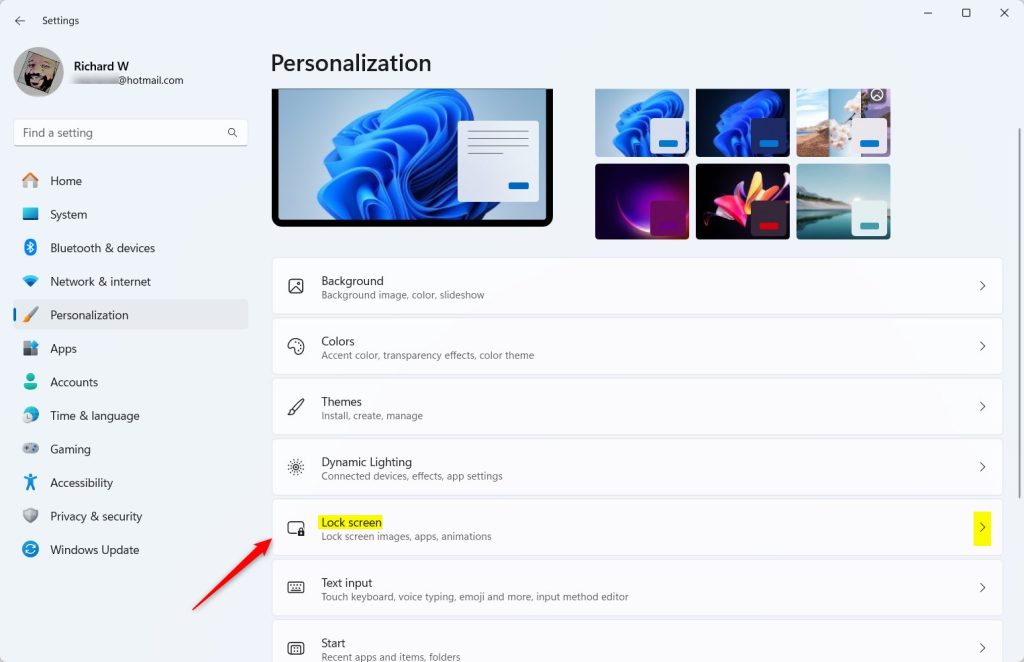
Lock screen settings in Windows 11
Turn the lock screen background on or off here
Option 2Use Windows Terminal and Registry Editor (For Advanced Users)
Advanced users can set this through Windows Terminal and the Registry Editor (a tool for changing low-level system settings). This approach works best if you need to manage several user profiles at once or set system-wide preferences from the command line. Be careful in the Registry Editor. A wrong edit can cause problems, so change only the value described here.
- Open Windows Terminal by right-clicking the Start button and selecting it. Then choose Command Prompt or PowerShell. A console window opens.
- Type this command and press Enter to see the list of user accounts and their SID (Security Identifier):
Get-CimInstance Win32_UserAccount | Select-Object Domain,Name,SID - Find your user name in the list and copy the SID next to it. It looks like a long string starting with "S-1-5-21-...".
- Press
Win + Rto open the Run dialog, typeregedit, and press Enter. If Windows asks whether to allow the app to make changes, click Yes. The Registry Editor opens. - In Registry Editor, go to this path, replacing <SID> with your actual SID:
HKEY_LOCAL_MACHINE\SOFTWARE\Microsoft\Windows\CurrentVersion\System\ProtectedUserData\<SID>\AnyoneRead\LockScreen. The values for that key are listed in the right pane. - In the right pane, double-click HideLogonBackgroundImage. An edit dialog opens with the current value.
- Change the value to:
0to show the lock screen background (default)1to hide the background
- Click OK. The new value now shows in the list.
- Close the Registry Editor and Windows Terminal.
- Press Win + L to lock the PC and check the sign-in screen. If it still looks the same, sign out or restart and check again.
If you do not see HideLogonBackgroundImage in the right pane, the value has not been created on that PC yet. You can create a DWORD (32-bit) value with exactly that name. To undo the change, set the value back to the default shown in the list above.
Option 3Turn On or Off the Lock Screen Background for All Users (Administrator Only)
⚠️ Admin privileges required
Registry-level tweaks are useful on shared machines because you can apply them across user accounts. You need administrator credentials to make these changes. If you are signed in with a standard account, Windows will ask for an administrator password.
To Enable the Lock Screen Background for Everyone (Default)
reg delete "HKEY_LOCAL_MACHINE\SOFTWARE\Policies\Microsoft\Windows\System" /v DisableLogonBackgroundImage /fTo Disable the Lock Screen Background for Everyone
reg add "HKEY_LOCAL_MACHINE\SOFTWARE\Policies\Microsoft\Windows\System" /v DisableLogonBackgroundImage /t REG_DWORD /d 1 /fSummary
- You decide: You can turn the lock screen background picture on or off based on what you like.
- Multiple ways: Use Settings for the easiest control, or Windows Terminal and Registry Editor for more options.
- Admin control: If you manage a computer with many users, you can set this for everyone.
- Default setting: Windows shows the lock screen background by default, but you can change it anytime.
- Look and feel: Showing the background picture makes signing in look nicer and more personal.
Controlling the lock screen background on your sign-in screen is a quick way to customize your computer. Use the Settings app for your personal account. Use the administrative tools if you need to apply the change for every user on the system. Windows shows the background by default, but you control how your sign-in screen looks, and you can reverse either method at any time.
Have a question about this guide?
Answered by AI from this guide. Good questions may be added to this page — please don't include personal details.
Did this guide fix your problem?

About the Author
Richard
Tech Writer, IT Professional
Richard is a writer at Geek Rewind who turns complex IT tasks into clear, step-by-step guides. He draws on years of hands-on experience in system administration and enterprise IT operations, focusing on Windows, Linux and WordPress: the problems people actually run into, and the fixes that work. His server and WordPress guides come from systems he runs himself. Richard builds and maintains the platform behind Geek Rewind, from its Ubuntu servers and Nginx configuration to its custom WordPress plugins. Many new tutorials start with readers' questions, and he's always glad to answer them in the comments.
No comments yet — be the first to share your thoughts!