How to Turn On or off the Lock Screen in Windows 11

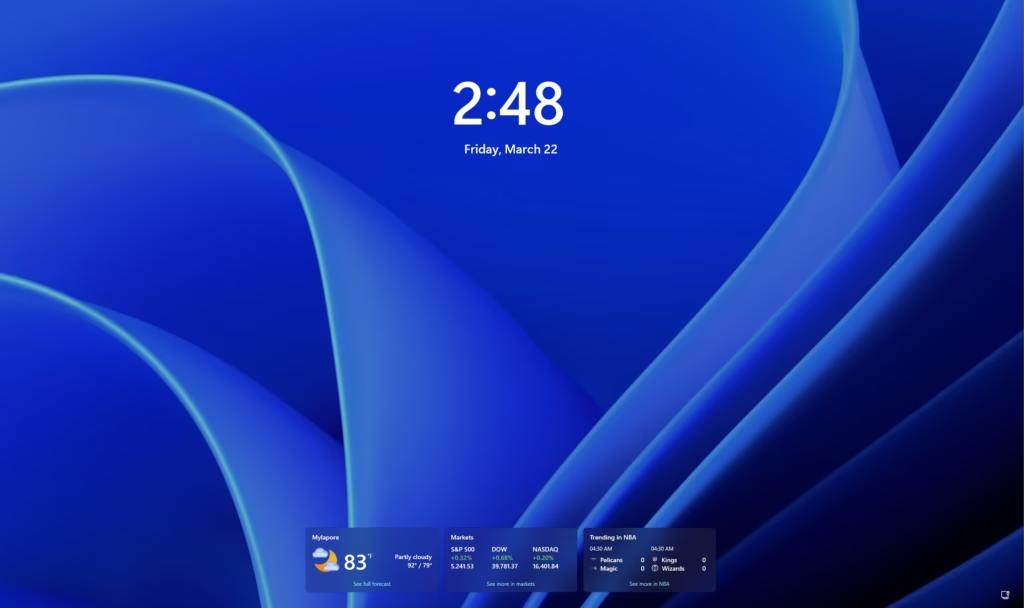
The lock screen in Windows 11 shows a background image, the time, and quick status icons every time you turn on your PC or press the Win+L shortcut keys. Turning it off skips that extra screen and takes you straight to the sign-in box, so you can enter your PIN or password sooner.
Before you start, keep these points in mind:
- You need administrator rights to make this change.
- The change applies to every user account on the PC, not just yours.
- If you use multiple monitors, the lock screen only appears on your main display.
- If your PC requires you to press Ctrl+Alt+Del before signing in (secure sign-in), turn that requirement off first. While it is on, the lock screen cannot be disabled.
This tutorial covers two methods: the Local Group Policy Editor and the Registry Editor. Use the first if your edition has it, since it is the safer of the two.
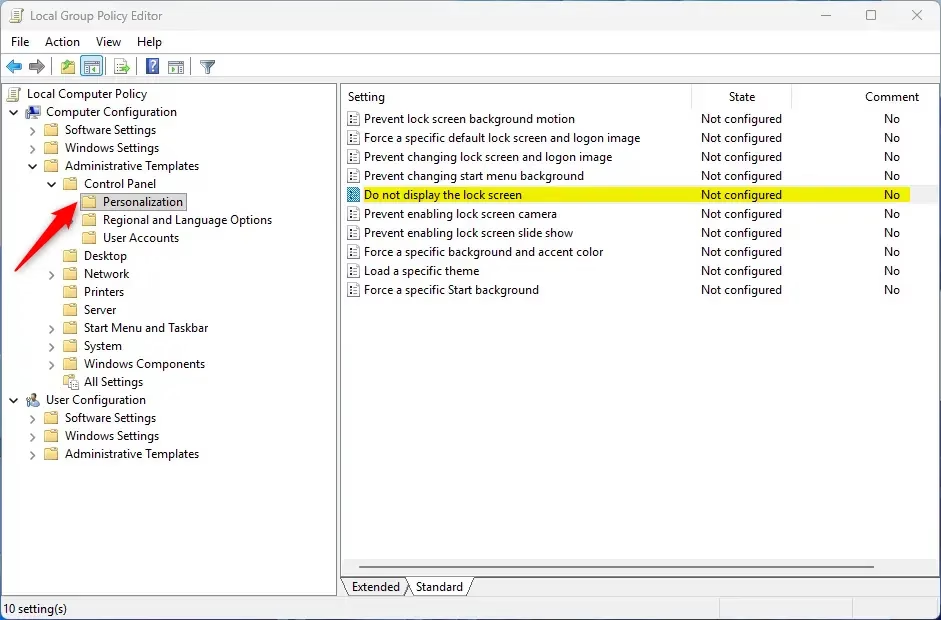
Open Local Group Policy Editor by pressing Win+R, typing gpedit.msc, and pressing Enter, then navigate to Computer Configuration Administrative Templates Control Panel Personalization, double-click Do not display the lock screen, select Enabled to turn it off, and click OK.
What Does the Lock Screen Look Like?
Option 1Turn On or Off Lock Screen Using Local Group Policy Editor
It is not included in Windows 11 Home. If you run Home, gpedit.msc will not open, so use the registry method instead.
- Open Local Group Policy Editor: Press Win + R, type
gpedit.msc, and press Enter. If a User Account Control prompt appears, click Yes. The Local Group Policy Editor window opens. - In the left pane, expand the folders and go to:
Computer Configuration > Administrative Templates > Control Panel > Personalization
The right pane now lists the personalization policies. - On the right side, find and double-click Do not display the lock screen. A settings window for that policy opens.
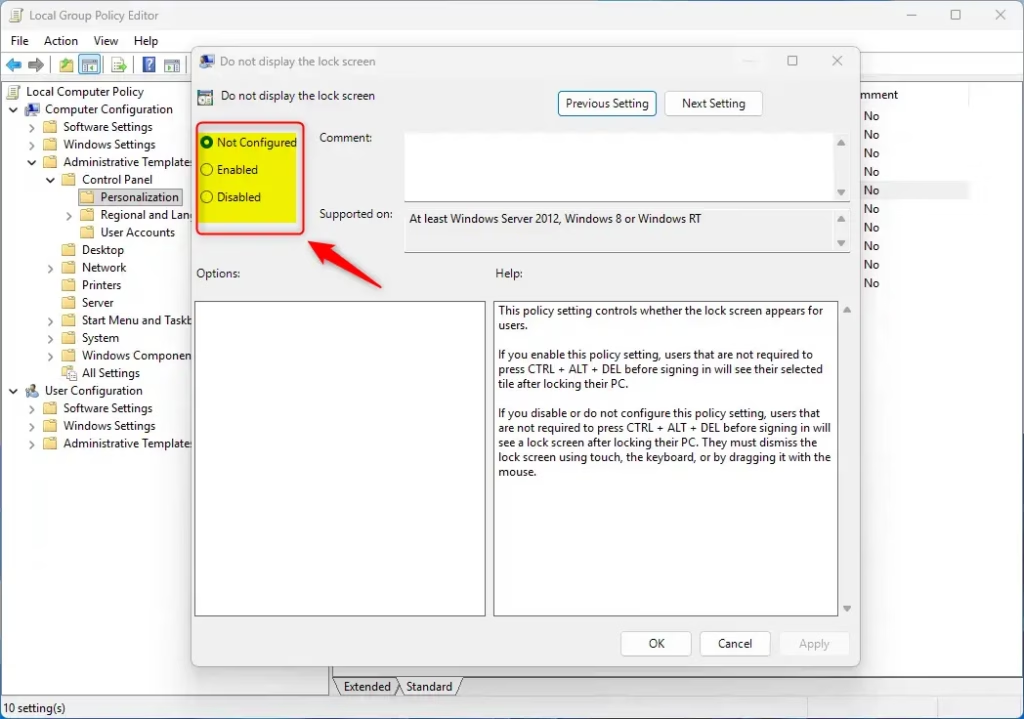
- To turn OFF the lock screen, select Enabled.
- Click OK to save the change.
- Close the Local Group Policy Editor.
- Press Win+L to test. You should land on the sign-in box without the lock screen. If the lock screen still appears, restart the PC and test again.
To turn ON the lock screen again (the default), repeat steps 1 to 3, select Not Configured, and click OK. Leaving the policy at Not Configured is the normal state, so you do not need to choose Disabled.
Option 2Turn On or Off Lock Screen Using Registry Editor
A wrong entry can cause problems with Windows. Back up the registry or create a restore point before you make changes, so you can roll back if something goes wrong.
This method works on all editions, including Home. Launch the Terminal app with administrator privileges to execute the registry modification commands. To do that, right-click it and choose Run as administrator, then click Yes if User Account Control asks for permission. If you skip the administrator step, the commands will fail with an access denied message.
How to Turn On the Lock Screen (default)
reg add "HKEY_LOCAL_MACHINE\SOFTWARE\Microsoft\Windows\CurrentVersion\Authentication\LogonUI\SessionData" /v AllowLockScreen /t REG_DWORD /d 1 /f

reg delete "HKEY_LOCAL_MACHINE\SOFTWARE\Policies\Microsoft\Windows\Personalization" /v NoLockScreen /f
How to Turn Off the Lock Screen
reg add "HKEY_LOCAL_MACHINE\SOFTWARE\Policies\Microsoft\Windows\Personalization" /v NoLockScreen /t REG_DWORD /d 1 /fSummary
- You can turn the lock screen on or off for all users using either the Local Group Policy Editor or the Registry Editor.
- The Local Group Policy Editor is only available on Windows 11 Pro, Enterprise, and Education editions. Home users need the registry method.
- You need administrator rights to change these settings.
- If secure sign-in (Ctrl+Alt+Delete) is enabled, you cannot disable the lock screen.
- Changes affect all users on the computer.
- If a change does not show up right away, restart the PC and check again.
Windows 11 lock screen settings can be turned on or off for all users using either the Local Group Policy Editor or the Registry Editor. You need administrator rights to make these changes, and secure sign-in must be turned off. To undo the change, set the policy back to Not Configured, or reverse the registry change you made.
Have a question about this guide?
Answered by AI from this guide. Good questions may be added to this page — please don't include personal details.
Did this guide fix your problem?

About the Author
Richard
Tech Writer, IT Professional
Richard is a writer at Geek Rewind who turns complex IT tasks into clear, step-by-step guides. He draws on years of hands-on experience in system administration and enterprise IT operations, focusing on Windows, Linux and WordPress: the problems people actually run into, and the fixes that work. His server and WordPress guides come from systems he runs himself. Richard builds and maintains the platform behind Geek Rewind, from its Ubuntu servers and Nginx configuration to its custom WordPress plugins. Many new tutorials start with readers' questions, and he's always glad to answer them in the comments.
No comments yet — be the first to share your thoughts!