How to Save a Passkey with Windows Hello in Windows 11

- 24 steps
- Needs administrator rights
A Windows Hello passkey is a sign-in credential that lives on your PC and is approved with your face, fingerprint, or PIN instead of a password. To save one in Windows 11, set up Windows Hello and open a site’s security settings. Choose the passkey option, pick Windows Hello when Windows asks where to save it, and approve with your face, fingerprint, or PIN.
The whole process takes about two minutes and needs no administrator rights. It works on Windows 11 Home, Pro, Enterprise and Education.
This guide starts with the setup and the full list of steps. After that come fixes for a missing Windows Hello option, how to confirm the passkey saved, and how to delete it later.
To save a Windows Hello passkey in Windows 11, open a website’s security settings in Microsoft Edge or Google Chrome, select the option to create a passkey, and choose Windows Hello when asked where to save it. Approve with your face, fingerprint, or PIN. Windows keeps the passkey on this PC only, and the process takes about two minutes with no administrator rights.
What a Windows Hello Passkey Is
A passkey is a pair of linked keys (a matching public and private key) that replaces your password for one website or app. The site keeps the public key. Your PC keeps the private key and never sends it anywhere. When you sign in, the site asks your PC to prove it holds the private key, and Windows Hello asks you to approve it.
This is why passkeys resist phishing, the trick of sending you to a fake site to steal your login. A fake site cannot trick you into typing a passkey, because there is nothing to type. Windows also checks that the site address matches the one the passkey was made for.
When you save a passkey with Windows Hello, Windows stores it on that PC and protects it with your Windows Hello sign-in. It does not copy itself to your phone or other computers. If you want passkeys that follow you across devices, use a passkey manager instead. The post on how to enable passkey managers on Windows 11 covers that route.
Before You Start
Check these four things first. Most failed attempts trace back to one of them.
- Windows Hello must be set up. A PIN is enough. A fingerprint reader or an infrared camera (a camera that can see your face in low light) is optional, and Windows accepts the PIN for passkey approval.
- Your browser must be current. Microsoft Edge and Google Chrome both support passkeys on Windows 11. Update the browser if the passkey option never appears.
- The website must support passkeys. Not every site offers them yet. You will see a “passkey” option in the account’s security or sign-in settings if it does.
- You need your usual sign-in method nearby. Most sites make you sign in with your password before they let you add a passkey.
For a fuller walkthrough of the Windows Hello side, see set up a Windows Hello PIN in Windows 11.
How to Save a Passkey with Windows Hello
The numbered steps below save a Windows Hello passkey for a website. They start with checking Windows Hello and end with confirming the passkey saved. If Windows Hello is already set up, the steps tell you where to skip ahead.
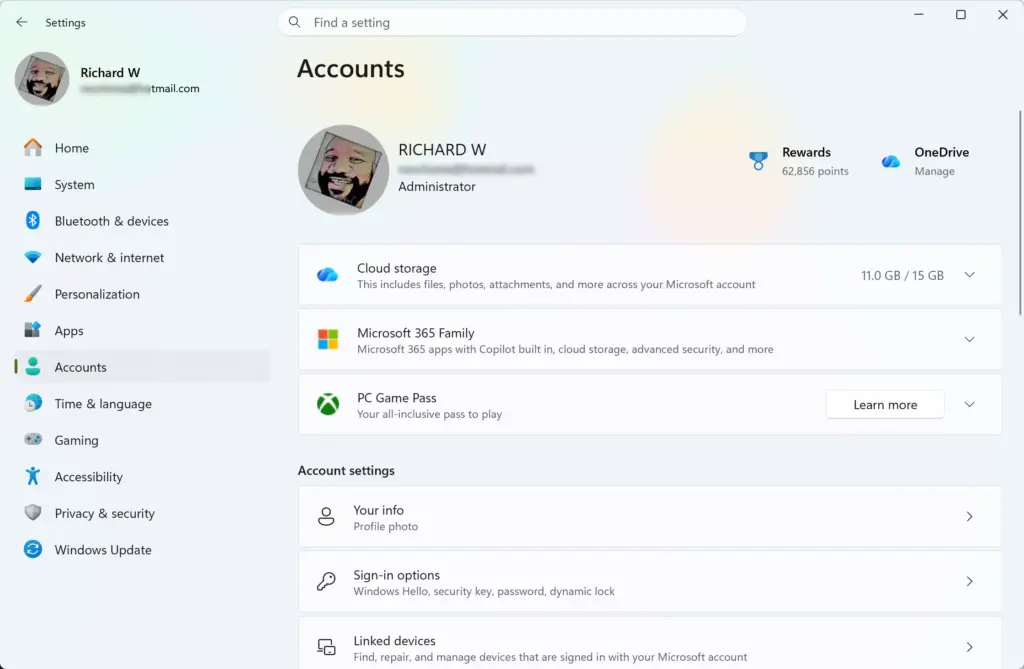
- Open Settings . Press Win+I. The Settings window opens.

Start Menu - Select Accounts. It is in the left menu.
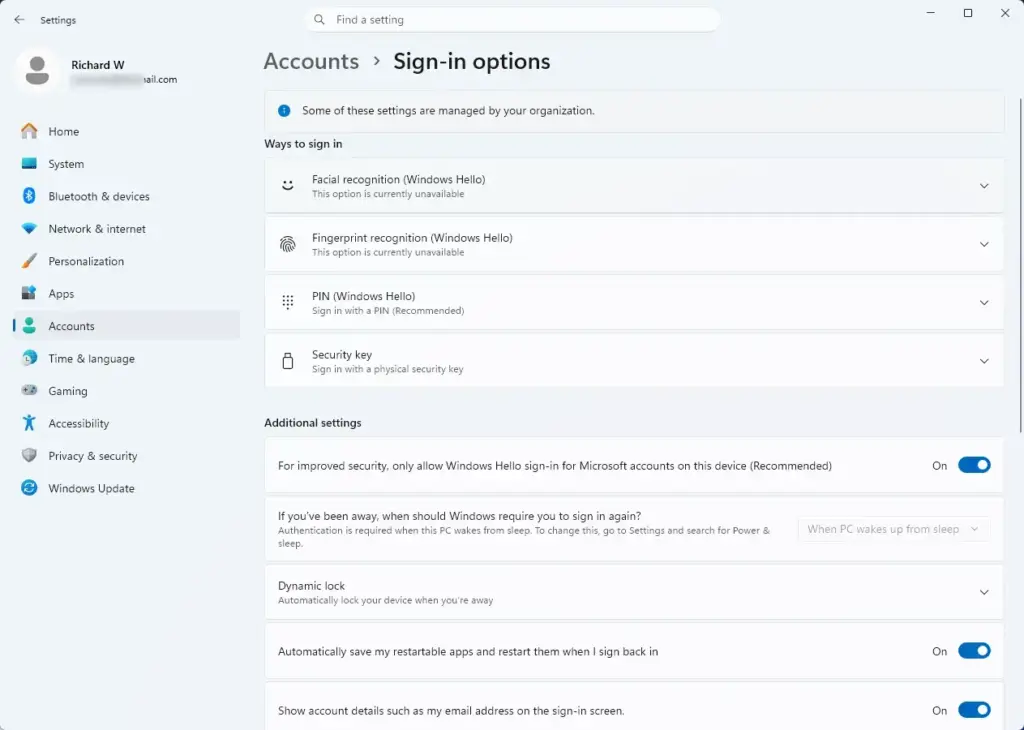
Settings › Accounts - Select Sign-in options. The page lists every way you can sign in to this PC, such as Facial recognition (Windows Hello), Fingerprint recognition (Windows Hello), and PIN (Windows Hello). Options your hardware cannot support may be missing or greyed out.
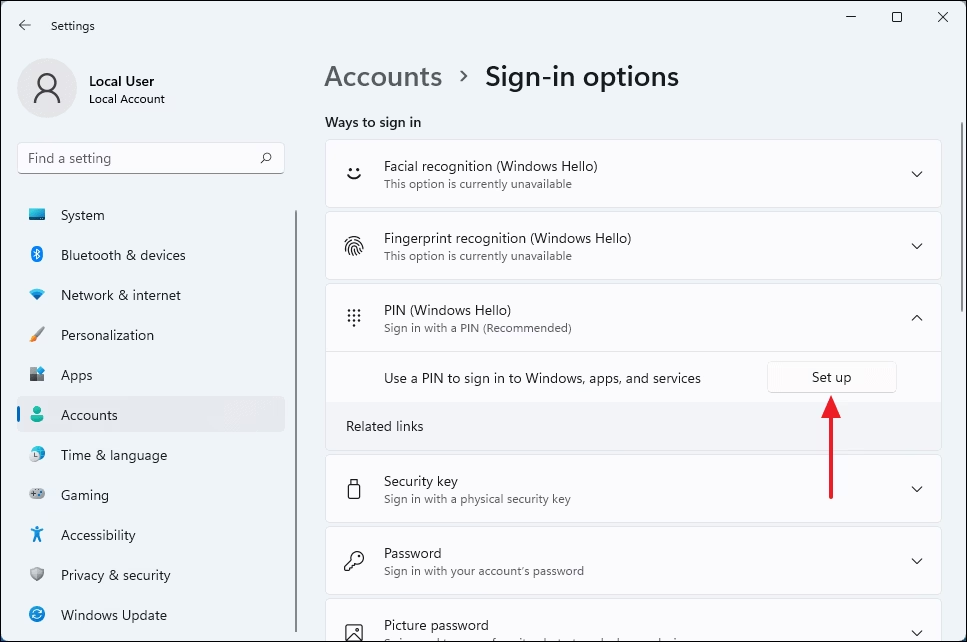
Settings › Accounts › Sign-in options - Expand PIN (Windows Hello). Click the row to open it. If you see a Change PIN button, Windows Hello is already set up, so skip to step 8.
- Select Set up. Windows asks you to verify who you are before it creates a PIN.
Settings > Accounts - Enter your account password. For a Microsoft account, use that account’s password. Windows then shows the PIN setup screen.
- Type a new PIN twice, then select OK. Windows Hello is now active. The PIN stays on this PC and is not sent to Microsoft.
- Open Microsoft Edge or Google Chrome. Use a current version of either browser.
- Sign in to the website. Use your normal password or sign-in method. The site needs to know the account belongs to you before it adds a passkey.
- Open the account’s security settings. Look under names such as Security, Sign-in, or Passkeys. The wording differs from site to site.
- Select the option to create a passkey. The button may read Create a passkey, Add a passkey, or Set up passkey. A Windows prompt about saving a passkey appears.
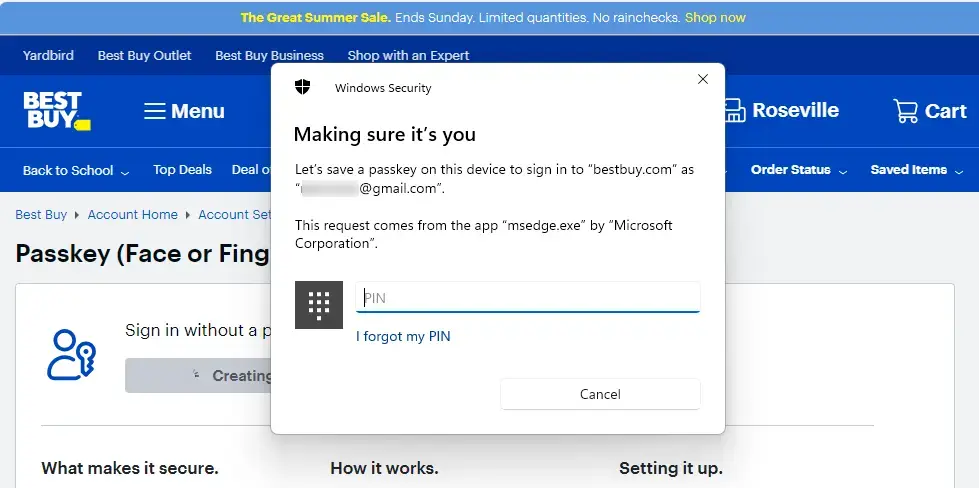
- Choose Windows Hello as the place to save. The label depends on your Windows build. Look for wording such as Windows Hello or external security key, or a choice for this Windows device. Do not pick the phone or tablet option.
- Approve with your face, fingerprint, or PIN. A Windows Security window asks you to confirm. Windows saves the passkey once you approve.
- Look for the confirmation on the website. The site usually shows a message that the passkey was added, and may list it in your account. Some sites ask you to name it. Use a name like “Work laptop” so you can tell passkeys apart later.
- Open Settings Accounts Passkeys Find the website in the list to confirm Windows stored it. If the Passkeys page is missing, see the section on version differences below.
The site-specific steps (9 to 11) vary because each website designs its own account page. The Windows steps do not vary. For a closer look at the website side, read how to create a passkey for a website in Windows 11.
If the Windows Hello Option Does Not Appear
The save prompt only offers Windows Hello when Windows, the browser, and the site all agree it can work. When it is missing, one of the checks below usually explains why.
Windows Hello Is Not Set Up
If the prompt offers only a phone, tablet, or security key, Windows Hello is probably not active yet. Go back to Settings Accounts Sign-in options and check that PIN (Windows Hello) shows Change PIN rather than Set up. Finish the PIN setup, close the browser completely, reopen it, and try again.
If the Windows Hello options on that page are greyed out, your organization may control them. A work or school PC can have policies that block or force certain sign-in methods. Ask your IT department in that case, because you cannot override the setting from your account.
The Browser Offers Its Own Password Manager First
Edge and Chrome can offer to save a passkey in their own password manager, which syncs across your devices. That is a different storage location from Windows Hello.
If you want the passkey stored on this PC under Windows Hello, look for the Windows Hello or this-device choice in the prompt. If you only see the browser’s own option, the prompt may have a link such as Use another device or More options. Select it to see the other places you can save.
The Site Does Not Offer Passkeys
If you cannot find a passkey option anywhere in the account’s settings, the site probably does not support them yet. Windows cannot add the option for it. Keep using the password, and check back after the site updates.
The Prompt Appears but Fails
If Windows asks for your face or fingerprint and rejects it repeatedly, choose the PIN option in the same window and enter your PIN instead. If face or fingerprint sign-in (biometric sign-in) no longer works at all, the Windows Hello biometrics guide shows how to turn it off and back on.
The Passkeys Page Is Missing in Settings
The Settings Accounts Passkeys page appeared in Windows 11 with updates released in late 2023, as part of version 23H2. If your Accounts page has no Passkeys entry, open Settings Windows Update, select Check for updates, install everything offered, and restart. The page should appear once the PC is current. I cannot confirm which update added it on every build, so install the latest updates to be sure.
Sign In with Your Saved Passkey
Testing the passkey once while you still have your password handy proves it works. Sign out of the website, then go back to its sign-in page.
- Open the website’s sign-in page. Use the same browser you used to save the passkey.
- Select the passkey option. It may read Sign in with a passkey. On some sites, clicking in the username field makes the browser offer the saved passkey automatically.
- Choose your saved passkey. If you have several for that site, pick the right account.
- Approve with Windows Hello. Use your face, fingerprint, or PIN. The site signs you in with no password typed.
If the browser does not suggest the passkey as you click the username field, check that passkey autofill (the browser suggesting your saved passkey at sign-in) is on. The post on how to enable or disable passkey autofill in Windows 11 covers it.
Remove a Saved Passkey
Deleting a passkey cannot be undone. Windows cannot restore it, so you would have to create a new one on the website. Make sure you can still sign in with a password or another method before you delete anything.
- Open Settings . Press Win+I.
Start Menu - Select Accounts. It is in the left menu.
Settings › Accounts - Select Passkeys. The page lists the passkeys saved on this PC. A search box at the top helps when the list is long.
- Select the website’s entry. The row expands to show the account name tied to it.
- Select Delete. Windows may ask you to confirm with Windows Hello. After you do, the entry disappears from the list.
Also remove the passkey from the website's own security settings. The site still lists it, even though the private key is gone from your PC. Leaving a dead passkey on the account can cause confusion at sign-in, because the site may keep offering it.
What Can Remove or Break a Windows Hello Passkey
Because a Windows Hello passkey stays on one PC, some events on that PC affect it.
- Resetting or reinstalling Windows. A clean reinstall wipes the passkeys stored on the PC. Add new ones afterward.
- Replacing the PC. The passkey does not move to the new machine. Create a new passkey on each PC you use.
- Removing Windows Hello. If you remove your PIN or other Windows Hello sign-in methods, passkey approval has less to rely on. Windows may ask you to set Windows Hello up again before it lets you use a passkey.
- A new user profile. Passkeys belong to the Windows account that saved them. Another account on the same PC does not see them.
That protects you if one device fails.
Passkeys and Passwordless Sign-In to Windows
Saving a passkey for a website does not change how you sign in to Windows itself. Those are separate features. If you also want to drop the password for your Windows sign-in, the guide to turning on passwordless sign-in with Windows Hello explains how. If you have not set up Windows Hello yet, the first steps in this guide show how.
What to Do Next
Next, check the passkey under Settings Accounts Passkeys, and confirm the website accepts it at sign-in. To let desktop apps use passkeys as well, read how to enable passkey access for apps on Windows 11. If you plan to move to a manager that syncs passkeys between devices, set that up before you add many more passkeys here.
Have a question about this guide?
Answered by AI from this guide. Good questions may be added to this page — please don't include personal details.
Did this guide fix your problem?

About the Author
Richard
Tech Writer, IT Professional
Richard is a writer at Geek Rewind who turns complex IT tasks into clear, step-by-step guides. He draws on years of hands-on experience in system administration and enterprise IT operations, focusing on Windows, Linux and WordPress: the problems people actually run into, and the fixes that work. His server and WordPress guides come from systems he runs himself. Richard builds and maintains the platform behind Geek Rewind, from its Ubuntu servers and Nginx configuration to its custom WordPress plugins. Many new tutorials start with readers' questions, and he's always glad to answer them in the comments.
No comments yet — be the first to share your thoughts!