How to Add or Remove Passwod as Sign-in Options in Windows 11

- 6 steps
- Needs administrator rights
- Includes a restart or sign-out
Password sign-in in Windows 11 lets you get into your computer with a traditional text password instead of a biometric tool or PIN. You can remove the password option or turn it back on. This tutorial uses the Registry Editor for that, and you can also review your other sign-in methods in the Settings app under Accounts Sign-in options.
Open Registry Editor, navigate to Computer\🗝️HKEY_LOCAL_MACHINE\
Removing the password makes Windows rely on Windows Hello methods such as a PIN, face recognition, or a fingerprint reader. Choosing your sign-in methods deliberately helps protect your personal files, and it usually makes daily sign-in faster.
A security key is a small USB device that plugs into your computer. It lets you sign in to supported websites without typing a username and password. Microsoft positions it as an alternative for the many millions of people who use Windows 11.
A password is still an option, but it is less secure than the other methods. A password can be guessed, reused on other sites, or typed in front of someone. A PIN, by contrast, is tied to the one device it was set up on. Your password details are managed through your account settings.
Why change password sign-in options?
The registry change in this guide goes a step further. It removes the password option for local accounts, so a password can no longer be used for regular sign-ins or for User Account Control (UAC) prompts.
Once the password option is turned off, two things happen:
- Passwords won’t be an option when logging in.
- Password prompts won’t appear when Windows asks for permission to make changes. These prompts are called UAC prompts.
Removing the password option has two benefits. First, it improves security, because only stronger methods, like Windows Hello facial recognition, will work. Second, it speeds up sign-in, since you use a quick PIN, a glance at the camera, or a fingerprint touch.
Some people should keep the password option. Not every PC has a camera or fingerprint reader, and not everyone can use or remember a PIN. Keeping the password guarantees you always have a way back in. If you share a PC or support other users, think about whether they have a working alternative before you remove it.
How to add or remove passwords as a sign-in option
Before you start, set up a PIN or fingerprint in Settings Accounts Sign-in options and confirm it works. Otherwise you could lock yourself out. The change hides the password choice from the sign-in screen, and you can reverse it later. You need to be signed in with an administrator account. The steps are the same on Windows 11 Home and Pro.
Back up the registry first. In Registry Editor, click File Export, choose All as the export range, and save the file somewhere safe. If something goes wrong, you can double-click that file to restore it.
Here’s how to enable or disable passwords for a Windows 11 local account:
- Open the Registry Editor. Press the Win+R together. Type
regeditand press Enter. If a User Account Control prompt asks for permission, click Yes. The Registry Editor window opens, with a tree of folders (keys) on the left. If you need more help, search for a separate guide on opening the Registry Editor in Windows 11. - Go to this key. Paste the following path into the address bar at the top of the Registry Editor, or expand the folders on the left one at a time:
Computer\HKEY_LOCAL_MACHINE\SOFTWARE\Microsoft\Windows\CurrentVersion\Authentication\Credential Providers\{60b78e88-ead8-445c-9cfd-0b87f74ea6cd}. When you select the last folder, its values appear in the right pane. - Look for the value named Disabled. In the right pane, find an item named Disabled. It should be a DWORD value. If it is not there, go to the last step in this list.
- Turn off passwords. Double-click Disabled. Set Value data to 1 and click OK. This stops passwords from being used to sign in. The Data column in the right pane should now show 0x00000001 (1).
- Turn on passwords again. To allow passwords again, delete the Disabled item, or double-click it and set Value data to 0. Either one undoes the change.
- If you don’t see Disabled, create it. Right-click a blank space in the right pane. Select New DWORD (32-bit) Value. Name it Disabled and press Enter. Then double-click it and set the value as described above. If the option to create a value is greyed out or you get an access error, you are probably not running as an administrator. Close Registry Editor and reopen it with an admin account.
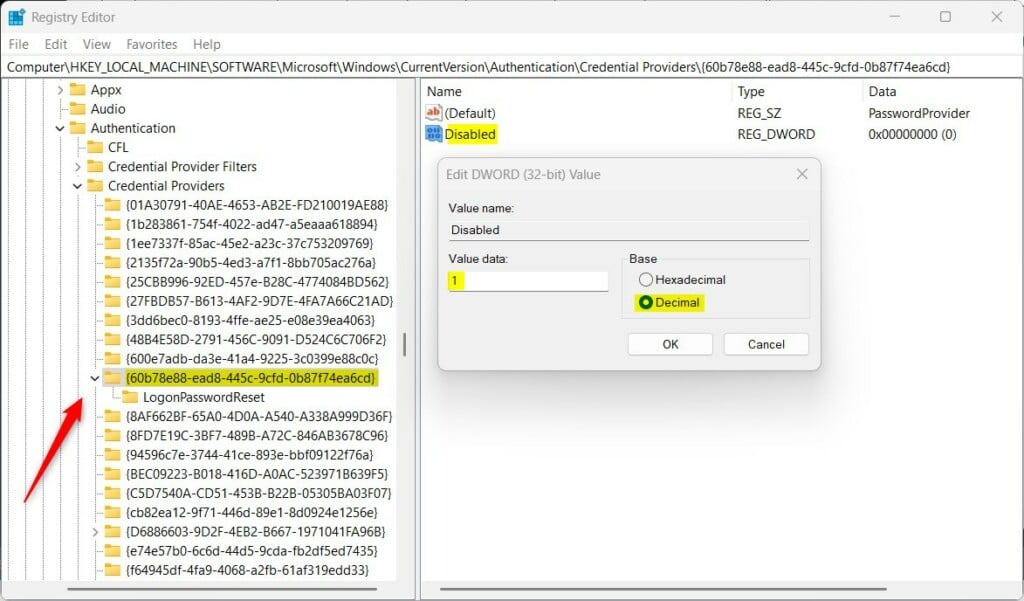
Restart the computer after making the change so it takes effect. Signing out and back in sometimes works, but a restart is the surest way. At the sign-in screen, the password option should now be gone, and your PIN, face, or fingerprint should be the only choices.
If you can’t get in, or the password is still showing, sign in with your PIN or fingerprint and recheck the value in the Registry Editor. Make sure it is named exactly Disabled and sits in the key shown above.
More help
Microsoft has an official page on Windows sign-in options and account protection. It is the best place to check current guidance, since sign-in features and wording in Settings can change between Windows 11 updates.
Summary
Windows 11 sign-in options give you faster, safer ways to unlock your PC using Windows Hello features like PINs and fingerprints. For local accounts, you can also hide passwords entirely through the registry once you have another login method ready. This keeps your computer secure while speeding up how you get to your desktop every day.- Windows Hello offers safer and easier ways to sign in. You can use PINs, face recognition, and fingerprints.
- Password sign-in is less secure. But it’s still available if you need it.
- You can turn off password sign-in for local accounts. Just change a setting in the Registry Editor.
- Always set up another sign-in method before disabling passwords. This helps you avoid getting locked out.
Have a question about this guide?
Answered by AI from this guide. Good questions may be added to this page — please don't include personal details.
Did this guide fix your problem?

About the Author
Richard
Tech Writer, IT Professional
Richard is a writer at Geek Rewind who turns complex IT tasks into clear, step-by-step guides. He draws on years of hands-on experience in system administration and enterprise IT operations, focusing on Windows, Linux and WordPress: the problems people actually run into, and the fixes that work. His server and WordPress guides come from systems he runs himself. Richard builds and maintains the platform behind Geek Rewind, from its Ubuntu servers and Nginx configuration to its custom WordPress plugins. Many new tutorials start with readers' questions, and he's always glad to answer them in the comments.
No comments yet — be the first to share your thoughts!