How to Set Up Windows 11 Fingerprint Sign-in

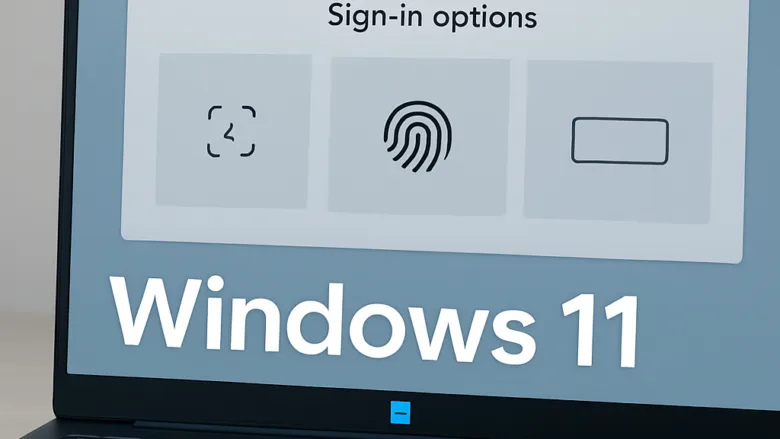
Fingerprint sign-in in Windows 11 lets you unlock your PC with a touch of your finger instead of typing a password. It relies on Windows Hello, the built-in feature that handles biometric sign-ins such as fingerprint and face recognition. It works the same on Windows 11 Home and Pro, so you don’t need a particular edition.
Before you start, you need two things: a fingerprint reader and a working PIN on your account. Windows Hello requires the PIN as a backup. If the reader fails or a scan isn’t recognized, you sign in with the PIN instead.
Check both requirements first. It takes a couple of minutes and saves you from hunting for a missing option later.
- Look for a fingerprint reader on your PC. Many laptops have one built into the power button, the keyboard, or the palm rest. A desktop usually needs a USB reader.
- If you use an external reader, plug it in and let Windows install its driver. Choose a reader that supports Windows Hello. Cheap readers without Windows Hello support won’t show up as a sign-in option.
- Right-click the Start button and select Device Manager. Look for a Biometric devices category. If your reader is listed there, Windows recognizes it. If the category is missing, install the driver from your PC or reader manufacturer, then check again.
- Make sure your account already has a PIN. If it doesn’t, you can create one in the same sign-in settings where you add your fingerprint, and you’ll be asked to set it up before the fingerprint step.
If the fingerprint option later appears greyed out or says it’s unavailable, the cause is almost always a missing reader or a missing driver. Fix that first. A restart is not normally needed to set up a fingerprint, but it’s worth trying if a freshly installed driver doesn’t show up.
You can remove a saved fingerprint at any time from the same sign-in settings. Your password and PIN keep working either way.
Here’s How:
Setting up windows 11 fingerprint sign-in lets you log into your computer quickly using just your finger instead of typing a password every time. You start by opening the Settings app and going to your account options. From there, Windows walks you through scanning your finger on your laptop or keyboard reader so the system can recognize it.- Open Settings. You can do this by pressing the Win+I on your keyboard.
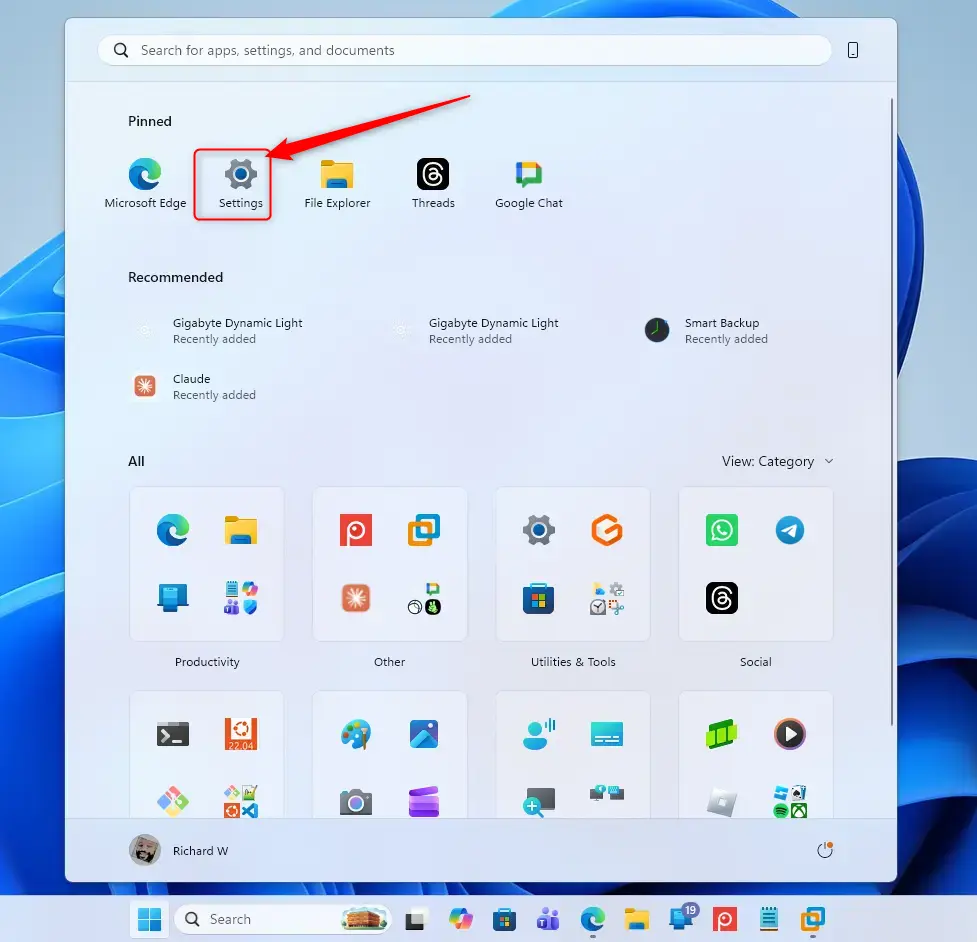
Windows 11 Start menu with Settings gear icon highlighted. - On the left side, click Accounts. Then, on the right side, click Sign-in options.

Windows 11 account sign-in options tile for wake settings. - Under the section titled Ways to sign in, click on Fingerprint recognition (Windows Hello) to see more options.
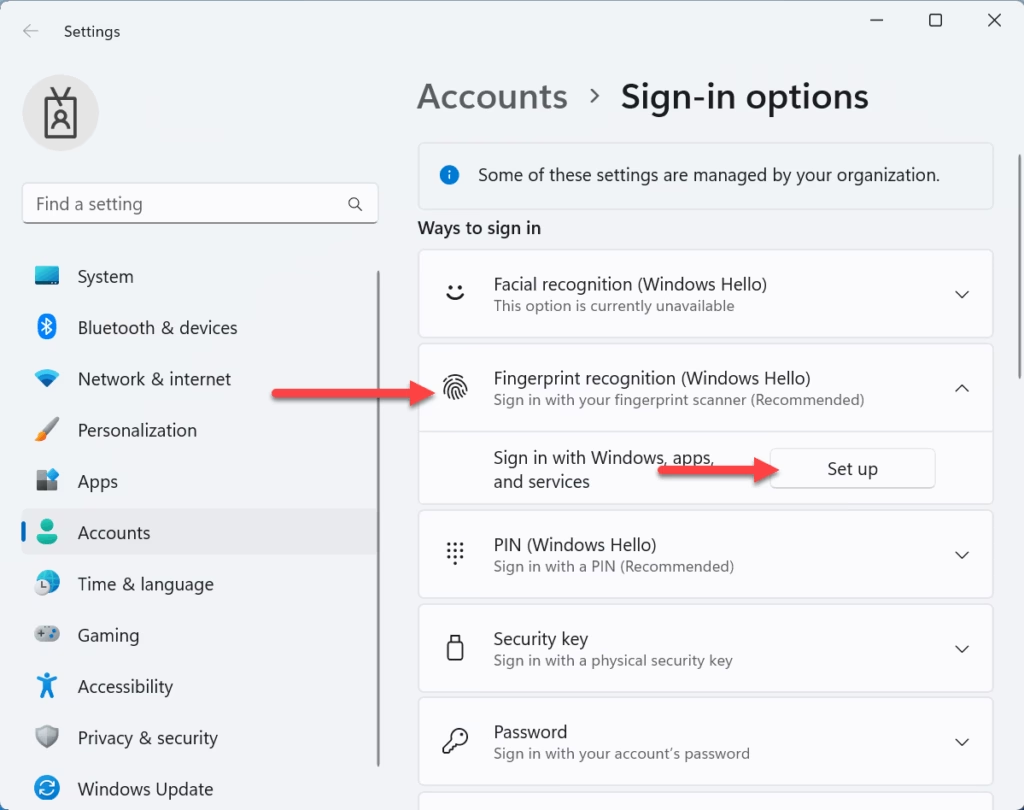
Windows 11 fingerprint recognition setup button for Windows Hello. - Click the Set up button next to Sign in with Windows, apps, and services.
- Click Get started.
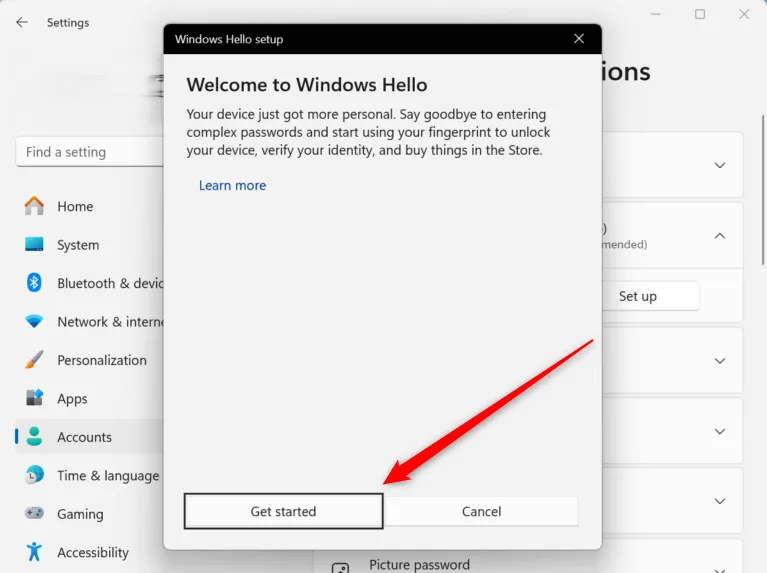
- Enter your account’s PIN to confirm it’s you.
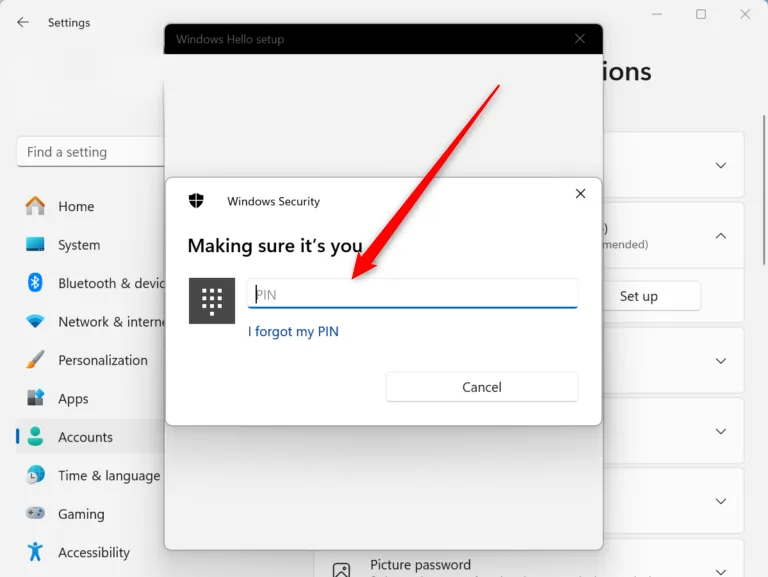
- Place the finger you want to use on the fingerprint sensor. Follow the on-screen instructions until it’s finished.
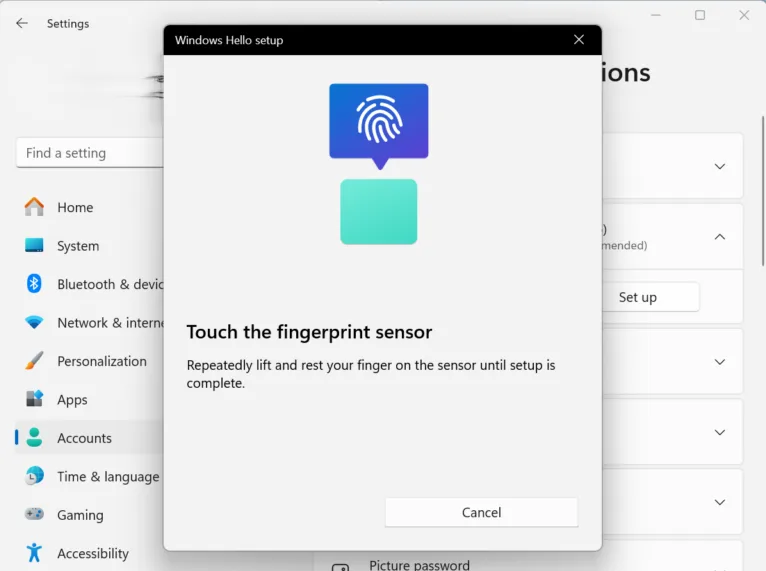
- When you are ready, click Next.
- Place the finger you want to use on the fingerprint sensor again. Follow the on-screen instructions until it’s finished.
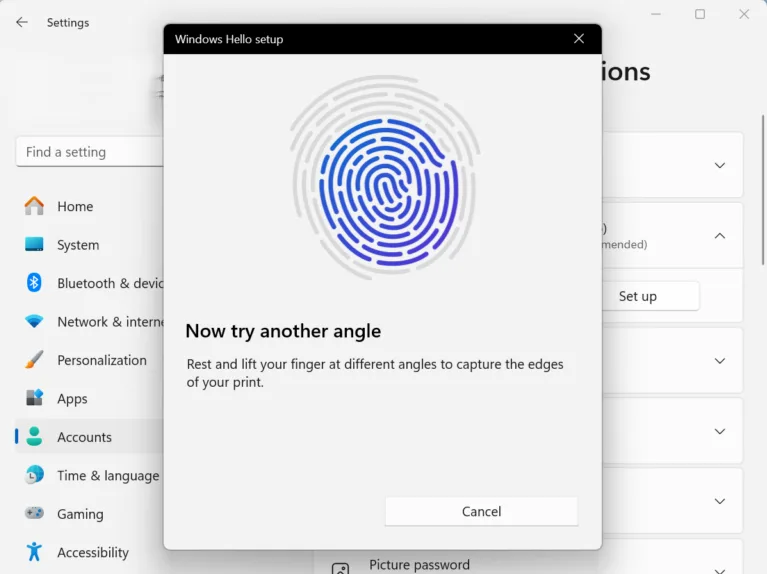
- When you see the message “All set”, click Close.
- You can now close the Settings window if you wish.
Summary
Windows 11 fingerprint sign-in is a secure and fast way to access your device using biometric security. You set it up through your account settings by locating the Windows Hello security menu, entering your backup PIN, and pressing your finger against the reader multiple times until the scan is finished and saved.
Was this guide helpful?

About the Author
Richard
Tech Writer, IT Professional
Richard is a writer at Geek Rewind who turns complex IT tasks into clear, step-by-step guides. He draws on years of hands-on experience in system administration and enterprise IT operations, focusing on Windows, Linux and WordPress: the problems people actually run into, and the fixes that work. His server and WordPress guides come from systems he runs himself. Richard builds and maintains the platform behind Geek Rewind, from its Ubuntu servers and Nginx configuration to its custom WordPress plugins. Many new tutorials start with readers' questions, and he's always glad to answer them in the comments.



No comments yet — be the first to share your thoughts!