How to Enable Windows Hello Sign-In for Microsoft Accounts in Windows 11

Windows Hello sign-in for Microsoft accounts in Windows 11 lets you unlock your PC with a PIN, a facial scan, or a fingerprint instead of typing a long password. On supported hardware it checks your identity in under two seconds, which saves time every time you start or wake your computer.
You set it up from the Settings app on any compatible device. It works the same on Windows 11 Home and Pro. What you can use depends on your hardware, not your edition.
Open Settings , click Accounts, select Sign-in options, scroll to Additional settings, and toggle on “For improved security, only allow Windows Hello sign-in for Microsoft accounts on this device.” Set up a PIN, face, or fingerprint first—the toggle appears only after Windows Hello is configured.
How to Enable Windows Hello Sign-In for Microsoft Accounts
Setup takes a few minutes in the main system settings. You open your account settings, go to the sign-in preferences, and pick the methods that match your hardware.
- PIN: works on every Windows 11 PC. The PIN is tied to this one device, so it is not a second copy of your Microsoft password.
- Face recognition: needs a compatible infrared camera, which is common on laptops and tablets with Hello support. A normal webcam usually won’t work.
- Fingerprint recognition: needs a fingerprint reader, built in or USB.
If a method is greyed out or missing, Windows has not found the hardware for it. Check that the camera or reader is connected and that its driver is installed in Device Manager or through Windows Update . The steps below are the ones to follow.
- Open Windows Settings :
- Click the Start button and select Settings, or
- Press
Windows key + Ion your keyboard.
- In the Settings window, click on Accounts from the left menu.
- Select Sign-in options on the right side.
- Scroll down to the section labeled Additional settings.
- Find the option that says: “For improved security, only allow Windows Hello sign-in for Microsoft accounts on this device” and click the toggle switch to turn it On.
- Close the Settings app.
The screenshots below show the key screens in order:
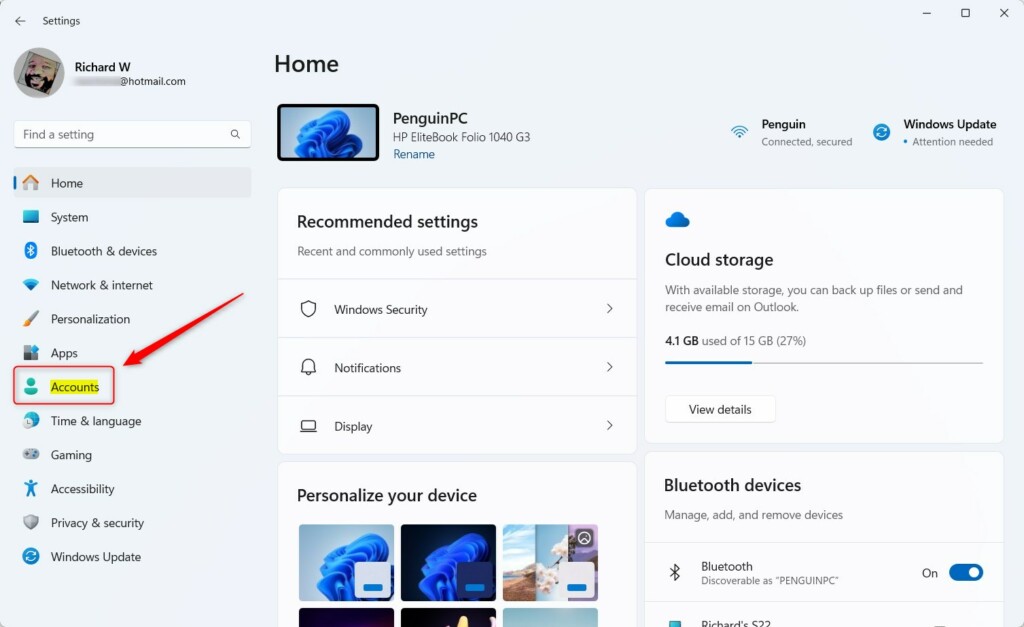
Step 2: Click Accounts in the Windows Settings list on the left. The page that opens shows your account details and your sign-in settings.
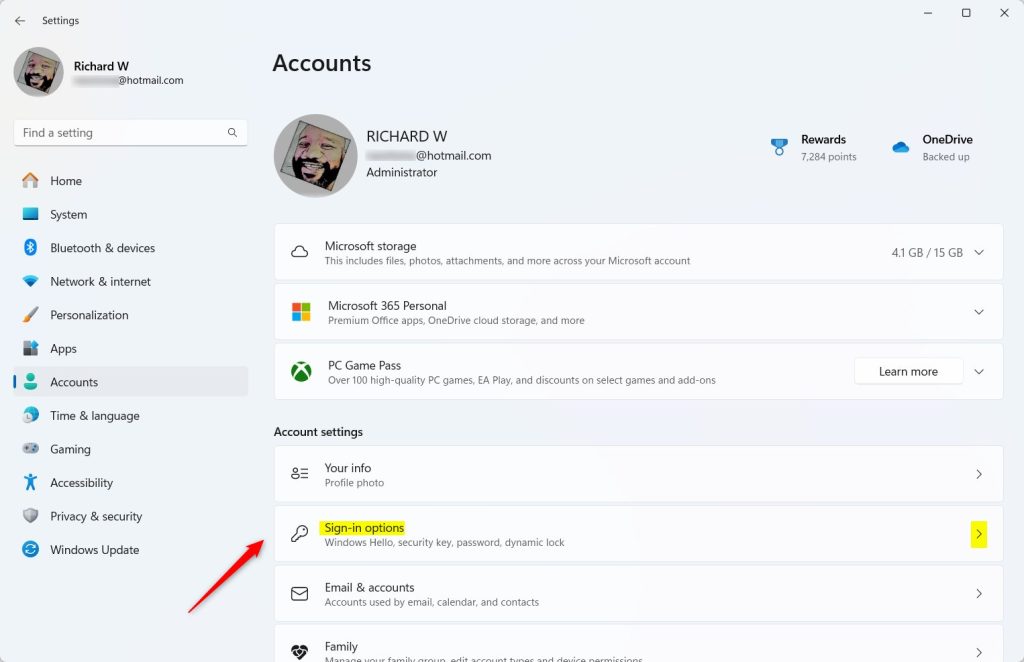
Step 3: Choose Sign-in options. You will see a list of the ways you can sign in. Each one expands when you click it. Set up a PIN, face, or fingerprint here, and Windows walks you through each one. Whichever method you set up, you also create a PIN as a backup.
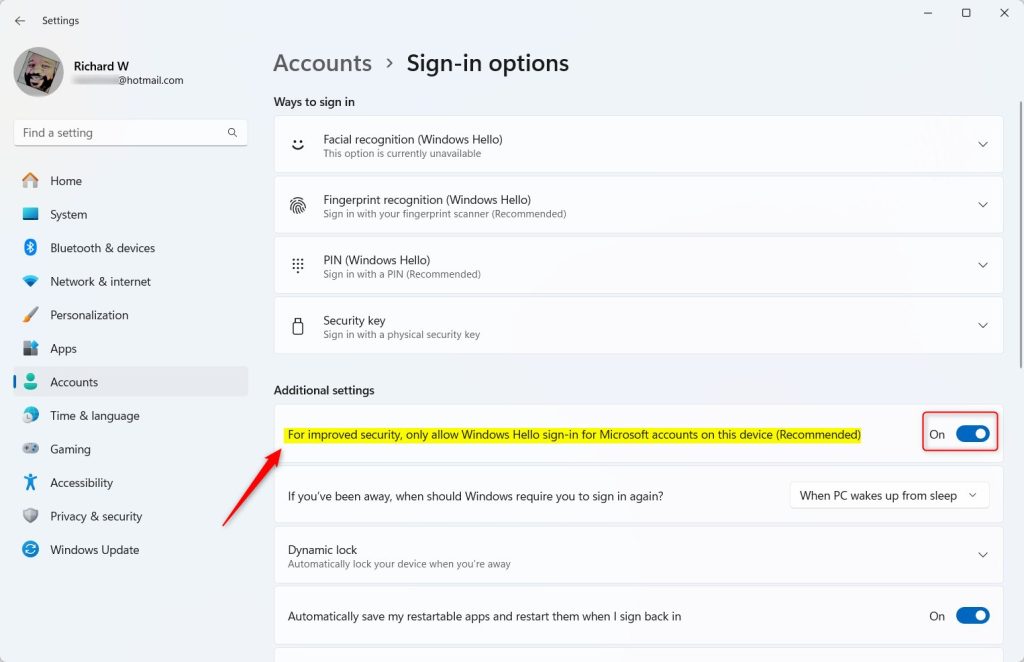
Step 5: Turn on the setting that allows only Windows Hello sign-in for Microsoft accounts. It sits under Additional settings on the same page. Its on-screen wording is along the lines of "For improved security, only allow Windows Hello sign-in for Microsoft accounts on this device". You should see the toggle switch to On.
Turning it on removes the password option from the sign-in screen, so make sure your PIN or biometric sign-in works first. If Windows asks you to sign out or restart for the change to take effect, do so. To undo it, return to the same page and switch the toggle to Off.
Why Use Windows Hello Only for Microsoft Accounts?
- Better security: Only you can unlock your computer using your face, fingerprint, or PIN.
- No more passwords to remember: Signing in is fast and easy.
- Protects your personal info: Helps keep your data safe from others.
Windows Hello gives you much better security than a typed password. You do not need to remember a complex password. Only your face, your fingerprint, or your PIN can unlock the PC. A PIN works only on the device where you created it, so someone who learns it cannot use it to sign in to your account from another computer.
If you forget your PIN, use the I forgot my PIN link on the sign-in screen. You will have to confirm your Microsoft account details to set a new one.
How to Use Fingerprint Sign-In
The Windows 11 device now runs with tighter access controls. Lock the PC with the Windows key + L and sign back in to confirm that your chosen method works.
Summary
Windows Hello sign-in for your Microsoft account is a fast, secure way to get into your Windows 11 PC. You can use your face, fingerprint, or PIN instead of a password. Setup is done in Settings under Accounts Sign-in options.
Was this guide helpful?

About the Author
Richard
Tech Writer, IT Professional
Richard is a writer at Geek Rewind who turns complex IT tasks into clear, step-by-step guides. He draws on years of hands-on experience in system administration and enterprise IT operations, focusing on Windows, Linux and WordPress: the problems people actually run into, and the fixes that work. His server and WordPress guides come from systems he runs himself. Richard builds and maintains the platform behind Geek Rewind, from its Ubuntu servers and Nginx configuration to its custom WordPress plugins. Many new tutorials start with readers' questions, and he's always glad to answer them in the comments.



No comments yet — be the first to share your thoughts!