How to Set Up Windows 11 Sign-in Options

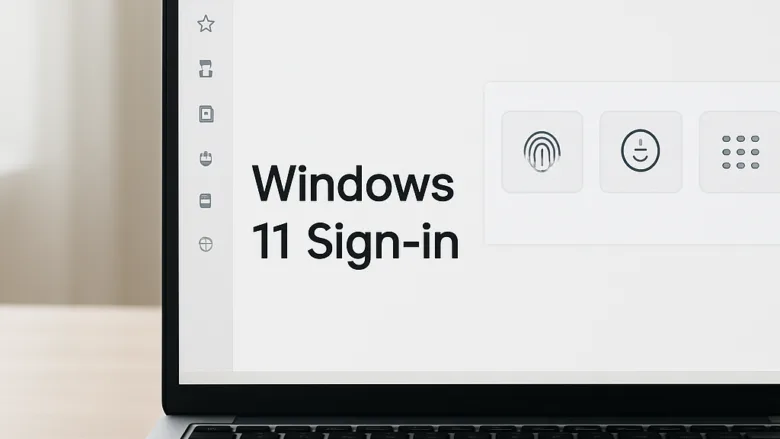
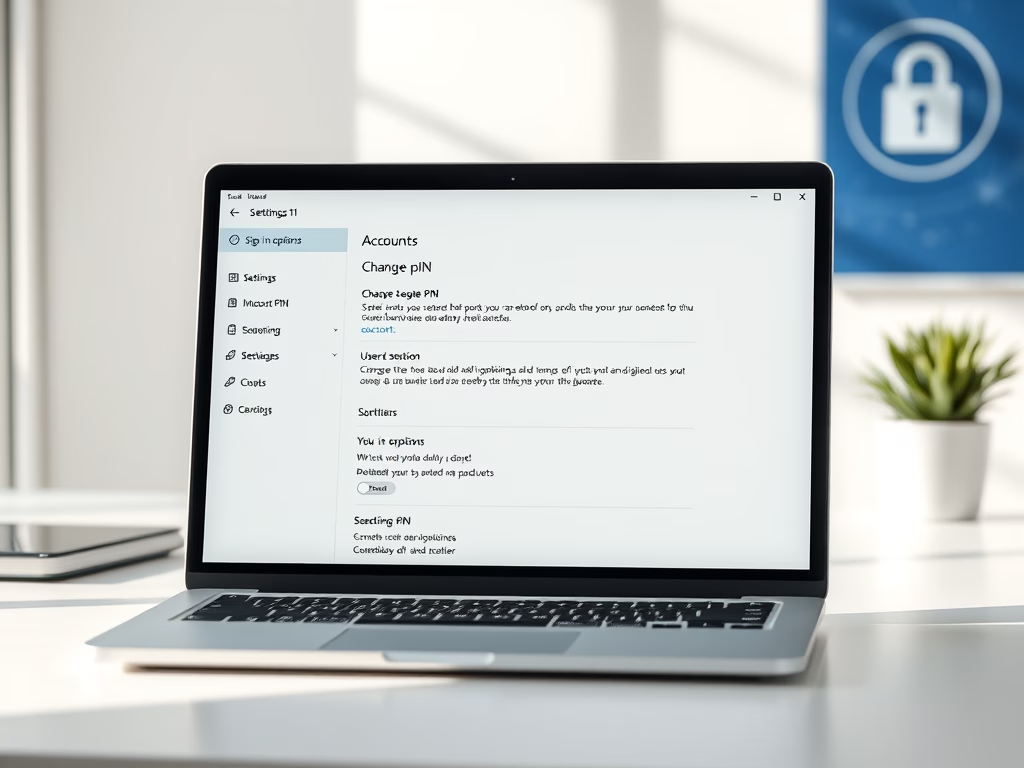
You find the sign-in options in Settings Accounts Sign-in options, and that page lets you unlock your PC with a PIN, password, fingerprint, or face scan. These built-in features protect your PC and speed up login on both Windows 11 Home and Pro, so you don’t have to type a long password every time.
A PIN must be at least 4 digits. You can make it stronger by allowing letters and symbols. Biometric options need compatible hardware, so you will only see them if your PC has a suitable camera or fingerprint reader. Here is how to reach the page:
- Press the Win+I. Settings opens.
- Click Accounts in the left pane.
- Click Sign-in options. You will see a list of the login methods available on your PC.
Methods your hardware can’t support are usually missing from the list or greyed out. That is normal and doesn’t mean anything is broken.
Windows 11 sign-in options let you choose how you unlock your computer. To add or change them, go to Settings Accounts Sign-in options. There, you can set up a PIN, password, facial recognition, fingerprint, or other methods to secure your account and log in.
Set Up Your Primary Sign-in Method
Start by choosing a main login method. This is the one you will use most days to reach the desktop. This section covers adding the basic credentials, a PIN and a biometric scan. The steps below set up a PIN as your sign-in method.
- Press the Win+I. Settings opens.
- Click Accounts in the left pane.
- Click Sign-in options. The list of available methods appears.
- Click the method you want to add, such as PIN (Windows Hello). The entry expands to show its buttons.
- Click Set up. Windows asks you to confirm who you are.
- Enter your account password when Windows asks for it.
- Follow the prompts to finish. For a PIN, that means typing the new PIN and confirming it, then clicking OK.
- Check for the confirmation. Windows shows one when the method is active.
Set up a PIN first. Windows Hello uses it as the fallback if a fingerprint or face scan fails, and it may ask for one before it lets you enrol a biometric. The fingerprint and face steps are covered further down.
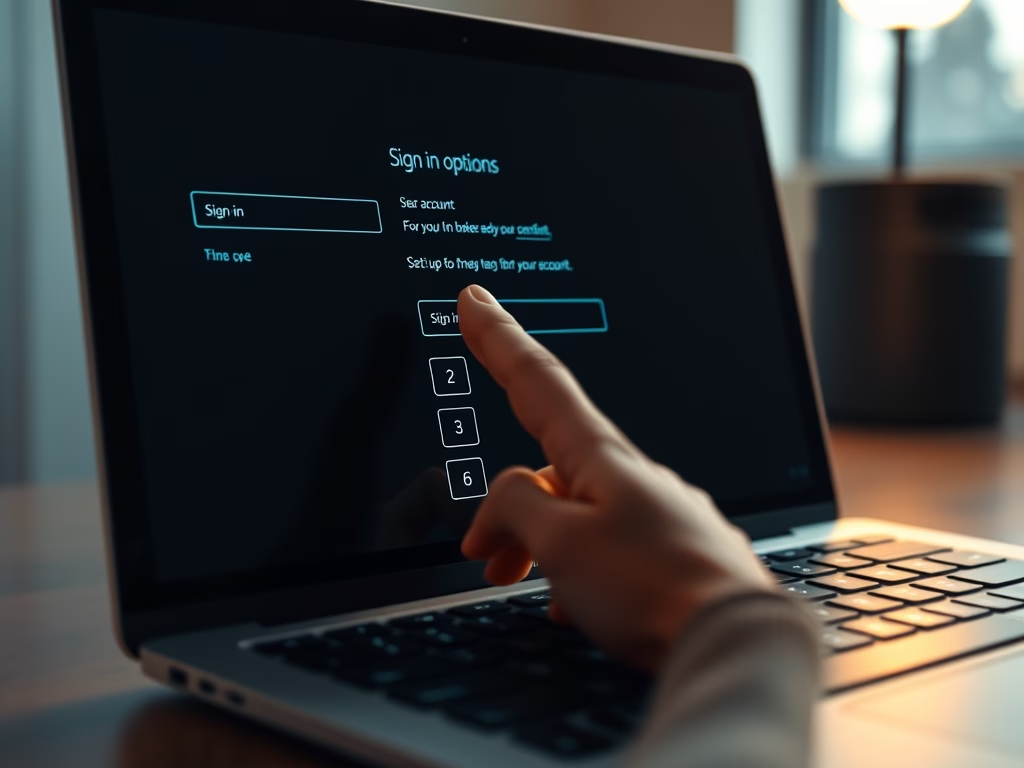
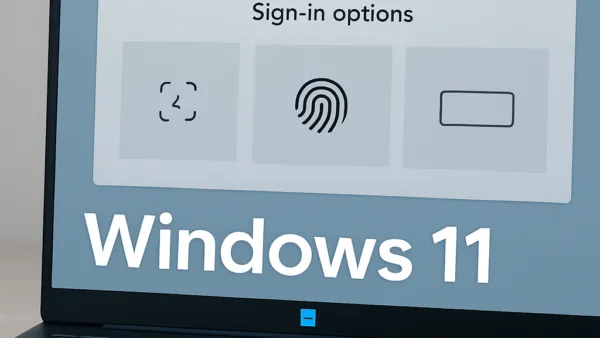
Manage and Change Your Sign-in Details
You may need to adjust a credential after the first setup. You can change an existing PIN, recover a forgotten one, or review the general security preferences. All of these are handled in the same Sign-in options page.
To change a PIN you remember:
- Go to Settings Accounts Sign-in options.
- Click PIN (Windows Hello) to expand it.
- Click Change PIN.
- Type your current PIN, then type the new PIN twice.
- Select Include letters and symbols if you want something stronger than digits.
- Click OK. The new PIN works the next time you sign in or unlock.
If your PC is managed by an employer or school, a policy may enforce PIN length or complexity. In that case Windows will reject a PIN that does not meet the rules. Ask your IT team what the rules are rather than guessing.
Advanced and Alternative Sign-in Settings
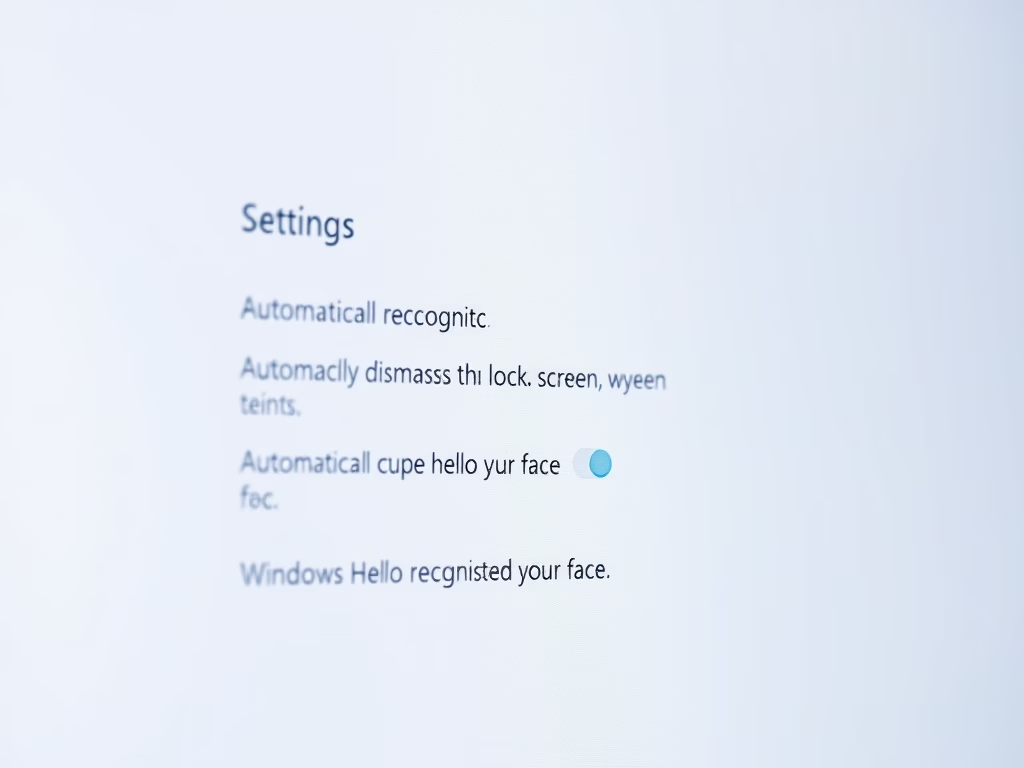
Some sign-in features trade a little convenience for tighter security, and some do the reverse. Automatic facial recognition and the display of previous login details both fall under this category.
Look under Additional settings on the Sign-in options page. Exactly which options appear depends on your Windows 11 version and hardware. These are the ones most people adjust:
- If you’ve been away, when should Windows require you to sign in again? Choose how long the PC can sit idle before it asks for credentials again. A shorter time is safer on a laptop you carry around.
- Show account details such as my email address on the sign-in screen Turn this off on shared or public machines so your email address is not visible.
- For improved security, only allow Windows Hello sign-in for Microsoft accounts on this device When this is on, Windows asks for Windows Hello instead of a password. It can also grey out the option to remove your PIN.
Changes take effect right away. You do not need to restart. To undo one, go back to the same page and flip the setting again.

Remove or Switch Sign-in Options
Removing a credential or going back to a standard password needs a few specific steps. Deleting an active PIN, or making sure your password still works as a backup, brings back the traditional login behavior.
- Go to Settings Accounts Sign-in options.
- Click PIN (Windows Hello) to expand it.
- Click Remove, then click Remove again to confirm.
- Enter your account password when asked. After that, you sign in with your password.
If Remove is greyed out, the Windows Hello-only setting under Additional settings is probably on. Turn it off, close and reopen Settings, then try again. You can add a PIN again at any time with Set up.

Common questions
What is Windows Hello?
Windows Hello handles biometric authentication, which means signing in with a physical characteristic such as your face or fingerprint. It also covers PIN sign-in. A PIN is tied to the single device you set it up on, so someone who learns it can’t use it to get into your account from another computer. That is why Windows Hello is generally considered safer than a password, which can be reused and stolen.
Can I use both a PIN and a password?
A numeric PIN gets you to the desktop faster, and your password stays available as a backup. Both are managed in the same place.
- Open Settings Accounts Sign-in options.
- Use PIN (Windows Hello) to add, change, or remove the PIN.
- Use Password to change your account password.
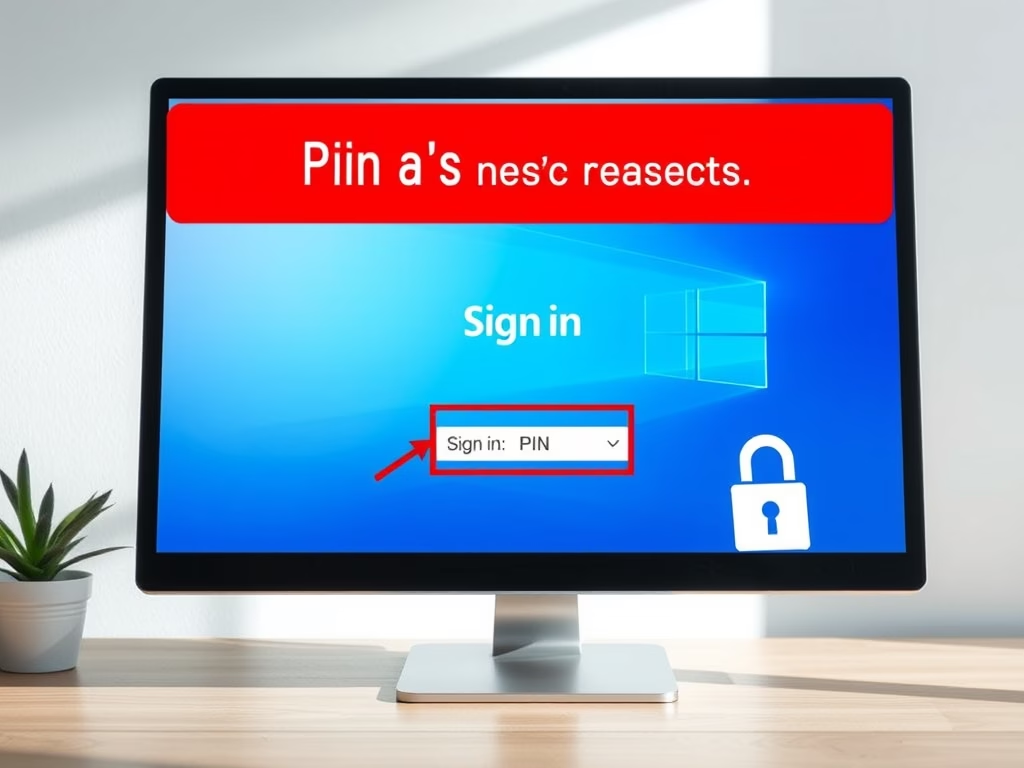
On a sign-in screen with more than one method, click Sign-in options below the entry box to switch between them. This is handy when a fingerprint scan fails and you want to type your PIN or password instead.
What if I forget my PIN?
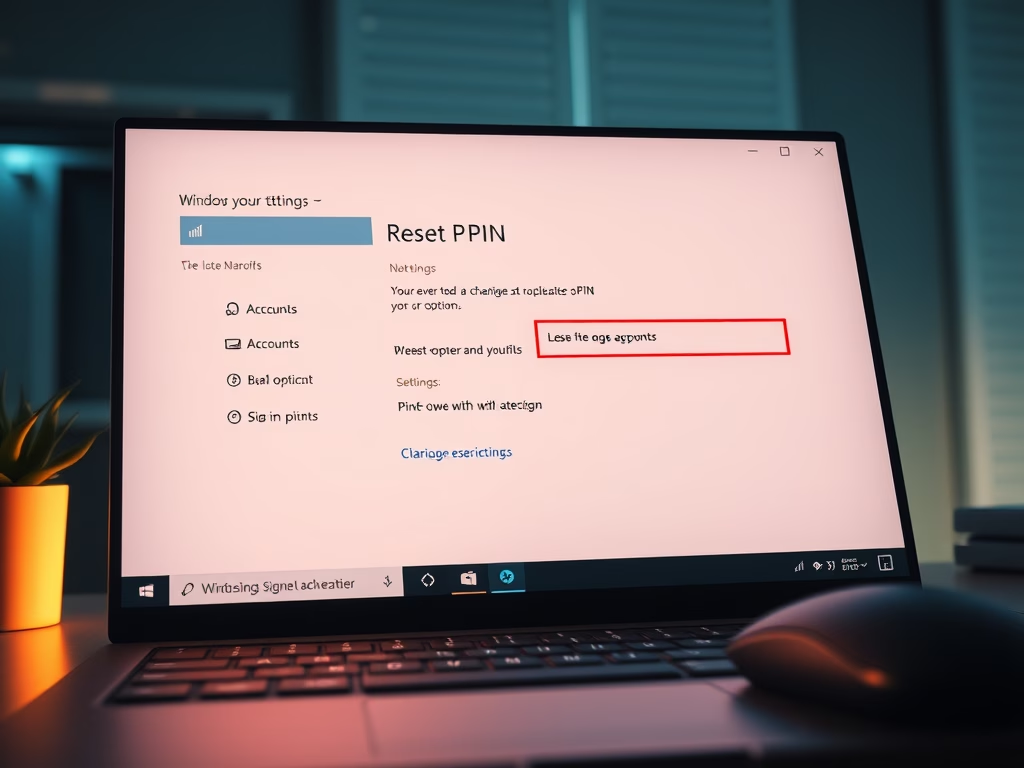
If you forget your PIN, Windows offers a recovery process. You will need your Microsoft account password or another security verification, such as a code sent to your phone or email.
- Click I forgot my PIN on the sign-in screen. It sits below the PIN box.
- Verify your identity when prompted.
- Create a new PIN and confirm it.
You can do the same from Settings Accounts Sign-in options if you are already signed in. Expand PIN (Windows Hello) and click I forgot my PIN.
How do I set up my fingerprint to sign in?
Fingerprint sign-in needs a compatible fingerprint reader attached to or built into the machine. If you do not see the option, the reader is missing or its driver is not installed.
- Go to Settings Accounts Sign-in options.
- Click Fingerprint recognition (Windows Hello).
- Click Set up, then Get started.
- Enter your PIN if asked.
- Touch the sensor repeatedly, lifting and repositioning your finger each time, until Windows reports the scan is complete.
You can then click Add another finger to register more fingers, or Remove to delete your saved scans. Registering a second finger is worth the minute it takes, since a cut or wet finger can fail a scan.
Is facial recognition secure?
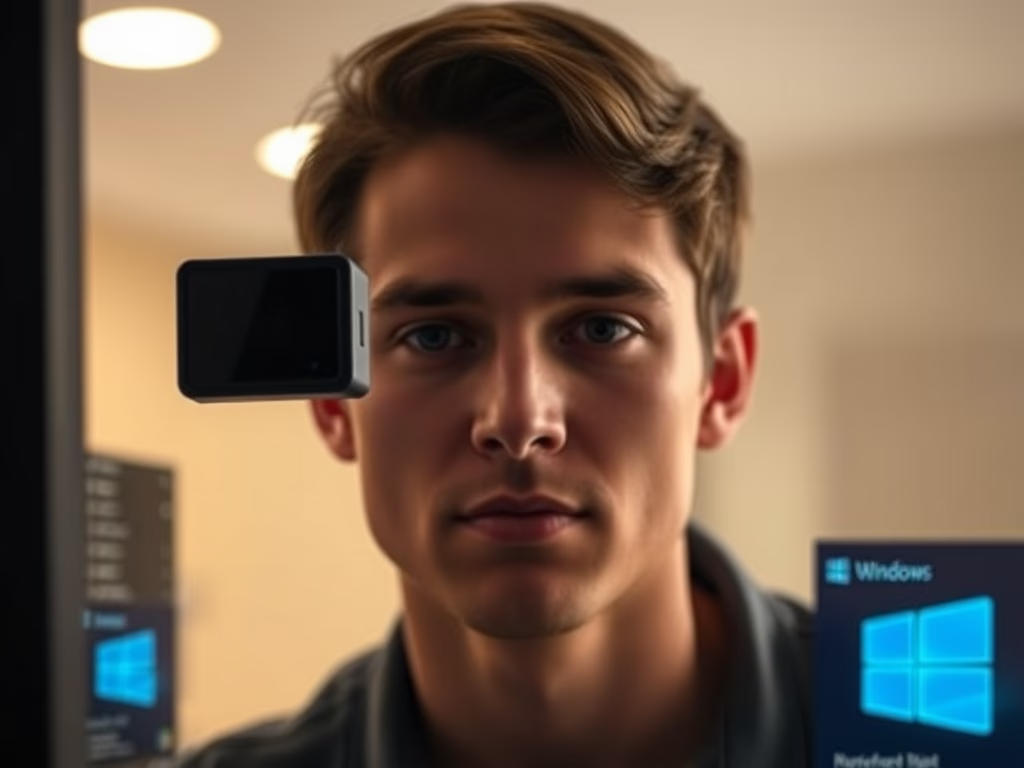
Facial recognition through Windows Hello maps the unique contours of your face with specialized hardware, usually an infrared camera. An ordinary webcam will not work. If Facial recognition (Windows Hello) is greyed out or missing, your PC lacks a compatible camera.
- Go to Settings Accounts Sign-in options.
- Click Facial recognition (Windows Hello), then Set up.
- Click Get started and enter your PIN.
- Look at the camera until the scan finishes and Windows confirms it.
If recognition becomes unreliable, for example after you change glasses or your lighting changes, click Improve recognition on the same page and run the scan again. Repeating it in different lighting makes recognition more accurate over time.
Frequently asked questions
How to change sign in options 🪟 Windows 11?
Open Settings, then go to Accounts and click Sign-in options. Choose the method you want to change, such as PIN (Windows Hello) or Password, and click Change or Remove. Windows asks you to confirm your current sign-in first. Changing a sign-in method does not delete your files or apps.
How to create username and pin for new system setup?
During setup, Windows asks you to create a username on the account screen, then a PIN on the Create a PIN screen. Enter a PIN of at least 4 digits and confirm it. You can add letters and symbols later by selecting Include letters and symbols in the PIN setup options. Finish the remaining prompts to reach the desktop.
How to change all passwords in to fingerprint login?
You cannot switch every password to fingerprint login. Fingerprint sign-in only replaces your Windows password at the sign-in screen. Passwords for websites and apps stay the same. To set it up, open Settings, go to Accounts, then Sign-in options, and select Fingerprint recognition (Windows Hello). Your PC needs a fingerprint reader.
How do I add paswords to my sign in methods on lapyop theres no password option under ways to sign in?
The Password option is missing because your account has no password yet. Open Settings, go to Accounts, then Sign-in options, and look for Password. If it is still missing, select Add a password under your account settings. If you use a Microsoft account, change your password at account.microsoft.com instead.
How to add a pin to Windows11?
Open Settings, go to Accounts, and click Sign-in options. Select PIN (Windows Hello), then click Set up or Add. Confirm your account password when Windows asks. Enter a PIN of at least 4 digits, confirm it, and click OK. The PIN is saved on your PC only.
Where is sign in options on surface pro 🪟 Windows 11?
Sign-in options on a Surface Pro are in Settings. Press the Win+I, click Accounts, then click Sign-in options. You will see PIN, Password, and any biometric options your Surface supports, such as Facial recognition (Windows Hello) or Fingerprint recognition (Windows Hello).
Still have a question?
Answered by AI from this guide. Good questions may be added to this page — please don't include personal details.
Did this guide fix your problem?

About the Author
Richard
Tech Writer, IT Professional
Richard is a writer at Geek Rewind who turns complex IT tasks into clear, step-by-step guides. He draws on years of hands-on experience in system administration and enterprise IT operations, focusing on Windows, Linux and WordPress: the problems people actually run into, and the fixes that work. His server and WordPress guides come from systems he runs himself. Richard builds and maintains the platform behind Geek Rewind, from its Ubuntu servers and Nginx configuration to its custom WordPress plugins. Many new tutorials start with readers' questions, and he's always glad to answer them in the comments.
No comments yet — be the first to share your thoughts!